
If your iPad Pro (M4) is tied to a single carrier, these steps will help you unlock it to use with any network.
Contact Your Original Carrier First
This is almost always the best place to start. If you bought your iPad Pro directly from a carrier like AT&T, T-Mobile, or Verizon, they are the ones who applied the lock. They are also obligated to unlock it for you if you meet their specific requirements. I'd start here, as it's usually free and the most straightforward method.
You'll need to get in touch with their customer support, either by phone or through their website. Have your account details and your iPad's IMEI number ready. You can find the IMEI by going to Settings > General > About and scrolling down.
Check Your Unlock Eligibility
Before the carrier will process your request, your iPad Pro needs to meet certain conditions. These typically include having the device fully paid off, not being reported as lost or stolen, and having completed any required service contract.
Your account also needs to be in good standing with no outstanding balances. The carrier will verify all of this before they generate and send you the unique Network Unlock PIN, which is usually an 8 to 16-digit code.
Insert a New SIM Card to Trigger the Prompt
Once you have the unlock code from your carrier, the actual unlocking happens on the iPad itself. First, power the iPad Pro down completely. Remove the current SIM card from the tray and insert a new SIM from a different carrier that you want to switch to.
Turn your iPad back on. If it's still locked, you should see a message on the screen asking for the "SIM Network Unlock PIN" or "Network Unlock Code." Carefully enter the code you received from your carrier. Be precise, as too many incorrect attempts can cause problems.
Use the Built-in Carrier Unlock Feature in iPadOS
For some carriers, especially if you requested the unlock online, the process can be automated. After the carrier approves your request, they may push the unlock to your device over the network.
To check if this has happened, ensure your iPad Pro is connected to Wi-Fi. Then, go to Settings > General > About. If the unlock was successful, you should see a message that says "No SIM restrictions" or "Carrier Lock: No SIM Lock." Sometimes, a simple restart is needed for this to update.
Consider a Reputable Third-Party Unlocking Service
If your original carrier is unable or unwilling to provide the code, perhaps you bought the iPad second-hand and the original owner isn't available, a third-party service is an option. These services use your iPad's IMEI number to generate an unlock code for a fee.
It's crucial to research and choose a service with strong, verifiable reviews and a money-back guarantee. Avoid any service that promises "instant free unlocks," as these are often scams. A legitimate service will typically deliver the code within 24 to 48 hours.
Factory Reset as a Last Resort (With Caution)
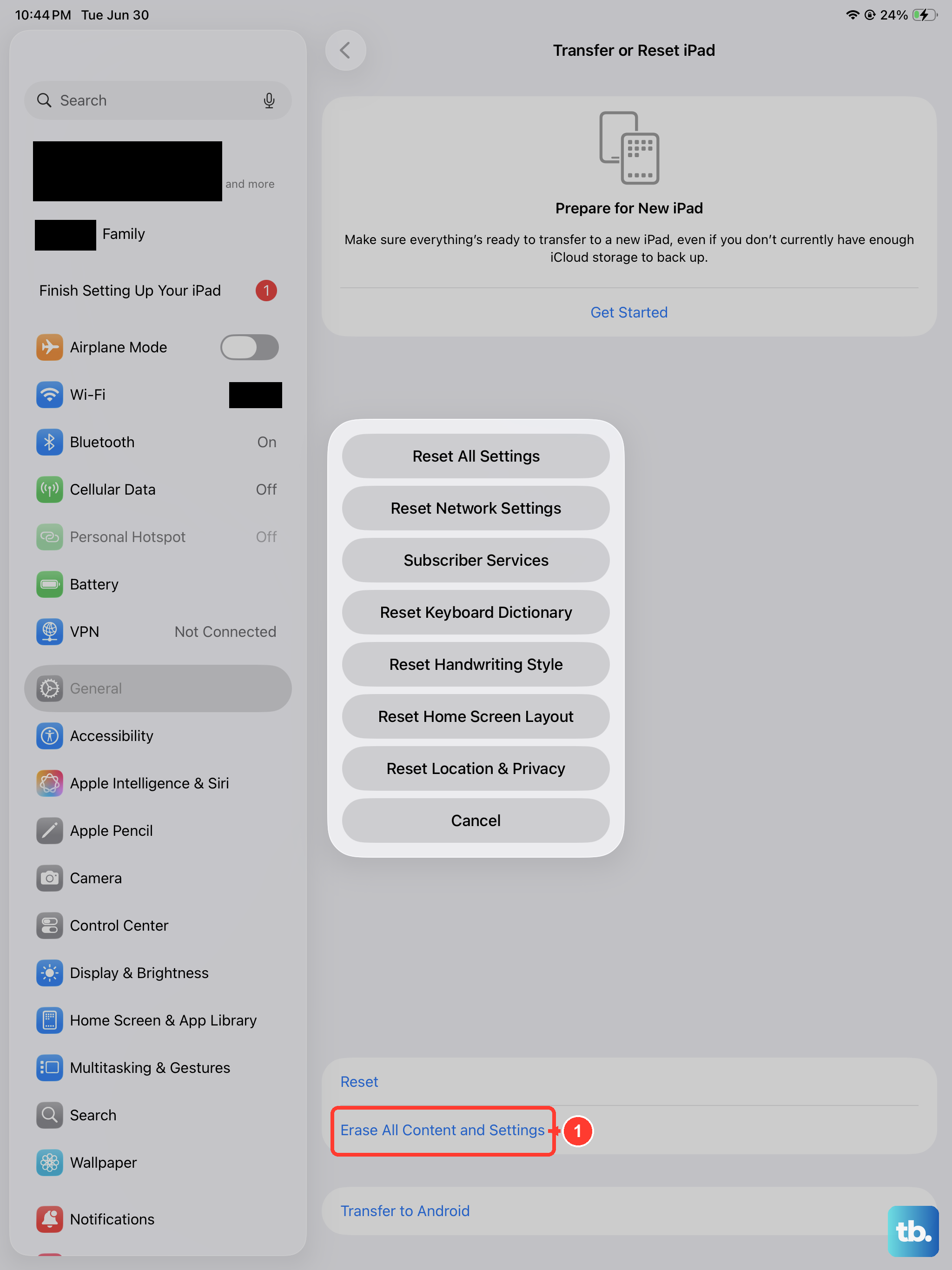
In some cases, particularly if the unlock was processed by the carrier in the background, a factory reset can help the iPad recognize its new unlocked status. This will erase all data and settings on your iPad Pro, so you must have a complete backup in iCloud or on your computer first.
To do this, go to Settings > General > Transfer or Reset iPad > Erase All Content and Settings. After the iPad restarts and you go through the setup process, insert the new carrier's SIM card to see if it activates normally.
What to Do If You Get a "SIM Not Supported" Error
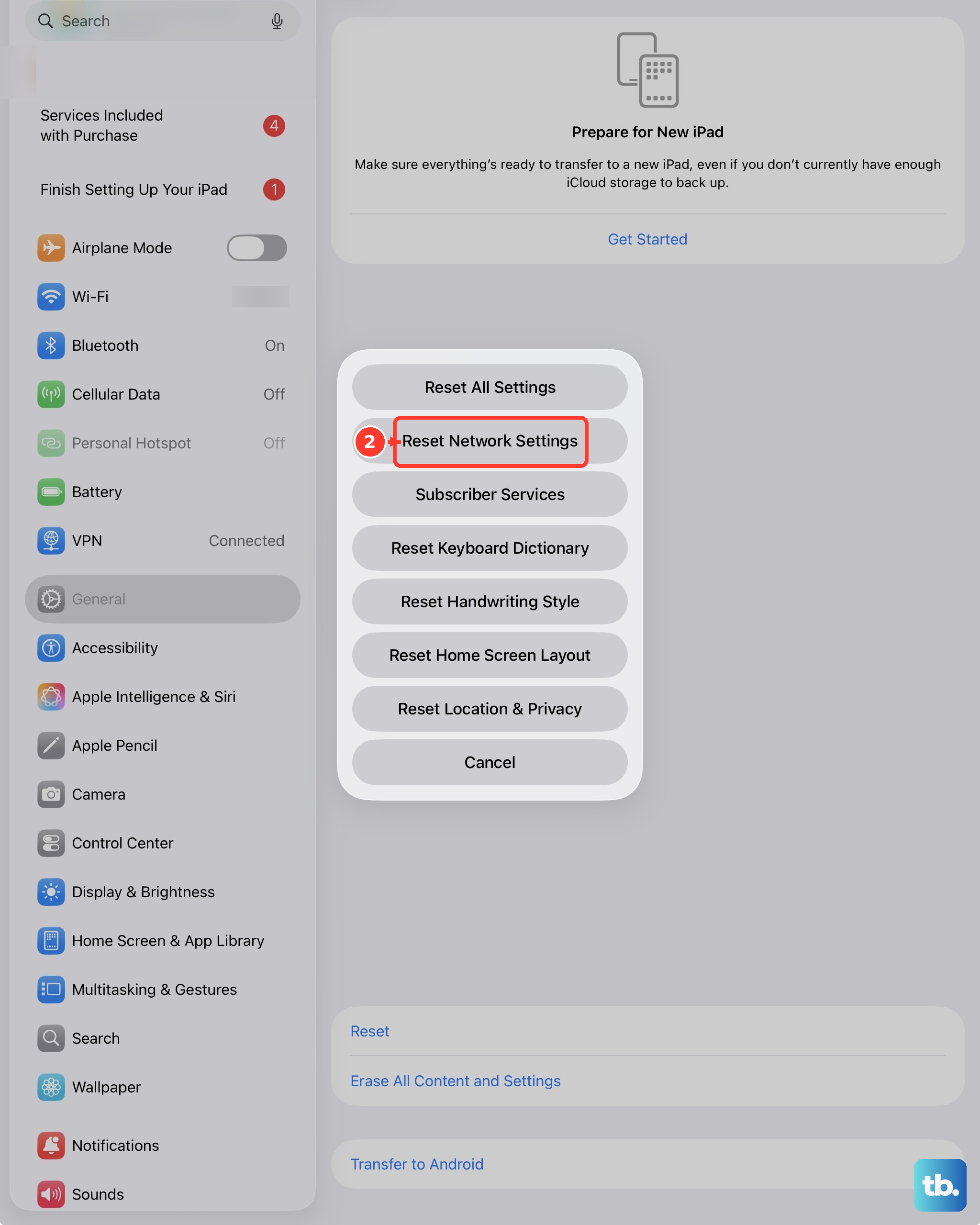
If you insert a new SIM and get this error without a prompt for a code, it usually means the carrier hasn't processed the unlock yet, or there's a network setting issue. First, double-check with your original carrier that the unlock was completed on their end.
You can also try resetting the network settings on your iPad Pro. Go to Settings > General > Transfer or Reset iPad > Reset > Reset Network Settings. This will clear all Wi-Fi passwords and cellular settings, which can sometimes resolve the glitch.
Verify the Unlock Was Successful
After you've gone through the process, it's good to confirm everything worked. The best way is to check in Settings > General > About again for the "No SIM restrictions" message.
You can also test it practically by inserting SIM cards from two different carriers. If both connect to their respective networks and allow you to make calls or use data, then your iPad Pro (M4) is successfully unlocked and free to use anywhere.