
When the predictive text on your iPad Pro (M4) stops working, it can really slow you down. You might notice it stops suggesting words entirely, offers bizarre or irrelevant suggestions, or the autocorrect becomes overly aggressive. The good news is this is almost always a software hiccup that you can fix yourself. Let's walk through the most effective solutions.
Restart Your iPad Pro
This is the quickest fix and often the most effective. A simple restart clears out temporary glitches in iPadOS 26 that can confuse the keyboard's language model. If you haven't rebooted your device in a while, I'd start with this one.
Just hold the Power button and either Volume button, then slide to power off. Wait about 30 seconds, then turn it back on. For a more thorough reset, you can perform a force restart. Press and quickly release the Volume Up button, then quickly press and release the Volume Down button. Finally, press and hold the Power button until you see the Apple logo appear.
Toggle Predictive Text Off and On
Sometimes the feature just needs a quick refresh. Head to Settings > General > Keyboard. On this screen, you'll find the "Predictive Text" toggle at the very top.
Tap the switch to turn it off. Wait a second, then tap it again to turn it back on. This resets the connection between the keyboard software and the predictive engine. Open any app and start typing to see if word suggestions have returned.
Check Your Keyboard and Language Settings
Incorrect settings can prevent predictions from working properly. Go back to Settings > General > Keyboard. Here, you want to ensure a few things are set up correctly.
First, tap "Keyboards" to see which ones are active. Make sure the primary keyboard you use, like the English keyboard, is listed. If you have multiple languages enabled, the predictive model can get confused. You might try removing secondary languages temporarily.
Also, under the main Keyboard settings, check that "Auto-Correction" and "Check Spelling" are enabled. These features work in tandem with predictive text.
Reset the iPad's Keyboard Dictionary
Your iPad learns words you frequently use and adds them to a personal dictionary. If this file becomes corrupted, it can break predictions. Resetting it clears all those learned words and custom shortcuts.
To do this, navigate to Settings > General > Transfer or Reset iPad. Tap "Reset" at the bottom. On the next screen, select "Reset Keyboard Dictionary". You'll need to enter your passcode to confirm.
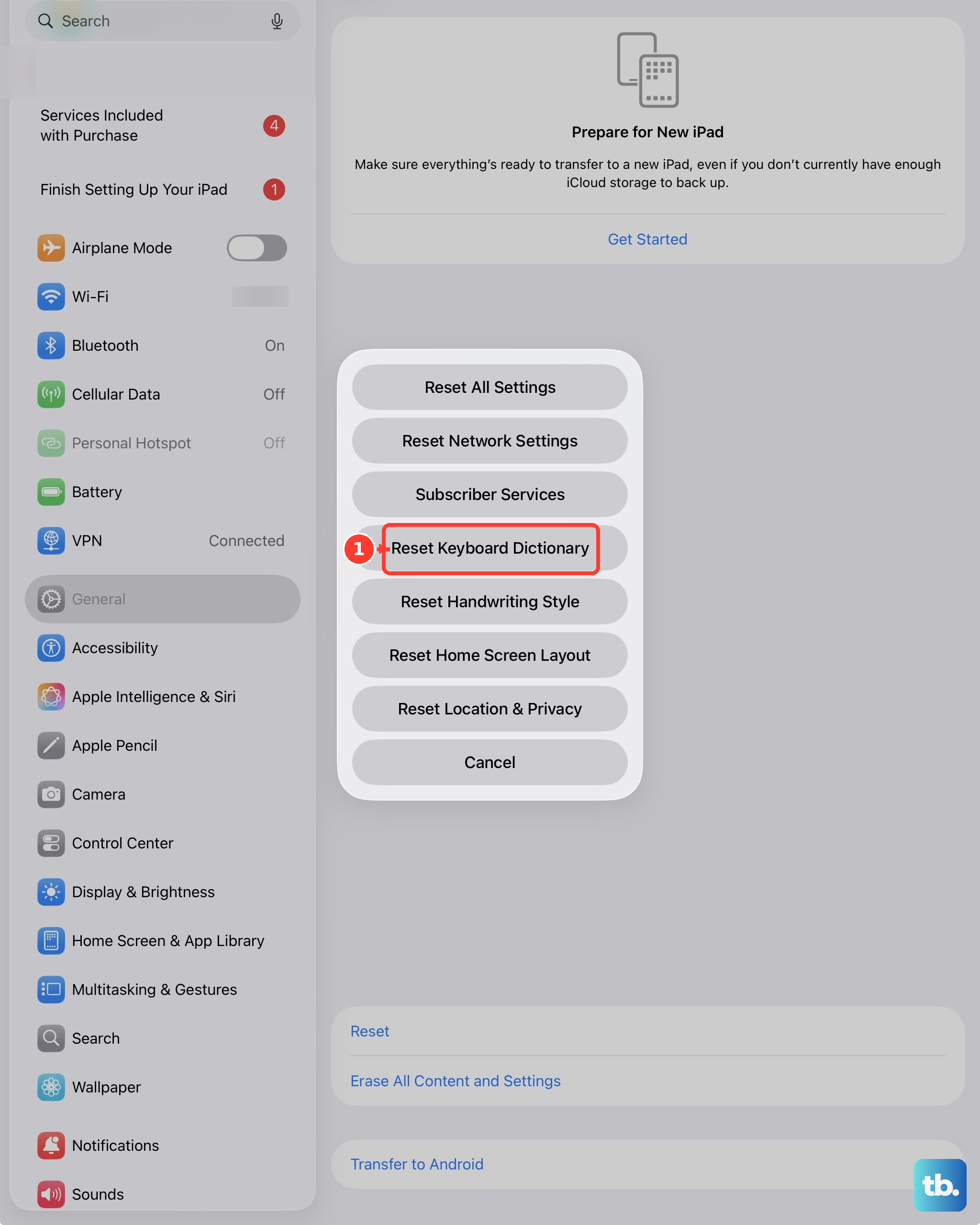
Be aware this will erase all words you've added that aren't in the standard dictionary, like slang or names. Your keyboard will have to relearn your typing habits over time.
Update iPadOS
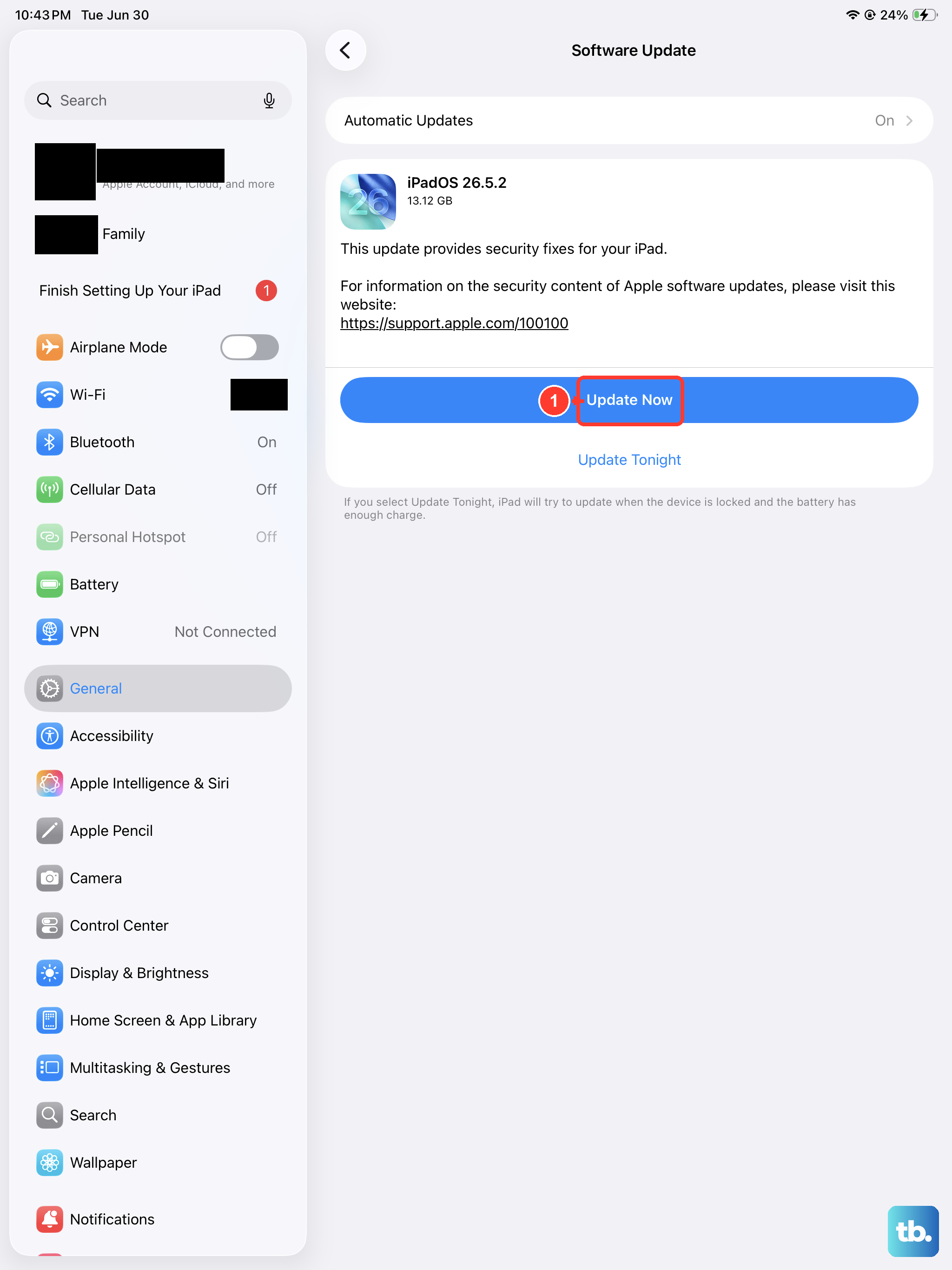
Apple frequently releases updates that include fixes for system apps, including the keyboard. An outdated version of iPadOS 26 could be the root of your problem.
Open Settings > General > Software Update. Your iPad Pro will check for available updates. If one is listed, tap "Download and Install". Make sure your device is connected to power and Wi-Fi during this process.
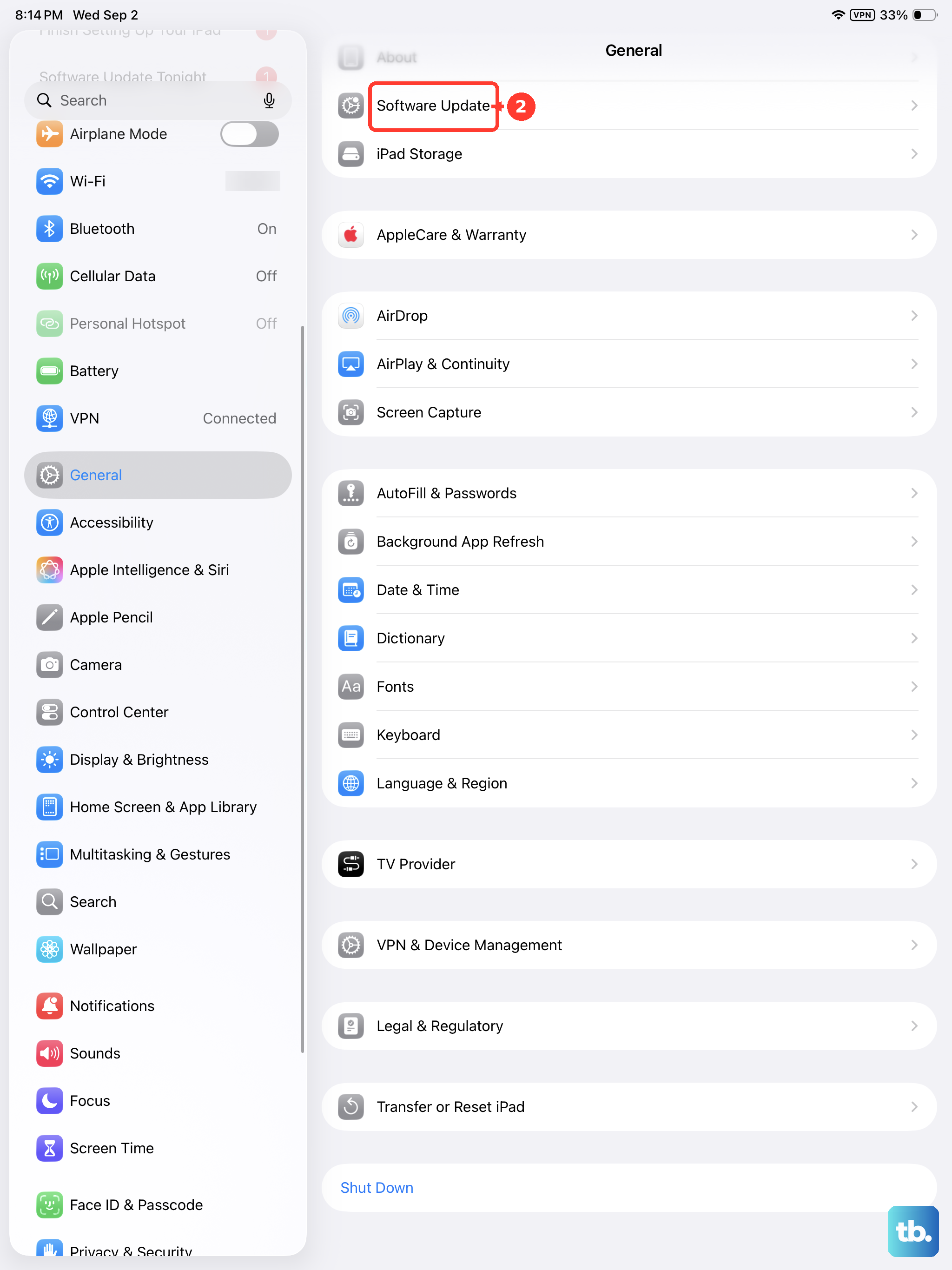
I've seen minor point updates resolve quirky keyboard behavior more often than you'd think. It's always worth checking.
Reset All Settings
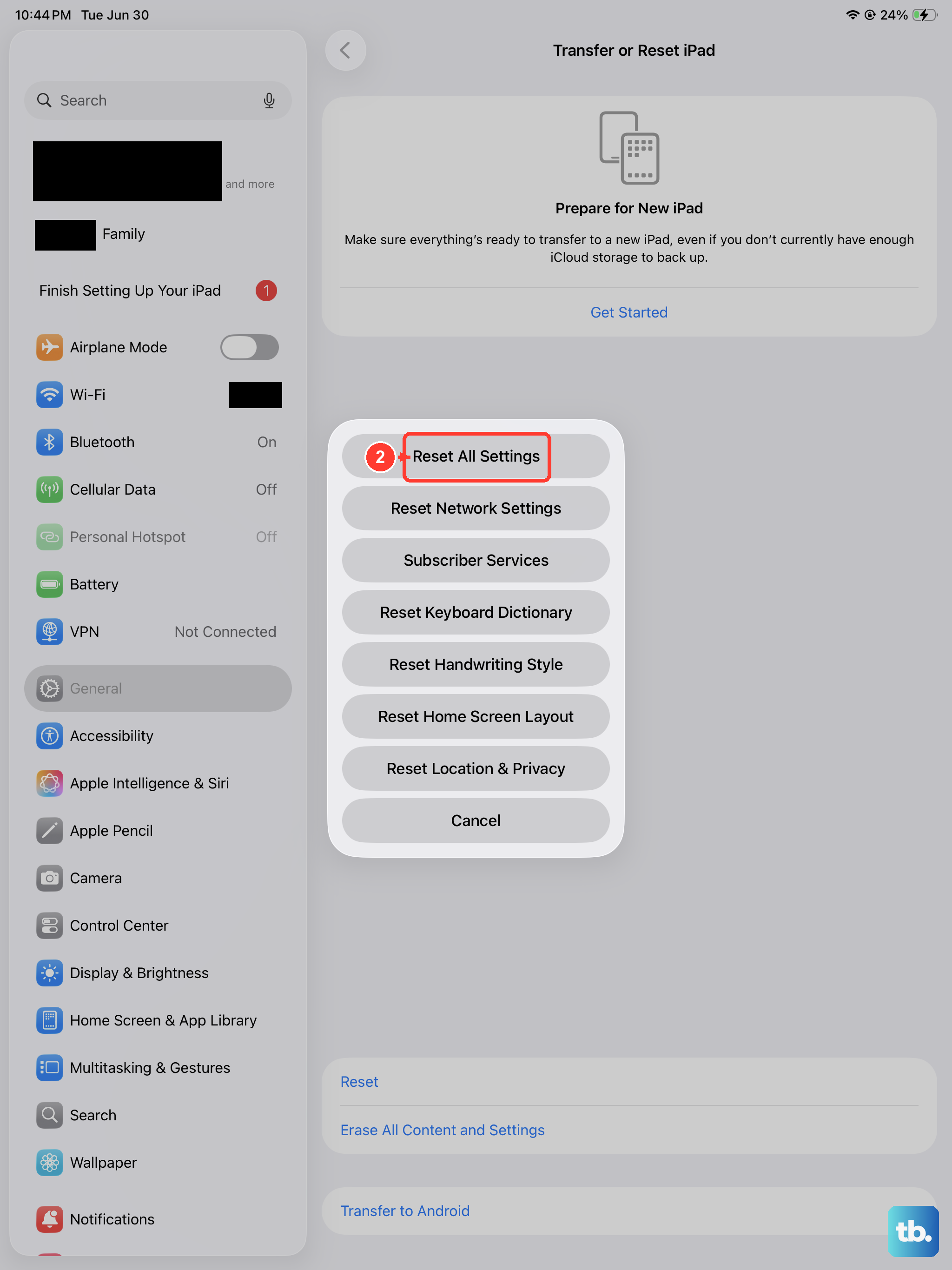
If nothing else has worked, this is your nuclear option for software issues. It resets every system setting on your iPad Pro, network, wallpaper, privacy, and keyboard settings, back to factory defaults without erasing your personal data or apps.
Go to Settings > General > Transfer or Reset iPad > Reset. Choose "Reset All Settings". You'll need to enter your passcode and confirm. After the iPad restarts, you'll need to reconfigure things like Wi-Fi passwords and Face ID, but your predictive text should be working from a clean slate.