
Seeing a notification badge on your Messages or Mail app that just won't go away, even though you've read everything, is a common annoyance on the iPad Pro. It's usually a simple software hiccup where the notification system gets its count wrong. The good news is you can almost always fix it yourself in a few minutes.
I'd start with a force restart. It's the quickest fix and clears out any temporary glitches in iPadOS 26 that might be causing the badge to stick. On your iPad Pro (M4), press and quickly release the Volume Up button, then quickly press and release the Volume Down button. Finally, press and hold the Power button until you see the Apple logo appear, then let go. This doesn't erase any data, it just gives the system a fresh start.
Check Notification Settings for the Problem App
Sometimes, the issue is specific to one app. The notification settings might have gotten into a weird state. Head to Settings > Notifications. Find the app that's showing the persistent badge (like Messages or Mail) and tap on it.
First, make sure notifications are allowed at the top. Then, look for the Badges toggle. Try turning it off, waiting a moment, and then turning it back on. This can reset the badge counter for that specific application and clear the phantom notification.
Force Quit and Reopen the App
Before diving deeper into settings, give the app itself a fresh start. Swipe up from the bottom of the screen (or double-click the Home button if you have that set up) to enter the app switcher. Find the app's preview and swipe it up and off the top of the screen to close it completely.
Wait a few seconds, then tap the app icon on your Home Screen to relaunch it. This forces the app to re-check with the notification server and often corrects a mistaken badge count immediately.
Sign Out and Back Into Your Apple ID
Since notifications for services like iMessage and Mail are tied to your Apple ID, signing out can reset their connection. Go to Settings and tap your name at the top. Scroll all the way down and choose Sign Out.
You'll be asked if you want to keep a copy of your data on the iPad; it's safe to say yes. After signing out, restart your iPad Pro using the power menu. Then, go back into Settings, sign back in with your Apple ID, and check if the notification badge has cleared.
Update iPadOS to the Latest Version
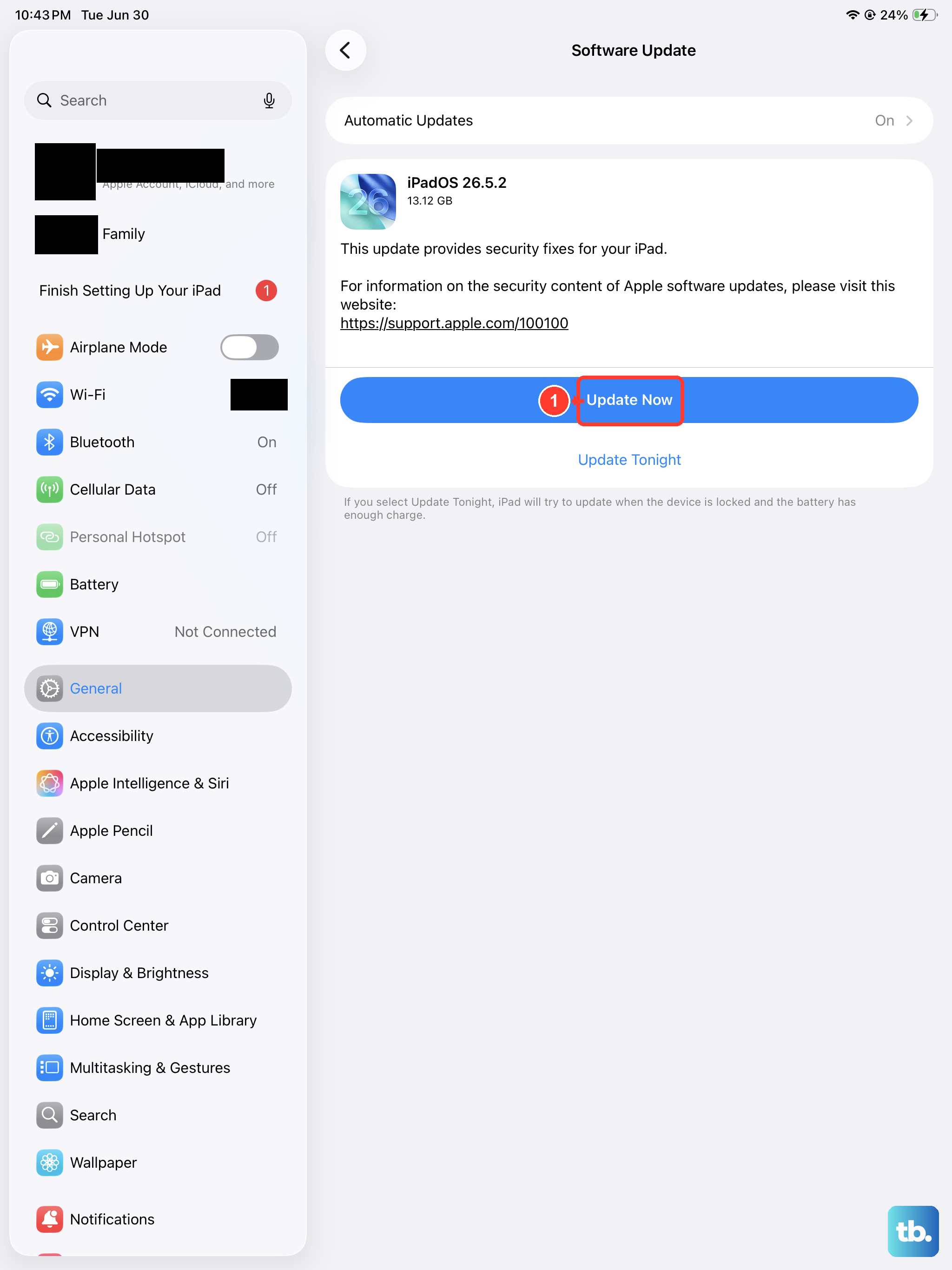
Apple frequently releases software updates that include bug fixes for the notification system. An update could resolve the exact issue you're facing. Connect your iPad to Wi-Fi and plug it into power using a 30W or higher USB-C PD charger to ensure the update doesn't get interrupted.
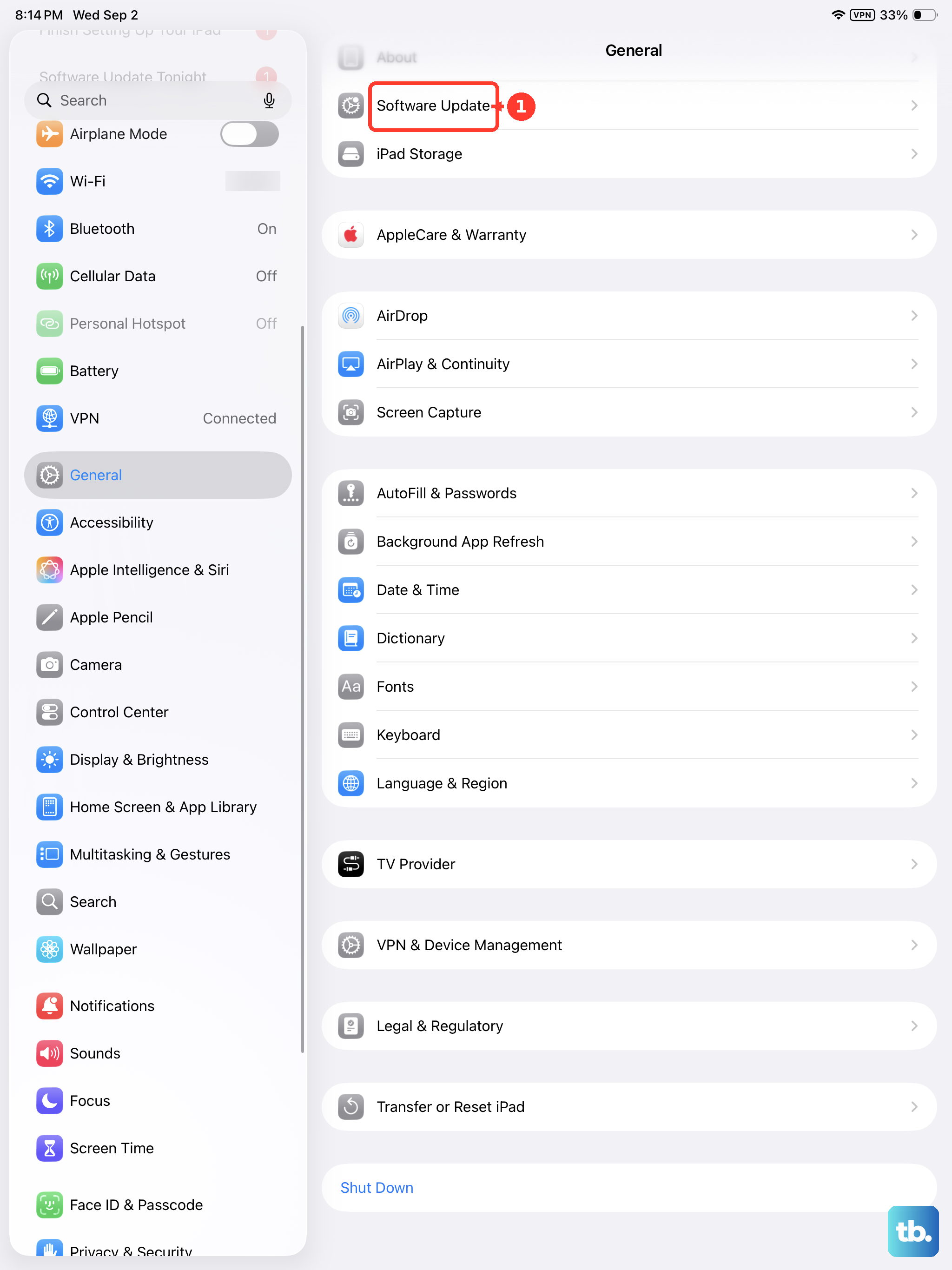
Then, open Settings > General > Software Update. If an update is available, tap Download and Install. I've seen minor point updates clear up persistent notification bugs on past iPad models.
Reset All Settings
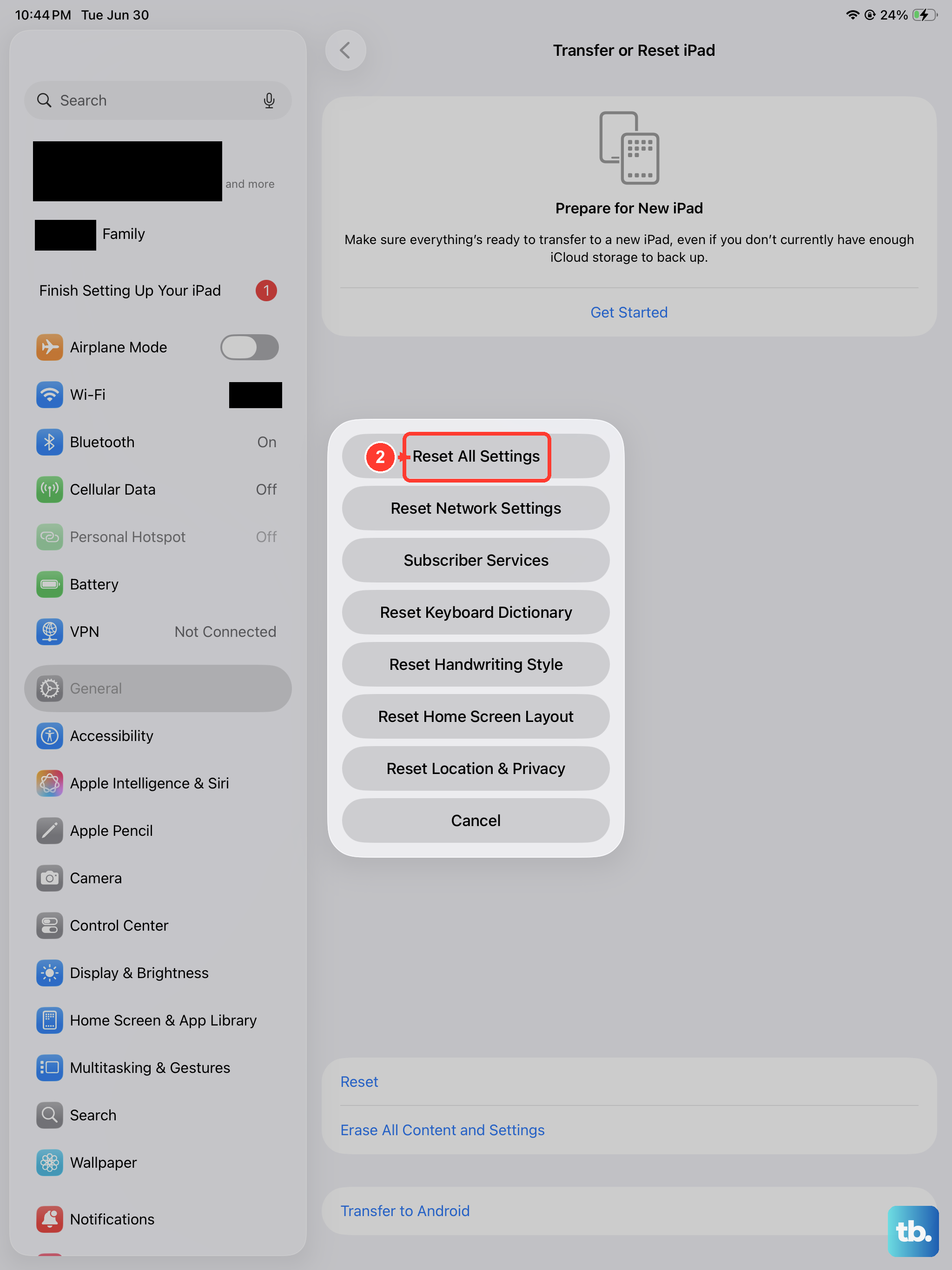
If the badge is still stuck after trying the steps above, you can try resetting all settings. This will revert all your personal preferences, like Wi-Fi passwords, wallpaper, and privacy settings, back to their defaults, but it won't touch your apps or data.
To do this, go to Settings > General > Transfer or Reset iPad. Tap Reset and then choose Reset All Settings. You'll need to enter your passcode. After the iPad restarts, you'll need to reconfigure things like Face ID and your wallpaper, but the notification system will be completely refreshed.
Check Focus Modes and Scheduled Summary
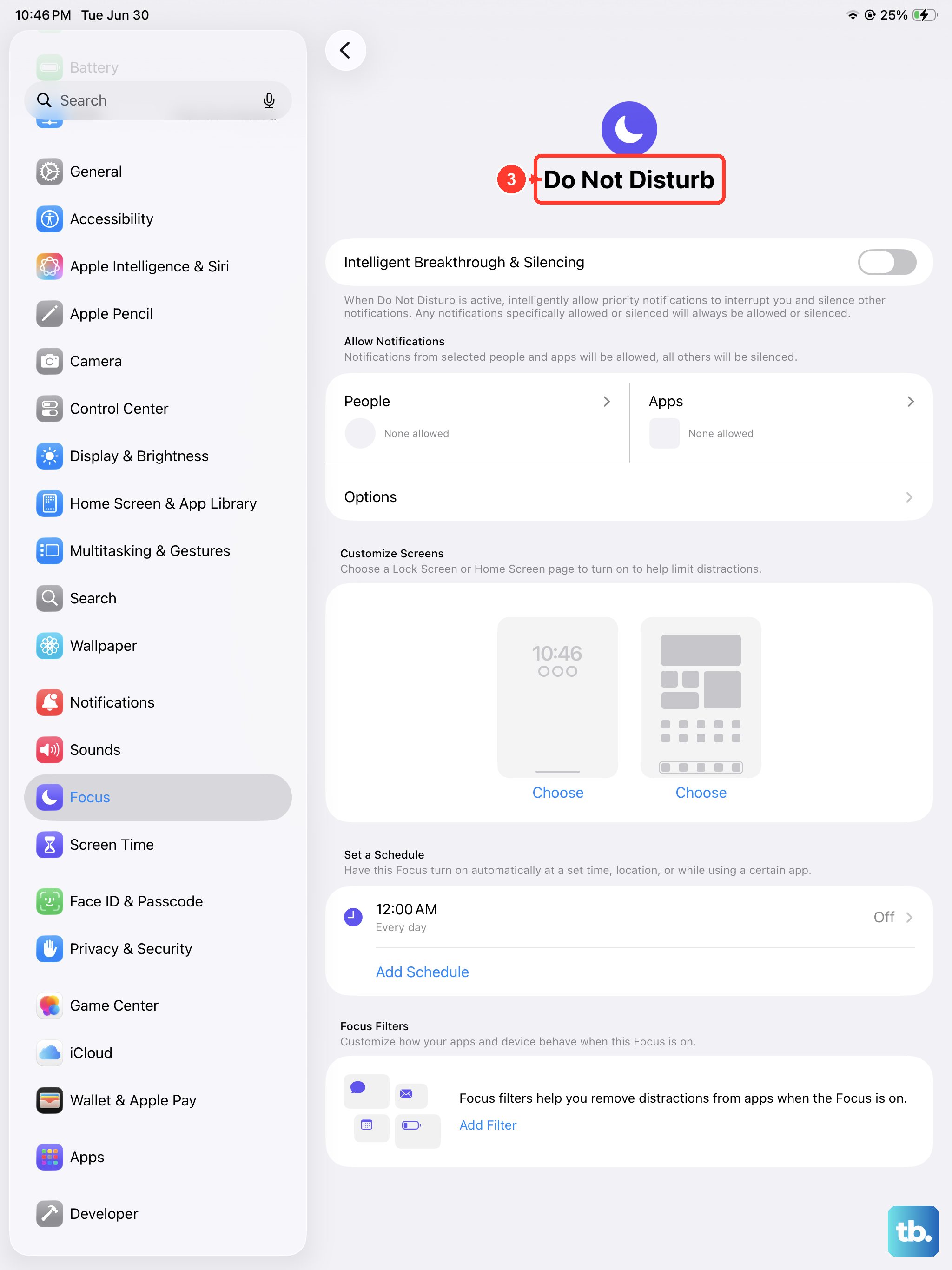
iPadOS 26's Focus modes are powerful but can sometimes hide or delay notifications in a way that makes badges seem incorrect. Swipe down from the top-right corner to open Control Center and look at the Focus icon. Make sure you don't have a Focus active that's silencing notifications from the app in question.
Also, go to Settings > Notifications > Scheduled Summary. If this is on, notifications from selected apps are delivered in batches at set times. An app included in your summary will not show a live badge until its scheduled delivery time. You can remove the app from the summary here if you want instant badges.
Review Notification Grouping
The way notifications are grouped can also affect badge counts. In Settings > Notifications, tap the app and look for the Notification Grouping option. If it's set to "Automatic" or "By App," try changing it to "Off" temporarily.
This will make every notification appear individually. Dismiss all the notifications for that app, then check if the badge clears. You can always change the grouping back to your preferred style afterward. This process can help the system reconcile its internal count.