Your headphones used to work fine, and now your iPad Pro (M4) acts as if they are not there. Maybe your AirPods show as connected but every sound still comes out of the iPad's speakers, or your wired pair plays nothing at all when you plug it in. Sound problems on a tablet this capable are almost always fixable without a repair, and most come down to where the audio is being sent, how the headphones connect, or a temporary software hiccup. This guide covers the iPad Pro with the M4 chip (the 11-inch and 13-inch models) and walks through ten fixes in order, starting with the quickest and safest and ending with a full restore and a call to Apple Support.
It helps to confirm what actually works before changing settings. Run a online headphone test, note which channels and frequencies play correctly, and match the result against the steps below.
Check the volume and where your audio is going first
Before you assume the headphones are broken, make sure the sound is actually being sent to them. The iPad can route audio to its own speakers or to another nearby device, so your headphones can look fine while the playback destination points somewhere else.
Start playing audio so the playback control is active.
Open Control Center by swiping down from the upper-right corner.
Then tap the AirPlay/playback-destination control, then select your headphones.
Raise the volume with the buttons or the Control Center slider while you test. With a Bluetooth device, stay close to the iPad while you check so the connection stays stable.
Use the right connection because there is no headphone jack
The iPad Pro (M4) has no 3.5 mm headphone jack, so a standard headphone plug has nothing to go into directly. You can connect headphones three ways: Bluetooth, wired headphones that end in a USB-C connector, or standard 3.5 mm headphones through the Apple USB-C to 3.5 mm Headphone Jack Adapter (sold separately).
If you have a 3.5 mm pair, plug the adapter into the USB-C port on the iPad, then plug your headphones into the other end. Confirm you are not trying to push a 3.5 mm plug straight into the iPad, which is one of the most common reasons wired headphones seem dead on this model.
Reseat a wired pair and inspect the USB-C port
A loose or dirty connection will silence wired headphones even when nothing is actually broken. Firmly plug the headphones (or the USB-C adapter) back into the USB-C port; if your iPad has a case, you may need to remove it to get a firm connection.
Check the cable, connector, and earbuds for wear or breakage, and look for debris in the port and on the earbud meshes. To remove debris, gently brush all openings with a small, soft-bristled brush that is clean and dry. Try a second pair of headphones, and if those work, the first pair may need replacing.
Update to the latest version of iPadOS
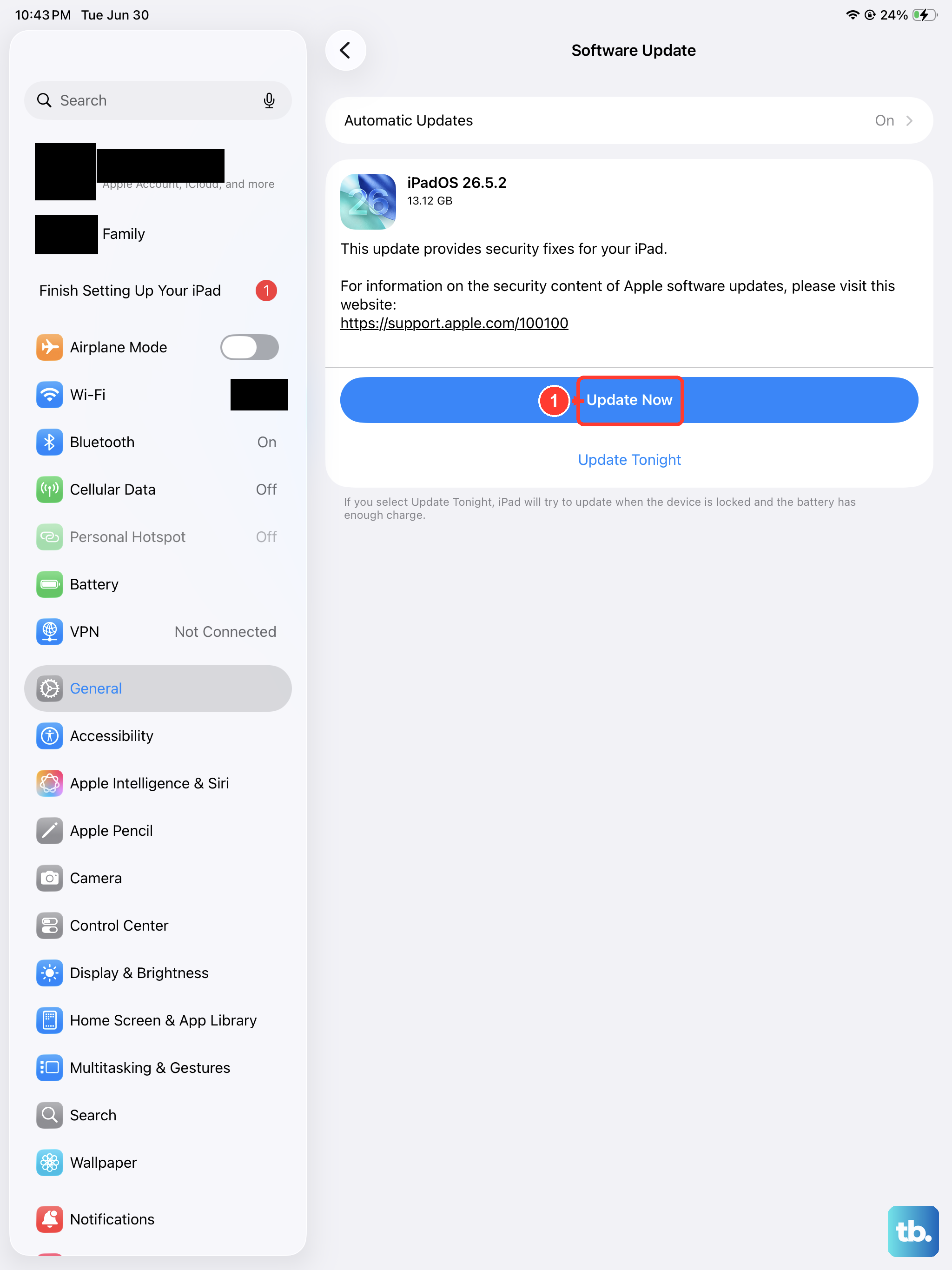
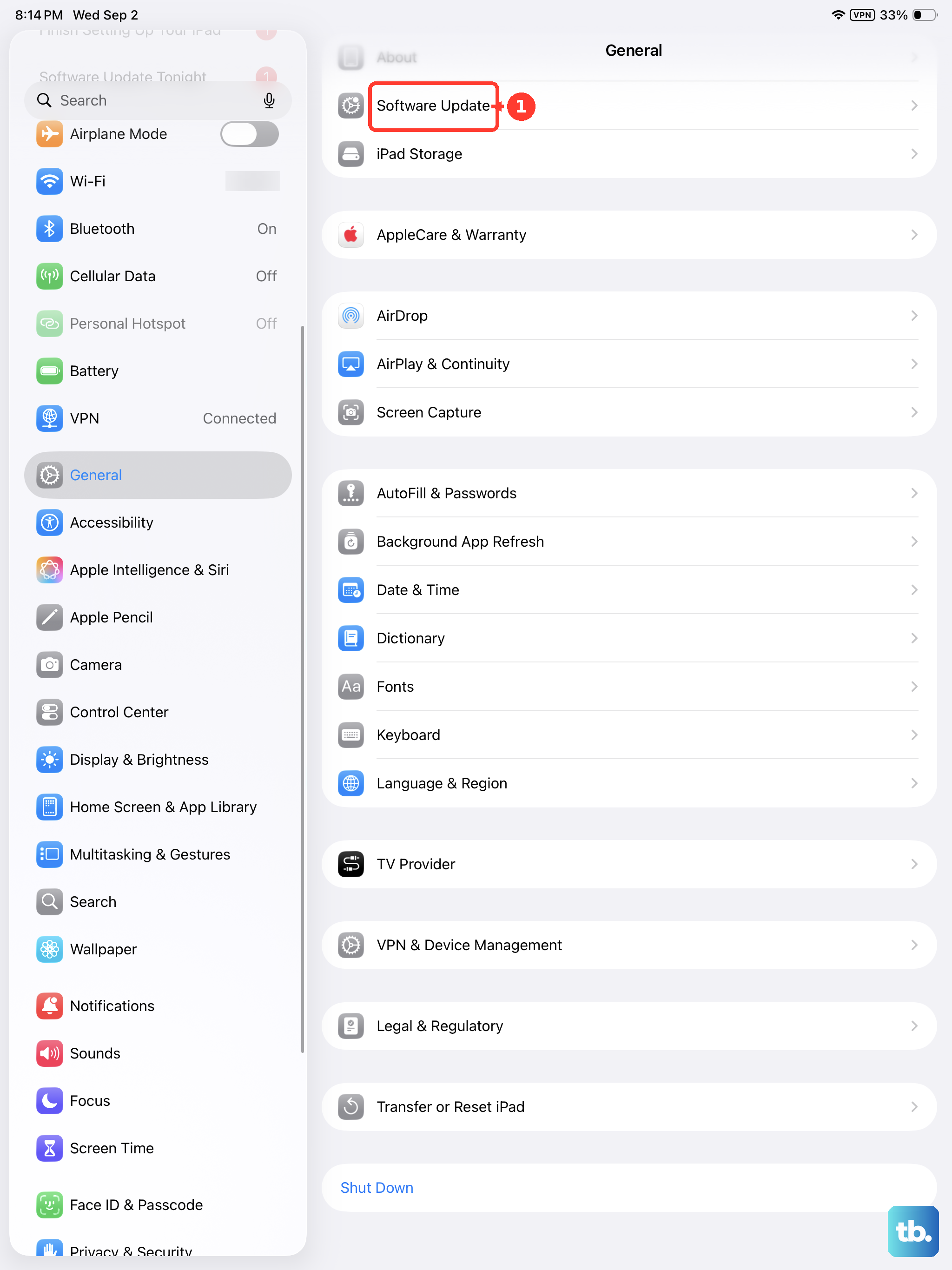
Audio bugs are often resolved in software updates, so make sure your iPad is current. Go to Settings > General > Software Update, then tap Download and Install if an update is available.
Keep the iPad plugged into power and connected to Wi-Fi while it updates so the process is not interrupted. Test your headphones again once the iPad restarts.
Restart the iPad to clear a temporary glitch
A simple restart clears many short-lived audio problems. Use the official sequence below.
Simultaneously press and hold the top button and either volume button until the Power Off slider appears.
Drag the slider to turn off the iPad.
Wait about 30 seconds.
Press and hold the top button until you see the Apple logo to turn it back on.
Reconnect your headphones after the iPad finishes starting up, then test the sound again.
Turn on Bluetooth and pair your wireless headphones
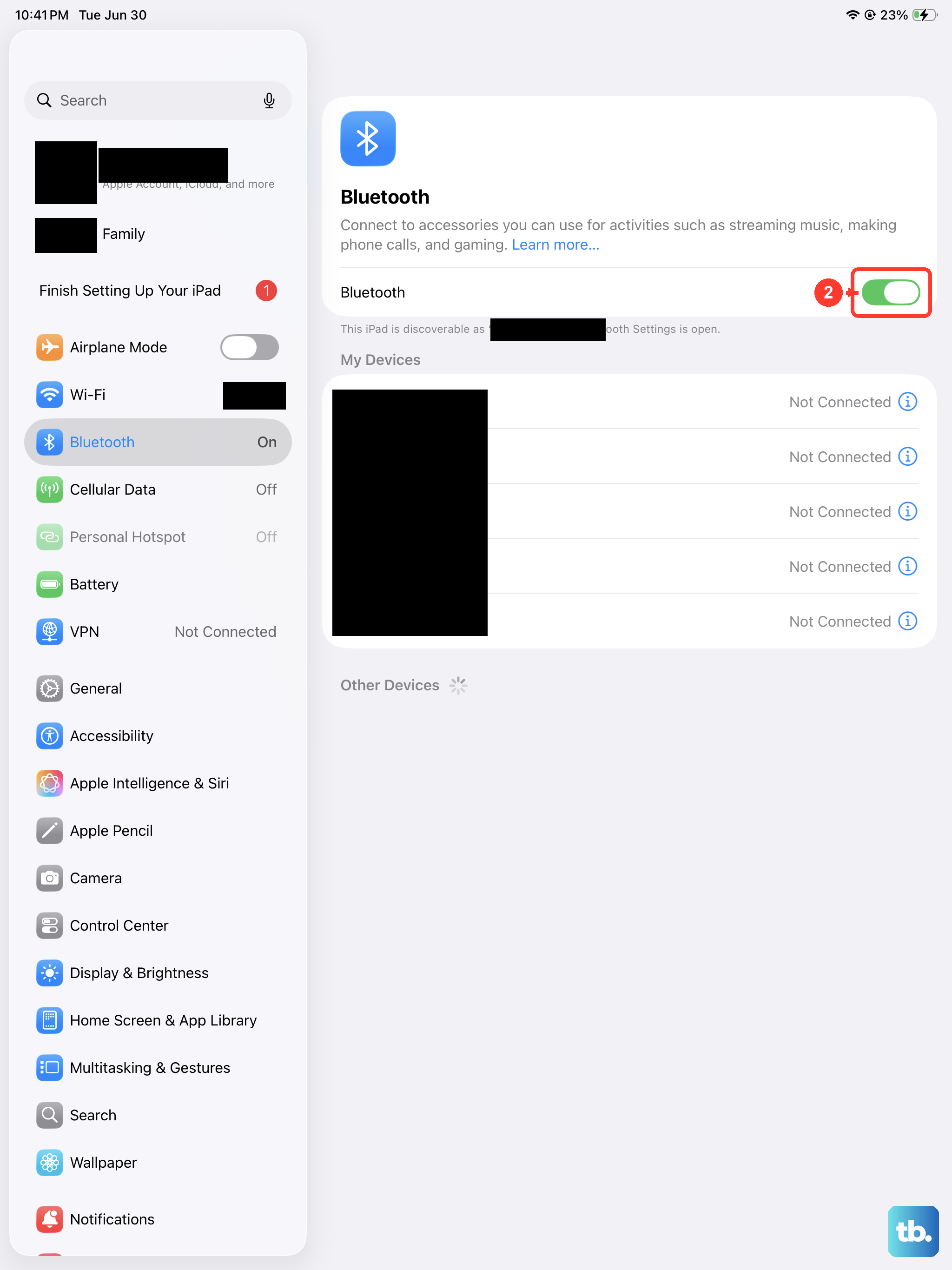
For wireless headphones, the connection has to be made in Settings before any sound will play. Go to Settings > Bluetooth and make sure Bluetooth is on.
Turn on your headphones and put them in pairing or discovery mode near the iPad.
Next, open Settings > Bluetooth.
Tap the headphones' name under My Devices.
Keep the iPad close to the accessory for a stable connection. For better sound on some accessories, you can also set the device type. In Settings > Bluetooth, tap the info (i) button next to the accessory name, tap Device Type, then choose headphone, speaker, or hearing aid.
When Bluetooth headphones connect but stay silent
Sometimes the headphones pair yet produce no sound, which usually points to power, the pairing record, or an app permission. Work through these in order.
Make sure the headphones are charged or connected to power, then turn them off and back on.
After that, if they were paired before, forget them, put them back in discovery mode, and pair again.
If you use a specific app with the accessory, go to Settings > Privacy & Security > Bluetooth and make sure Bluetooth is turned on for that app.
If problems continue, contact the headphone manufacturer to confirm the model is compatible with your iPad.
Force restart a frozen or unresponsive iPad
If the iPad has stopped responding and a normal restart did not work, a force restart can revive it. Reach for this only after the standard restart in the earlier step fails.
- 1.Press and quickly release the volume button nearest to the top button.
- 2.Press and quickly release the volume button farthest from the top button.
- 3.Press and hold the top button.
- 4.When the Apple logo appears, release the top button.
Once the iPad finishes restarting, reconnect your headphones and check the sound.
Erase all content and settings as a last resort
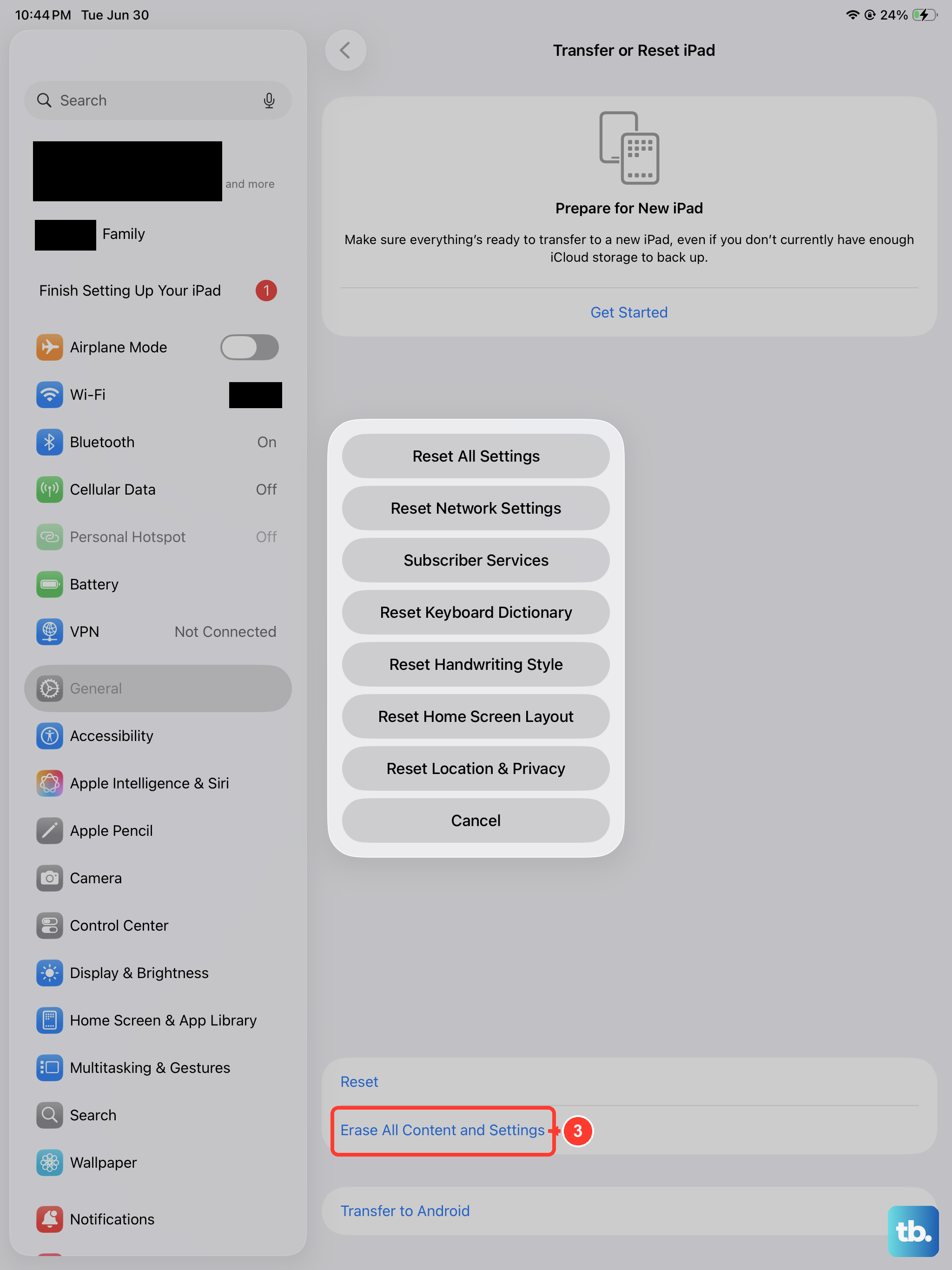
If nothing above works, erasing the iPad and setting it up fresh can clear a deeper software fault. This step deletes everything, so back up your iPad first before you continue.
Open Settings > General > Transfer or Reset iPad > Erase All Content and Settings.
If asked, enter your iPad passcode or Apple Account password, then tap Continue.
This restores the iPad to factory settings and removes your personal information, content, and settings. If you cannot do this on the device itself, you can restore it using a computer with Finder on a Mac or the Apple Devices app on a Windows PC.
When to hand it to Apple Support
If your headphones still do not work after every step above, the problem may need a closer look or a service appointment. Contact Apple Support for further help, and mention which connection methods you have already tried (Bluetooth, USB-C, or the headphone adapter) so the conversation moves faster.
Frequently Asked Questions
Does the iPad Pro (M4) have a headphone jack?
No. The iPad Pro with the M4 chip has no 3.5 mm headphone jack. You can use Bluetooth headphones, wired headphones with a USB-C connector, or 3.5 mm headphones connected through the Apple USB-C to 3.5 mm Headphone Jack Adapter, which is sold separately.
Why do my AirPods connect but sound still plays from the iPad speakers?
The playback destination is probably still set to the iPad. While audio is playing, open Control Center by swiping down from the upper-right corner, tap the AirPlay/playback-destination control, and select your headphones. If you still hear the speakers, stay close to the iPad and reconnect the headphones, then check the destination again.
Can I use any USB-C headphones with the iPad Pro (M4)?
Wired headphones must use a USB-C connector to plug directly into the iPad's USB-C port. If a Bluetooth pair will not work even after pairing, contact the headphone manufacturer to confirm the model is compatible with your iPad.
Will erasing my iPad delete my files when I try to fix the headphones?
Yes. Erase All Content and Settings restores the iPad to factory settings and removes your personal information, content, and settings, so back up your iPad first. Treat it as a last resort after the volume, connection, update, and restart steps.
How close do my Bluetooth headphones need to be?
Keep your Bluetooth headphones close to the iPad so the connection stays stable. If they lose connection, you may hear sound from the iPad's speakers, so move closer and reconnect them while you listen.