Your iPad Pro is sitting there with the screen stuck, taps doing nothing, maybe the Apple logo frozen in place or an app that simply will not respond no matter how many times you press it. A frozen iPad Pro (M4) is almost always a temporary software hiccup rather than a sign of failing hardware, and because this model uses Face ID with no Home button, the rescue steps are slightly different from older iPads. Work through the fixes below in order, starting with the safest options that protect your data and moving toward the official reset and repair paths only if the earlier steps do not bring it back.
When Only One App Has Locked Up
Before you assume the whole tablet is dead, check whether it is just a single app that has stopped responding while everything else still works. Closing one stuck app is the safest fix because it keeps all of your data intact, and the official guidance is to force quit an app only when it is unresponsive.
From the Home Screen, swipe up from the bottom of the screen and pause in the middle.
Swipe left or right to find the stuck app.
Swipe up on the app's preview to close it.
Once the app is closed, reopen it and see if it behaves normally. If the rest of the iPad is responsive and only that one app keeps locking up, this is usually all you need.
Power It Down the Gentle Way
If the screen still responds a little but the whole system feels sluggish or stuck, a normal restart can clear the problem without any of the heavier steps. This is the standard shutdown for a Face ID iPad and it does not touch your files or settings.
Press and hold the top button and either volume button until the power-off slider appears.
Drag the slider to turn the iPad off.
Press and hold the top button again until the Apple logo appears to turn it back on.
Give it a moment to finish booting before you start tapping. A clean restart often resolves the kind of minor freeze that builds up after the iPad has been awake for a long stretch.
The Button Sequence That Revives a Frozen iPad Pro
When the screen is completely unresponsive and the power-off slider will not appear, a force restart is the main fix. It does not erase anything; it simply forces the hardware to reboot. The order of presses matters, so follow it exactly.
- 1.Press and quickly release the volume button nearest to the top button.
- 2.Press and quickly release the volume button farthest from the top button.
- 3.Press and hold the top button.
- 4.When the Apple logo appears, release the top button.
Do not use the old Home-button method you may remember from earlier iPads, because the M4 iPad Pro has no Home button and that sequence does not apply here. If the first attempt does not take, repeat the sequence and make sure each volume press is quick and the final hold on the top button lasts long enough for the logo to show.
Rule Out a Drained or Power-Related Stall
A deeply drained battery or a power-related fault can look exactly like a freeze, with a black or unresponsive screen that ignores every button. Before going further, give the iPad a genuine charge and rule this out.
Connect the iPad to its USB-C charging cable and a USB power adapter plugged into a working power source, ideally the cable and adapter that came with it.
Leave it charging for a while and make sure the iPad is not too hot or too cold, since extreme temperatures can stop it from charging or waking properly.
If nothing happens after a reasonable wait, try a different cable, adapter, or outlet to rule out a faulty accessory, then run the force restart sequence again while it is plugged in. Remember that this model charges only over its USB-C port; there is no wireless or MagSafe charging to fall back on.
Clear Software Bugs With an iPadOS 26 Update
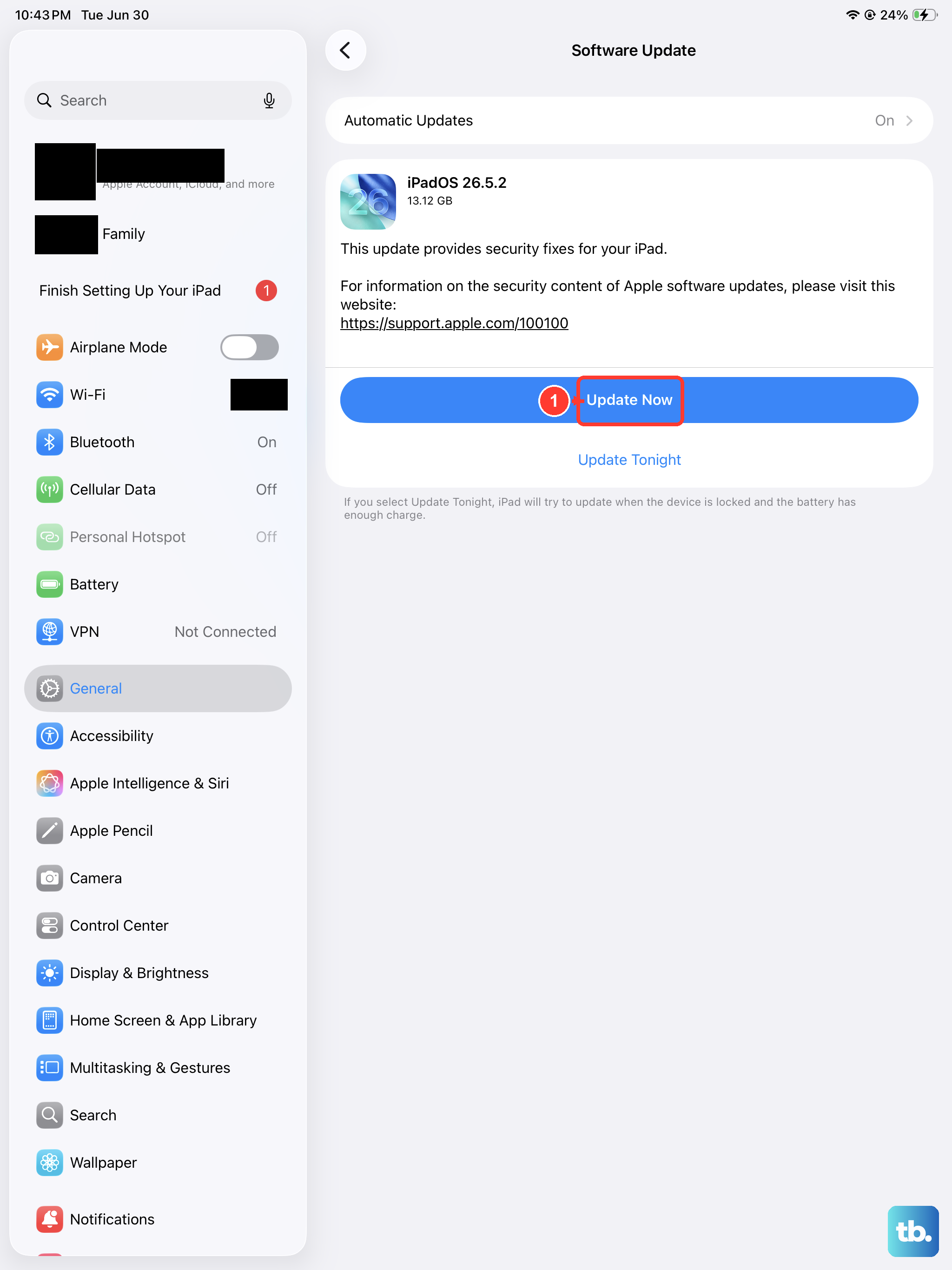
Once the iPad is responsive again, installing the latest software is one of the most effective ways to stop freezing from coming back, because updates frequently clear the bugs that cause it. The M4 iPad Pro is compatible with iPadOS 26, so keeping it current is worthwhile.
Open Settings > General > Software Update.
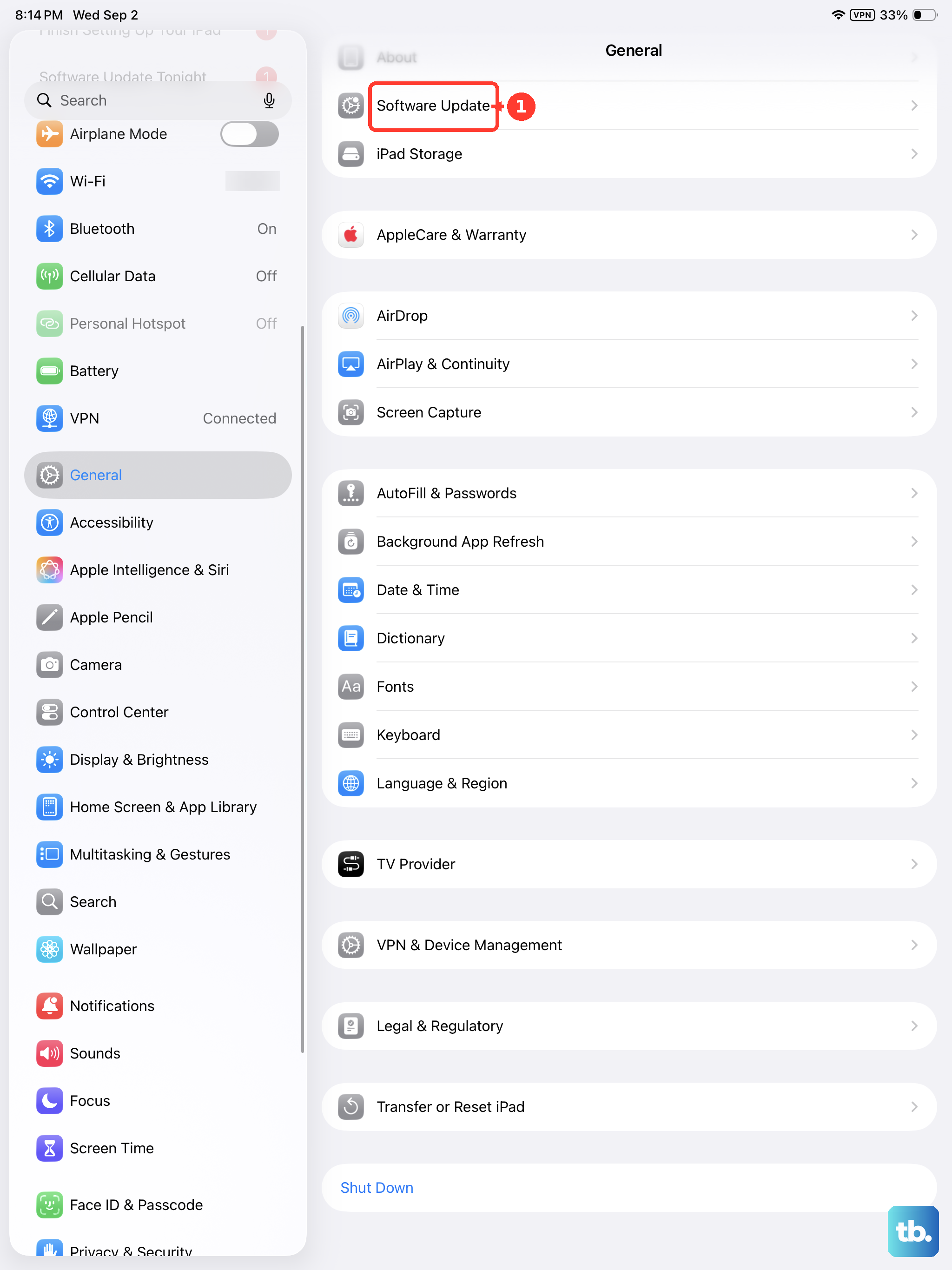
If an update is available, tap Download and Install.
Follow the onscreen instructions to complete it.
Keep the iPad charged or plugged in during the update so it does not run out of power partway through. Let the process finish completely before you start using the tablet again.
Plug Into a Computer and Choose Update
If a force restart does not work, or the iPad is stuck on the Apple logo and will not boot past it, you can recover it with a computer while keeping your data. An iPad has no phone to pair with, so the official companion for this job is a computer.
Connect the iPad to a computer.
Open Finder on a Mac (macOS Catalina 10.15 or later), or open the Apple Devices app or iTunes on a PC.
Put the iPad in recovery mode.
When you are offered the option to Update or Restore, choose Update first.
Choosing Update reinstalls iPadOS without erasing your data, which is why it comes before any wipe. If the download takes more than 15 minutes and the iPad exits recovery mode during that time, let the download finish and then repeat the steps.
Wipe Corrupted Settings With a Factory Reset
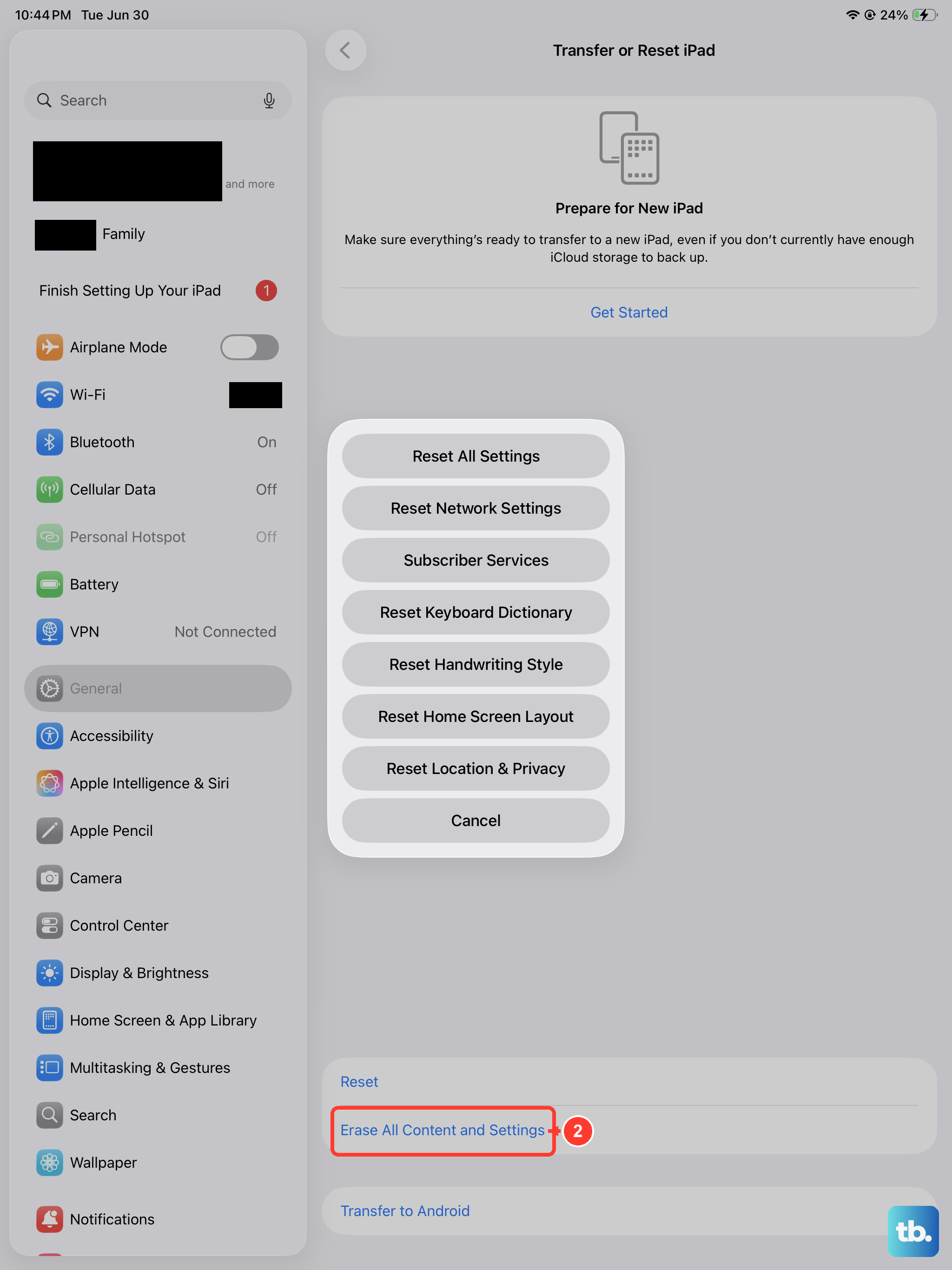
If the freezing keeps returning even after updating, corrupted settings may be the cause, and erasing the iPad gives it a clean slate. This step deletes everything on the device, so back up your data first if you possibly can.
Open Settings > General > Transfer or Reset iPad.
Tap Erase All Content and Settings.
Enter your iPad passcode or Apple Account password if asked.
Tap Continue to confirm.
If you use an eSIM on this model, you can choose to keep or erase it during the process. Erasing the eSIM means you will need to contact your carrier to reactivate the plan, so only remove it if you intend to set up service fresh.
Restore From a Computer When Nothing Else Loads
Sometimes the iPad is frozen so badly that you cannot even reach Settings to erase it. In that case, you can perform the same kind of wipe through a computer using recovery mode. Like the earlier in-Settings reset, this erases the iPad, so it is a last-resort recovery step.
Connect the iPad to a computer.
Open Finder on a Mac, or the Apple Devices app or iTunes on a PC.
Put the iPad in recovery mode.
Choose Restore.
Restore erases the iPad and installs the latest iPadOS. Once it finishes, you can set the iPad up again and restore your content from a backup if you have one.
When It Needs a Technician
If the iPad still will not unfreeze after a full restore, the problem may be beyond what software fixes can reach, and it is time to use the official support channels. There is no benefit to repeating the same wipe over and over once a restore has not helped.
Start at the Apple Service and Repair page for iPad to look at your options, or contact Apple Support directly by phone or chat. You can also reach out through the Apple Support app, or book a Genius Bar or Apple Authorized Service Provider appointment to have the hardware looked at in person.
Frequently Asked Questions
Does a force restart on the iPad Pro (M4) delete my data?
No. A force restart simply forces the iPad to reboot and does not erase your apps, files, or settings. It is one of the safest fixes for a frozen iPad, which is why it comes well before any reset or restore.
Why doesn't the Home-button force restart method work on my iPad Pro?
The M4 iPad Pro uses Face ID and has no Home button, so the older Home-button sequence does not apply. The correct method is to press and quickly release the volume button nearest the top button, press and quickly release the volume button farthest from the top button, then press and hold the top button until the Apple logo appears.
Can I charge the iPad Pro (M4) wirelessly if the port seems to be the problem?
No. This model charges only over its USB-C port and does not support wireless or MagSafe charging. If charging fails, try a different USB-C cable, adapter, and outlet, and make sure the iPad is not too hot or too cold.
What is the difference between Update and Restore in recovery mode?
Update reinstalls iPadOS while keeping your data, so it is the option to try first. Restore erases the iPad and installs the latest iPadOS, so you only use it when an update has not fixed the freeze and you have a backup to fall back on.
What should I do if my iPad is still frozen after a full restore?
If a restore through a computer does not bring it back, the device likely needs service. Use Apple's official channels, such as the Apple Service and Repair page for iPad, Apple Support by phone or chat, the Apple Support app, or a Genius Bar appointment.