You set your iPad Pro (M4) on the desk, plugged it in, and expected the battery to climb fast, but twenty minutes later the number has barely moved. Slow charging on a Pro-tier iPad is frustrating, especially when you paid partly for the speed. The good news is that most fast-charging complaints on this model trace back to the charger you are using, a single setting, or a dusty port, and you can sort all of those out yourself. One quick naming note first. Apple has not released a 2026 M4 iPad Pro; the M4 iPad Pro 11-inch and 13-inch arrived in 2024, so everything below applies to that hardware running iPadOS.
Start with an adapter that can actually fast charge
This is the single most common reason a new iPad Pro (M4) seems to charge slowly, and it is built into the box. The 20W USB-C Power Adapter that ships with the iPad will charge it, but it will not fast charge it. Fast charging is a separate capability that depends on a higher-output adapter, so a steady but unremarkable charge speed from the in-box brick is completely normal behavior, not a defect.
Apple states that fast charging the iPad Pro 11-inch (M4) and 13-inch (M4) was tested with the Apple 40W Dynamic Power Adapter with 60W Max (Model A3351) or the Apple 70W USB-C Power Adapter (Model A2305), used with a USB-C Charge Cable. If you want the faster fill, use one of those adapters. Plug into a wall outlet rather than a computer USB port or a low-power hub, since those sources cannot supply enough power for fast charging.
Tell normal 80 percent behavior from a real fault
The iPad Pro (M4) is designed to charge quickly until the battery reaches about 80 percent, then deliberately slow down to reduce battery stress and limit heat. That means a slower final stretch above 80 percent is expected, not a problem you need to chase. If the early part of the charge was brisk and only the last 20 percent crawls, the iPad is working exactly as intended, and the rest of the fixes here will not change that final taper.
Before you go further, confirm the iPad is charging at all. When charging, you will see a lightning bolt on the battery icon in the status bar, or a large battery icon on the Lock screen. If neither appears, the issue is a broken connection rather than charge speed, and the cable, port, and adapter checks below become your priority.
Check the 80 percent Charge Limit setting
iPadOS includes an optional Charge Limit that intentionally stops charging at about 80 percent to preserve long-term battery health. If it is switched on, the iPad will hold near 80 percent and only resume if the level drops to about 75 percent, which can easily look like charging has stalled. This is a setting, not a fault, and it is quick to verify.
Open the Settings app.
Go to Battery, then Battery Health.
Turn off 80% Limit if you want a full charge.
Unplug accessories that draw power from the port
The iPad Pro (M4) has a single USB-C port that doubles as a Thunderbolt connection, and some accessories request power through it. Docks, external drives, displays, and similar gear can pull power from the iPad, which affects charging and battery life. While you are trying to charge, disconnect those accessories so all of the incoming power goes to the battery, and disconnect them when you are not actively using them.
Clean the USB-C port and swap the cable, adapter, and outlet
A charging port packed with lint or pocket debris is one of the most overlooked causes of weak or interrupted charging. Because the iPad relies entirely on this one wired connection, even a partial blockage can drop the charge speed or cut it off. Clean it carefully and then rule out a worn cable or a flaky outlet.
Disconnect the cable from the iPad.
Remove any debris from the charging port on the bottom of the device.
Clean the USB-C connector with a soft, dry, lint-free cloth; do not use liquids or cleaning products.
Try a different USB-C charge cable.
Try a different power adapter and a different wall outlet.
Let the iPad reach a normal temperature
Temperature has a direct effect on charging, and the iPad protects its battery by pausing or slowing the charge in extreme heat or cold. Once the battery returns to its normal operating range, charging resumes on its own. Keep the iPad within acceptable operating temperatures while it charges, and if you use a thick case that traps heat, take it off during charging so the device can cool. Direct sun, a hot car, and charging while running heavy apps all add heat that can throttle the charge.
Install the latest iPadOS
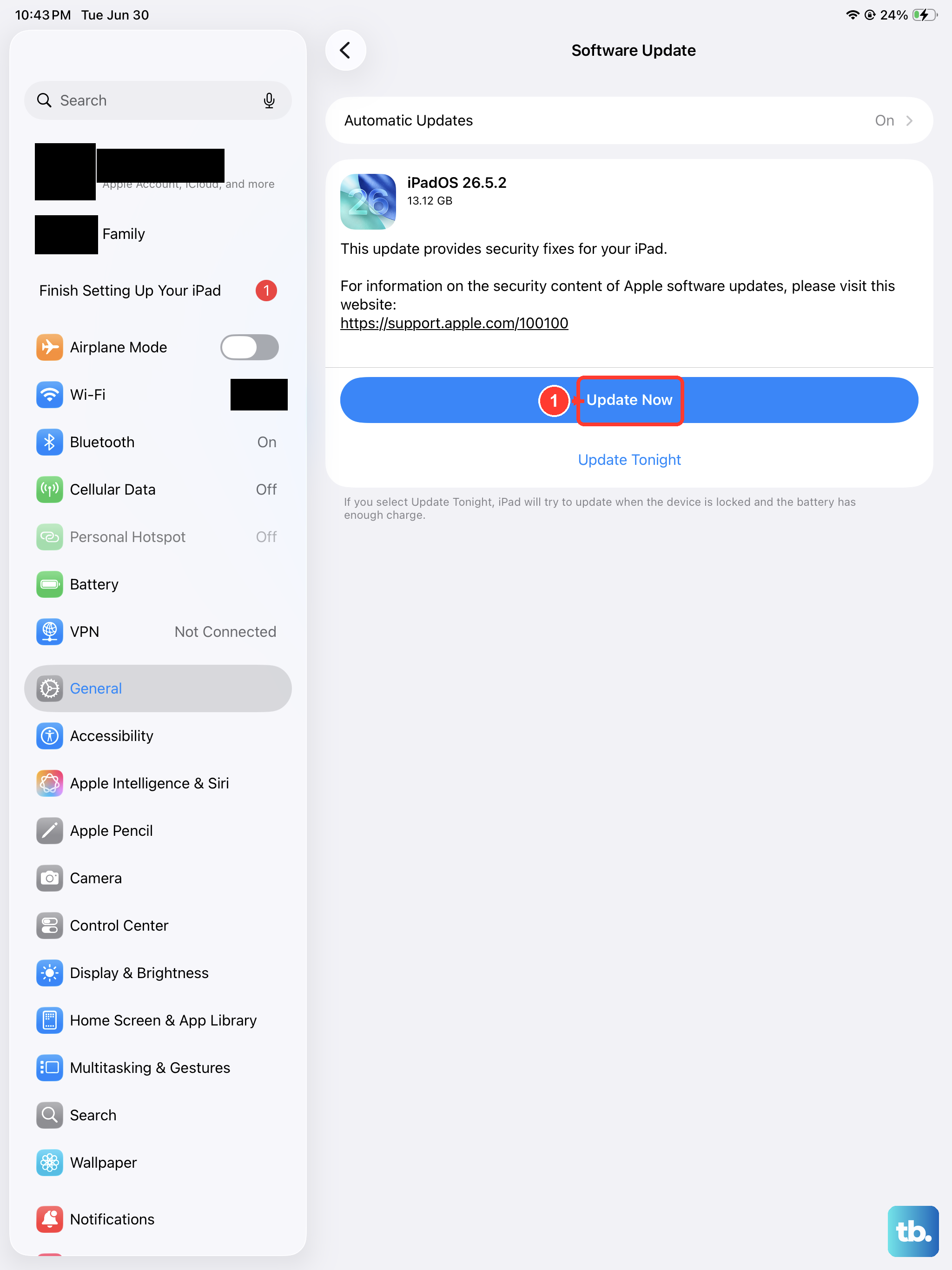
Software updates can include fixes that affect charging behavior, so running the current iPadOS is worth doing before any drastic step. Back up the iPad, connect to Wi-Fi, and plug into power first so the update can complete without interruption.
Open the Settings app.
Go to General, then Software Update.
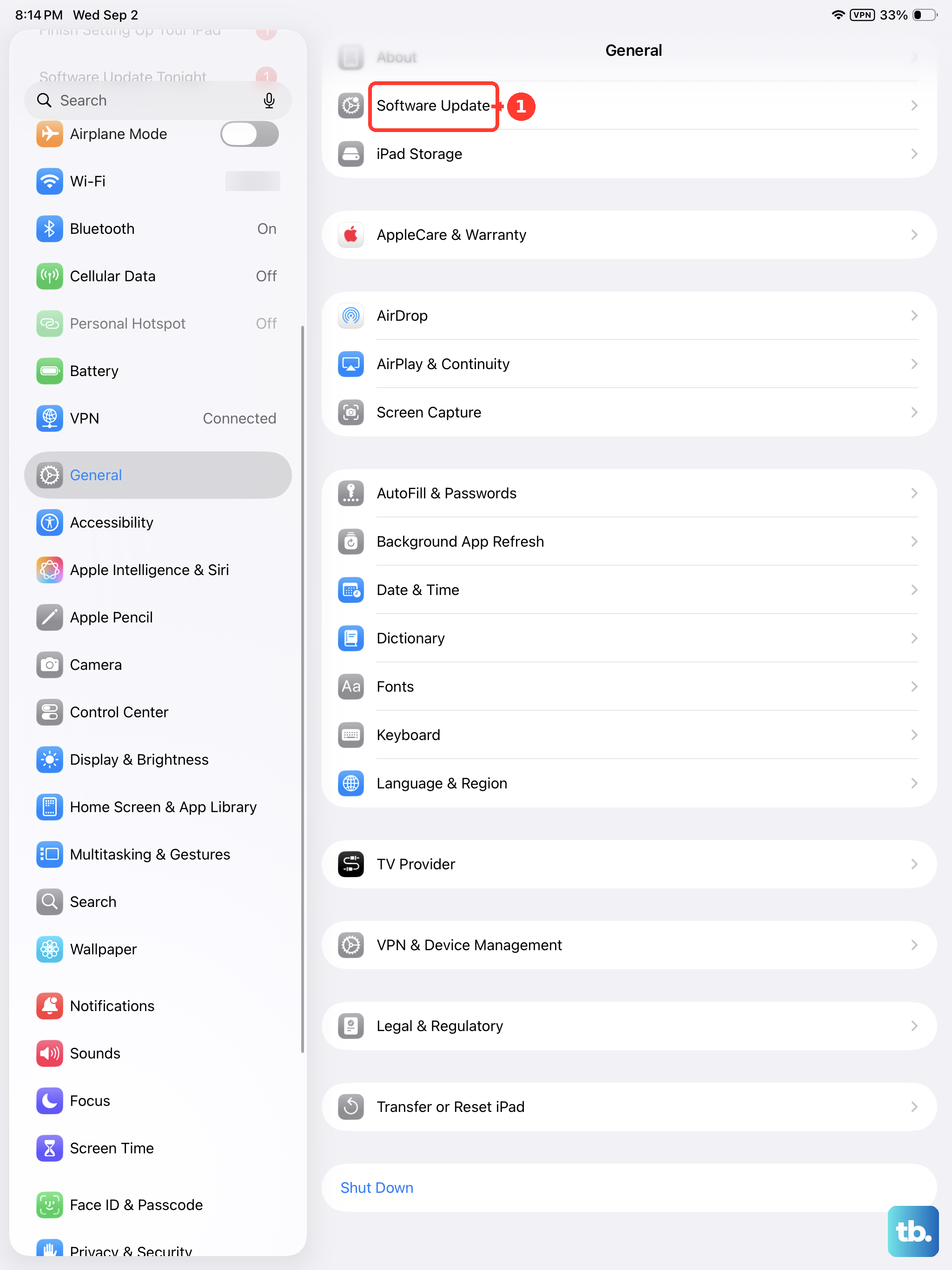
Tap Download and Install, then follow the onscreen instructions.
Force restart to clear a frozen charging state
If the iPad has locked up, a stuck system can block charging even when everything else is fine. A force restart clears that frozen state without erasing any of your data. This iPad uses Face ID and has no Home button, so the sequence uses the volume and top buttons.
- 1.Press and quickly release the volume button nearest the top button.
- 2.Press and quickly release the volume button farthest from the top button.
- 3.Press and hold the top button until the Apple logo appears, then release.
Erase all content and settings after a backup
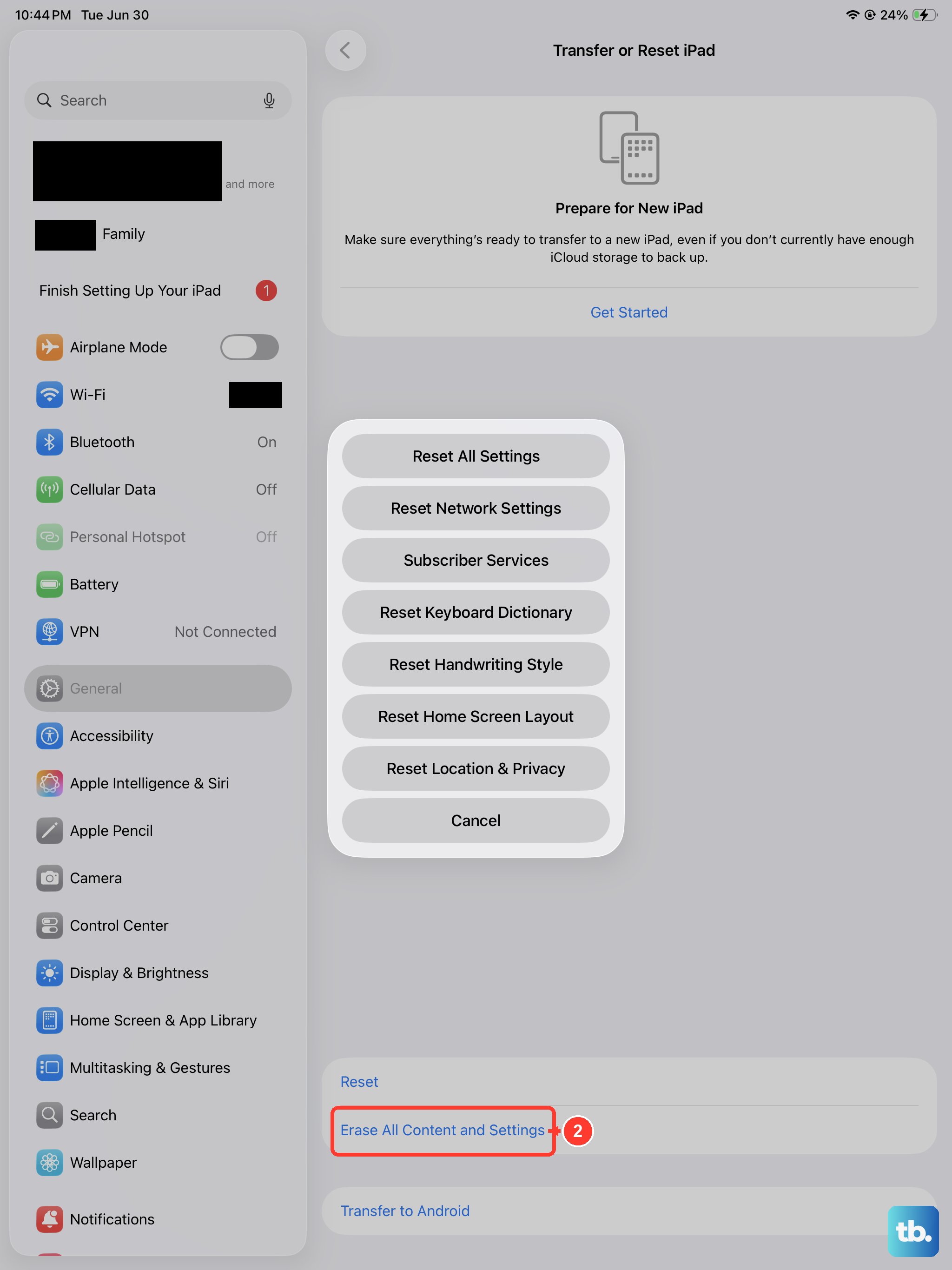
If a software glitch is still interfering with charging after everything above, a clean erase is the last step you can take on the iPad itself. Be careful here, because this is destructive. Erasing restores factory settings and completely wipes the device, including Apple Pay cards, photos, contacts, music, and apps. Make a full backup before you start so you can restore your data afterward.
Back up the iPad first.
Open the Settings app.
Go to General, then Transfer or Reset iPad.
Tap Erase All Content and Settings.
If asked, enter your passcode or Apple Account password, then confirm.
Restore through a computer or arrange a repair
When the iPad still will not charge, will not turn on, or will not update, the next move is a computer restore. Connect the iPad to a computer and restore it using Finder on a Mac or the Apple Devices app on a Windows PC. A restore erases the iPad and reinstalls iPadOS, so back up first if the device still lets you. If the restore does not resolve it, the problem is likely hardware, so contact Apple Support to start a repair.
Frequently Asked Questions
Does the iPad Pro (M4) support wireless or MagSafe charging?
No. The iPad Pro (M4) has no wireless or MagSafe charging and charges only through its wired USB-C port. If a charging pad does nothing, that is expected, so use the USB-C port instead.
Why does my iPad charge fast and then slow down near the top?
That is by design. The iPad charges quickly until about 80 percent, then deliberately slows to reduce heat and battery stress. A slower final stretch above 80 percent is normal, not a fault.
Will the adapter in the box fast charge my iPad Pro (M4)?
No. The included 20W USB-C Power Adapter charges the iPad but does not fast charge it. Apple tested fast charging with the Apple 40W Dynamic Power Adapter with 60W Max (Model A3351) or the Apple 70W USB-C Power Adapter (Model A2305), used with a USB-C Charge Cable.
Is it fine to leave the 80 percent Charge Limit turned on?
Yes. The 80 percent Charge Limit is an intentional feature that helps preserve battery health by stopping at about 80 percent and resuming if the level drops to about 75 percent. If you want a full charge, turn it off in Settings, Battery, Battery Health.











