Your iPad Pro snaps a photo and the result comes back soft, smeared, or stuck out of focus, even though the scene in front of you looks perfectly sharp. The M4 iPad Pro carries a single 12MP Wide rear camera (f/1.8, five-element lens) with autofocus driven by Focus Pixels and Smart HDR 4, plus a 12MP Ultra Wide front camera, so genuine blur almost always points to something fixable rather than a failed sensor.
Whether you own the 11-inch (M4) or the 13-inch (M4), the fixes below run from the quickest and safest to the last-resort reset. Work down the steps and shoot a test photo after each one.
One quick note on naming before you start. Apple's M4 iPad Pro shipped in 2024, so there is no separate "2026 (M4)" model; if yours feels current it is the same M4 hardware now running iPadOS 26, the latest software these models support.
Start With the Lens, Not the Settings
A smudged or greasy lens is the single most common reason an iPad photo turns out blurry, and it is the easiest cause to rule out.
Apple's guidance is to clean the front and back camera lenses with a microfiber cloth, then take a test photo.
Skip paper towels, harsh cloths, and any liquid or cleaner, since those can scratch the lens cover.
Wipe gently, frame the same shot again, and check whether the softness clears before you touch any setting.
Clear Anything Sitting in Front of the Camera
Cases and add-on lenses are the next thing to check, because they can drift across the lens or distort the image.
Apple says to remove any case, film, or accessory (such as a polarizer, extender, or magnifier) that might block the camera or flash or that places a magnet near the camera.
If your blur shows up mainly as smearing in low light, also remove any lens converter, metallic case, or magnetic lens mount before testing.
Take a photo with the camera completely uncovered to confirm whether the accessory was the culprit.
Tell the Camera What to Focus On
Sometimes the hardware is fine but the camera has locked onto the wrong part of the scene, leaving your subject soft.
You can take manual control of focus and exposure right in the Camera app.
Tap the screen to show the automatic focus area and exposure setting (in yellow).
Then tap where you want to move the focus area.
Next to the focus area, drag up or down to adjust the exposure.
To keep focus and exposure fixed for a series of shots, touch and hold the focus area until you see AE/AF Lock, then tap the screen to unlock the settings again.
This helps when you are shooting one subject and the camera keeps re-focusing on the background.
Test Both Cameras to Narrow Down the Problem
Before going further, find out whether the blur affects one camera or both.
Tap the rotate button to switch between the rear Wide camera and the front camera, then take a test shot with each.
If only the rear camera is soft, the cause is most likely a lens smudge or an accessory.
If both are affected, a software glitch or a setting is more likely, which points you toward the steps that follow.
Force the Camera App to Reload
If the preview looks frozen or stuck out of focus and tapping does nothing, the Camera app itself may be hung.
Apple notes you should close an app only when it is unresponsive, which fits this situation exactly.
Swipe up from the bottom to the middle of your screen and hold until you see the App Switcher.
Swipe up on the Camera app's preview to close it.
Reopen Camera from the Home Screen and take a test photo.
Power the iPad Off and On Again
A standard restart clears temporary software glitches that can leave the camera misbehaving, and Apple lists it as a normal camera troubleshooting step.
Turn the iPad off, wait a moment, then turn it back on and open the Camera app again.
It costs nothing and resolves a surprising share of focus and preview problems, so it is worth doing before you start digging through settings.
Review How the Camera Processes Your Shots
If your photos look soft or over-processed rather than truly out of focus, the cause may be how the camera renders the image.
Open Settings > Camera, where you can toggle Smart HDR, Scene Detection, and Lens Correction.
Lens Correction adjusts the front camera for more natural-looking results, so leaving it on usually helps selfies and video calls.
You can also turn on Keep Normal Photo to save a non-HDR version alongside each shot, which lets you compare the two and decide which processing you prefer.
Install the Newest iPadOS
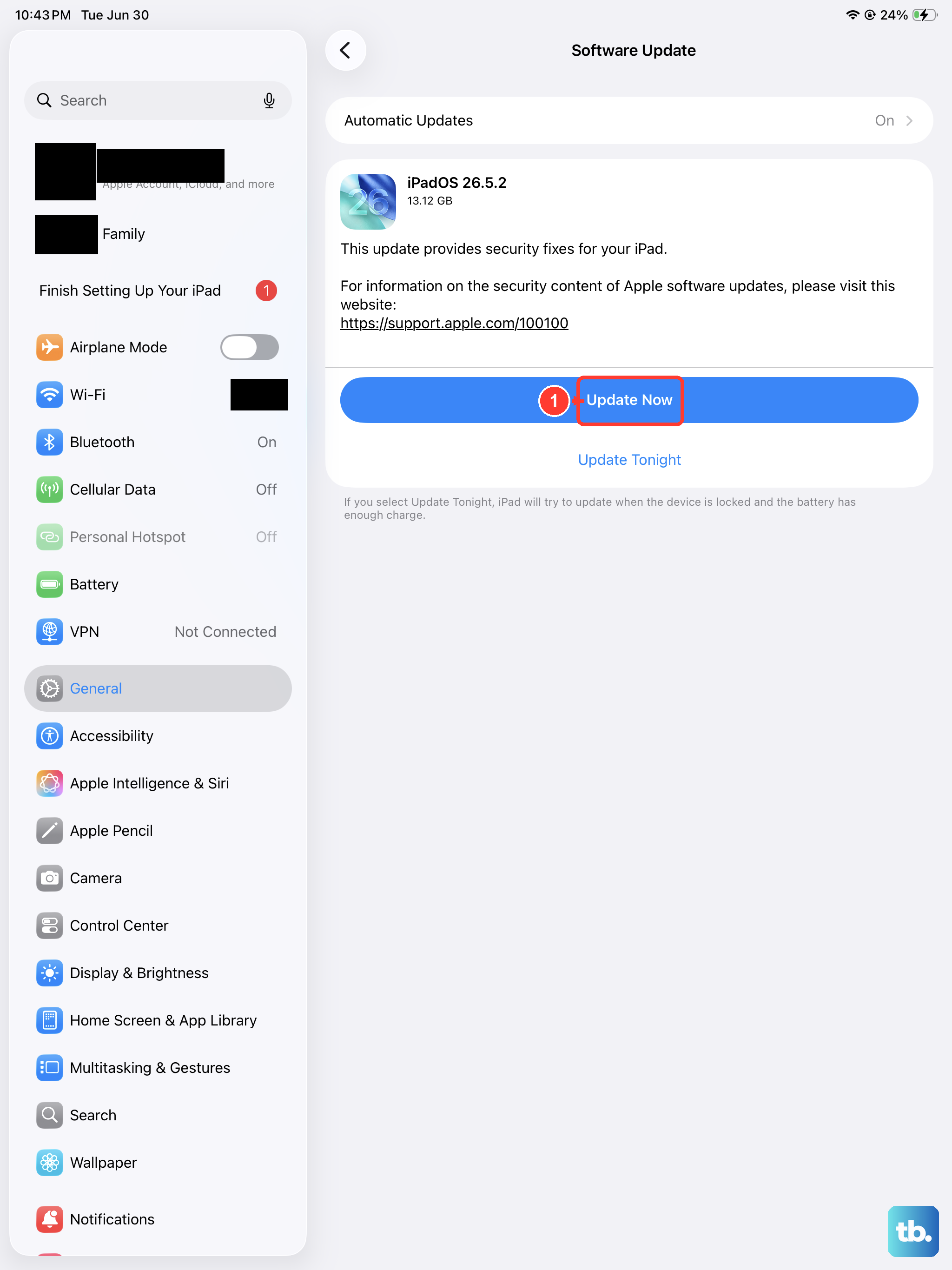
Apple recommends running the latest software as a camera fix, since updates carry bug fixes that can affect the Camera app.
Go to Settings > General > Software Update and tap Download and Install.
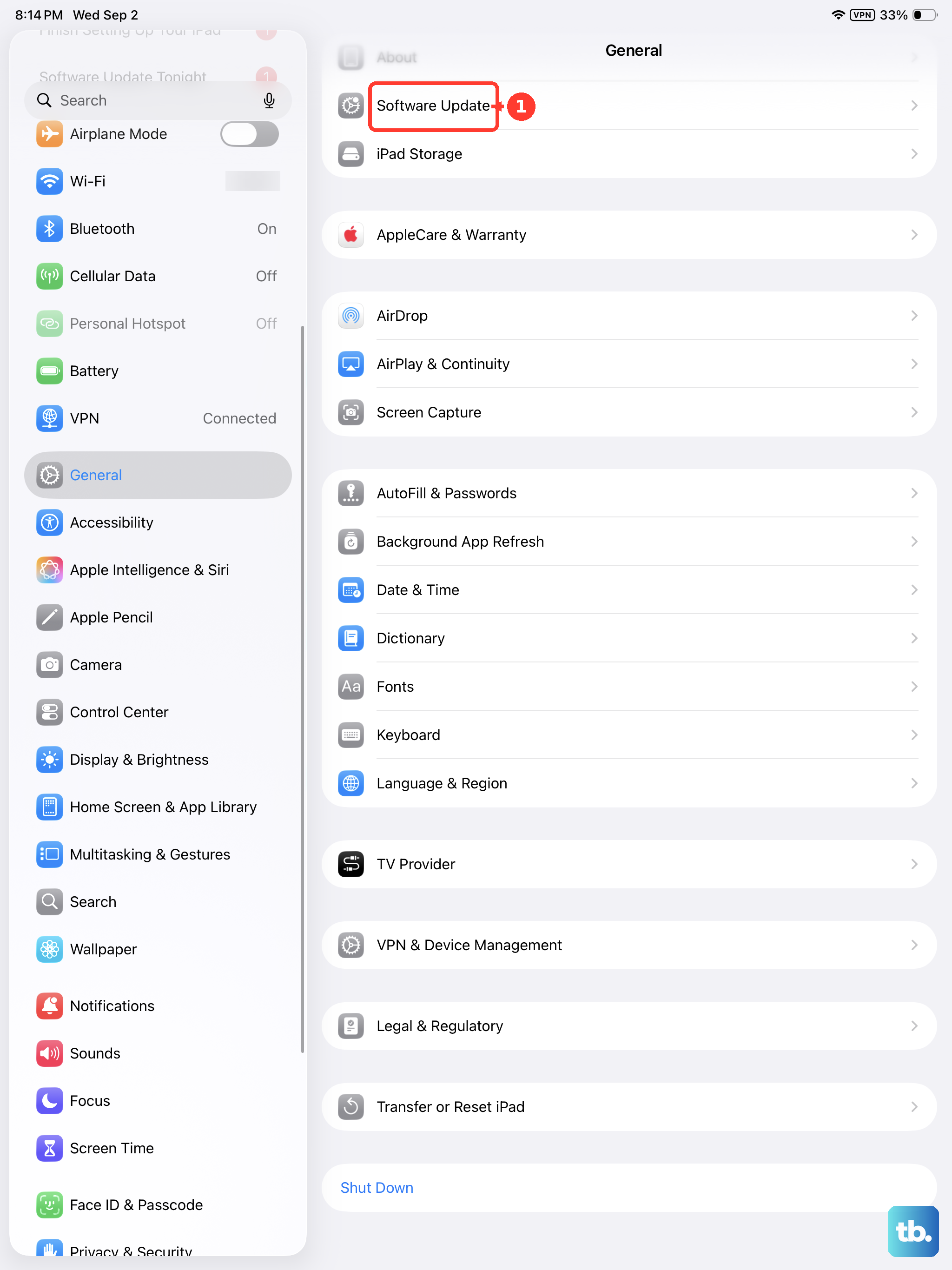
Keep the iPad plugged into power and connected to Wi-Fi while it updates; your data and settings stay unchanged.
The iPad Pro (M4) supports iPadOS 26, so you can move all the way up to the current release.
Force Restart When Everything Freezes
When the Camera app or the whole system locks up and a normal restart will not go through, a force restart is the next move.
The M4 iPad Pro uses Face ID and has no Home button, so follow this exact sequence.
- 1.Press and quickly release the volume button nearest to the top button.
- 2.Press and quickly release the volume button farthest from the top button.
- 3.Press and hold the top button.
- 4.When the Apple logo appears, release the top button.
A force restart does not erase any of your content; it simply forces the iPad to reboot when it is unresponsive.
Reset to Factory Settings, Then Reach Apple Support
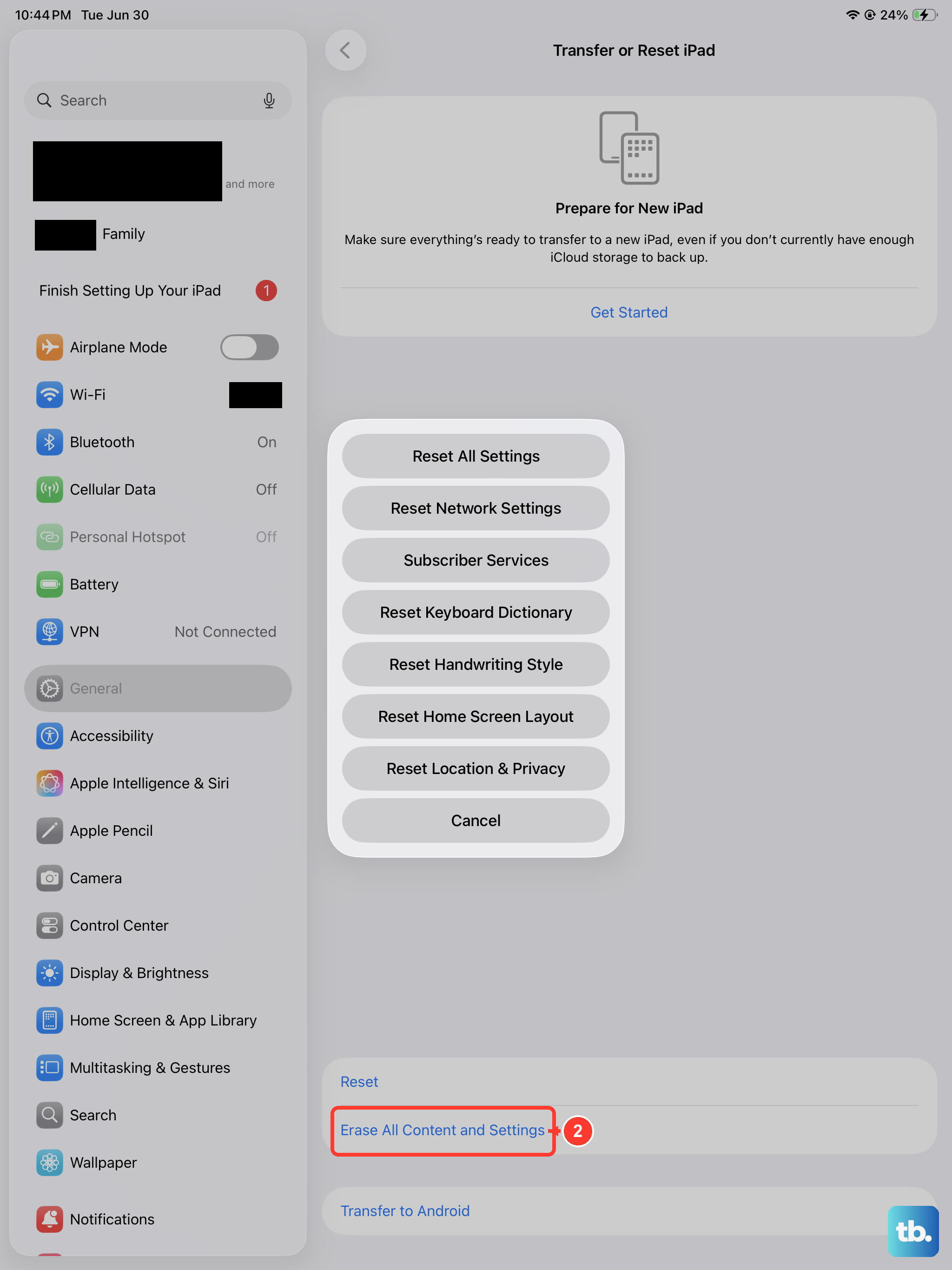
If you have worked through every step above and photos are still blurry, a clean setup is the last software option before service.
This erases everything, so back up your iPad first, because once it finishes, all of your personal information, content, and settings are gone.
Back up the iPad so you can restore your data afterward.
Go to Settings > General > Transfer or Reset iPad > Erase All Content and Settings.
Enter your iPad passcode or Apple Account password when asked.
Tap Continue to restore the iPad to factory settings.
If you would rather erase and restore from a computer, connect the iPad and use Finder (on macOS Catalina or later) or the Apple Devices app (on Windows) to restore it to factory settings.
And if the camera is still blurry after a clean setup, the problem is likely hardware, so contact Apple Support or an authorized service provider to have it checked.
Frequently Asked Questions
Is there a 2026 M4 iPad Pro?
Apple released the M4 iPad Pro, in both 11-inch and 13-inch sizes, in 2024, so there is no separate 2026-dated M4 model. The 2026-era flagship is the iPad Pro (M5). If your M4 iPad Pro still feels current, that is because it runs iPadOS 26, the same software found on newer models.
Does the iPad Pro (M4) have a Macro mode for close-up shots?
No. The M4 iPad Pro has a single 12MP Wide rear camera with no rear Ultra Wide lens, and Apple's specs do not list a Macro photography mode for it. Very close subjects can simply fall outside the lens's focus range and look soft, which is normal rather than a fault.
Why does only my front camera or only my rear camera look blurry?
Use the rotate button to test each camera in turn. If only the rear camera is affected, start with a lens wipe and remove any case or accessory; if both are soft, a restart, a settings check, or a software update is the better path.
Will updating iPadOS or force restarting delete my photos?
No. A software update keeps your data and settings unchanged, and a force restart simply reboots the iPad without erasing anything. Only Erase All Content and Settings removes your data, which is why you should back up before using that option.