Your iPad Pro (M4) was working fine, and now the screen sits completely black. You press the top button, maybe tap the glass, and still nothing happens, no Apple logo, no lock screen, not even a faint glow. Before you assume the display panel has died, it helps to know that a dark screen on the 11-inch or 13-inch M4 iPad Pro can often be cleared yourself. A drained battery, a software glitch, or a frozen system can all leave the display black, and Apple documents a clear set of steps for each. Work through the fixes below in order, starting with the safest, and leave the computer-based recovery and Apple service for the end.
Rule out a drained battery first
A "black screen" is very often just an iPad that has run flat, especially if it has been sitting unused for a while. The fix is simple, but it asks for patience rather than a single button press.
Connect the included USB-C cable to the iPad's USB-C port and to a compatible USB-C power adapter.
Plug the adapter into a working wall outlet and leave the iPad alone.
Wait. According to the official support guidance, an iPad that won't turn on may need to charge for up to an hour before it responds.
Watch for a charging screen or a low-battery icon to appear, which signals the battery was the problem all along.
Do not keep tapping or pressing buttons during this hour, as that only makes it harder to tell whether the iPad is charging. If the charging screen never shows up after a solid hour on power, move on to checking your accessories.
Inspect the cable, adapter, and charging port
If charging does nothing, the problem may be the connection rather than the iPad. The M4 iPad Pro charges only over its USB-C port, so a bad cable, a weak adapter, or a blocked port can mimic a dead screen.
Look inside the USB-C port on the bottom of the iPad and gently remove any lint or debris, then firmly plug the cable back in.
Use the cable and adapter that came with the iPad if you can, since they are known to be compatible.
If those are unavailable or suspect, try a different known-good USB-C cable and USB-C power adapter.
Make sure the iPad is not too hot or too cold, as extreme temperatures can stop it from charging or powering on normally.
This model does not support wireless charging of any kind, so there is no charging pad to test and no wattage setting to adjust; the USB-C connection is the only way power reaches the battery. Once you are confident the iPad is actually receiving power, you can move on to waking the system.
Force restart to clear a black or frozen screen
If the iPad has power but the screen stays black or appears frozen, a force restart is the single most useful step you have. It cuts power to the system and reboots it without touching any of your files, photos, or settings.
- 1.Press and quickly release the volume button closest to the top button.
- 2.Press and quickly release the volume button farthest from the top button.
- 3.Press and hold the top button until you see the Apple logo.
Timing matters here: the first two presses are quick taps, and only the final button is held down. Keep holding the top button even after the screen has been dark for several seconds, because the Apple logo can take a moment to appear. This sequence does not erase any data, so it is safe to repeat if the first attempt does not catch.
Restart normally when the display still responds
Sometimes the screen is not fully black but is flickering, glitchy, or partly unresponsive. In that case a normal restart is gentler than a force restart and often enough to settle a misbehaving display.
Press and hold either volume button and the top button until the power off slider appears.
Drag the slider, then wait 30 seconds for your device to turn off.
To turn your device back on, press and hold the top button until you see the Apple logo.
On iPadOS 18 and later you have a second route to the same slider. Swipe down from the top-right corner to open Control Center, press and hold the Power button in the top-right corner, then drag the slider and wait 30 seconds before pressing the top button to power back on.
Install the latest iPadOS to squash display bugs
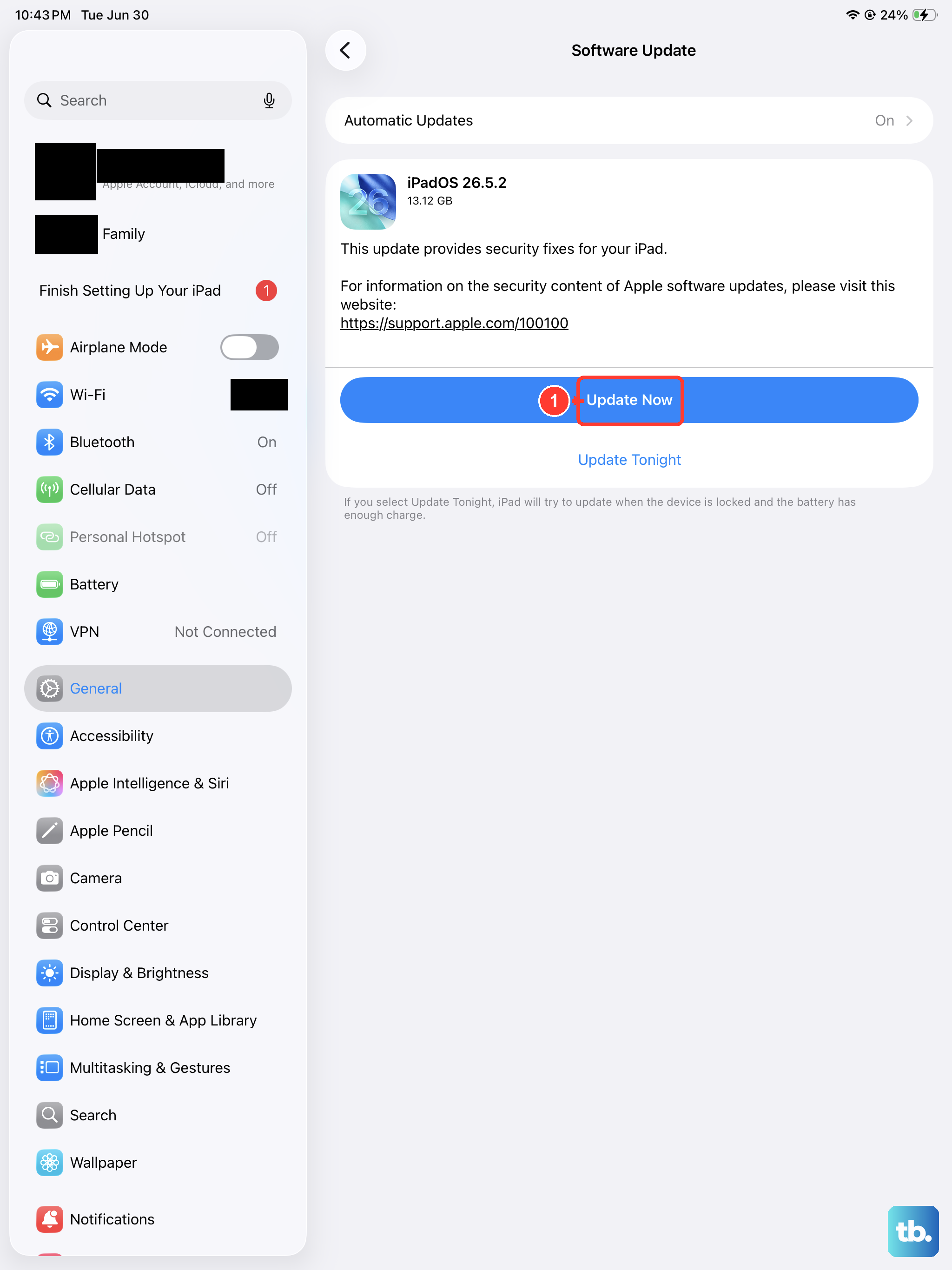
Once the iPad is back on, a pending software update is worth installing right away. Display and boot glitches are sometimes caused by software bugs that a newer iPadOS release has already fixed.
Open Settings.
Go to Settings > General > Software Update.
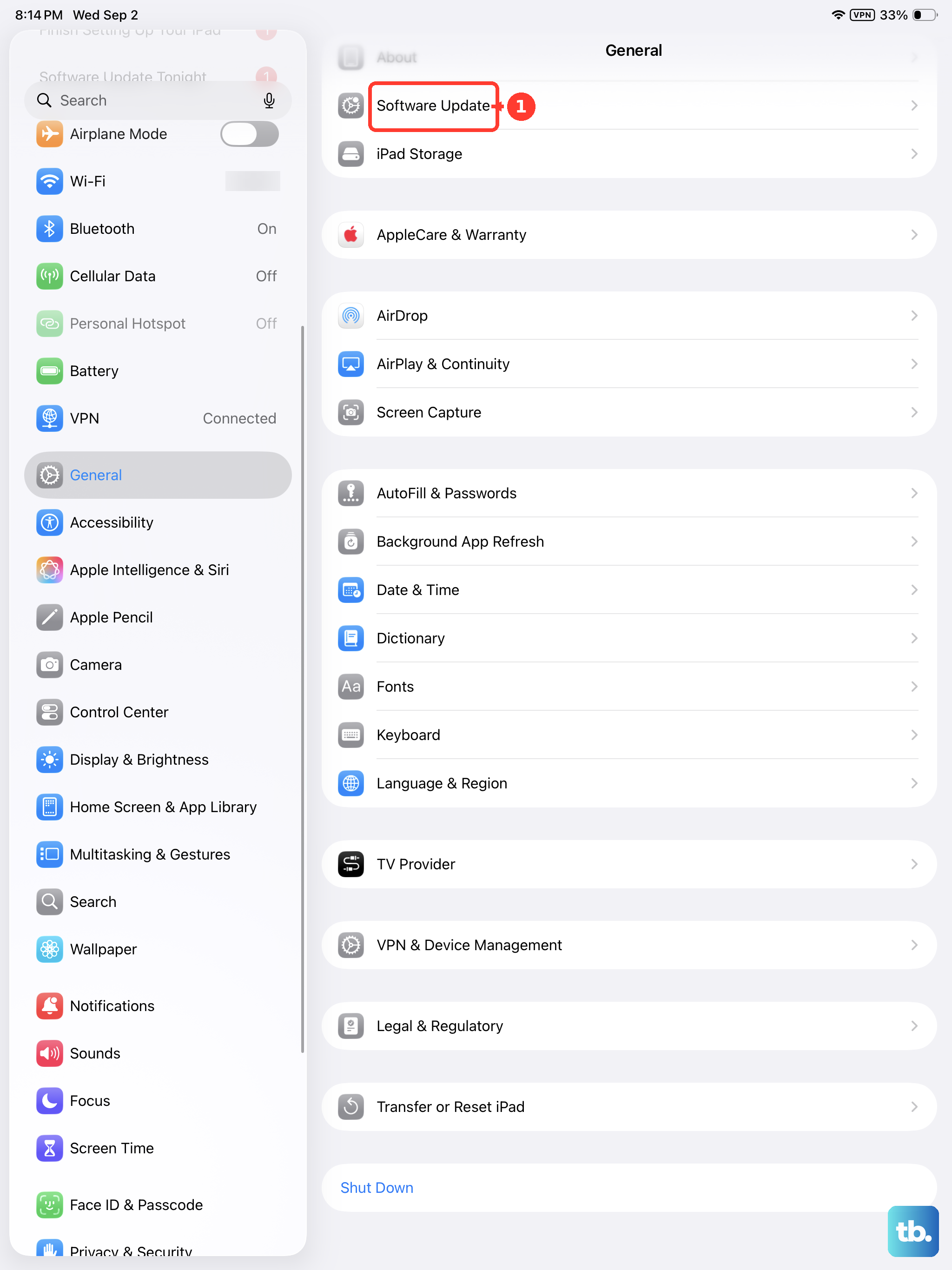
Install the latest version of iPadOS if one is offered.
You do not need to worry about losing anything by updating. The official guidance is clear that when you update to the latest version of iPadOS, your data and settings remain unchanged. Keep the iPad on power and connected to Wi-Fi while the update downloads and installs.
Connect to a computer and choose Update in recovery mode
If the iPad still will not start normally, the next step uses a computer to reinstall iPadOS while keeping your data. You will need either Finder on a Mac running macOS Catalina 10.15 or later, or the Apple Devices app (or iTunes on older systems) on a Windows PC.
Connect the iPad to the computer with a USB-C cable and open Finder or the Apple Devices app.
Press and quickly release the volume button closest to the top button.
Press and quickly release the volume button farthest from the top button.
Press and hold the top button. Keep holding the top button until you see the recovery mode screen.
When you see the option to Restore or Update, choose Update.
Choosing Update reinstalls iPadOS without erasing your data, which is exactly what you want first. One caveat from the official guidance: if the download takes more than 15 minutes, the iPad exits recovery mode on its own. If that happens, simply let the download finish, then repeat the recovery-mode steps above.
Restore the iPad when an update will not take
If the recovery-mode Update does not bring the iPad back, the next option is a full Restore. This is a more powerful repair, but it comes with a cost you need to understand before you start.
Data-loss warning: choosing Restore reinstalls iPadOS and erases all of your data. Only do this if you have a backup, or if recovering the iPad matters more than the content currently on it.
With the iPad still connected, repeat the recovery-mode steps: press and quickly release the volume button closest to the top button, press and quickly release the volume button farthest from the top button, then press and hold the top button until the recovery mode screen appears.
When you see the option to Restore or Update, choose Restore.
Let the process finish completely, then set up the iPad and restore from a backup if you have one.
Erase all content and settings on a booting but unstable iPad
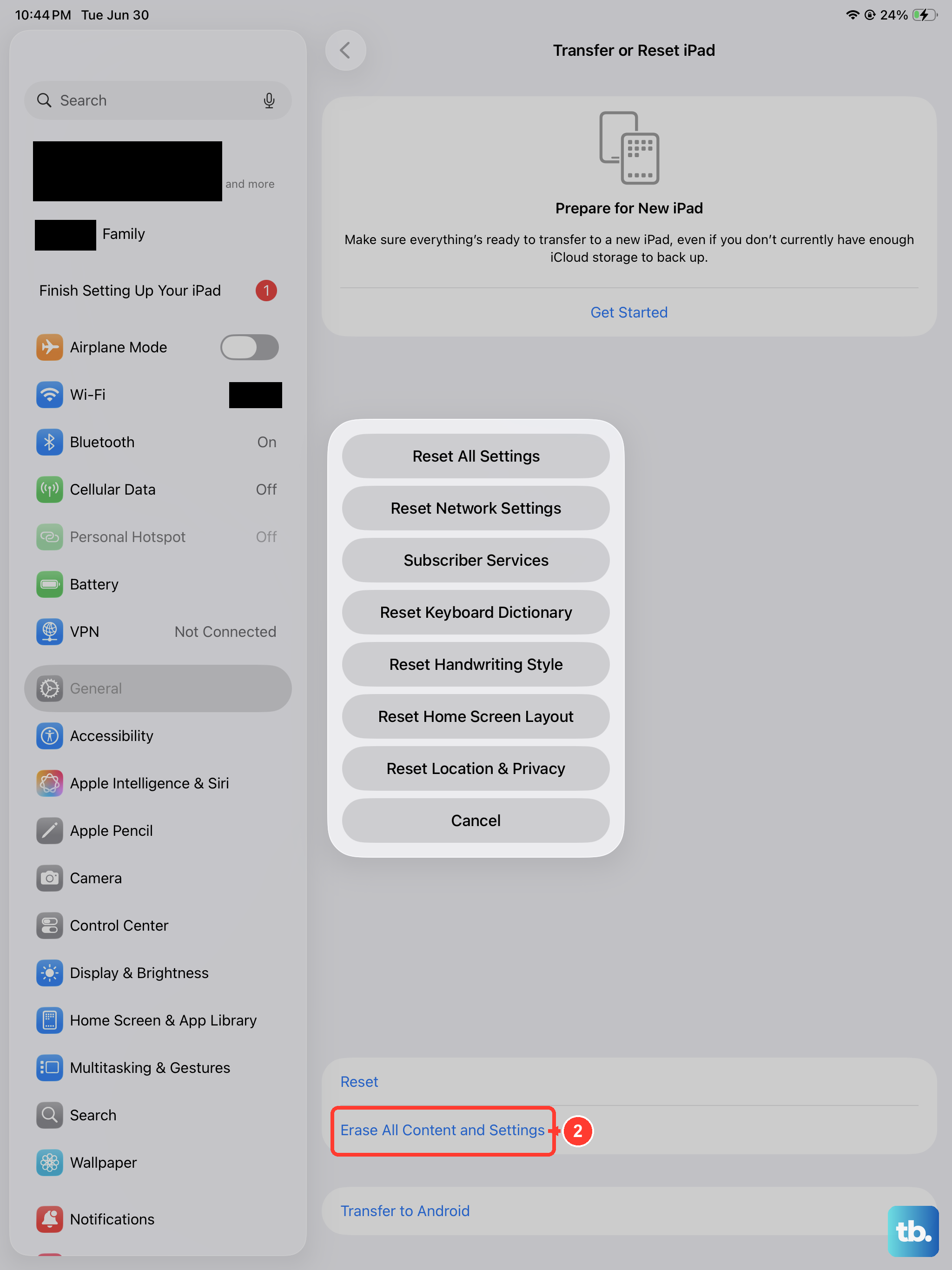
This step only applies if the iPad does turn on and reach its screens but keeps acting up, such as crashing, freezing, or going dark again. A factory reset wipes it clean and can clear a deeply corrupted setup that survives a normal restart.
Data-loss warning: this restores the iPad to factory settings and removes all of your content, so back up first.
Open Settings > General > Transfer or Reset iPad > Erase All Content and Settings.
Enter your iPad passcode or Apple Account password.
Tap Continue and let the iPad erase and reset itself.
Once it finishes, you can set the iPad up as new or restore your apps and data from a backup. If a clean factory reset still leaves you with a black or unstable screen, the issue is likely hardware rather than software.
When to hand it to Apple for service
If the iPad still will not turn on after you have charged it for an hour, force restarted it, and tried a computer-based Update or Restore, it is time to get it looked at. A black screen that survives every software fix points to a battery or display fault that needs professional repair.
Use Apple's official service and repair options for iPad to start the process. You can book a visit to a Genius Bar or an Apple Authorized Service Provider, or arrange mail-in service. Have your details ready, because the device may still be covered by the Apple Limited Warranty, which can affect the cost of the repair.
Frequently Asked Questions
Will a force restart erase my data?
No. The force restart sequence (quick press of the volume button closest to the top button, quick press of the volume button farthest from the top button, then hold the top button) simply reboots the iPad and leaves your data and settings untouched.
How long should I charge my M4 iPad Pro before it turns on?
Give it up to an hour on power before judging it dead. An iPad that has fully drained may show nothing at first, then display a charging screen or low-battery icon once it has taken on enough charge to wake.
Does the M4 iPad Pro charge wirelessly if the port is the problem?
No. The iPad Pro charges only through its USB-C port and does not support wireless charging, so if charging fails you need to inspect the cable, the adapter, and the port itself rather than reach for a charging pad.
What is the difference between Update and Restore in recovery mode?
Update reinstalls iPadOS without erasing your data, which is why it is the first choice. Restore reinstalls iPadOS and erases all of your data, so use it only after Update fails and ideally with a backup ready.
Can I fix a black screen without a computer?
Often, yes. Charging for up to an hour, checking the cable and USB-C port, and performing a force restart all work directly on the iPad. A computer is only needed for the recovery-mode Update or Restore steps later in the list.