
An iPad mini that stops responding to touch can be incredibly frustrating. The screen might be stuck on a single app, the lock screen, or just a frozen image. In my experience, this is almost always a temporary software hiccup that you can fix without losing any of your data.
Force Restart Your iPad mini
This is the first thing I'd try. It solves the vast majority of unresponsive screens. Quickly press and release the Volume Up button, then quickly press and release the Volume Down button. Immediately after, press and hold the Top button until you see the Apple logo appear. Keep holding for about 15 seconds even if the screen stays black at first. This forces a clean reboot without erasing anything.
Give It a Moment to Process
Sometimes your iPad isn't truly frozen, it's just working hard on something in the background. This could be installing a large iPadOS update, indexing photos after a restore, or a single app that's stuck. If the back of the iPad feels warm, that's a good sign it's still processing. Give it five to ten minutes before you take any other action.
Check the Battery and Charger
A battery that's completely drained can make the iPad seem dead or unresponsive. Plug it into a charger using the USB-C port and let it sit for at least 15 to 20 minutes. For the 7th generation iPad mini, I'd recommend using an official Apple 20W or higher USB-C power adapter to ensure it gets enough power to wake up properly. If the battery was critically low, it just needs a little juice before it can restart.
Close the Problem App
If the rest of the iPad works but one app is frozen, you can force close it. Swipe up from the bottom of the screen and pause in the middle to bring up the App Switcher. Find the frozen app's preview and swipe it all the way up and off the top of the screen to close it. Then try reopening it. If the same app keeps freezing, check the App Store for an update or delete and reinstall it.
Free Up Storage Space
When your iPad's storage is completely full, the system has no room to create temporary files it needs to run, which can lead to freezing. If you can get into Settings, go to Settings > General > iPad Storage. You'll see a breakdown of what's using space. Try to delete old videos, unused apps, or clear browser caches to free up at least 3-4 GB. This often resolves persistent sluggishness.
Install the Latest iPadOS Update
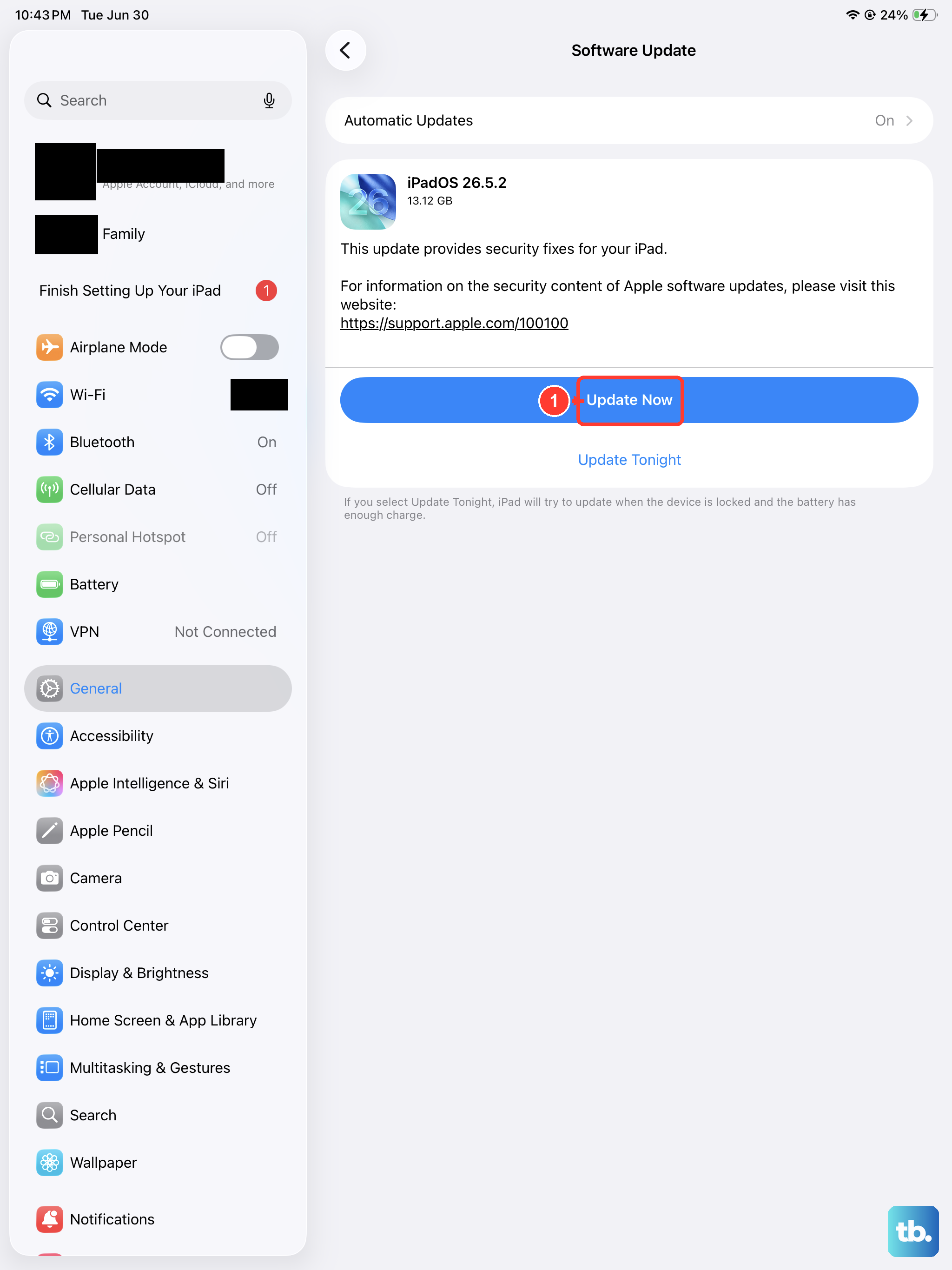
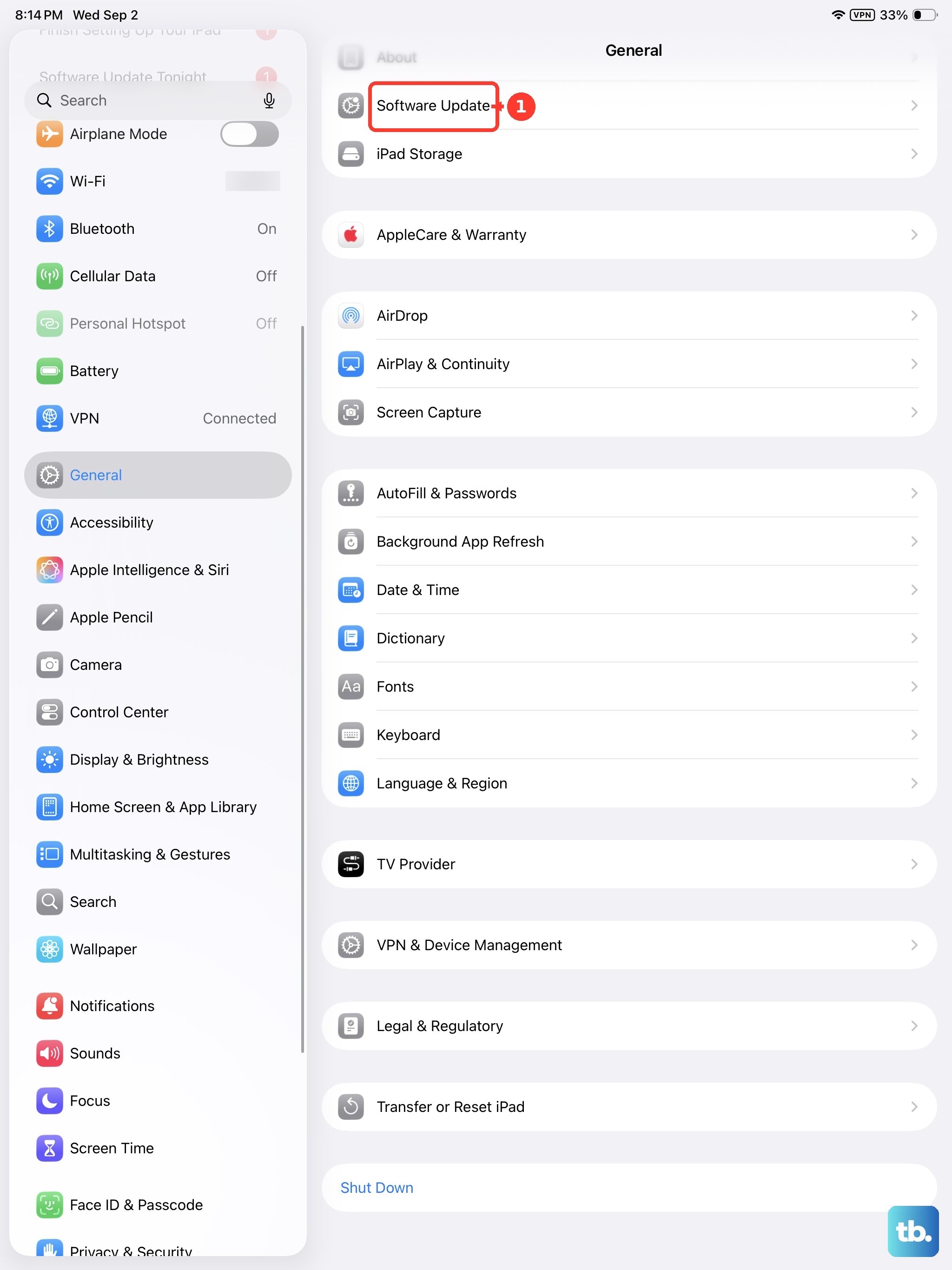
Software bugs in older versions of iPadOS can cause stability issues. After you've restarted your iPad, go to Settings > General > Software Update. If an update is available, install it. If your iPad freezes during the update process itself, you'll need to use a computer to update it via recovery mode, which is a more stable method.
Reset All Settings
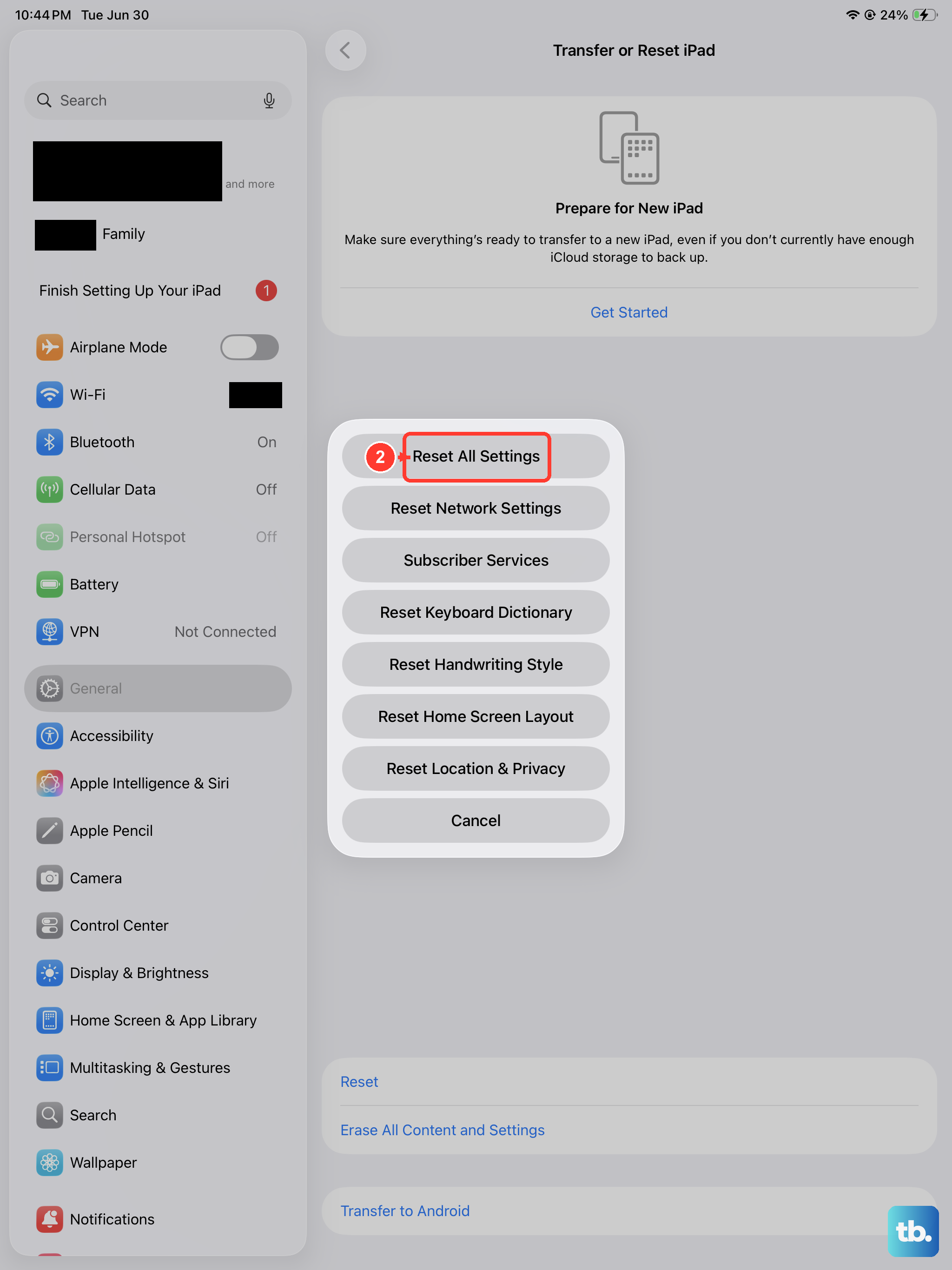
If freezing keeps happening even after a restart, a system setting might have become corrupted. You can fix this by going to Settings > General > Transfer or Reset iPad > Reset > Reset All Settings. This will return all your preferences (like Wi-Fi passwords and wallpaper) to their defaults, but it won't touch your photos, apps, or personal data. It's a good middle-ground step before a full restore.
Restore Using a Computer
For an iPad that is completely stuck and won't respond to a force restart, you'll need to connect it to a Mac or PC. Put the iPad into recovery mode by quickly pressing Volume Up, then Volume Down, then holding the Top button until you see the recovery mode screen. On your computer, you'll have the option to Update or Restore. Always choose Update first, as it reinstalls iPadOS without erasing your data. Only choose Restore if the Update fails.
Let an Overheated iPad Cool Down
Your iPad mini has built-in protection that will throttle performance or even freeze if its internal temperature gets too high. If the device feels hot to the touch, take it out of any case and move it away from direct sunlight. Let it cool down for 15-20 minutes before trying to turn it on or charge it. Avoid using demanding apps or charging while it's still warm.