
When your iPad Air M3 gets stuck on the Apple logo during startup, it's easy to think the tablet is dead. The logo just sits there, sometimes with a progress bar frozen in place. This usually happens after an interrupted iPadOS update, a software corruption, or a failed installation. Here's how to get it moving again.
Force restart first
If the Apple logo has been on screen for more than ten minutes with no movement, start with a force restart. Press and quickly release Volume Up, then Volume Down, then press and hold the Top button until the Apple logo appears again. This breaks the boot loop without losing any data.
The iPad Air M3 uses a solid-state Top button, not a physical Home button. The sequence is the same across all modern iPads. Hold the Top button even after the screen goes black, keep holding until you see the logo reappear.
Let it sit for 20 minutes
Sometimes the logo is just a sign the iPad is still working through a big update. If you see a progress bar under the Apple logo, the software is still installing or optimizing. Plug it into a charger using a 20W or higher USB-C PD adapter. Leave it alone for at least 20 minutes before assuming it's stuck.
Interrupting a mid-update install can corrupt the system. Patience here saves you from having to restore the entire device.
Boot into recovery mode
If the force restart brings you back to the same stuck logo, recovery mode is the next step. Connect the iPad Air M3 to a computer using a USB-C cable. Open Finder on a Mac or iTunes on a Windows PC. Then quickly press Volume Up, Volume Down, then hold the Top button until you see the recovery mode screen, a cable pointing at a computer icon.
Your computer will give you two options: Update or Restore. Always try Update first. This reinstalls iPadOS while keeping your photos, apps, and settings. The process takes 15‑20 minutes. If Update fails, you'll need to Restore, which wipes everything.
Use DFU mode as a last resort
DFU (Device Firmware Update) mode goes a level deeper than recovery. Connect to a computer. Press Volume Up, then Volume Down, then hold the Top button for 10 seconds. While still holding Top, also press and hold Volume Down for 5 more seconds. Release the Top button but keep holding Volume Down for 10 seconds longer.
The screen should stay completely black, no Apple logo, no battery icon. Your computer will detect the iPad in DFU mode and offer to restore it. This writes fresh firmware from scratch and fixes corruption that recovery mode can't touch. Data is erased, so only do this if Update won't work.
Free up storage before updating
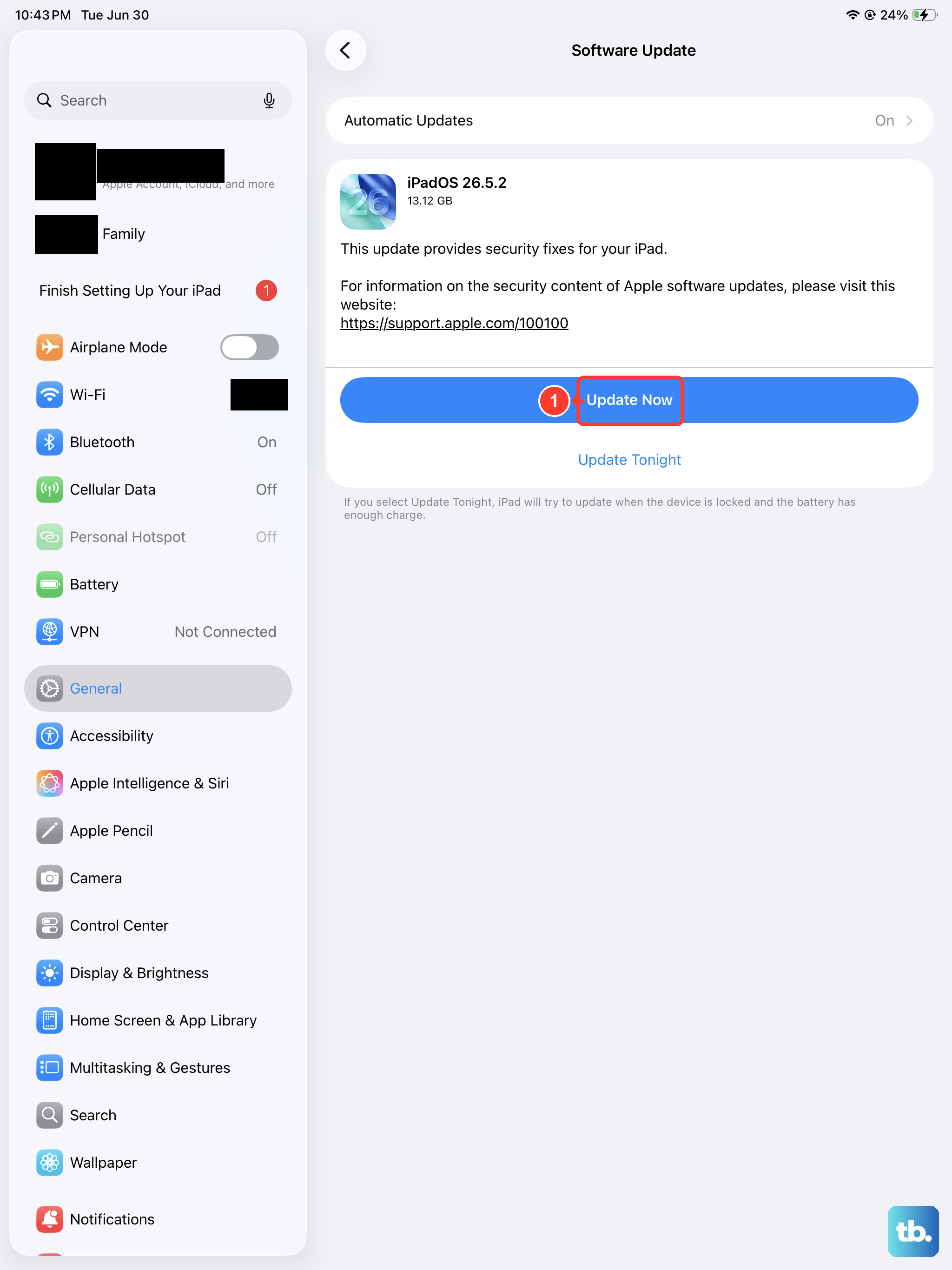
The stuck logo often happens when a software update runs out of space mid-install. If you get the iPad working after a force restart, immediately clear out at least 6‑8 GB of storage before trying the update again. Delete large apps, offload unused ones, or move photos to iCloud.
iPadOS 18 needs room to download, verify, and unpack the update. Low storage is one of the most common causes of a botched boot sequence.
Check the cable and the computer
If your computer won't detect the iPad in recovery mode, try a different USB-C cable and a different port on the computer. Damaged or non‑certified cables are a frequent reason recovery mode fails. Use an Apple‑certified USB-C cable if you have one, third‑party cables can cause intermittent connection issues.
The iPad Air M3 doesn't support wireless charging, so your only wired option is USB‑C. Stick to a 20W or higher PD adapter for stable power during recovery.
Restore your data from a backup
If you had to use Restore (erasing everything), you can get your data back from a backup. During initial setup after the restore, choose Restore from iCloud Backup or Restore from Mac/PC depending on where your backup is stored. Regular backups make this recovery much less painful.
Keep in mind that certain third‑party accessories can interfere with charging and connection during these procedures. Avoid cheap peripherals when working with the iPad Air M3, they've been known to cause erratic behavior.