
That dreaded "Storage Full" notification on your iPad Air M3 can bring everything to a halt. No new apps, no photo editing, no updates. It's especially annoying on a device you use for so much. The good news is there's plenty you can do to clear space without deleting your most important stuff. Let's walk through the most effective ways to reclaim storage.
See Where All That Space Went
Start by opening Settings > General > iPad Storage. Give it a few seconds to load, you'll see a full breakdown of how much space each app and data type is using. The bar graph at the top shows at a glance what's taking up the most room. Photos and social media apps are usually the culprits on an iPad, but you might be surprised to find a game or a video streaming app sitting at the top.
Offload Apps You Haven't Touched in Months
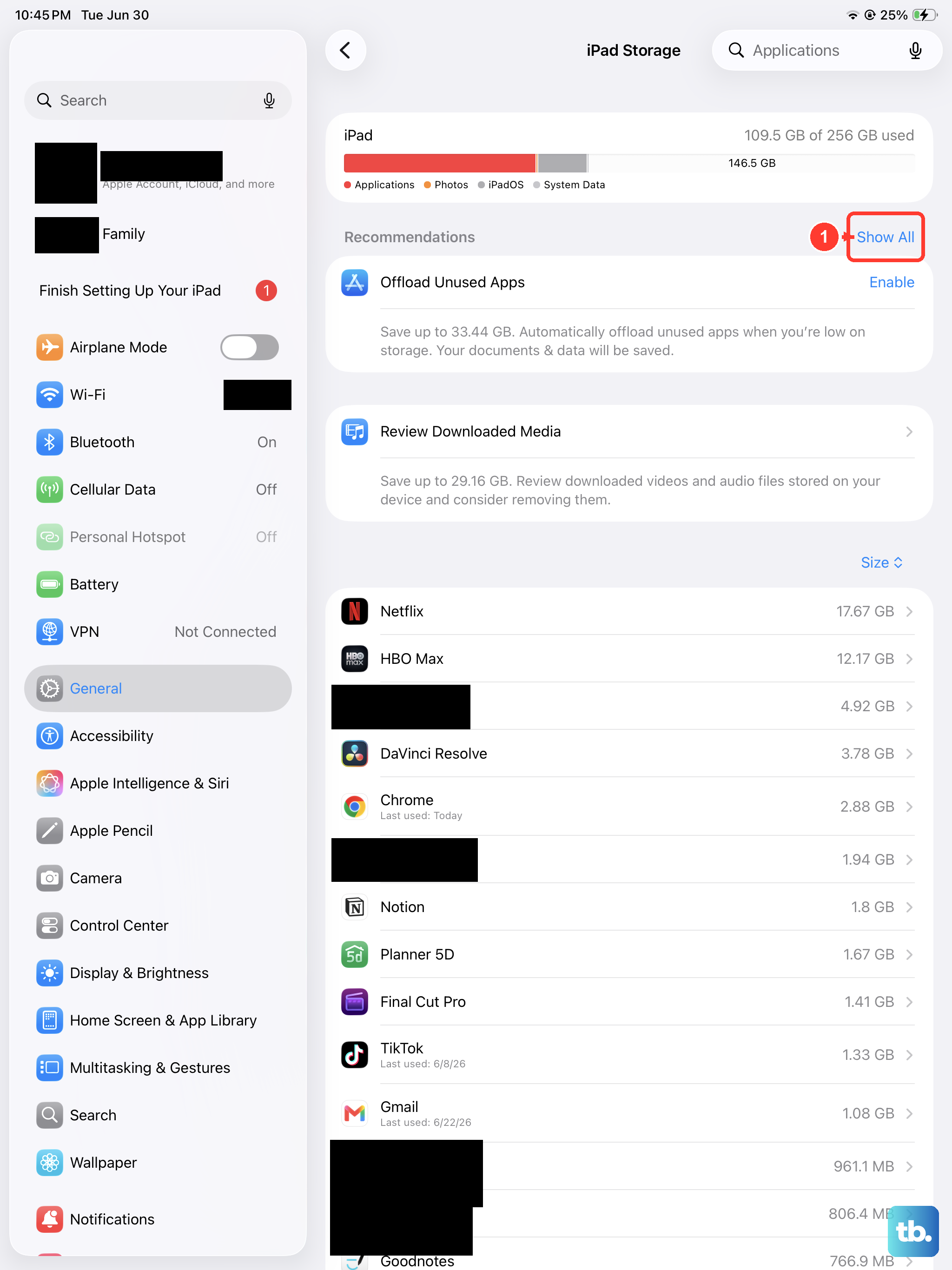
On that same iPad Storage screen, you'll see a recommendation to Offload Unused Apps. Turn it on and your iPad will automatically remove apps you haven't used recently, while keeping their documents and data. When you tap the app icon later, it re-downloads just like it was always there. You can also offload individual apps by tapping any app in the list and choosing Offload App, great for those games you tell yourself you'll play again someday.
Clear Out Old Messages and Their Attachments
iMessage attachments pile up fast, especially when your family shares videos and photos in group chats. Go to Settings > General > iPad Storage > Messages. You'll see separate categories for Photos, Videos, GIFs, and Stickers, each with its own size. Tap into each and delete what you don't need. To prevent this from happening again, set messages to auto-delete after 30 days: Settings > Apps > Messages > Keep Messages > 30 Days.
Optimize Photos and Videos
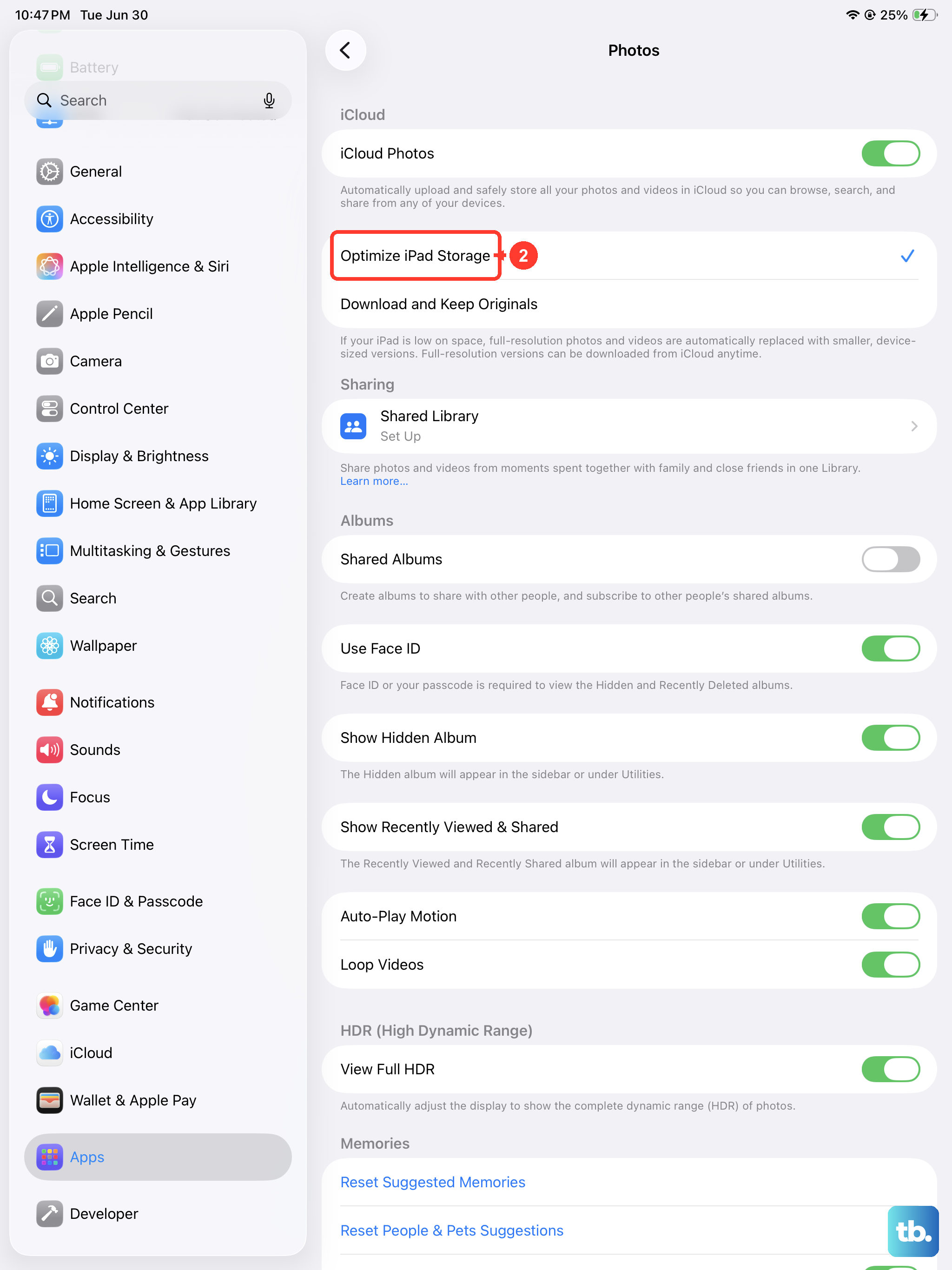
Photos and videos are often the number one space hog. Go to Settings > Apps > Photos and turn on Optimize iPad Storage. This keeps full-resolution versions in iCloud and smaller, device-sized copies on your iPad. You can also manually clean up your photo library, delete blurry shots, duplicate photos, and old screenshots. Don't forget to open the Recently Deleted album in the Photos app and tap Delete All to really free up that space.
Delete Downloaded Movies, Shows, and Music
Streaming apps like Apple TV, Netflix, Disney+, and Spotify store downloads locally for offline viewing. Open each app and look for a Downloads or Offline section. Delete anything you've already watched or listened to. In Apple Music, go to Settings > Apps > Music > Downloaded Music and swipe left on albums you don't need. On an iPad with limited storage, it's easy to download a season of a show and forget about it, that alone can clear several gigabytes.
Clear Safari's Cache and History
Safari stores website data, images, and cookies that can add up over time. Go to Settings > Apps > Safari > Clear History and Website Data. This removes your browsing history, cached files, and cookies. It won't log you out of websites if you use iCloud Keychain, but you may need to sign in again to some sites. If Safari is showing more than a few hundred megabytes in the storage list, this is a quick fix.
Delete and Reinstall Large Apps
Some apps, especially social media and productivity tools, build up huge caches that you can't clear normally. Look at apps like Instagram, TikTok, Spotify, Netflix, Facebook, and even Notes or Files. If an app shows a big Documents & Data size that's larger than the app itself, tap it and choose Delete App. Then reinstall from the App Store. This wipes the cache while your login credentials stay in iCloud Keychain or the app's servers. Your downloaded files in Files app won't be affected if they're stored in iCloud Drive.
Check System Data for Unexpected Bloat
After updating to iPadOS 18, some users have noticed the System Data category ballooning to 15GB or more. You'll see it at the bottom of the iPad Storage screen. If it's using a huge chunk, try restarting your iPad. Use the proper force restart for the iPad Air M3: press and quickly release Volume Up, then Volume Down, then press and hold the Top button until the Apple logo appears. That alone can clear temporary system files. If it doesn't help, a backup and restore through a computer is the nuclear option, but wait a day or two first, as the system may need to reindex after an update.
Manage iCloud Storage and Offload Files
If you're on a lower iCloud plan, upgrading to iCloud+ can take the pressure off local storage. Your photos, messages, and backups sync to the cloud automatically. Go to Settings > [Your Name] > iCloud > Manage Account Storage to see your usage. Also check the Files app, any files you've marked as Keep Downloaded will take up local space. Tap and hold a file or folder and choose Remove Download to free up that space while keeping it in iCloud Drive.