
When your iPad Air M3 suddenly stops producing sound, it throws off everything from watching shows to joining video calls. Audio problems on this model usually trace back to a few specific culprits. Let's walk through the most common reasons and how to fix each one.
It is worth confirming the basics with a quick speaker test. If neither channel plays a tone, you are looking at a hardware or connection problem rather than a settings issue.
Check the Physical Mute Switch
This catches more people than you'd think. The iPad Air M3 has a physical switch on the right side above the volume buttons. If you can see an orange dot, the device is muted.
Flip the switch so the orange disappears. That's it. If you've customized this switch in Settings to lock screen rotation instead, just make sure it's not actively rotating when you need sound.
Turn Up the Volume (Yes, Really)
Your iPad might be outputting audio at a level too low to hear. Press the volume up button on the top right edge and watch the volume indicator appear on screen.
You can also check the volume slider in Control Center. Swipe down from the top-right corner and make sure the slider is at least halfway up. If you have multiple audio outputs listed (like your iPad speakers and a connected Bluetooth device), make sure the output slider for the internal speakers is turned up too.
Disconnect Bluetooth Devices
Your iPad Air M3 might be sending audio to a paired Bluetooth speaker or headphones without you realizing it. This is incredibly common if you've previously connected wireless earbuds or a car audio system.
Open Control Center and tap the Bluetooth icon to turn it off temporarily. Or go to Settings > Bluetooth and check if any devices show as Connected. Tap the "i" icon next to a connected device and select Disconnect. Now try playing audio through the iPad's built-in speakers.
Clean the Speaker Grills
Over time, dust and lint can collect in the tiny speaker openings along the bottom edge of your iPad Air M3. If audio sounds muffled or quiet, this might be why.
Use a soft, dry toothbrush to gently sweep across the speaker grills. You can also try Blu Tack or a similar cleaning putty pressed lightly into the grills to pull out debris. Don't use compressed air, as it can force particles deeper into the speakers. And definitely don't stick anything sharp into those openings to get the audio working properly again.
Check Do Not Disturb and Focus Modes
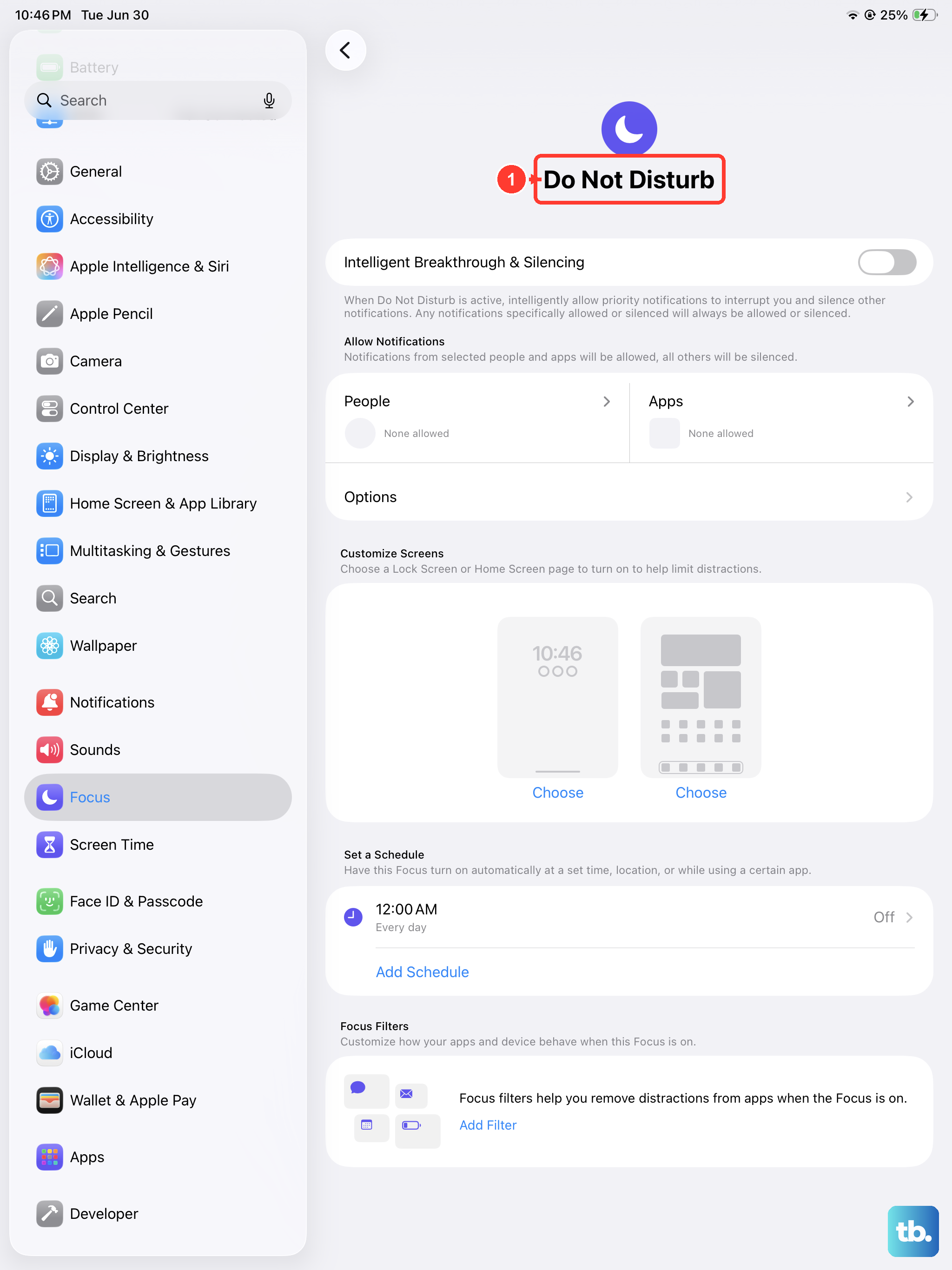
Focus modes in iPadOS 18 can silence notifications and calls, but they shouldn't mute media playback. That said, some settings within Focus modes can affect overall sound behavior.
Open Settings > Focus and check if any Focus mode is currently active. Tap the active mode and look under "Silence Notifications" to see what's happening. Turn off Focus mode entirely by swiping down Control Center, long-pressing the Focus button, and selecting Do Not Disturb to verify everything is working normally again.
Restart Your iPad Air M3
A simple restart clears temporary glitches that can cause audio failure. Press and hold the Top button and either volume button until the Power Off slider appears. Drag the slider, wait 30 seconds, then press and hold the Top button until the Apple logo appears.
This takes about a minute and solves a surprising number of sound problems on the iPad Air M3.
Force Restart (If the Screen Is Unresponsive)
If your iPad is stuck with no sound and won't respond to taps, a force restart is the next step. Press and quickly release the Volume Up button, then quickly press and release the Volume Down button, then press and hold the Top button until you see the Apple logo. Keep holding even if the screen goes dark.
This doesn't erase any data. It just forces the system to reboot cleanly.
Update iPadOS
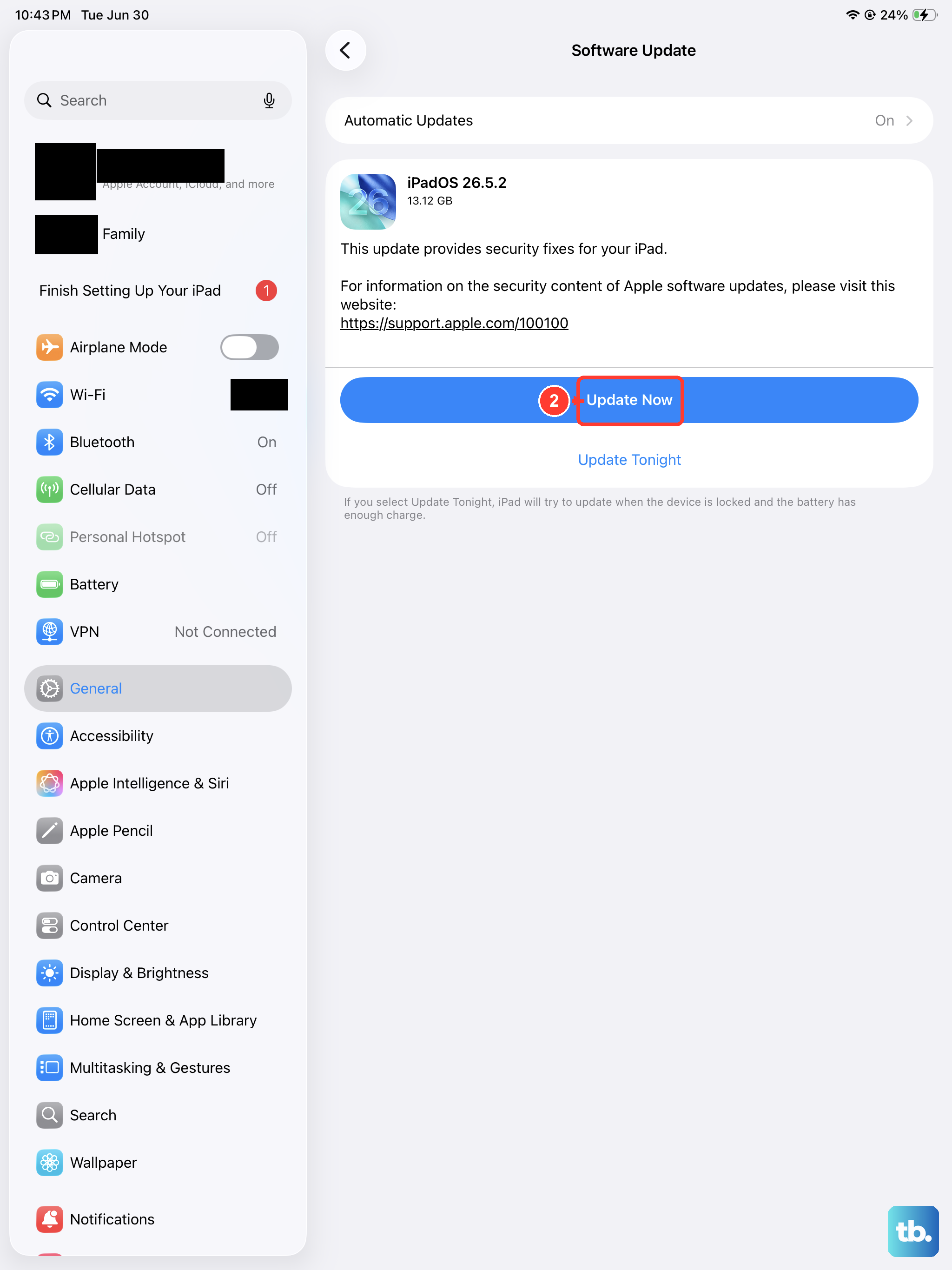
Apple frequently releases software updates that fix audio bugs. Go to Settings > General > Software Update. If a newer version of iPadOS 18 is available, tap Download and Install.
I've seen updates specifically target Bluetooth audio dropouts and speaker crackling issues on recent iPad models. It's worth checking even if you think your system is up to date.
Reset All Settings
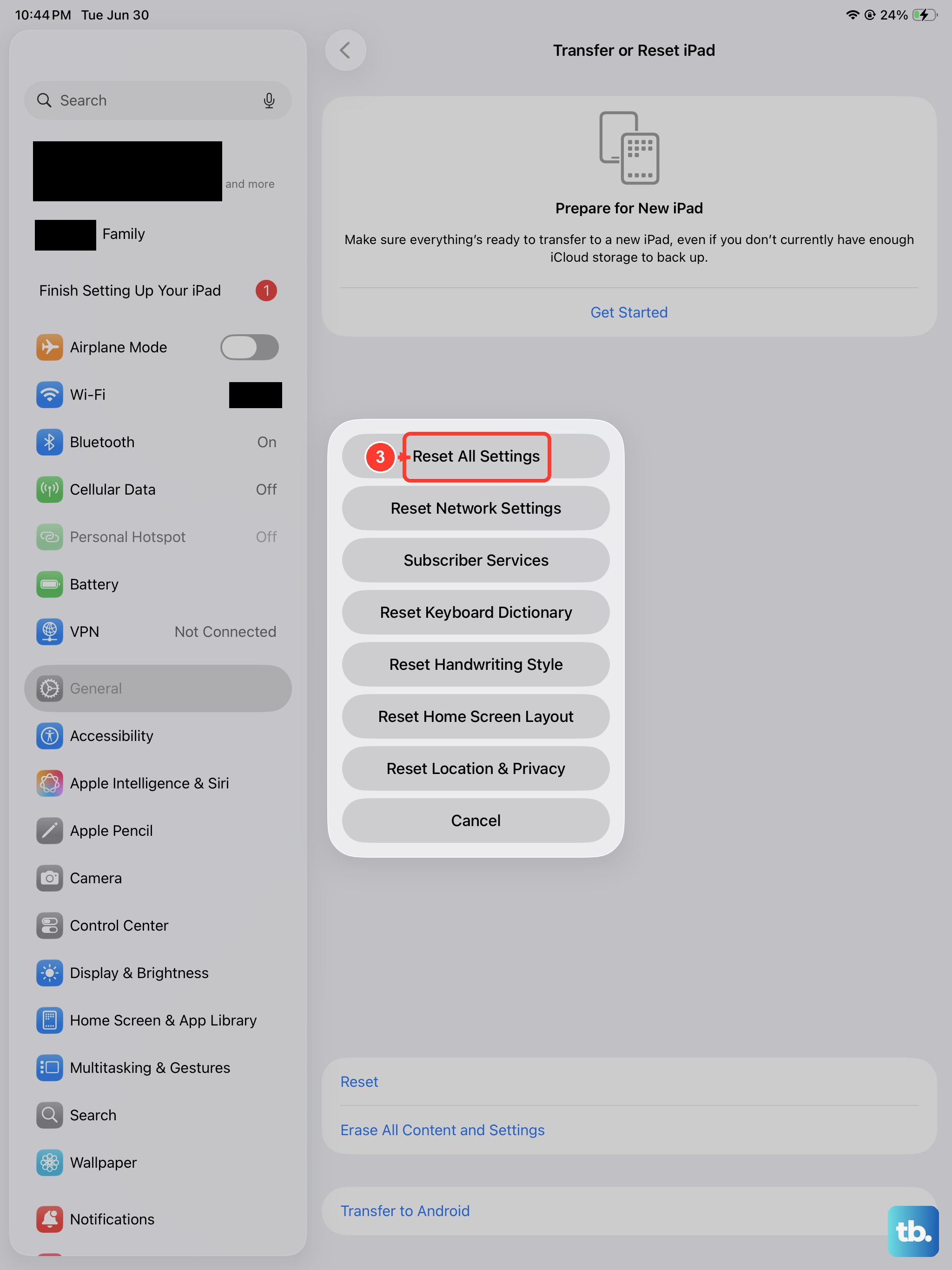
This is a middle ground between a full factory reset and doing nothing. It resets Wi-Fi networks, Bluetooth pairings, display settings, and sound settings back to defaults. Your personal data stays intact.
Open Settings > General > Transfer or Reset iPad > Reset > Reset All Settings. Your iPad will restart and you'll need to reconnect to Wi-Fi and re-pair Bluetooth devices. For audio issues caused by a misconfigured setting, this usually does the trick.
Factory Reset (Last Resort)
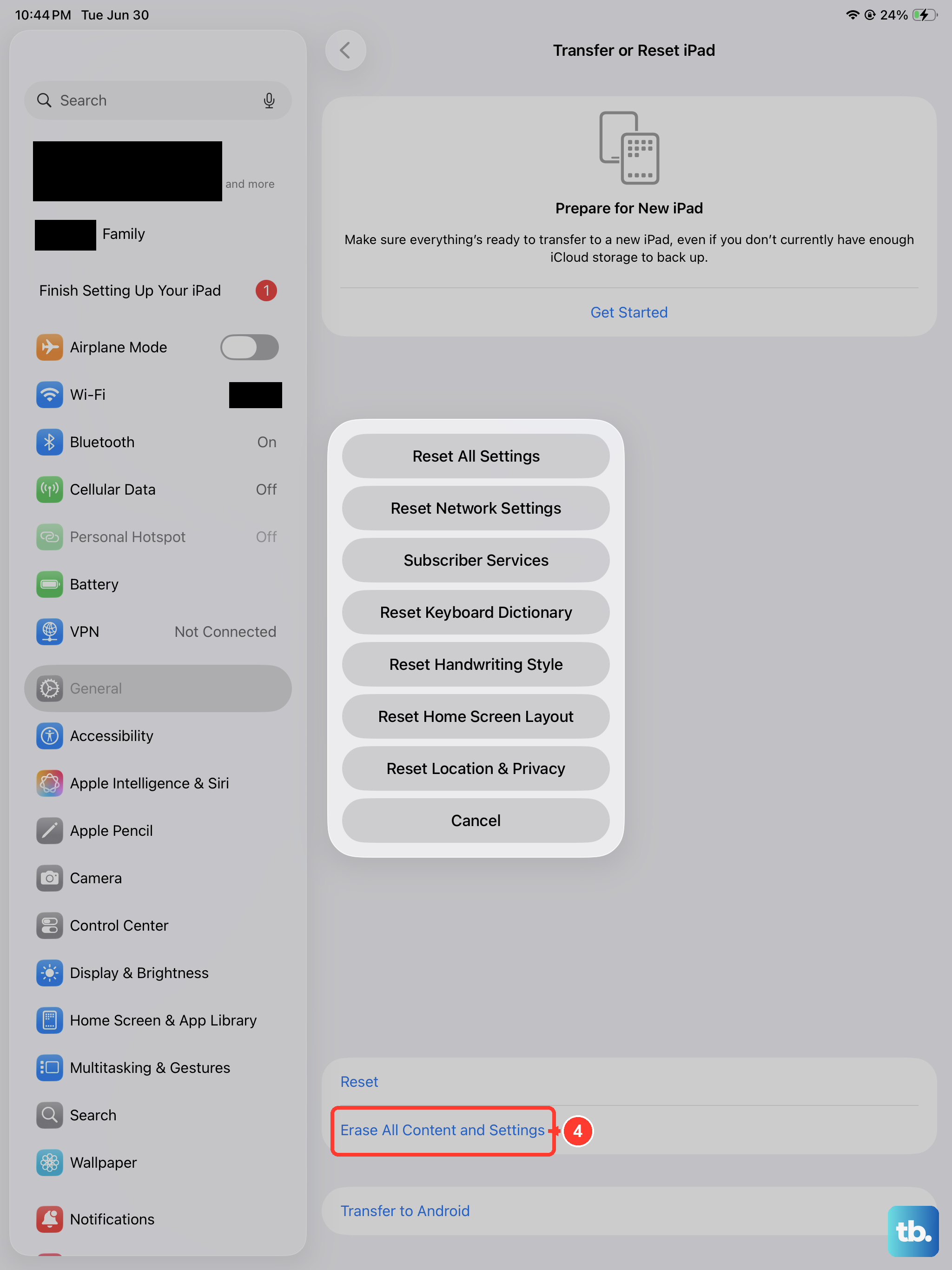
If nothing else has worked and the sound still isn't coming through, a factory reset might be necessary. Back up your iPad first using iCloud or a computer. Then go to Settings > General > Transfer or Reset iPad > Erase All Content and Settings.
This wipes everything and returns your iPad Air M3 to the state it was in when you first took it out of the box. Set it up as new to rule out backup-corruption issues, then test the speakers before restoring your data.
Most sound problems on the iPad Air M3 are software-related and fixable without a trip to the Apple Store. Start with the quick checks like the mute switch and volume levels, then work your way through the rest. If you've tried every step and still have no audio, the issue might be hardware-related, in which case Apple support can run diagnostics to confirm.