
When autocorrect on your iPad Air M3 starts rewriting perfectly good words into the wrong ones, or stops suggesting anything at all, it slows down everything. The iPadOS keyboard usually learns from your typing habits, so when it starts second-guessing every word, the problem is probably in the settings. Here's how to get it back in line.
Turn Predictive Text Off and Back On
Sometimes the predictive text engine just needs a fresh start. Go to Settings > General > Keyboard and toggle Predictive off. Wait a couple seconds, then toggle it back on. This refreshes the prediction engine without deleting any of your learned words. Give it a try in Notes or Messages to see if it's tracking properly again.
If that helped but only temporarily, you might have a deeper settings conflict.
Check Your Autocorrect and Smart Typing Settings
iPadOS 18 has a few keyboard toggles that can clash with each other. Head to Settings > General > Keyboard and look at the switches under All Keyboards. Make sure Auto-Correction is on if you want it to fix typos, or off if it's overcorrecting. Check Check Spelling too, since a disabled spell-checker can make autocorrect behave unpredictably.
I've seen cases where having Predictive and Auto-Correction both enabled works fine, but turning one off and leaving the other on creates weird behavior. Try both on, then both off, and see which combo feels right.
Reset the Keyboard Dictionary
If autocorrect is persistently suggesting the wrong words, your keyboard dictionary might be corrupted. This is different from clearing app data on Android, iPadOS has a dedicated reset for this. Go to Settings > General > Transfer or Reset iPad > Reset > Reset Keyboard Dictionary.
This wipes all the words you've taught the keyboard, including any accidental entries from mistyped words you accepted by hitting space. You will have to re-teach it your common names and slang, but the correction behavior usually returns to normal immediately.
Add Text Replacements for Problem Words
If your iPad keeps changing a specific word you use all the time, especially proper names, brand names, or technical terms, you can override it with a text replacement. Go to Settings > General > Keyboard > Text Replacement and tap the plus icon. In the Phrase field, type the word exactly as you want it. Leave the Shortcut field blank if you just want it to stop correcting that word.
This works well for words like "iPad Air M3" or model numbers that autocorrect tends to mangle. The keyboard will stop flagging them as errors.
Force Restart the iPad Air M3
A force restart clears up temporary glitches that can affect the keyboard process. Press and quickly release Volume Up, then Volume Down, then press and hold the Top button until the Apple logo appears. Keep holding through the power-off slider, the logo will show up after about ten seconds.
This doesn't erase any data. It just gives the software a clean slate, which can fix keyboard lag, unresponsive predictions, and other odd behavior that shows up suddenly.
Update iPadOS 18
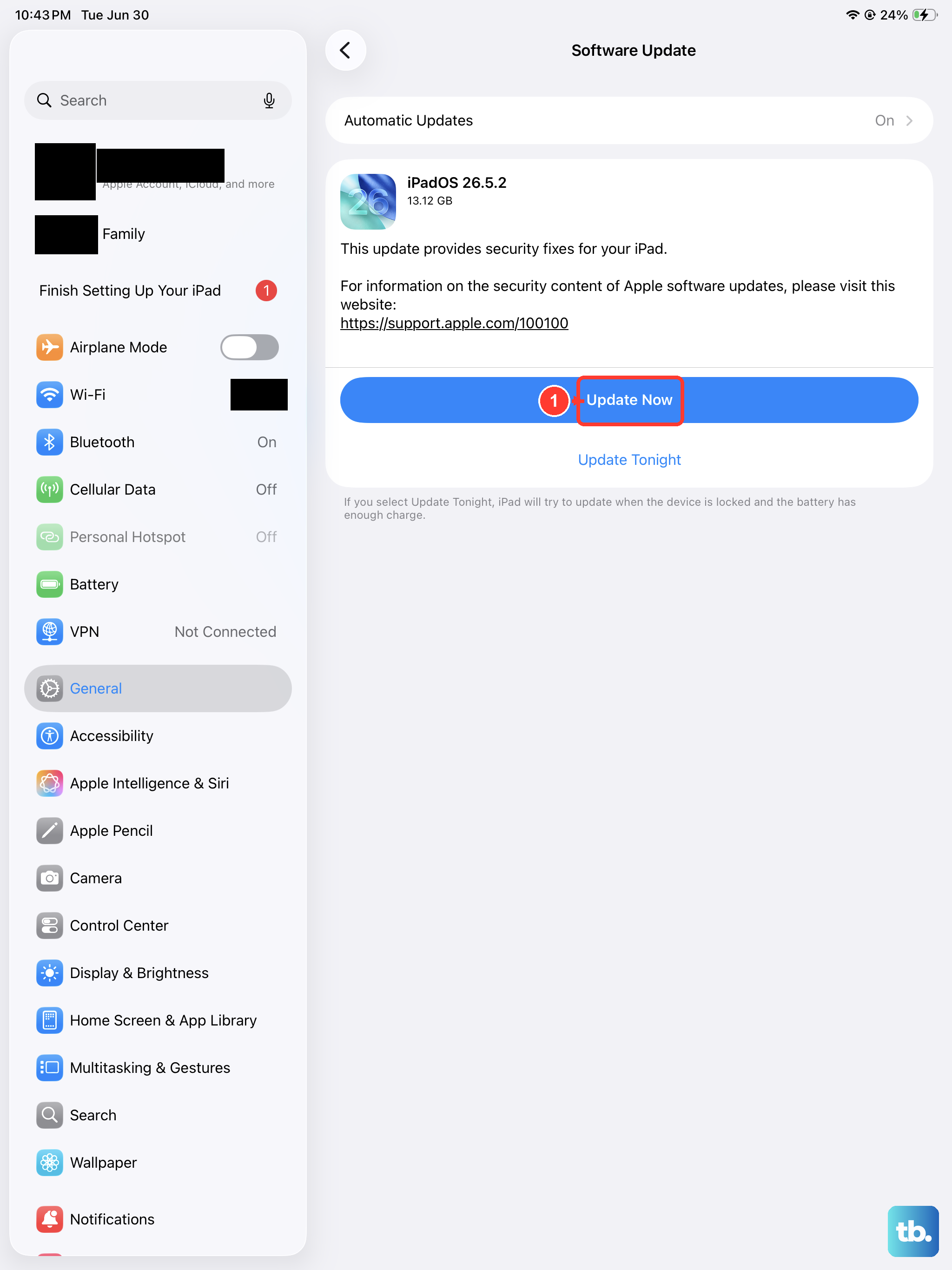
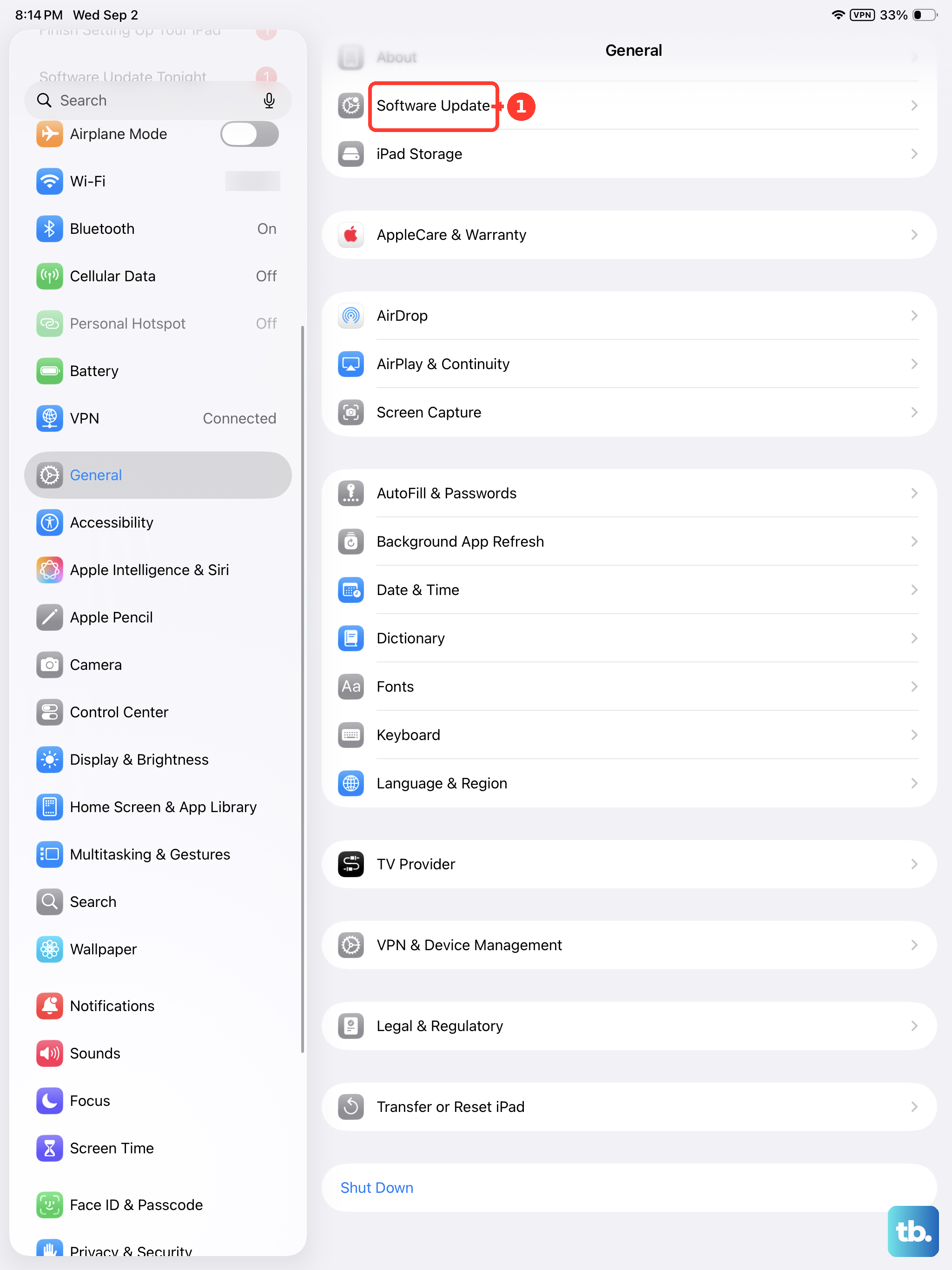
Apple often releases keyboard fixes in point updates to iPadOS 18. Go to Settings > General > Software Update and check if a new version is available. If the keyboard started acting up after a recent update, the next patch might include a targeted fix.
Before updating, make sure your iPad Air M3 has at least 50% battery or is plugged into a charger. The update process itself won't change your keyboard settings, so you won't lose your learned words or text replacements.
Check Your Language and Regional Settings
If you have multiple keyboards enabled or your region doesn't match the language you type in, autocorrect can get confused. Go to Settings > General > Keyboard > Keyboards and make sure only the languages you actually use are listed. If you see extra keyboards you don't need, swipe left on them and tap Delete.
Also check Settings > General > Language & Region to confirm your preferred language is at the top. A mismatch between the system language and your primary keyboard can cause autocorrect to use the wrong dictionary entirely.
These steps should get your iPad Air M3 keyboard back to normal. Start with the quick toggle, then move to the dictionary reset if needed, that one solves most persistent autocorrect problems.