
Your iPad Air M3 feels hot to the touch, and maybe you’ve seen the temperature warning screen telling you to let it cool down before using it again. This is a common issue with the M3 chip, especially when you push it hard or leave it charging in the wrong conditions. Here’s how to fix it fast.
The iPad Air M3 doesn’t have a cooling fan, so it relies entirely on the aluminum chassis to dissipate heat. That’s why a hot iPad can happen quickly if you’re doing something intensive like gaming, editing video, or using augmented reality apps while it’s charging.
Force Restart the iPad Air M3
If your iPad is already overheating and acting sluggish or stuck, a force restart clears out whatever background process is causing the load. This is the quickest fix and won’t delete your data.
Press and quickly release the volume button closest to the Top button, then the one farthest from it, then press and hold the Top button until the Apple logo appears. That whole sequence takes about five seconds. Once it restarts, let it sit for a couple of minutes before doing anything else.
Take It Out of the Case
A thick or poorly ventilated case traps heat against the aluminum back. The iPad Air M3’s body is designed to radiate heat, but a case can block that completely. Pop the case off and see if the temperature drops within a few minutes. If it does, you’ll want to use a thin, ventilated case going forward, or just go caseless when you’re gaming or charging.
Check Your Charging Setup
The iPad Air M3 charges over USB-C and can handle up to 30W wired. But using a low-power adapter (say, a 5W iPhone brick) might make it charge slowly and actually run warm because the system has to constantly negotiate power. On the flip side, a 60W or higher charger isn't a problem–the iPad will only draw what it needs. But if you’re using a cheap third-party cable, the battery management chip might not get accurate readings, which can cause heat.
Stick with a 20W or higher USB-C PD adapter and a properly certified USB-C cable. If the iPad shows “Not Charging” on the lock screen, try a different cable and adapter right away. That message usually means the iPad isn't getting enough stable power, which can make it warm up unnecessarily.
Update to the Latest iPadOS 18
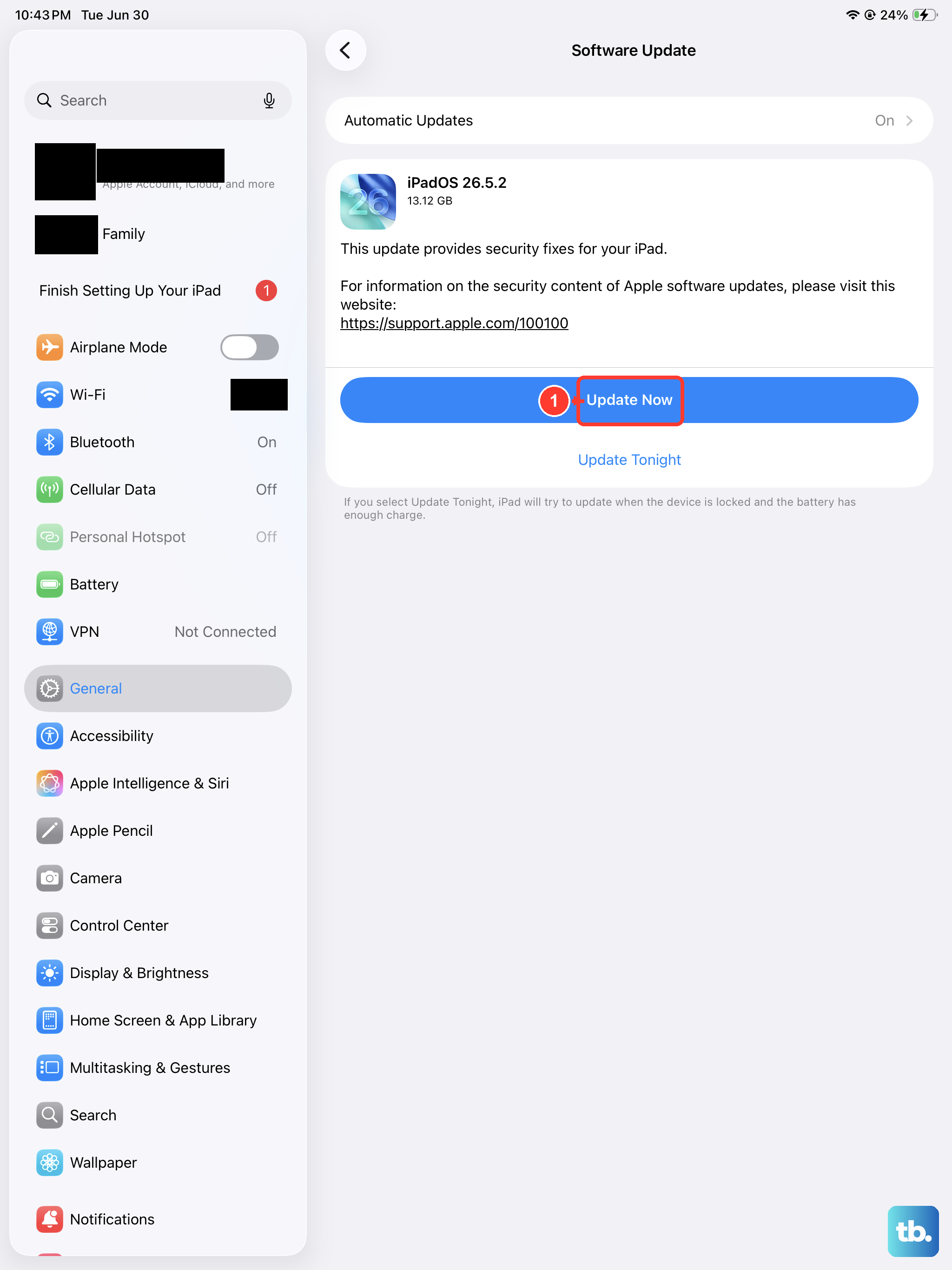
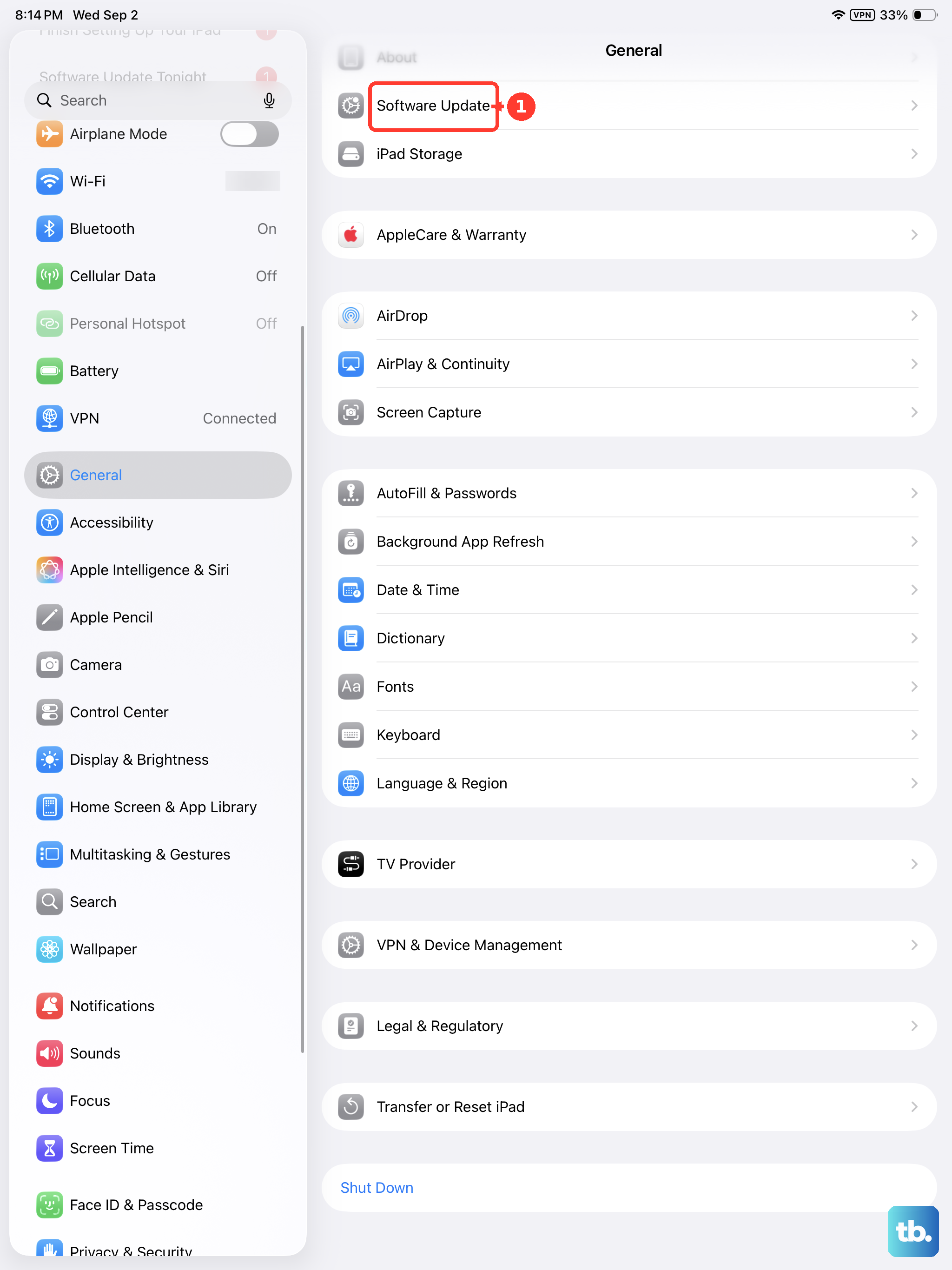
Apple regularly pushes software updates that improve thermal management. Go to Settings > General > Software Update and install any pending update. iPadOS 18 specifically includes optimizations for the M3 chip’s power profile, so running an older build could be part of the problem. Updates also fix bugs that might keep a background process spinning hot.
Close Background Apps and Reduce Brightness
Too many apps running in the background can keep the CPU active. Swipe up from the bottom and hold to open the App Switcher, then swipe up on apps you aren't using. Pay special attention to video streaming apps, navigation apps, or anything with live location access. Those are common heat culprits.
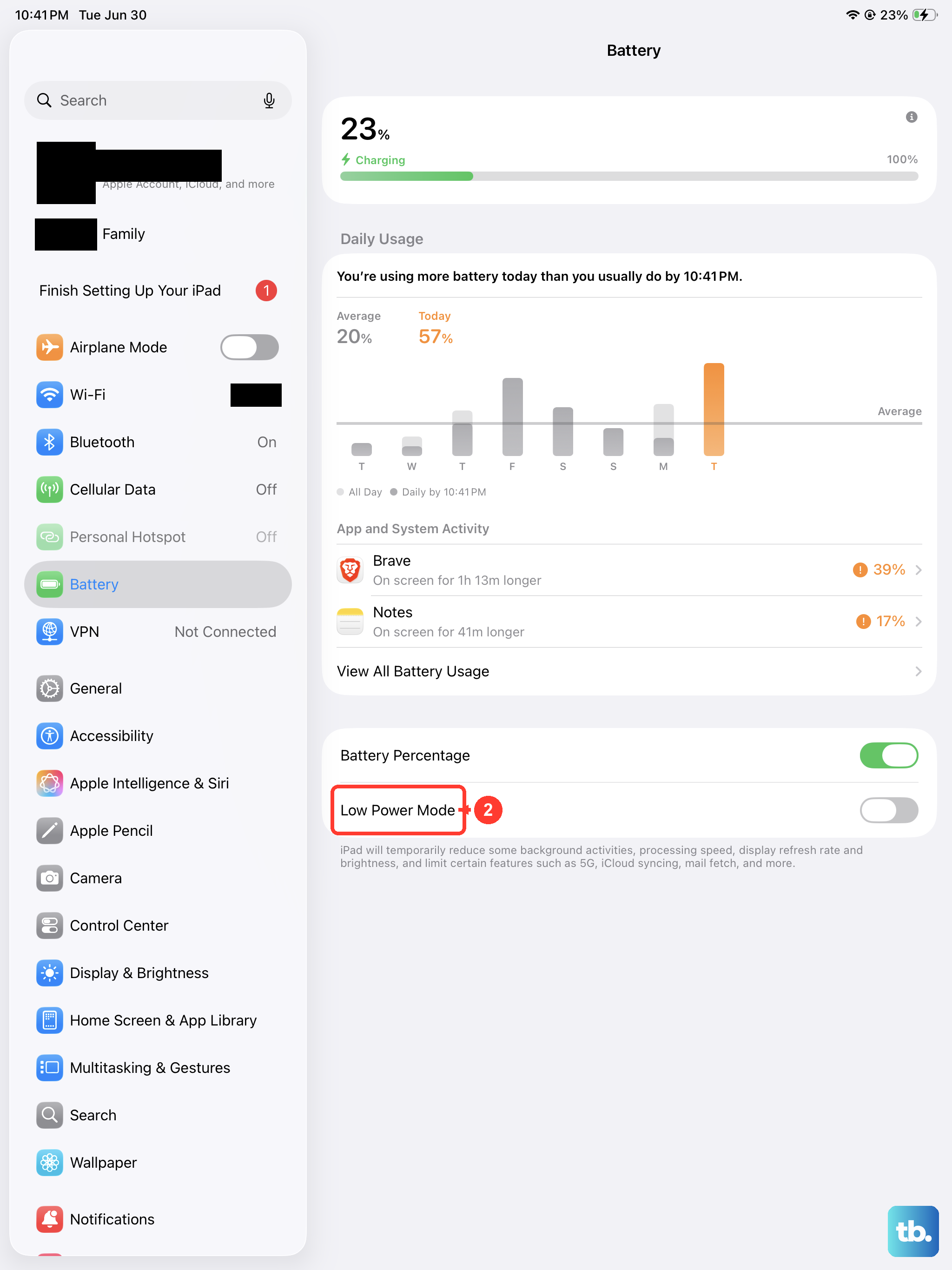
Next, turn down the screen brightness. The display is a major heat source, especially at max brightness outdoors. Swipe down from the top-right to open Control Center and slide the brightness down to 50% or lower if you’re inside. You can also enable Low Power Mode in Settings > Battery–that caps CPU performance and reduces background activity, which helps a lot.
Avoid Direct Sunlight and Hot Environments
This one is obvious but easy to forget. Leaving your iPad on the dashboard of a car, on a windowsill, or anywhere in direct sunlight can send internal temps soaring. The iPad Air M3’s operating temperature range is 32°F to 95°F (0°C to 35°C). If the ambient air is hotter than that, the device will overheat regardless of what you’re doing. Move it to the shade or a cooler room.
Check Battery Health and Deep Discharge Recovery
A known issue with the iPad Air M3 involves incorrect battery percentage reporting after a deep discharge (letting the battery drain until the iPad shuts off completely). If you recently let the battery die, the percentage shown might be wrong, and the iPad could try to charge aggressively to recalibrate, generating heat. The fix is simple: keep the iPad plugged in for 10-20 minutes after it starts charging. The battery management system will re-learn the actual charge level. Also check Settings > Battery > Battery Health for any warnings about peak performance capability.
Reduce Load While Charging
Charging the iPad generates heat. Running a graphics-heavy game or a 4K video export at the same time generates even more heat. If your iPad gets hot while plugged in, don't use it for intensive tasks. Just let it charge in an open spot. If you need to keep working, switch to a less demanding task like reading or typing notes.
Schedule Charging Issues
Some users report that Schedule Charge (Settings > Battery > Battery Health > Charging Optimization > Schedule Charge) may not activate if you plug the iPad in after power is already present, like if you connect it to a hub that's already powered. If you rely on scheduled charging to avoid overnight heat buildup, make sure to plug the cable into the iPad before you plug the power source into the wall. If the feature doesn't seem to work, leave the iPad connected for 10-20 minutes and the schedule should engage.
If none of these steps bring the temperature down, the issue might be a faulty component, but that’s rare. Most overheating on the iPad Air M3 comes down to one of the above causes, and a simple change in how you charge or use it will solve it.