
When your iPad Air M3 won't connect to your computer, it can throw off your entire workflow. You're trying to transfer photos, back up your device, or maybe sync some files, but your computer just won't see the iPad. The good news is that most connection hiccups are fixable without a trip to the Apple Store.
I've run into this myself more times than I can count. Nine times out of ten, the fix is something simple that takes less than a minute. Let me walk you through the most common causes and what to do about them.
Try a Different USB-C Cable
The USB-C cable is the single most common culprit when an iPad won't connect to a computer. Not all USB-C cables are created equal, some are strictly for charging and can't handle data transfer at all. If you're using a cable that came with a phone charger or a cheap third-party accessory, it might not support data.
Swap in the cable that came with your iPad Air M3 or any other high-quality USB-C cable you know works for data. I'd also suggest plugging it directly into a USB-C port on your computer rather than a hub or extension cable. Those extra connections can introduce problems.
Trust This Computer
This is the one that trips people up constantly. When you connect your iPad Air M3 to a computer for the first time, a pop-up appears on the iPad screen asking "Trust This Computer?" If you don't tap Trust, the computer can't see the iPad at all.
Unlock your iPad and check for that prompt. If you accidentally tapped Don't Trust or the prompt didn't appear, disconnect the USB-C cable, reconnect it, and watch for the message again. You'll need to enter your iPad passcode before the Trust button becomes available. This applies whether you're on a Mac or a Windows PC.
If the prompt still doesn't show up, you may need to reset the trust settings. Go to Settings > General > Transfer or Reset iPad > Reset > Reset Location & Privacy. This clears all previously trusted computers, so the next time you plug in, you'll see the Trust prompt fresh.
Force Restart the iPad Air M3
A force restart can clear up temporary software glitches that might be interfering with the USB connection. On the iPad Air M3, do this: press and quickly release the Volume Up button, then the Volume Down button, then press and hold the Top button until the Apple logo appears. This takes about 10 to 15 seconds.
Once your iPad finishes restarting, try connecting it to the computer again. This often resolves issues where the iPad is technically on but not responding properly to the USB connection.
Update iPadOS and Computer Software
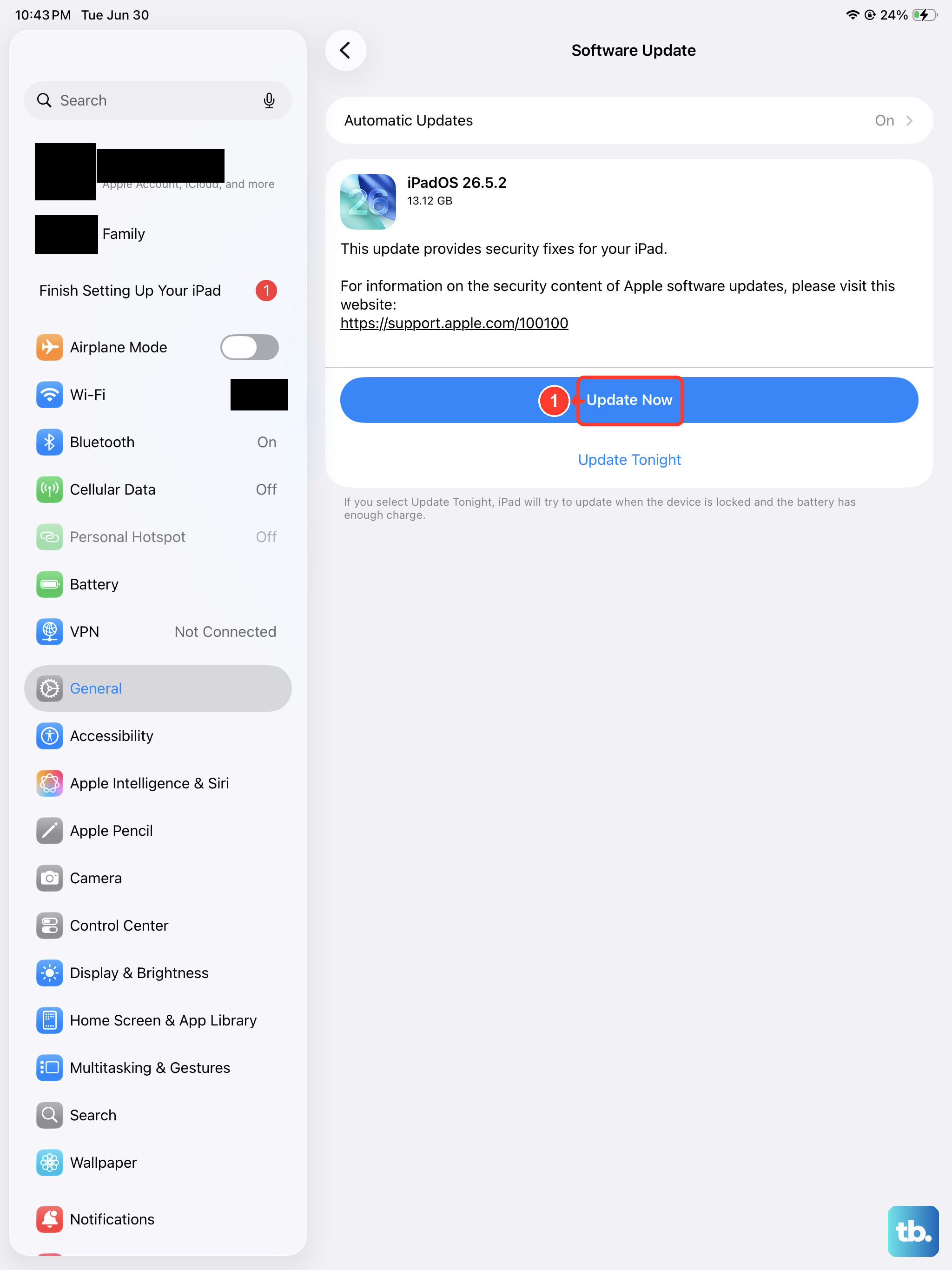
Outdated software on either side can cause communication breakdowns. On your iPad Air M3, go to Settings > General > Software Update and install any available updates. iPadOS 18 has had a few tweaks to how it handles USB connections, so running the latest version helps.
On a Mac, make sure you're running the latest macOS version via System Settings > General > Software Update. On a Windows PC, update Windows via Settings > Update & Security > Windows Update. You'll also want the latest version of iTunes or the Apple Devices app from the Microsoft Store if you're on Windows 10 or 11.
Check for the Apple Mobile Device Driver (Windows Only)
Windows computers require a specific driver to recognize an iPad. If the driver is missing or outdated, your PC won't see the iPad even though it shows up as charging. Open Device Manager (right-click the Start button and select it), then look under Portable Devices or Universal Serial Bus controllers for something like "Apple Mobile Device USB Composite Device" or "Apple iPad."
If you see a yellow exclamation mark next to it, right-click and choose Update driver > Search automatically for drivers. If that doesn't work, uninstall the device (right-click > Uninstall device), then unplug and replug the iPad to let Windows reinstall the driver from scratch.
On a Mac, you don't need to install separate drivers, iPad connections work through Finder. Just make sure you're on a recent macOS version.
Clean the USB-C Port on the iPad
Pocket lint and dust can build up in the USB-C port of your iPad Air M3, preventing a clean connection. I've seen cases where the cable clicks in but doesn't fully seat because of debris. Use a bright light to inspect the port closely.
If you see any gunk, gently remove it with a dry toothpick or a soft, non-conductive tool. Avoid using anything metal, you could damage the pins inside the port. A can of compressed air can also work, but hold it upright and use short bursts to avoid moisture.
Known Issue: Deep Discharge and Low Battery
One quirk of the iPad Air M3 is that after a deep discharge (letting the battery drain completely), the battery percentage may report incorrectly. This doesn't usually affect USB data transfer, but if the battery is at 0%, the iPad might not respond to the computer at all until it's charged enough.
Plug your iPad into a 20W or higher USB-C power adapter for at least 15 minutes to get some charge back, then try connecting to the computer. If you see "Not Charging" on the iPad screen, switch to a different cable and adapter. The iPad needs at least 20W to reliably recharge.
Avoid cheap, non-certified USB-C accessories, they're a common source of charging and data issues on the iPad Air M3, and I've seen them cause connection problems with computers too. Stick with Apple's cable or a reputable third-party one that's USB-IF certified.
Most USB connection problems on the iPad Air M3 come down to the cable, trust settings, or a simple software glitch. Work through these steps in order, and you'll likely have your iPad talking to your computer again within a few minutes.