
When your iPad Air M3 keyboard stops responding, it's usually a connection hiccup or a software glitch. Whether you're using the Magic Keyboard, the Smart Keyboard Folio, or a third-party Bluetooth keyboard, these nine fixes will get you typing again.
Check the Smart Connector or Bluetooth
If you're using Apple's official keyboard cases, the Smart Connector on the back of the iPad is what carries power and data. Make sure the keyboard is snapped on correctly and the three small gold contacts on both the iPad and the keyboard are clean. A tiny bit of lint or dust can break the connection.
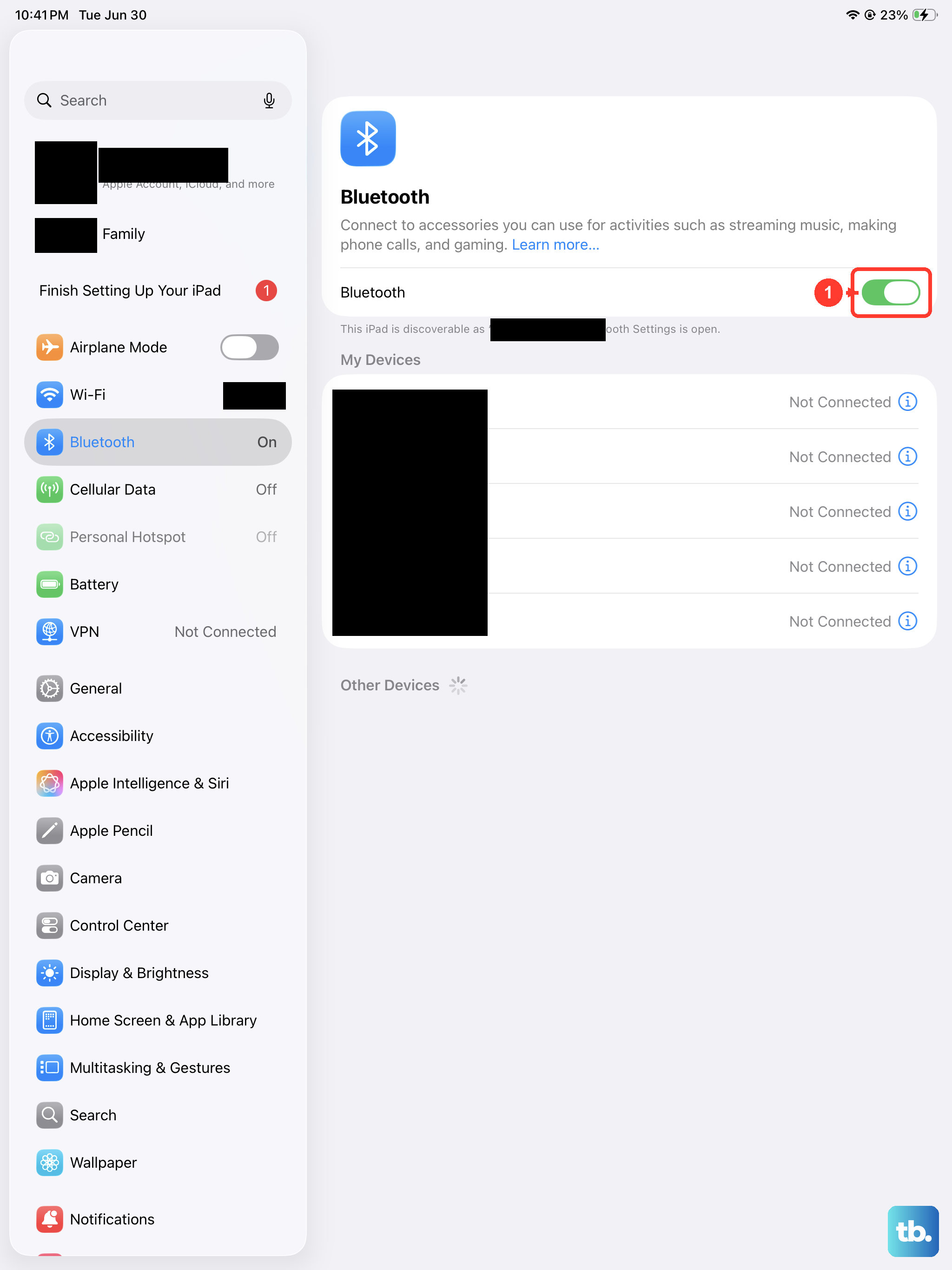
For Bluetooth keyboards, go to Settings > Bluetooth and confirm your keyboard shows as "Connected." If it says "Not Connected," tap the device name to manually reconnect. Sometimes toggling Bluetooth off and back on does the trick.
Force Restart the iPad
A force restart clears temporary system issues without deleting any data. On the iPad Air M3, press and quickly release the Volume Up button, then press and quickly release the Volume Down button, then press and hold the Top button until you see the Apple logo. Let go and wait for the iPad to finish restarting.
This is a good first step if your keyboard suddenly stopped working in the middle of typing. I've seen it fix everything from unresponsive keys to connection drops.
Toggle Keyboard Settings in iPadOS
iPadOS 18 has a few keyboard-related settings that can get stuck. Open Settings > General > Keyboard and turn off "Show Predictive" or "Enable Dictation" temporarily, then turn them back on. This refreshes the keyboard service.
You can also toggle "Auto-Correction" and "Smart Punctuation" off and on. It sounds minor, but it resets the keyboard input engine.
Update iPadOS
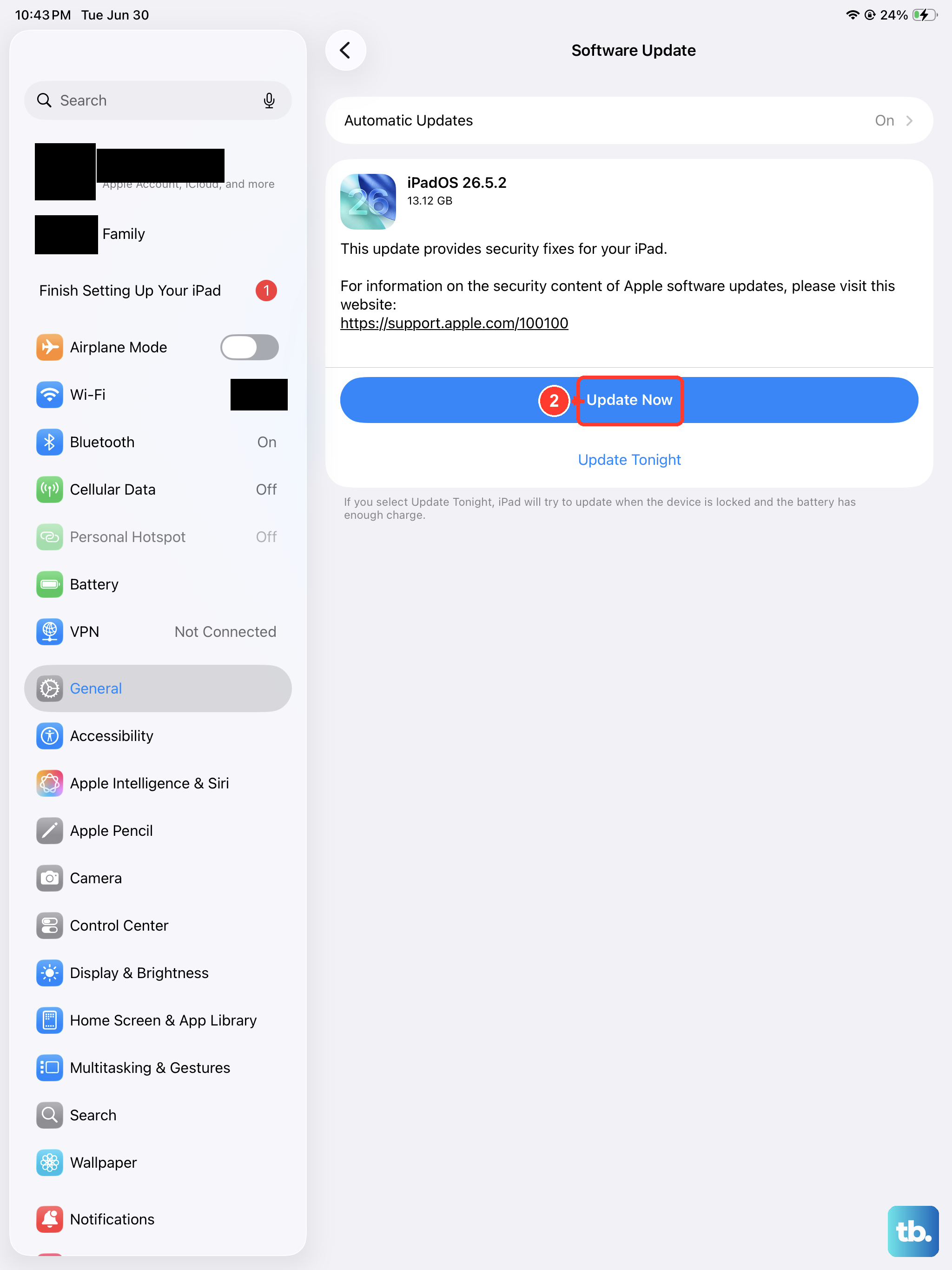
Apple regularly ships keyboard fixes in iPadOS updates. Go to Settings > General > Software Update to check if a new version is available. If there is, download and install it.
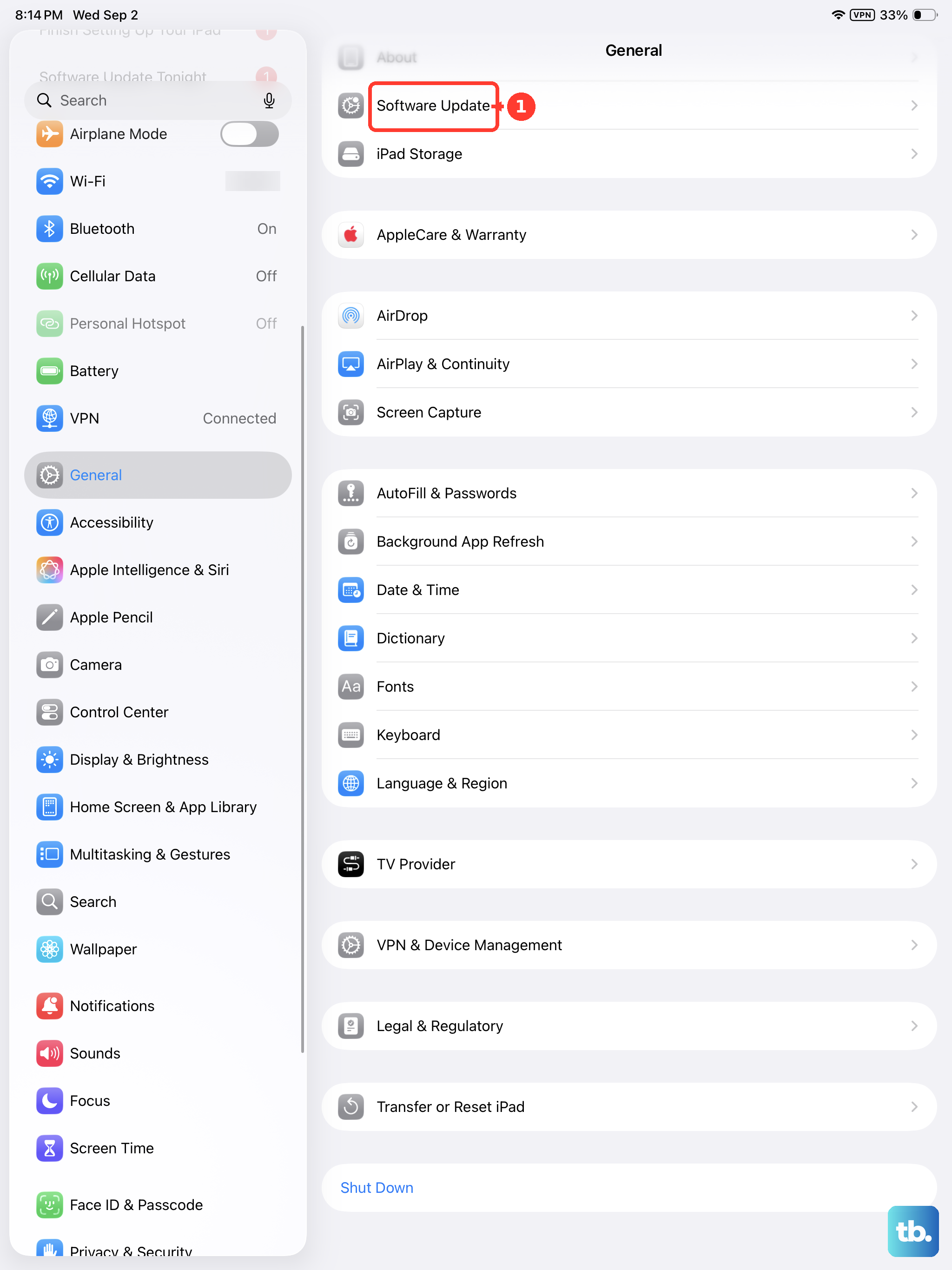
Your iPad Air M3 shipped with iPadOS 18, and later point releases have addressed various accessory compatibility issues. Running the latest version is always a good bet.
Reset the Keyboard Dictionary
If your on-screen or physical keyboard is typing the wrong words or missing inputs, the keyboard dictionary might be corrupted. Go to Settings > General > Transfer or Reset iPad > Reset > Reset Keyboard Dictionary. This clears custom learned words and predictive text data.
You'll lose any saved shortcuts or autocorrect entries, but it won't affect your apps or personal files. After the reset, test the keyboard again.
Check for Physical Debris on Keys or Connectors
Dirt, crumbs, or sticky residue can cause individual keys to stick or the entire keyboard to malfunction. For the Magic Keyboard, flip it over and gently blow compressed air into the space between the keys. Use a soft brush to clean around the Smart Connector contacts on both the keyboard and the iPad.
If you're using a third-party Bluetooth keyboard, make sure the battery compartment is clean and the contacts aren't corroded. Replace batteries if the keyboard uses them.
Disable and Re-Enable Full Keyboard Access
iPadOS includes a Full Keyboard Access feature for navigation without a trackpad. Sometimes it can interfere with normal keyboard input. Go to Settings > Accessibility > Keyboards > Full Keyboard Access and toggle it off. Wait a few seconds, then turn it back on if you use it.
This fix is especially helpful if you notice your keyboard is typing commands instead of letters (like Tab switching apps).
Reset All Settings
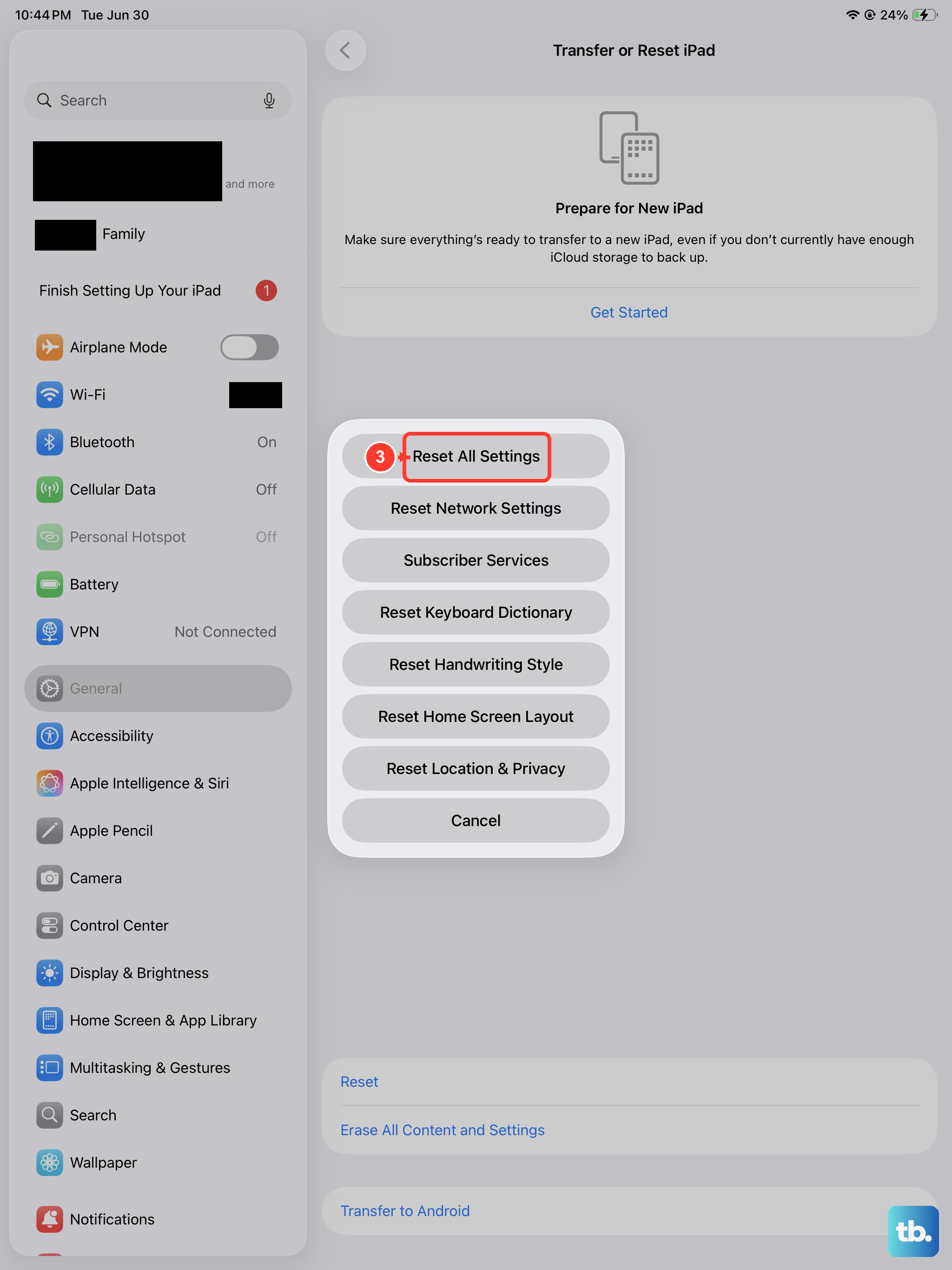
This is a bigger step but doesn't erase your data. Go to Settings > General > Transfer or Reset iPad > Reset > Reset All Settings. Your iPad will restart, and system preferences like Wi-Fi passwords, wallpaper, and keyboard settings will return to default.
After the reset, you'll need to reconnect Bluetooth accessories and set your keyboard region again. But it often resolves stubborn connection problems that simpler fixes can't touch.
Remove and Re-Pair the Keyboard
For Bluetooth keyboards, forget the device and pair it fresh. Go to Settings > Bluetooth, tap the info icon (i) next to your keyboard, and select "Forget This Device." Then turn the keyboard off and back on (or put it into pairing mode) and tap it under "Other Devices."
If you're using the Magic Keyboard, simply detach it from the iPad for about 10 seconds, then snap it back on. The Smart Connector will re-establish the connection automatically. This is the most reliable fix I know for Smart Keyboard issues.
Most keyboard problems on the iPad Air M3 are minor and resolve with one of these steps. If you're still stuck after trying all nine, the issue might be hardware related, but those cases are rare. Start with the quickest fixes, the force restart and the Smart Connector check, and you'll likely be back to typing in a minute.