
Touch ID on the iPad Air M3 lives in the top button, and when it stops recognizing your fingerprint, it can make unlocking the tablet or approving purchases feel like a chore. The good news is most Touch ID problems on this model are software-related or come down to something blocking the sensor. Let's work through the fixes.
Clean the Top Button Sensor
Your fingers pick up oils, lotion, and dirt throughout the day, and so does the Touch ID sensor. Grab a soft, lint-free cloth and gently wipe the top button on your iPad Air M3. Don't use any liquids or cleaners directly on the button. If your hands are sweaty or wet, dry them off before trying Touch ID again.
I've seen this one fix more Touch ID issues than anything else. Make it a habit to give the button a quick wipe every few days.
Remove and Re-Add Your Fingerprints
If the sensor is clean but still not reading your finger reliably, the stored fingerprint data might be outdated or corrupted. Removing and re-registering your prints usually clears that up.
Open Settings > Touch ID & Passcode and enter your passcode. You'll see a list of your registered fingerprints. Tap any one that's giving you trouble, then tap Delete Fingerprint. Now tap Add a Fingerprint and follow the on-screen prompts. Rotate your finger slightly during the scan so the iPad captures the edges, not just the center.
I'd recommend registering the same finger twice if you use it the most. It sounds redundant, but the extra scan can dramatically improve recognition speed.
Check Your Screen Protector
The iPad Air M3 uses a capacitive Touch ID sensor built into the top button, not an under-display ultrasonic sensor. But a poorly fitted screen protector can still cause issues if it extends over the button opening or lifts the edges near it. Try removing the screen protector temporarily and testing Touch ID. If it works perfectly without the protector, you'll want to find one with a precise cutout around the top button.
Restart or Force Restart the iPad
A quick restart clears out minor software hiccups that can break Touch ID. Go to Settings > General > Shut Down, slide to power off, wait about 30 seconds, then press and hold the top button until the Apple logo appears.
If that doesn't help, try a force restart. Press and quickly release the Volume Up button, then press and quickly release the Volume Down button. Immediately press and hold the Top button until the Apple logo shows up. This won't erase any data, but it forces a deeper reset of the system.
Is iPadOS Up to Date?
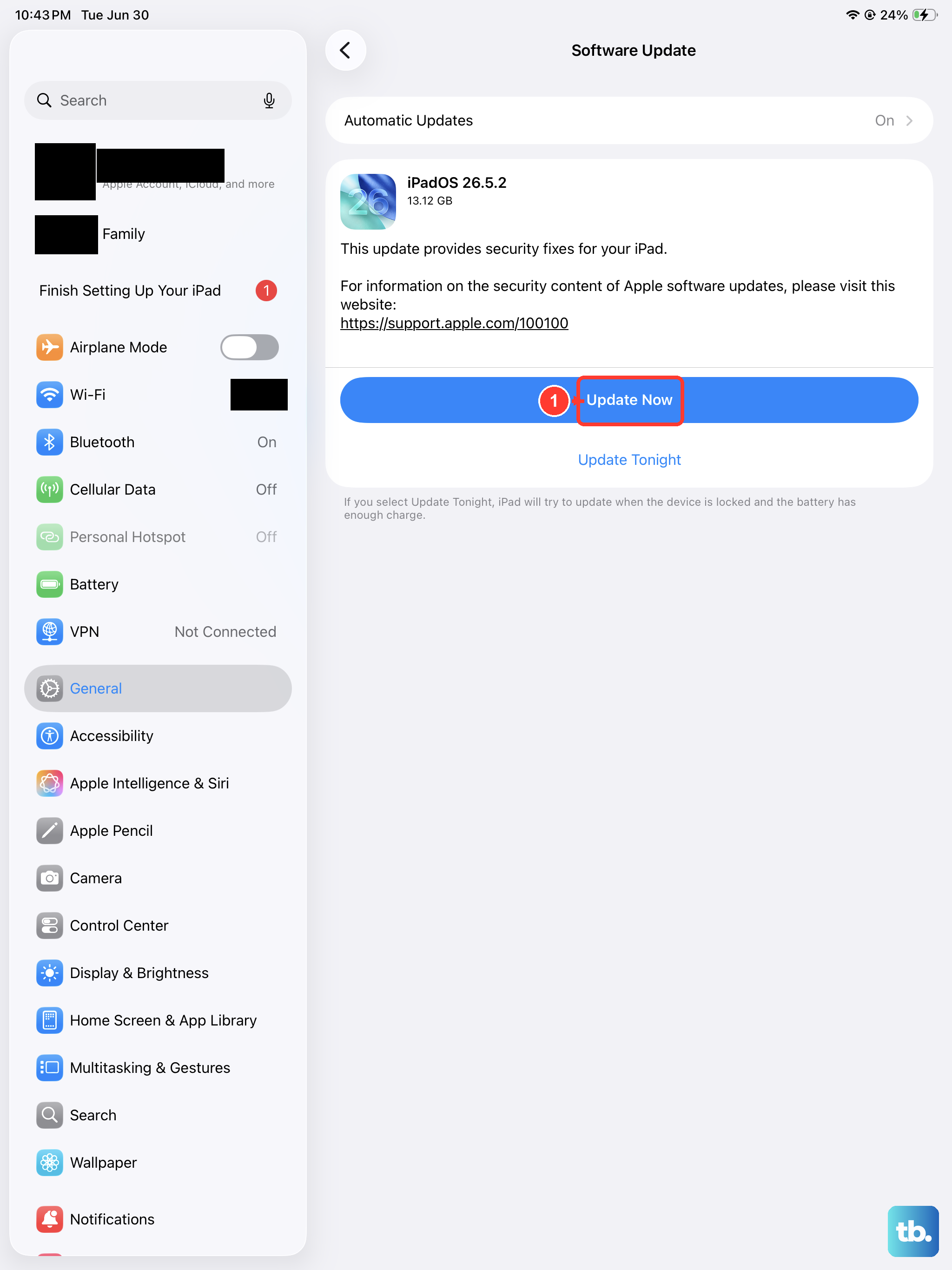
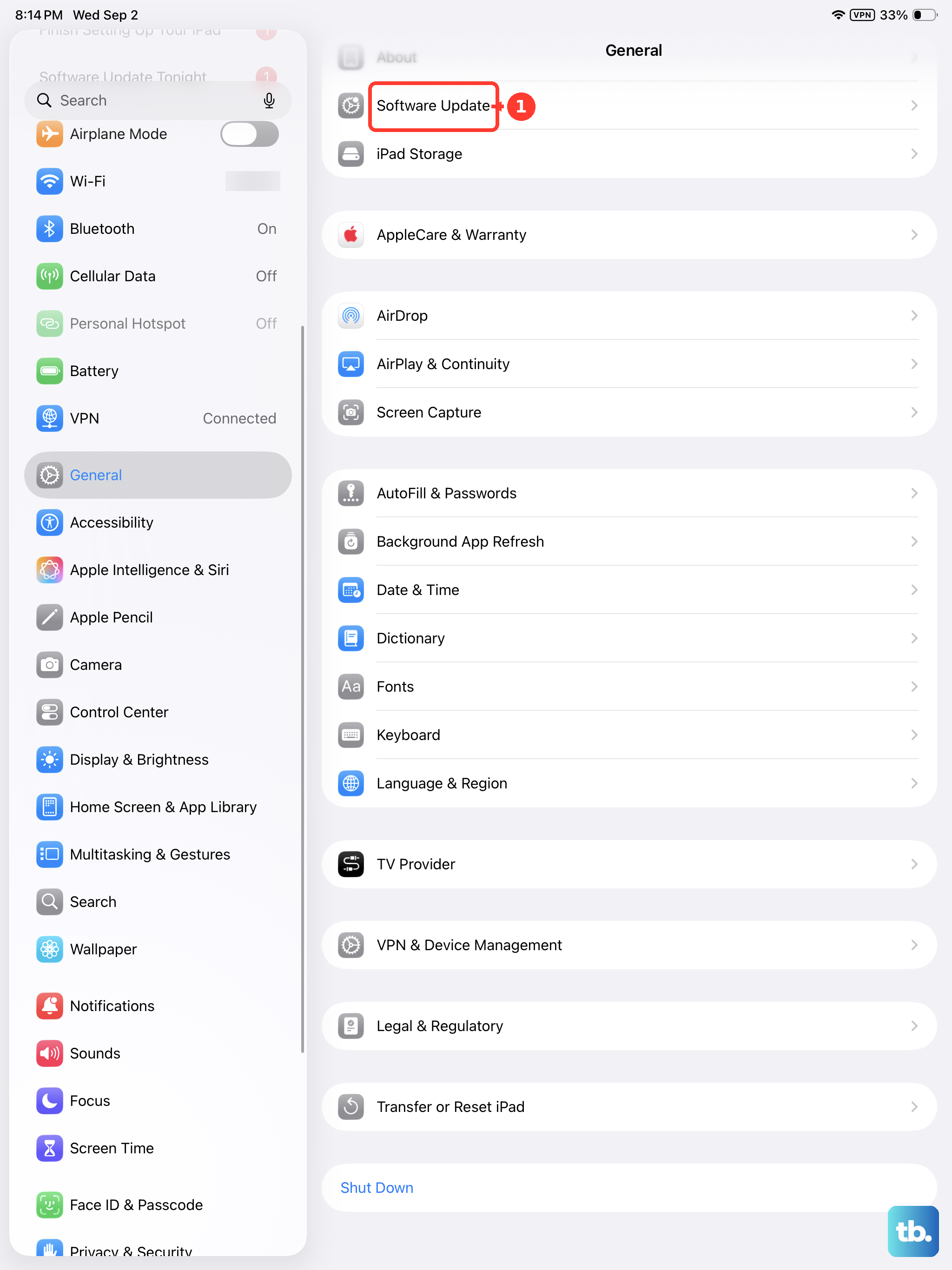
Apple regularly pushes Touch ID improvements and bug fixes through software updates. Go to Settings > General > Software Update and install anything available. The iPad Air M3 launched with iPadOS 18, and later updates may have specific fixes for fingerprint sensor stability.
Watch Your Finger Position
The top-button Touch ID sensor works best when your entire fingertip covers the button surface. Don't just tap it, rest your finger on the button and let it sit for a split second. If you lift off too quickly, the sensor might not have enough time to read the print.
Also, if you've recently switched which finger you're using or your hands have changed (dry skin, minor cuts, or even new calluses), the stored print may not match well. Re-registering the affected finger usually solves it.
Disable and Re-Enable Touch ID
Sometimes the Touch ID system itself gets stuck. Go to Settings > Touch ID & Passcode and toggle off all the options, iPad Unlock, iTunes & App Store, and anything else listed. Then turn them back on one at a time and test each function. This resets the Touch ID service without deleting your registered fingerprints.
Reset All Settings
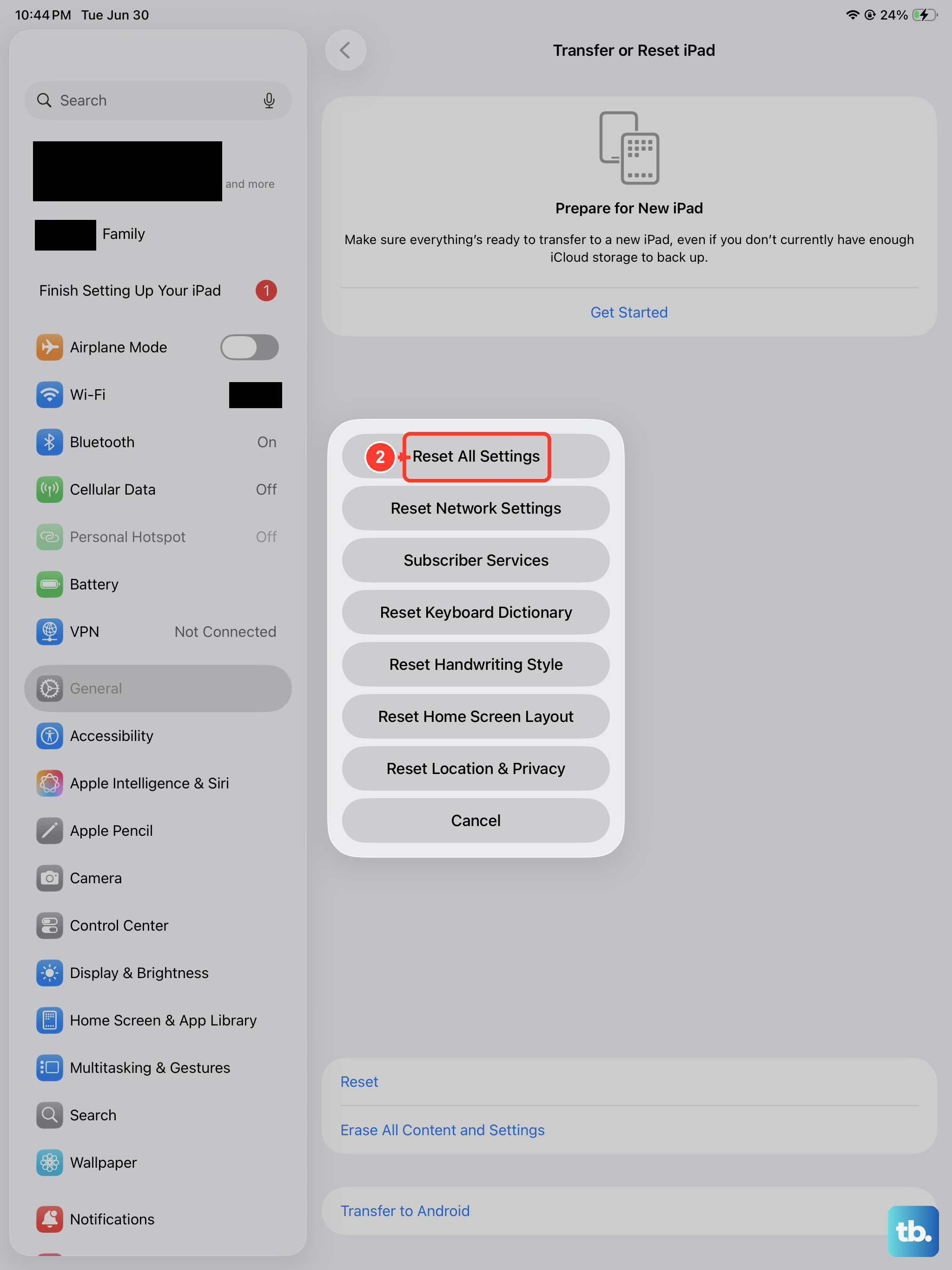
If Touch ID still refuses to work and you've tried everything else, a settings reset can clear deeper configuration glitches. Go to Settings > General > Transfer or Reset iPad > Reset > Reset All Settings. This won't delete your apps, photos, or data, but it will wipe Wi-Fi passwords, wallpapers, and accessibility settings. You'll need to re-enter your passcode and re-register any fingerprints afterward.
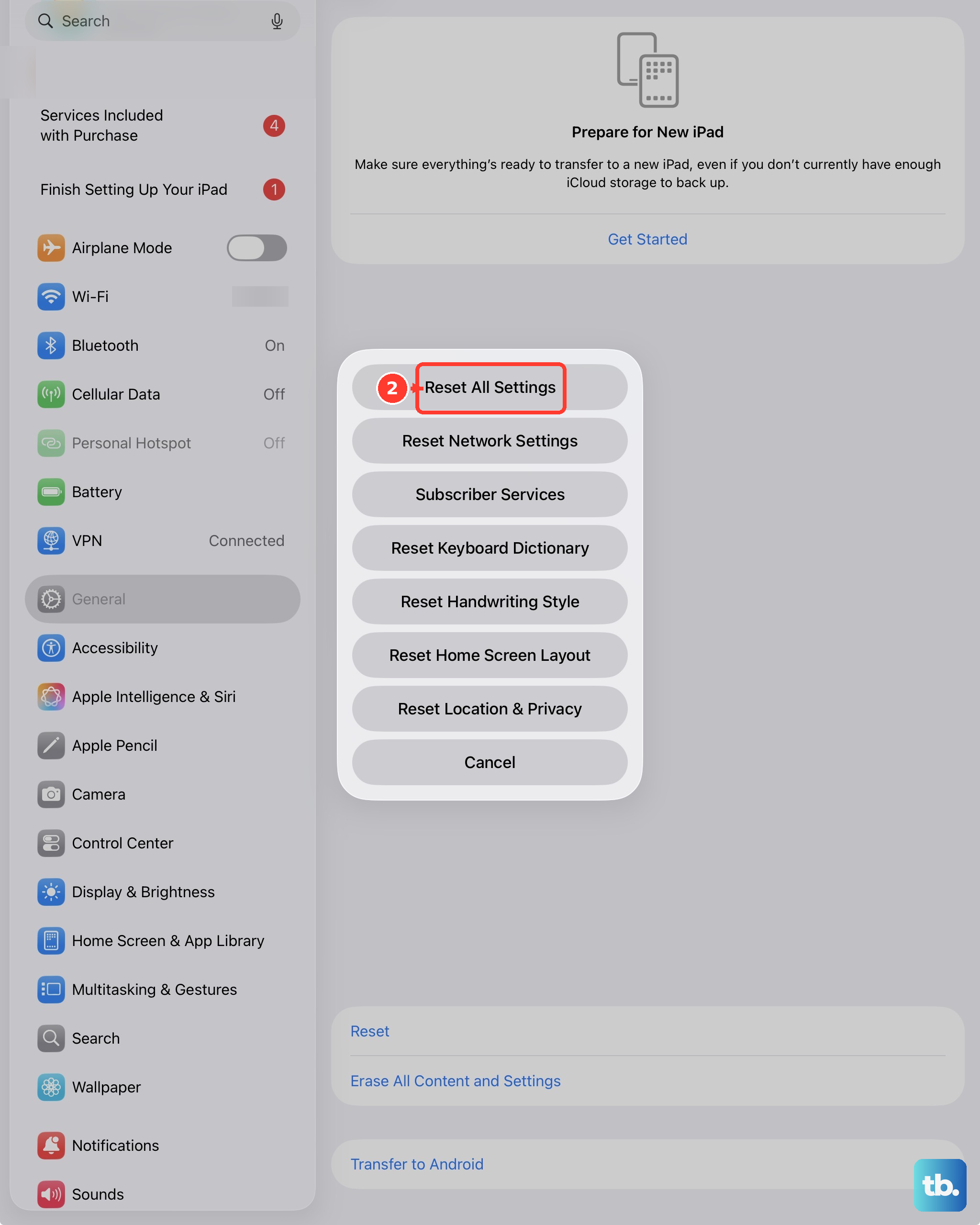
Try Touch ID immediately after the reset before adding any fingerprints back. If it works, add your prints fresh. If it doesn't, the issue is likely hardware-related. At that point, Apple can inspect the top button assembly, since Touch ID is integrated into the power button, a replacement may be needed if the sensor has failed.