You slid your USB-C earbuds into your iPad Air (2026) and heard nothing, or your AirPods keep playing through the iPad speakers no matter what you tap. Maybe the audio cuts in and out, or one side stays silent. Because this M4 iPad Air handles headphones differently from older tablets, the fix usually comes down to using a supported connection and then ruling out the common audio settings that quietly mute output. The steps below are ordered from the quickest, safest checks to the official reset and service path, so start at the top and stop as soon as your sound returns.
If you suspect one side has failed, an online online headphone test settles it quickly. Play each channel on its own and you will know whether it is the headphones or the source.
Make sure you are using a connection this iPad actually supports
Before you assume anything is broken, confirm how the iPad Air (2026) is built to handle headphones. The 11-inch (M4) and 13-inch (M4) models have no 3.5mm headphone jack, so there is no socket for a traditional headphone plug. Trying to force a standard plug in will get you nowhere, and that is by design, not a fault.
According to the official guidance, you have three supported ways to listen:
- 1.Plug wired headphones that have a USB-C connector (such as Apple EarPods USB-C) directly into the USB-C port.
- 2.Use the Apple USB-C to 3.5 mm Headphone Jack Adapter (sold separately) to connect headphones that end in a 3.5mm plug.
- 3.Pair Bluetooth headphones or AirPods wirelessly (the M4 iPad Air supports Bluetooth 6 through its N1 chip).
Confirm you are on one of these three paths before troubleshooting further. If you were trying to plug a 3.5mm cable straight into the tablet, switch to USB-C headphones, grab the adapter, or go wireless.
Rule out volume, Silent Mode, and Do Not Disturb first
It sounds obvious, but a muted output setting is the single most common reason headphones seem dead. Start by turning the volume up while audio is actually playing, since the volume buttons can control different outputs depending on what is connected.
Next, open Control Center by swiping down from the top-right corner and make sure Silent Mode is off. Then go to Settings > Focus > Do Not Disturb and make sure Do Not Disturb is off, because these can mute or limit audio output. Once both are clear, test your headphones again before moving on.
Reseat and clean your USB-C wired headphones
USB-C wired headphones, including Apple EarPods (USB-C), need a device with a USB-C connector, which this iPad has. A loose or dirty connection is often all that stands between you and sound.
Firmly reseat the plug so it clicks fully into the USB-C port. Try the same headphones on another device to rule out a cable or earbud fault. If audio is weak or cuts out, check the USB-C connector and the port for lint or debris and clean them gently with a dry, soft brush, never using sharp objects or abrasive materials that could cause damage.
Get Bluetooth headphones charged, in range, and selected
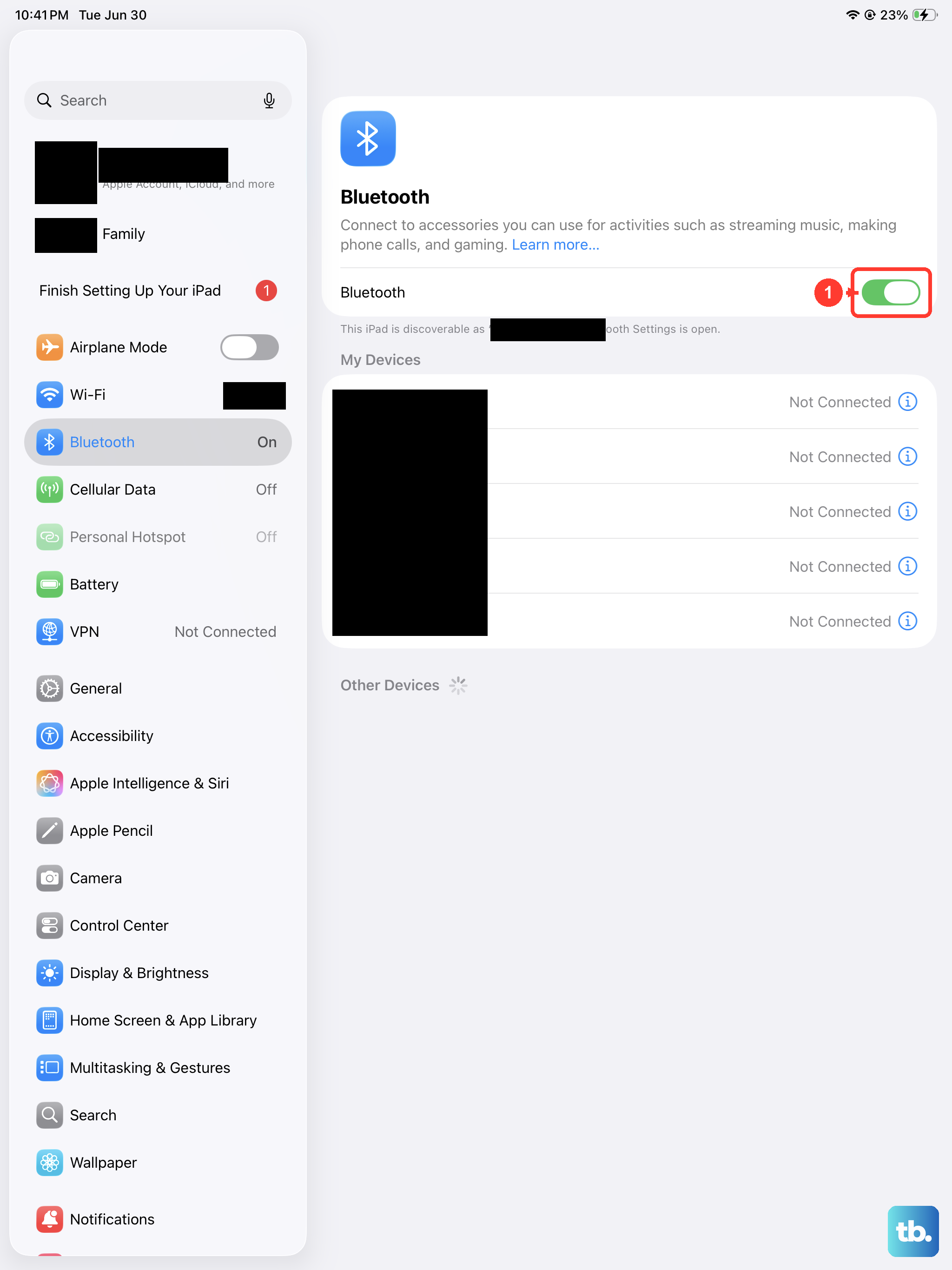
If you are going wireless, the iPad has to see the headphones, route audio to them, and keep them in range. Walk through each of those conditions in order.
- 1.Go to Settings > Bluetooth and make sure Bluetooth is on.
- 2.Confirm the headphones are charged or powered on and within about 33 feet (10 meters) of the iPad.
- 3.Put the headphones into discovery mode following their own instructions.
- 4.Tap the accessory name when it appears so audio routes to them.
Once the accessory shows as connected, play something to verify the sound is now coming through the headphones rather than the built-in speakers.
Cycle, re-permission, and re-pair a stubborn Bluetooth accessory
When a Bluetooth accessory refuses to connect or keeps dropping, a quick power cycle clears most temporary hiccups. Turn the Bluetooth accessory off and back on, and double-check it is charged.
If a specific app is supposed to use the accessory but cannot, check that permission is granted under Settings > Privacy & Security > Bluetooth, and make sure Bluetooth is enabled for that app. If the headphones were paired before but still will not work, unpair them (forget the device), put them back into discovery mode, and pair them again from scratch.
Forget, reset, and reconnect your AirPods
AirPods get their own fix because they can hold onto a bad pairing state that a simple toggle will not clear. The reliable approach is to remove them from the iPad, reset the AirPods themselves, then set them up fresh.
- 1.Open Settings > Bluetooth, tap the More Info button next to your AirPods, tap Forget This Device, then confirm.
- 2.For AirPods 4 or AirPods Pro 3, place them in the case, close the lid, wait 30 seconds, open the lid, then double-tap the front of the case three times.
- 3.For older AirPods, hold the setup button for about 15 seconds until the light flashes amber and then white.
- 4.Place the AirPods near the iPad with the case lid open and follow the on-screen steps to reconnect.
This clean reset usually resolves AirPods that connect but produce no sound, or that only play through one side.
Restart the iPad to clear an audio glitch
A normal restart clears the temporary audio-routing glitches that build up while the iPad runs for days at a time. This is non-destructive, so nothing on the iPad is lost.
Go to Settings > General > Shut Down, then drag the slider to turn off the iPad. Wait a moment, then press and hold the top button until the Apple logo appears to turn it back on. Test your headphones once the iPad finishes starting up.
Update to the latest iPadOS
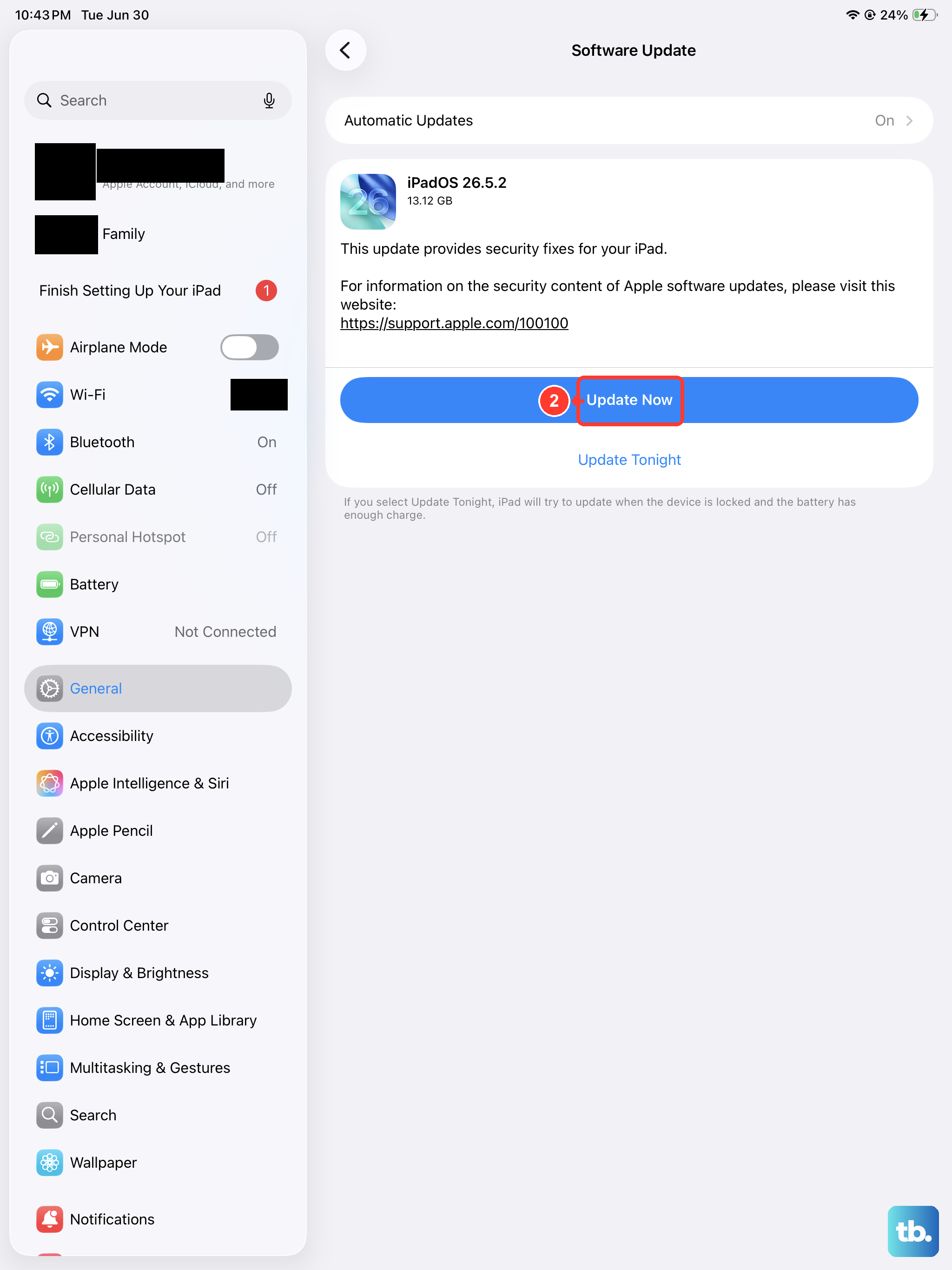
Audio bugs are sometimes resolved in software updates, so it is worth making sure your iPad is current. Go to Settings > General > Software Update and install any available update; the latest version available is iPadOS 26.5.
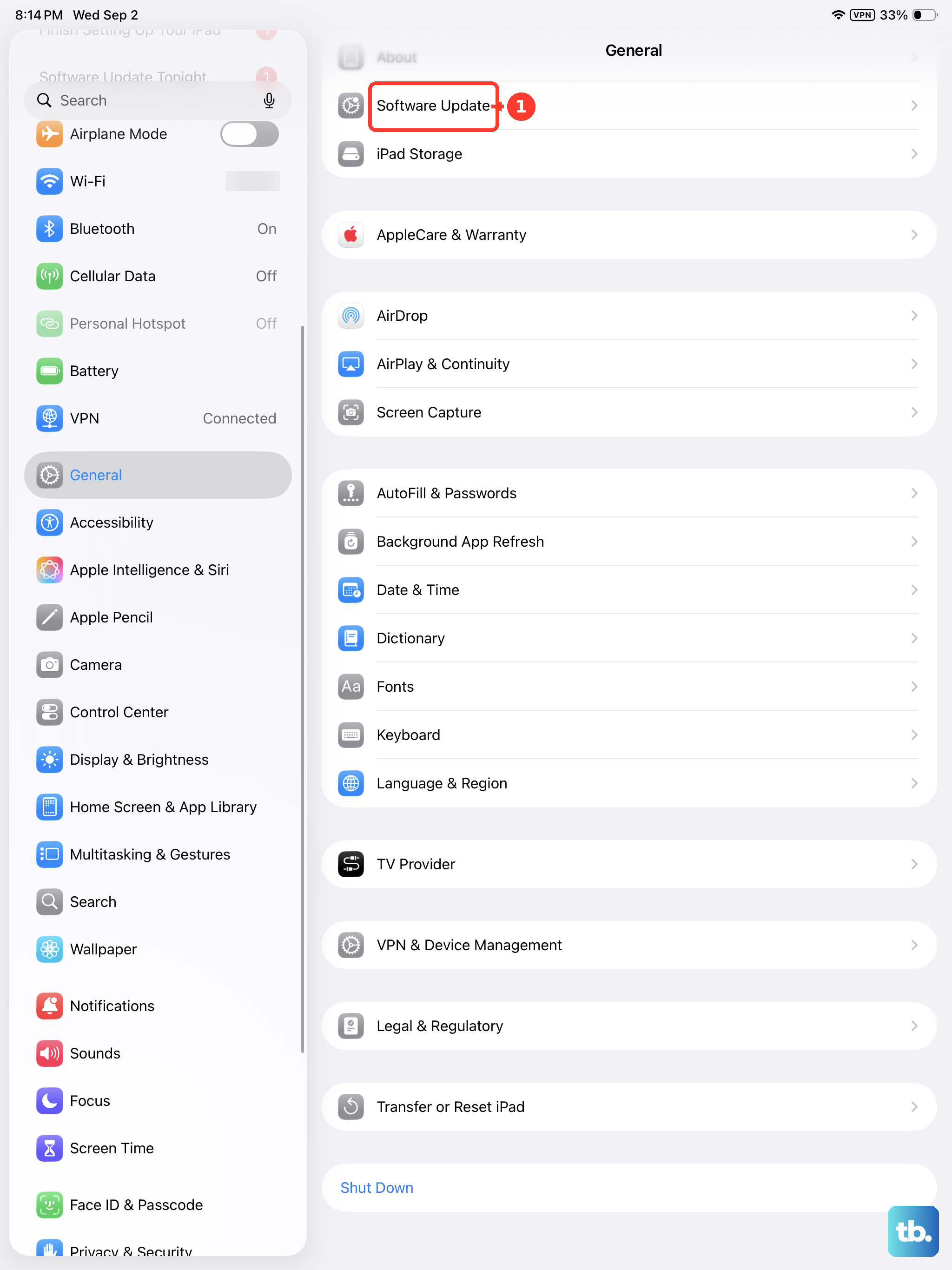
The official guidance notes that when you update to the latest version of iPadOS, your data and settings remain unchanged, so this step will not wipe anything. Even so, backing up first is good practice before any update.
Force restart a frozen or unresponsive iPad
If the audio is stuck, the screen is frozen, or the iPad will not respond to taps, a force restart can jolt it back to life. This is different from a normal restart and uses a specific button sequence.
Press and quickly release the volume button nearest to the top button, then press and quickly release the volume button farthest from the top button, then press and hold the top button until the Apple logo appears. Let the iPad boot fully, then try your headphones again.
Erase the iPad and call in Apple Support
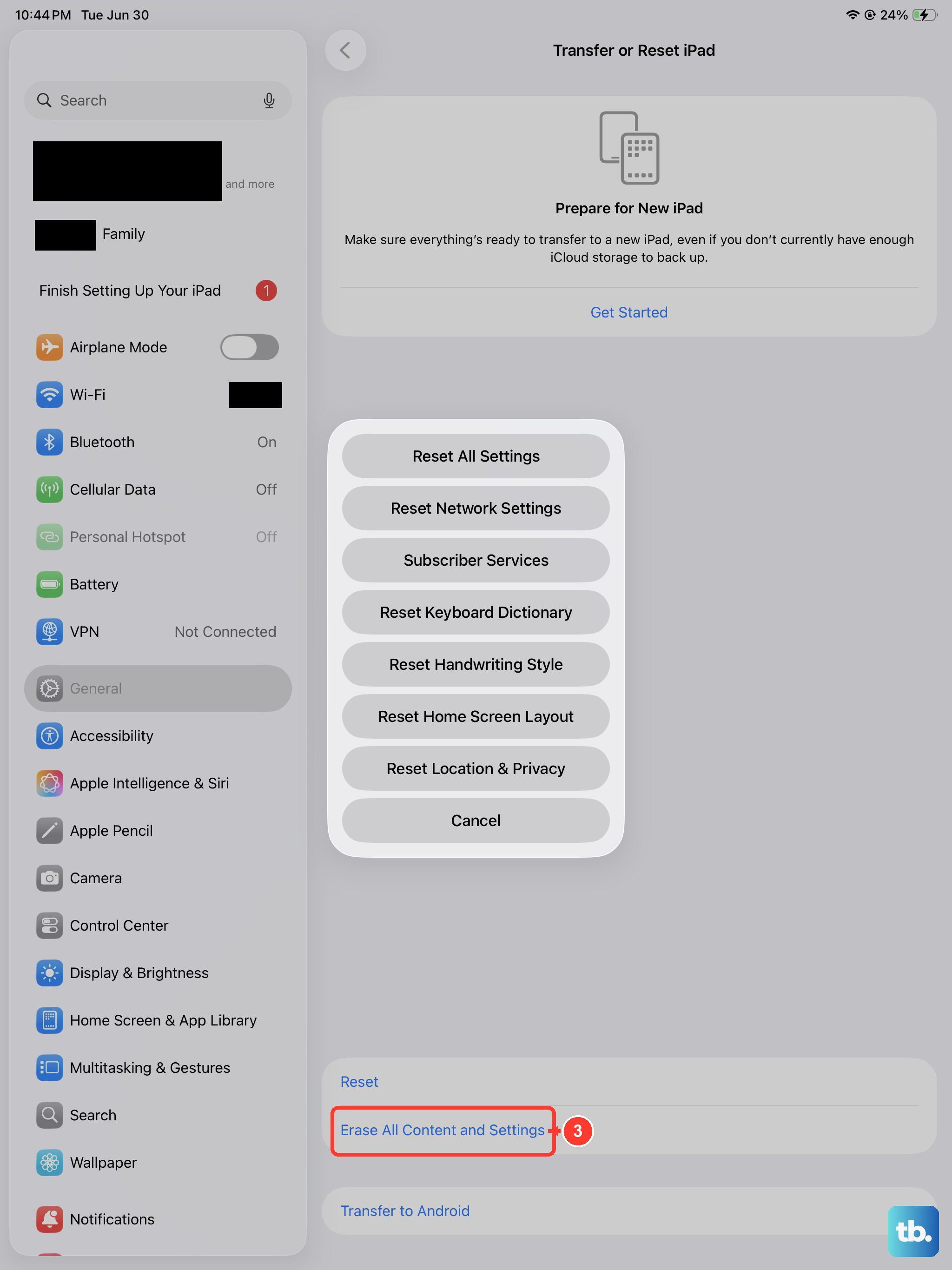
If headphones still fail after everything above, a full erase removes any deep software misconfiguration. Treat this as a last resort because it deletes your data. If you would prefer a less drastic step first, Settings > General > Transfer or Reset iPad > Reset lets you reset settings without erasing your content.
For the full reset, back up the iPad, then go to Settings > General > Transfer or Reset iPad > Erase All Content and Settings to restore factory settings. This securely removes your personal information, content, and settings, so make sure you have a current backup so you can restore your data afterward. If the headphones still do not work once the iPad is set up fresh, contact Apple Support, or book service through the Apple Support app or the official support site, to discuss service options.
Frequently Asked Questions
Does the iPad Air (2026) have a headphone jack?
No. The iPad Air (2026) M4 models do not have a 3.5mm headphone jack. You connect headphones using USB-C wired headphones in the USB-C port, the Apple USB-C to 3.5 mm Headphone Jack Adapter (sold separately) for 3.5mm headphones, or Bluetooth headphones and AirPods wirelessly.
Why won't my USB-C headphones work on the iPad Air (2026)?
Start by firmly reseating the plug in the USB-C port and confirming the headphones work on another device. Also check that the volume is up, Silent Mode is off in Control Center, and Do Not Disturb is off under Settings > Focus, since any of these can silence the output.
How do I reset AirPods Pro 3 to reconnect them?
Place the AirPods in the case, close the lid, wait 30 seconds, open the lid, then double-tap the front of the case three times. Before that, forget them on the iPad under Settings > Bluetooth by tapping the More Info button next to your AirPods and choosing Forget This Device, then set them up again.
Will updating iPadOS erase my data?
No. The official guidance states that when you update to the latest version of iPadOS, your data and settings remain unchanged. Updating through Settings > General > Software Update is safe, though backing up first is still good practice.
Will Erase All Content and Settings delete my files?
Yes. Settings > General > Transfer or Reset iPad > Erase All Content and Settings securely removes your personal information, content, and settings and restores factory settings. Back up the iPad first so you can restore your data afterward, and use this only as a last resort.