You reached for your iPad Air (M4) expecting a quick boost before heading out, but the battery percentage is barely moving, or the lightning bolt symbol never shows up on the battery icon at all. Slow or stalled charging on the 11-inch or 13-inch iPad Air usually traces back to something simple, like the wrong adapter, a tired cable, or a setting you forgot you switched on, and most of the time you can fix it yourself in a few minutes. Before you assume the battery is failing, it helps to understand how this model actually takes power.
The iPad Air (M4) charges only through its USB-C port, with no wireless or MagSafe charging anywhere in the picture. It comes in the box with a 20W USB-C Power Adapter and a 1-meter USB-C Charge Cable, and the built-in battery is rated at 28.93 watt-hours. One thing worth clearing up immediately is that Apple does not publish a dedicated "fast charge" rating for the iPad Air (M4), so there is no exact percentage-in-minutes figure to chase. What Apple does say is that a higher-wattage USB-C adapter charges the iPad faster than the included 20W unit. With that framing in mind, here are the fixes to work through, starting with the easiest and safest.
Start with the cable, adapter, and a working outlet
The most common cause of a stalled charge is also the most overlooked one, so begin here before touching any settings. Connect the included USB-C charge cable to the iPad's USB-C port and to a compatible power adapter, then plug the adapter into a working wall outlet. Apple recommends using the USB power adapter that came with your iPad, which for this model is the 20W USB-C Power Adapter paired with the 1-meter USB-C Charge Cable.
If a wall outlet is not handy, you have other valid options. You can charge from a computer's USB-C port as long as the computer is powered on and not asleep, or draw power through a compatible Magic Keyboard that is connected to power. When power is actually flowing, you should see a lightning bolt appear on the battery icon. If you do not see it, the problem is somewhere in this chain, and the steps below help you find it.
Want a quicker top-up? Reach for a higher-wattage USB-C adapter
If your real complaint is that charging feels slow rather than dead, the adapter is likely the bottleneck. The in-box 20W unit works fine, but it is not the fastest option for this iPad. Apple states that if you have a higher-wattage USB-C power adapter, such as the one that came with a Mac laptop, you can use it with your iPad for faster charging.
A higher-wattage USB-C wall adapter will charge the iPad faster than the 20W brick and faster than a computer's USB-C port. Since Apple does not list a peak charging wattage or a target time for this model, the practical takeaway is simple, namely that a beefier USB-C charger speeds things up and a computer port is the slowest of the bunch. If you have been topping up from a laptop's USB-C port and calling it slow, that is expected behavior, not a fault.
The setting that quietly caps your battery near 80 percent
If your iPad keeps stopping at roughly 80 percent and refuses to climb higher, a battery-longevity setting is probably switched on rather than anything being broken. The iPad Air (M2 and later, which includes the M4) has an "80% Limit" option. With it enabled, the iPad charges to about 80 percent and then stops, resuming only if the level drops to 75 percent, which can easily look like charging has failed.
To check it, go to Settings > Battery > Battery Health and turn 80% Limit off if you want a full charge. Keep in mind that even with this setting off, the iPad will normally slow its charging as it nears full to reduce heat, so a gentle slowdown in the final stretch is expected and healthy.
Heat and cold can both stall charging
Temperature has a real, built-in effect on how the iPad Air charges, and it is easy to mistake for a hardware fault. Avoid using or charging the iPad in ambient temperatures higher than 95F (35C), since that can permanently shorten the battery's lifespan. The software may also limit charging above 80 percent when the recommended battery temperatures are exceeded.
The reverse happens in the cold. In a very cold environment you might notice the device stops charging, but this is temporary and normal charging resumes once the battery returns to its usual temperature range. For the best results, aim to charge in a comfortable room, since the ideal range is 62 to 72F (16 to 22C). If your iPad has been sitting in a hot car or a freezing bag, let it return to room temperature before you judge whether charging is broken.
Swap the accessories to find the weak link
If the iPad still will not charge after the basics, it is time to isolate the faulty part. A frayed cable, a damaged adapter, or a dead outlet can each produce the exact same symptom, so test them one at a time. Use a different power adapter, then try a different charging cable, and finally try a different outlet or power source.
Changing only one variable at a time tells you which piece is at fault. If a fresh cable suddenly brings the lightning bolt back, you have found your culprit, and if a different outlet does the trick, the original socket or power strip was the problem. This quick swap routine rules out an accessory failure before you move on to anything more involved.
Force restart when the iPad ignores the charger
If the iPad is unresponsive or simply will not acknowledge the charger, a forced restart often clears the temporary software state behind it. Because the iPad Air (M4) has no Home button, the sequence uses the volume and top buttons in a specific order. Follow it exactly, and note that a force restart does not erase any of your content.
- 1.Press and quickly release the volume button closest to the top button.
- 2.Press and quickly release the volume button farthest from the top button.
- 3.Press and hold the top button until your iPad restarts.
Once the Apple logo appears and the iPad boots back up, plug it in again and watch for the charging indicator. If a stuck process was the issue, charging should now resume normally.
Bring iPadOS up to date
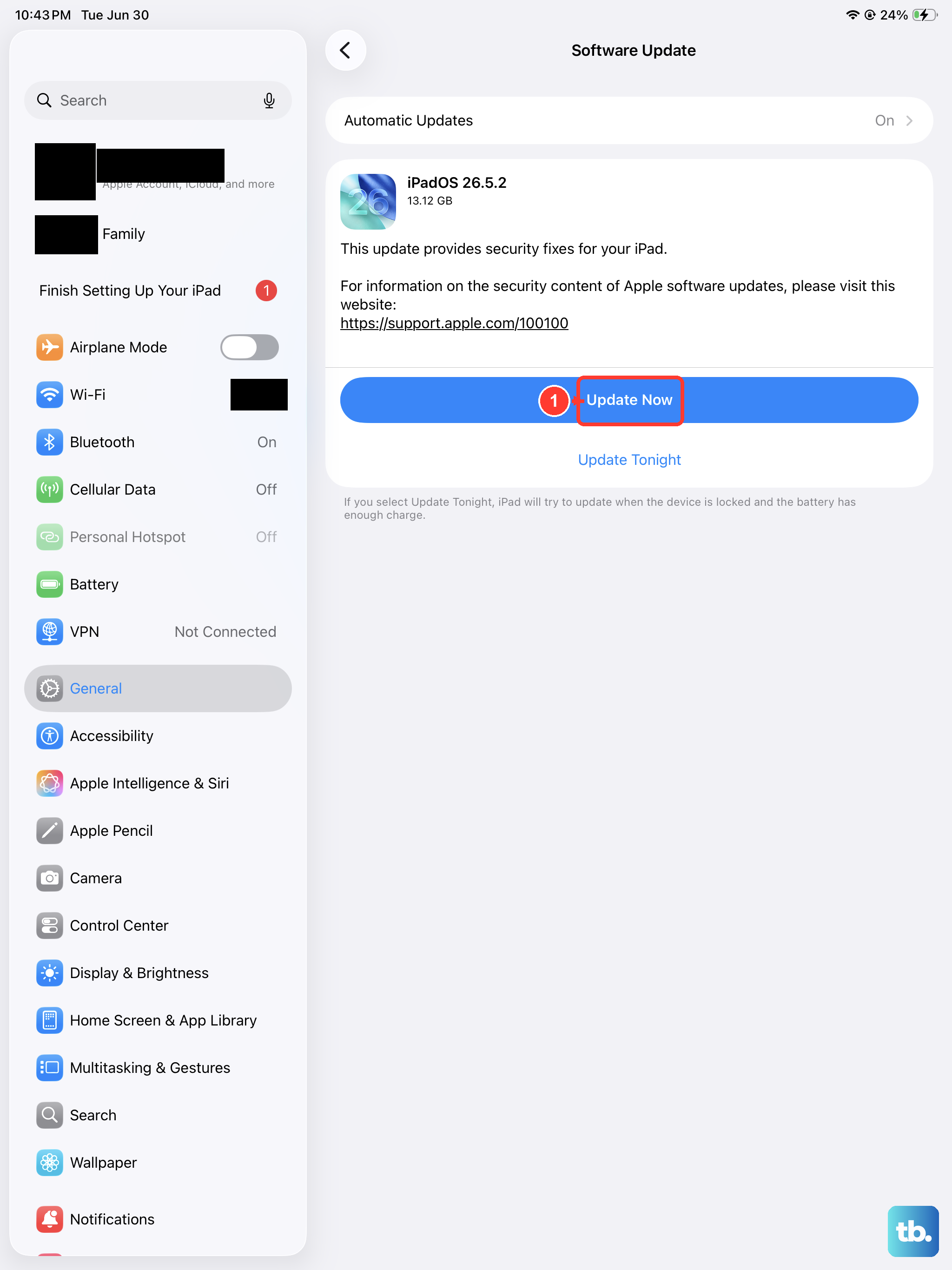
Software bugs can interfere with charging behavior, and Apple regularly ships fixes for them through system updates. Go to Settings > General > Software Update. If an update is available, tap Download and Install and follow the onscreen instructions.
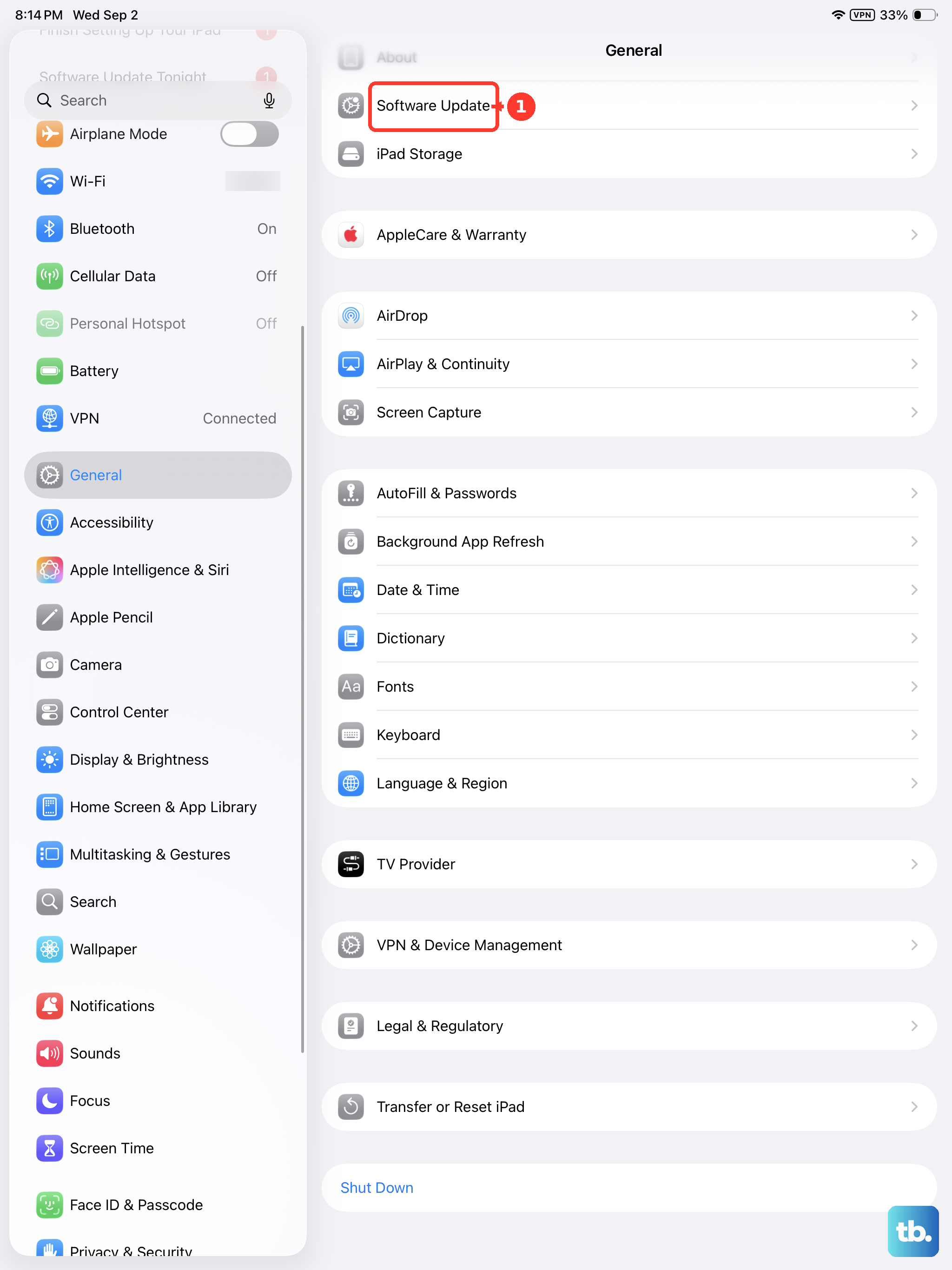
When you update to the latest iPadOS, your data and settings remain unchanged, so this is a low-risk step with a real upside. If you would rather not check manually every time, you can manage automatic updates from Settings > General > Software Update > Automatic Updates. Installing a pending update can quietly resolve charging-related glitches that no amount of cable-swapping would fix.
Back up first, then erase as a last resort
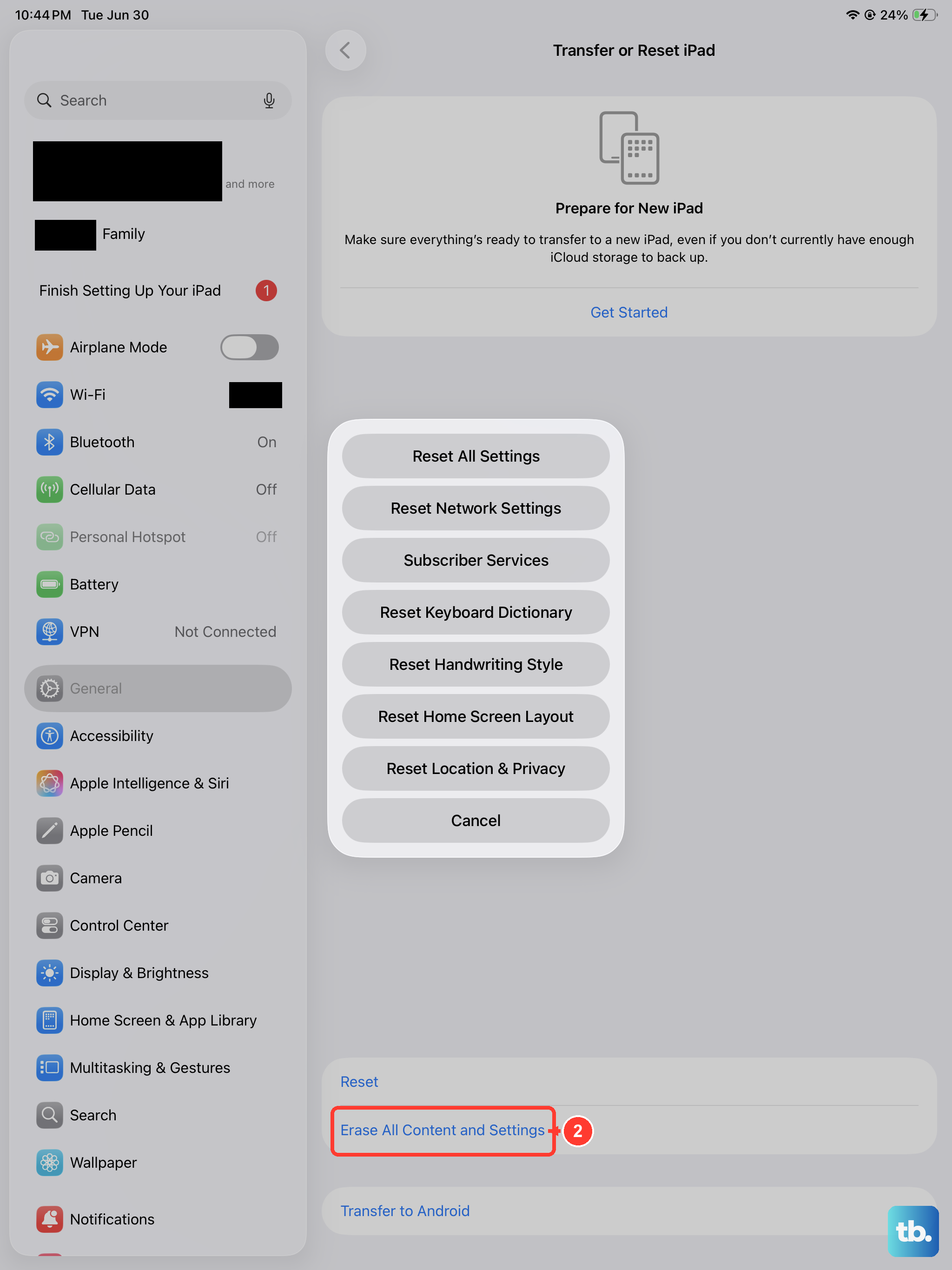
If charging still fails after everything above, a full reset to factory settings is the final self-service step. This one carries a serious caveat, so read it before you tap anything, because erasing the iPad deletes all of your information. Create a backup first so you can restore your content, settings, and apps afterward, since without one that data is gone for good.
Once you have a confirmed backup, go to Settings > General > Transfer or Reset iPad > Erase All Content and Settings > Continue. This wipes the iPad and restores it to factory settings, which clears out any deeper software corruption that might be blocking a charge. Treat this as a genuine last resort rather than an early experiment, precisely because of the data loss involved.
When it is time to involve Apple
If none of these steps brings charging back, the issue may be beyond a do-it-yourself fix, and there is no shame in handing it off. Apple Support can walk you through additional options and, if needed, arrange service for your iPad.
You also have the option to restore the iPad with a computer rather than from the device itself, using Finder on a Mac or the Apple Devices app or iTunes on a Windows PC. A computer restore erases the iPad and installs a fresh copy of iPadOS, so back up your data first if you possibly can. A persistent failure to charge even after a clean restore points toward a hardware problem with the port, cable, or battery, which is exactly the kind of thing Apple Support is set up to diagnose.
Frequently Asked Questions
Does the iPad Air (M4) support fast charging?
Apple does not publish a dedicated fast-charge specification for the 11-inch or 13-inch iPad Air (M4), so there is no official percentage-in-minutes figure or required wattage. Apple only documents that using a higher-wattage USB-C power adapter, such as one that came with a Mac laptop, gives you faster charging than the included 20W adapter.
Can I charge the iPad Air (M4) wirelessly?
No. The iPad Air (M4) charges over its USB-C port only, with no wireless or MagSafe charging. The one exception is that it can draw power through the Smart Connector when attached to a compatible Magic Keyboard that is connected to power.
Why does my iPad stop charging at about 80 percent?
That is usually the "80% Limit" battery setting, which is available on the iPad Air (M2 and later). With it on, the iPad charges to about 80 percent and then stops, resuming only if the level drops to 75 percent. You can turn it off in Settings > Battery > Battery Health.
Will updating or restarting my iPad erase my data?
No. Installing an iPadOS update from Settings > General > Software Update leaves your data and settings unchanged, and a force restart does not erase anything either. Only Erase All Content and Settings deletes your data, which is why you should back up before using it.











