Your iPad Air (2026) was working a moment ago, and now the screen is just black. You press the top button, maybe tap the glass, and nothing happens, with no Apple logo, no lock screen, and not even a flicker of brightness. Before you assume the M4 hardware has died, it helps to know that a black or unresponsive display on the 11-inch or 13-inch iPad Air is usually something you can sort out at home. The nine fixes below run from the simplest and safest to the more involved, so start at the top and stop as soon as your screen comes back.
Charge the battery before you assume the worst
A black screen is very often nothing more than a fully drained battery, and a dead iPad can look identical to a broken one. Plug the iPad Air into power using the included USB-C charge cable and 20W USB-C power adapter. The iPad Air (M4) charges over USB-C only and has no wireless or MagSafe charging, so the cable connection has to be solid.
If the screen does not light up right away, do not give up after a few seconds. According to the official guidance, you might need to charge for up to an hour before the display comes back. Leave the iPad connected to a known-working outlet and check on it periodically rather than unplugging after a couple of minutes.
Swap the cable, adapter, and wall outlet
If a long charge brings nothing back, the fault may be in the accessory rather than the iPad. A frayed cable, a dead adapter, or a switched-off outlet can all leave the screen black even though the iPad itself is fine. Work through each link in the chain one at a time.
Try a different known-good USB-C cable.
Next, try a different USB-C power adapter, ideally the 20W adapter that came with the iPad.
After that, plug into a different wall outlet that you know is live.
If the iPad finally shows a charging screen with one of these swaps, you have found the culprit and can replace the faulty accessory.
Turn it off and back on with the power off slider
If the screen is on but frozen, dim, or behaving strangely rather than fully dead, a normal restart is the next thing to try. Because the iPad Air (M4) has no Home button, the sequence uses the volume and top buttons together.
Press and hold either volume button and the top button until the power off slider appears.
Then drag the slider, then wait 30 seconds for your device to turn off.
To power it back on, press and hold the top button until you see the Apple logo.
This clears a lot of temporary software glitches without touching any of your files or settings.
Restart from Control Center without the buttons
On iPadOS 18 and later, you can restart the iPad Air from the screen instead of holding buttons, which is handy if a button feels unreliable. This only works when the display is responsive enough to open Control Center.
Swipe down from the top-right corner of your screen to open Control Center.
Once it is open, press and hold the Power button in the top-right corner of your screen, then let go.
Drag the slider, then wait for 30 seconds for your device to turn off.
Press and hold the top button until you see the Apple logo to turn it back on.
Force restart a screen that stays black or frozen
When the display is black or frozen and a normal restart will not even bring up the power off slider, a force restart is the standard fix. The button presses have to be done in order and quickly, so read them through once before you start.
- 1.Press and quickly release the volume button closest to the top button.
- 2.Press and quickly release the volume button farthest from the top button.
- 3.Press and hold the top button until you see the Apple logo.
A force restart does not erase any of your data; it simply forces the iPad to power-cycle. If the Apple logo appears and the iPad boots normally, you are done.
Install the latest iPadOS if the display keeps acting up
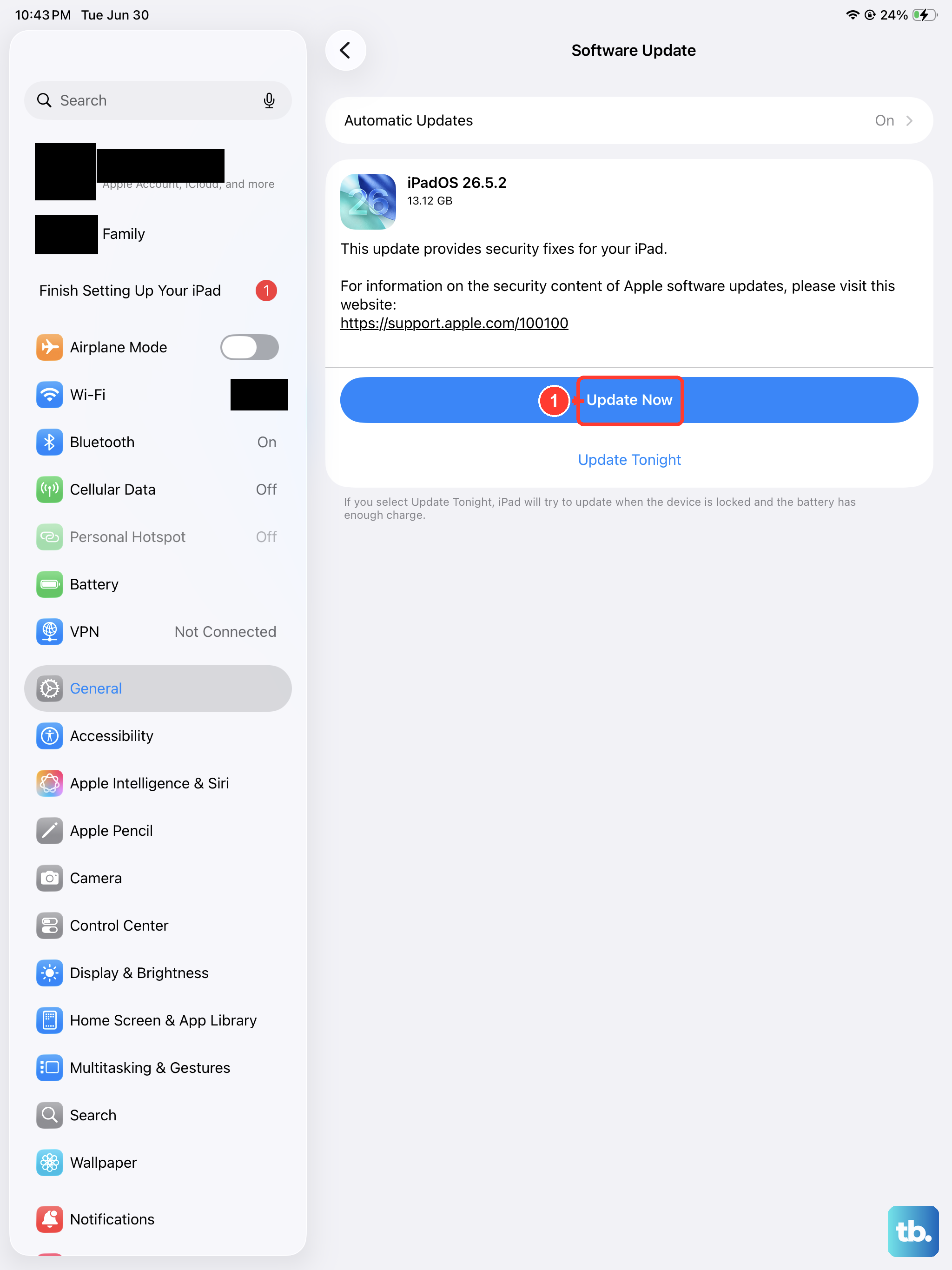
If the iPad turns on but the screen keeps glitching, dimming, or going dark intermittently, an outdated version of iPadOS can be the cause. Installing the latest software is a low-risk fix that leaves your data and settings unchanged.
Plug the iPad into power and connect it to Wi-Fi first so the update can finish without interruption.
Then go to Settings, tap General, and tap Software Update.
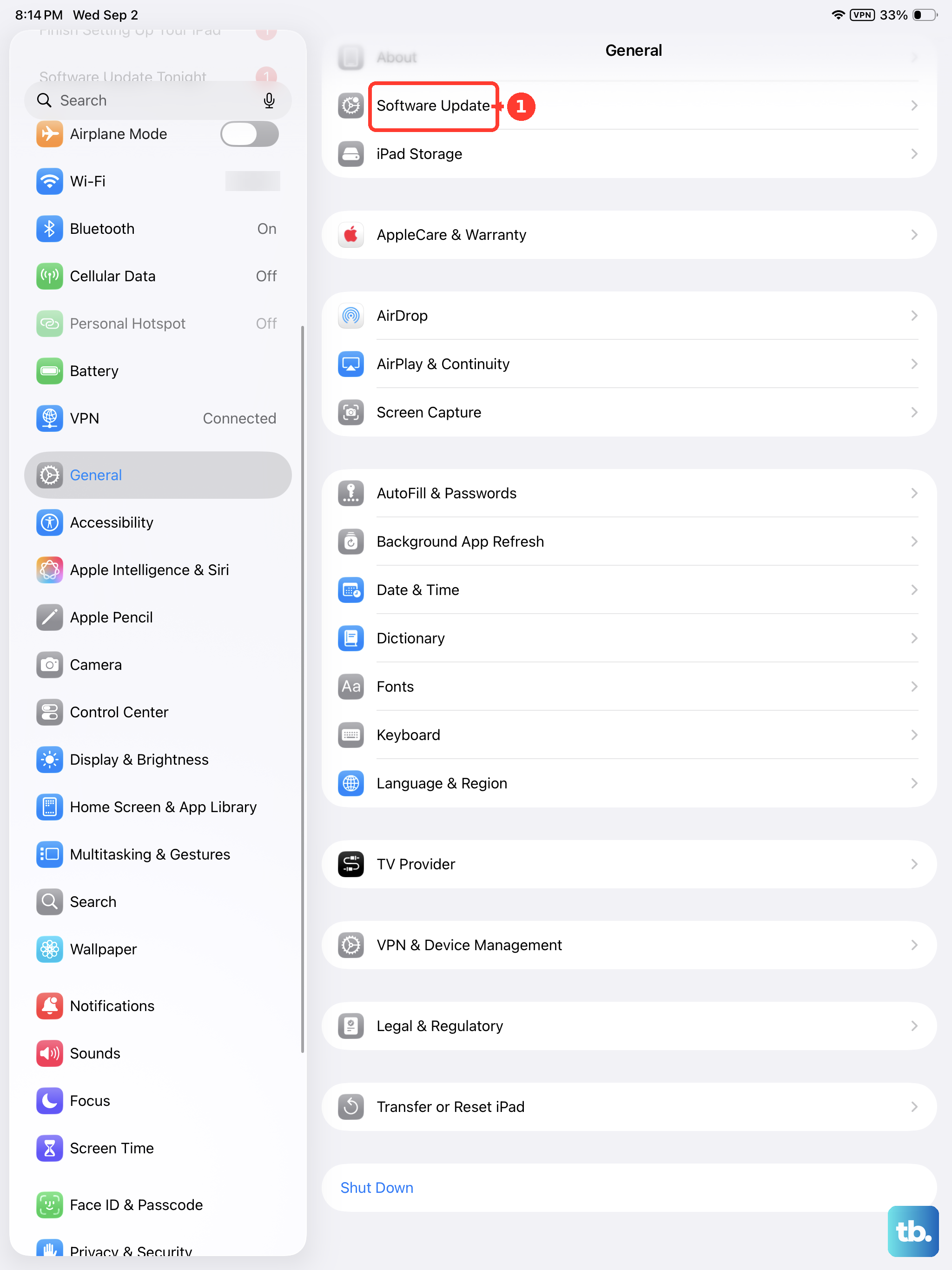
If an update is available, tap Download and Install and let it run to completion.
Reinstall iPadOS through recovery mode on a computer
If the iPad is stuck on the Apple logo, or shows a black, red, or blue screen during startup, recovery mode lets a computer reinstall iPadOS for you. You will need a Mac running macOS Catalina 10.15 or later, using the Finder, or the Apple Devices app on a Windows PC or an older Mac.
Connect the iPad Air to the computer with a cable.
Continue with the force-restart sequence, pressing the volume button closest to the top button, then the volume button farthest from it, but keep holding the top button until you see the recovery-mode screen instead of letting go at the Apple logo.
When you get the option to restore or update, choose Update.
Choosing Update reinstalls iPadOS without erasing your data, while Restore would wipe it, so pick Update here. If the iPad leaves the recovery-mode screen before the reinstall finishes, repeat the steps from the start.
Erase everything as a genuine last resort
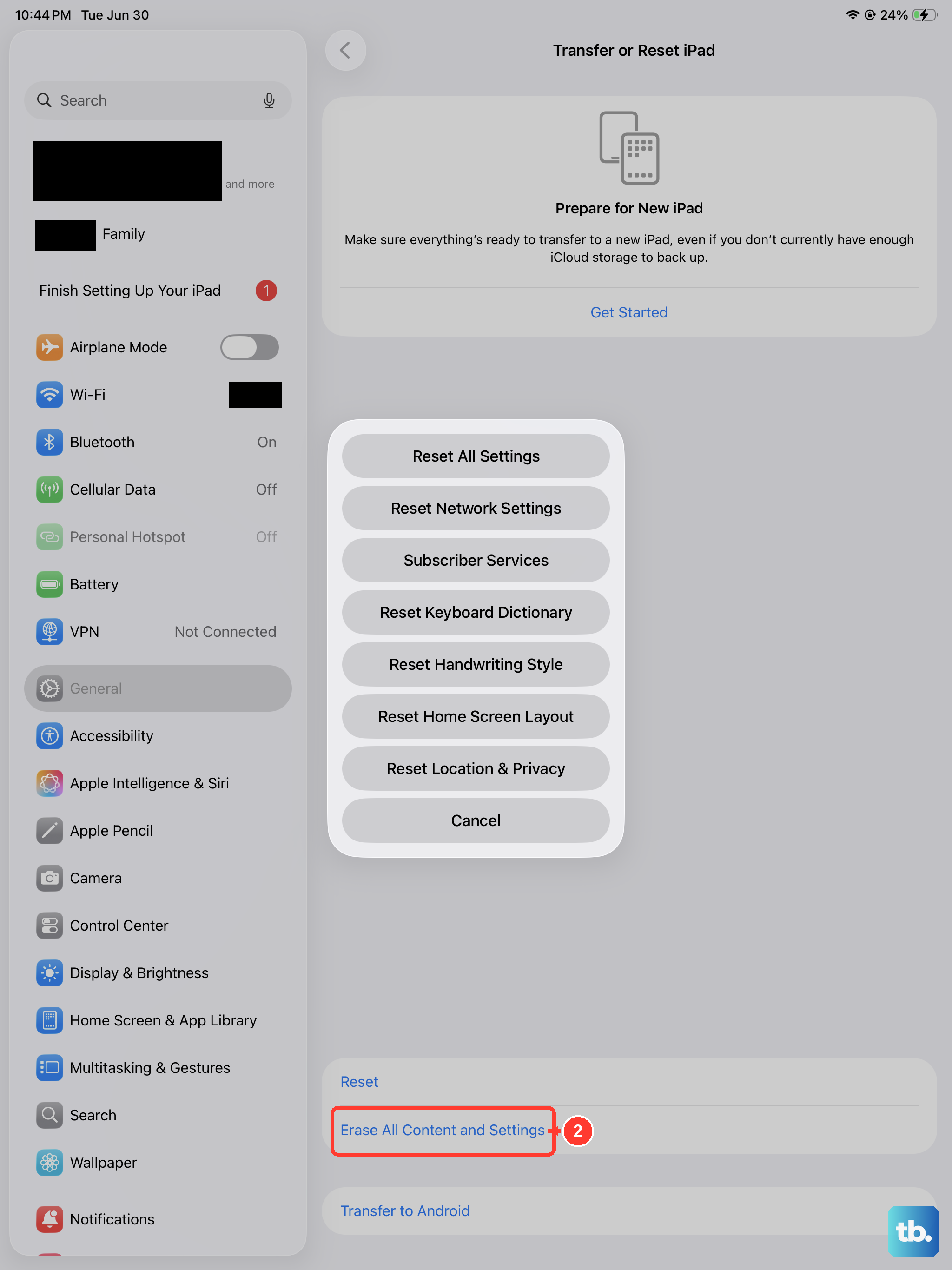
If none of the steps above bring the screen back and the iPad is still responsive enough to reach Settings, erasing it is the final software option. This step is destructive, since it securely removes all of your personal information, content, and settings and restores factory settings, so back up your iPad first so you can restore your data afterward.
Go to Settings.
Tap General.
Tap Transfer or Reset iPad.
Tap Erase All Content and Settings.
Enter your passcode or Apple Account password if you are asked for it, then tap Continue.
If your iPad Air has an eSIM, you will be asked whether to keep or erase it. Because the iPad Air (2026) is eSIM-only with no physical SIM tray, erasing the eSIM means you will need to contact your carrier to reactivate cellular service.
When it is time to book a repair
If the iPad still will not turn on, or the screen stays black after you have charged it for an hour, force-restarted it, and tried a recovery-mode update, the problem may be hardware rather than software. At that point, use Apple's Get Support or Get Service path to arrange a repair. Have your model, the iPad Air 11-inch or 13-inch (M4), and a description of what you have already tried ready, since that speeds up the diagnosis.
Frequently Asked Questions
Will a force restart erase my iPad Air?
No. A force restart only forces the iPad to power-cycle, so it does not delete any of your data, photos, apps, or settings. The only step in this guide that erases your data is Erase All Content and Settings, which warns you clearly before it runs.
Can I charge my iPad Air wirelessly if the cable seems faulty?
No. The iPad Air (M4) charges over USB-C only and does not support wireless or MagSafe charging. If your cable or adapter is suspect, try a different known-good USB-C cable, the 20W USB-C power adapter, and another outlet rather than looking for a wireless option.
How long should I leave it on the charger before it turns on?
Give it time. The official guidance is that you might need to charge for up to an hour before a deeply drained iPad shows the screen again, so leave it connected and check back rather than unplugging after a couple of minutes.
Does updating iPadOS through Software Update delete anything?
No. Installing an update from Settings, then General, then Software Update leaves your data and settings unchanged. Just keep the iPad plugged into power and on Wi-Fi so the update can finish.
What is the difference between Update and Restore in recovery mode?
Update reinstalls iPadOS while keeping your data intact, which is why it is the right choice for a stuck or black startup screen. Restore erases the iPad back to factory settings, so only use it if you intend to wipe the device and you have a backup.