
Slow internet on your iPad can turn streaming, browsing, or even checking email into a test of patience. If your iPad (11th generation) feels sluggish online, the issue is usually a quick setting or a simple refresh away from being fixed.
I'd start by checking your WiFi signal strength. If you're only seeing one or two bars, moving closer to your router is the fastest way to get a speed boost. Sometimes, the simplest fix is the right one.
Forget and Rejoin Your WiFi Network
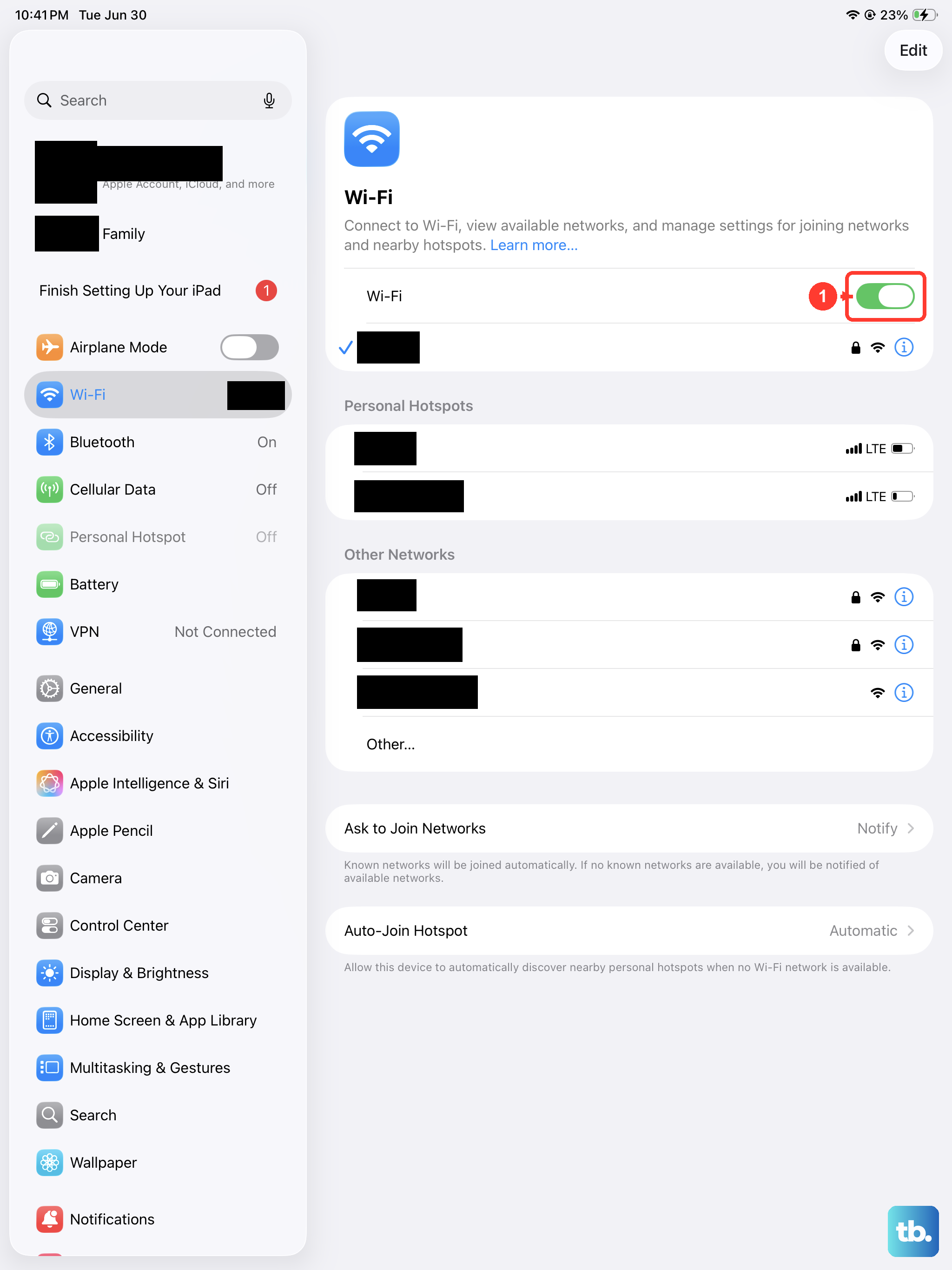
Your iPad might be holding onto outdated connection details for your home network. Telling it to forget the network and then rejoining with a fresh handshake can clear up a lot of weird slowdowns.
Go to Settings > WiFi. Tap the information icon (the little "i" in a circle) next to your network name. At the top of the screen, tap Forget This Network and confirm. Then, just select your network from the list again and re-enter the password.
Disable Low Data Mode on WiFi
Low Data Mode is great for saving bandwidth on a metered connection, but it intentionally slows things down by pausing background updates. If it's accidentally enabled on your home WiFi, it will make everything feel slower.
Head back to Settings > WiFi and tap the information icon next to your connected network. Make sure the toggle for Low Data Mode is switched off. This allows apps and the system to fetch data freely in the background.
Clear Safari's Website Data and History
Safari stores website data to load pages faster on your next visit, but a large, cluttered cache can have the opposite effect over time. Clearing it out gives you a fresh start.
Open the Settings app and scroll down to Safari. Scroll down again and tap Clear History and Website Data. Confirm your choice. This will log you out of websites, so you'll need to sign back in, but it often resolves page loading hangs.
Check for a Software Update
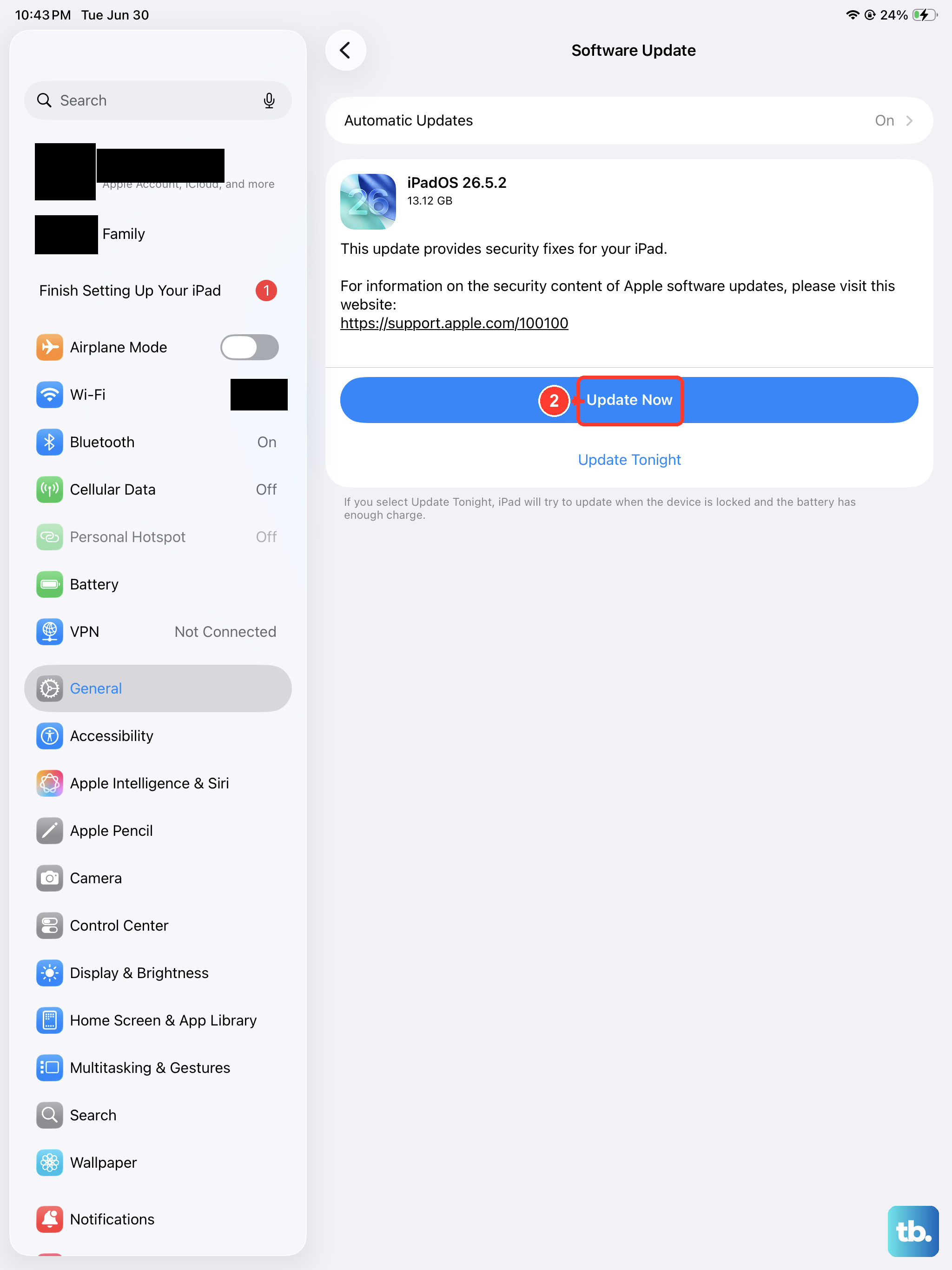
Apple frequently releases iPadOS updates that include fixes for connectivity and performance bugs. Making sure you're on the latest version is a key step.
Go to Settings > General > Software Update. If an update is available, tap Download and Install. It's best to do this while your iPad is connected to power and on a stable WiFi network. Keeping iPadOS updated is one of the easiest ways to maintain peak performance.
Restart Your iPad and Networking Equipment
This classic tech support step works because it clears out temporary glitches in both your iPad's memory and your router. Start by performing a standard restart on your iPad.
Hold the top button and either volume button until the power slider appears. Slide to power off. After about 30 seconds, press the top button again to turn it back on. Next, unplug your modem and router from power for a full minute before plugging them back in and letting them fully reboot.
Reset Your Network Settings
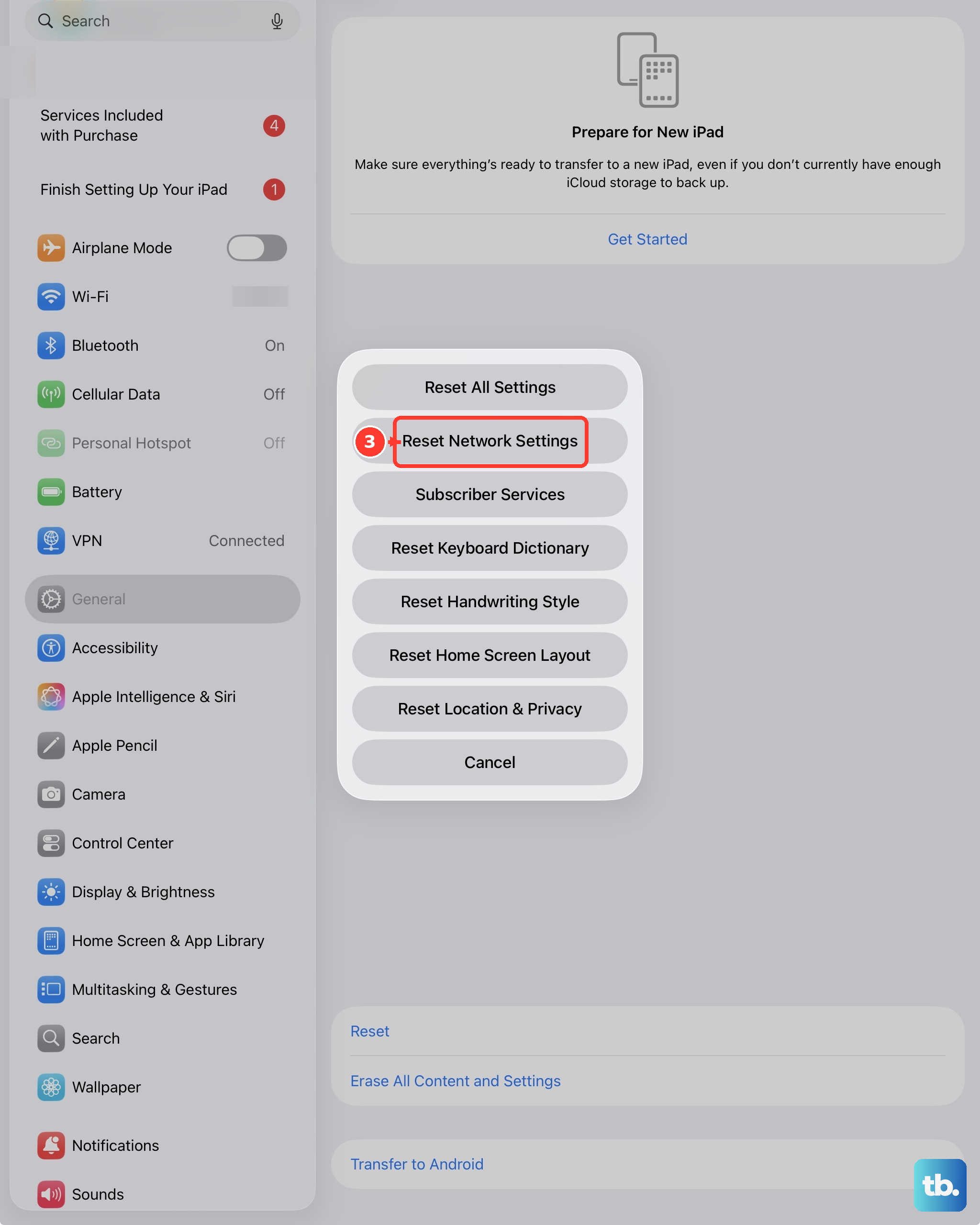
If you're still having issues, resetting network settings will wipe all saved WiFi networks, passwords, cellular settings, and VPN configurations from your iPad. It's a more thorough refresh than just forgetting one network.
Before you proceed, make sure you know your WiFi passwords, as you'll need them to reconnect. Go to Settings > General > Transfer or Reset iPad. Tap Reset and then choose Reset Network Settings. Your iPad will restart, and you can then reconnect to your networks from scratch.
Manage Background App Refresh
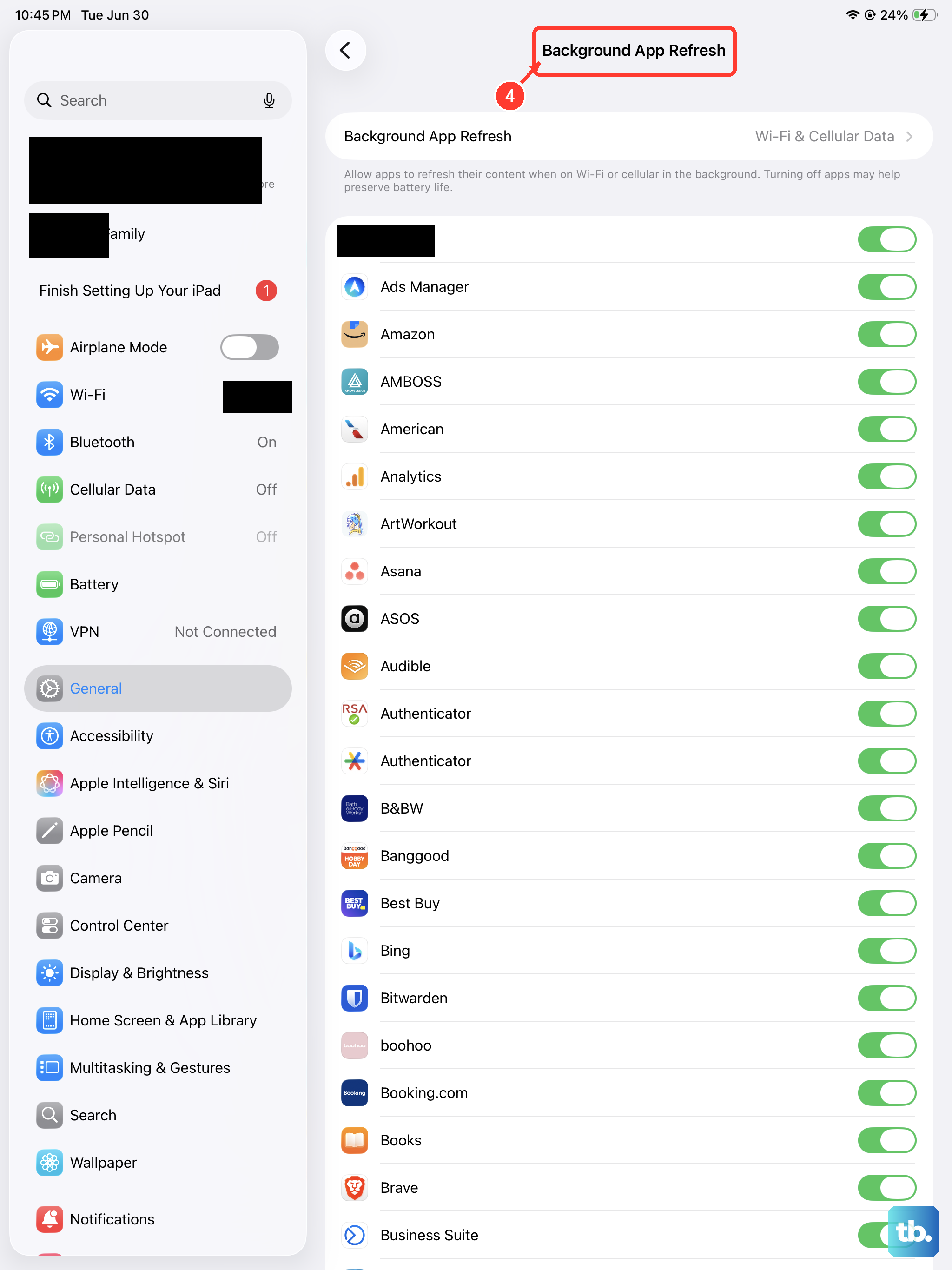
Apps updating content in the background use your internet connection even when you're not actively using them. You can control which apps have this permission to free up bandwidth for what you're doing right now.
Open Settings and go to General > Background App Refresh. You can toggle it off entirely or scroll through the list and disable it for specific, non-essential apps. This can noticeably improve responsiveness, especially on a slower connection.
Try a Different DNS Server
Your iPad uses your internet provider's Domain Name System (DNS) server by default to look up website addresses. Sometimes these can be slow. Switching to a faster, public DNS like Google's or Cloudflare's can speed up the initial connection to sites.
In Settings, tap WiFi and then the information icon next to your network. Tap Configure DNS and change it from Automatic to Manual. Tap Add Server and enter 1.1.1.1 (Cloudflare) or 8.8.8.8 (Google). You can add a second server like 1.0.0.1 or 8.8.4.4 as a backup. Tap Save in the top right.
Check for VPN or Content Blockers
If you use a VPN app, try temporarily disabling it to see if your speed improves. VPNs route your traffic through another server, which can add latency. Similarly, some Safari content blockers or firewall apps can inadvertently slow down page loading.
For a VPN, you usually disable it from within the app's interface. For content blockers, go to Settings > Apps > Safari > Extensions to see what's installed and active. Try turning them off one by one to test.
Perform a Force Restart
If your iPad is frozen or unresponsive while trying to load content, a force restart can help. This is different from a normal shutdown and doesn't erase any data.
Quickly press and release the Volume Up button, then quickly press and release the Volume Down button. Immediately press and hold the Top button. Keep holding it until you see the Apple logo appear on the screen, then release. This can clear more stubborn software hiccups that affect connectivity.