
If your iPad (11th generation) is feeling sluggish, you're not alone. Even a brand new tablet can start to lag if a few background processes get out of hand or storage fills up. The good news is that most slowdowns are temporary and easy to fix with a few simple steps.
I'd start with a quick restart. It's the fastest way to clear out any temporary glitches causing the slowdown.
To force restart your iPad, press and quickly release the Volume Up button, then press and quickly release the Volume Down button. Finally, press and hold the Top button until you see the Apple logo appear on the screen. This is a bit more thorough than a standard shutdown and can resolve deeper software hiccups.
Check Your Available Storage
When your iPad's storage gets too full, it doesn't have enough room to operate efficiently. This is one of the most common causes of performance issues. Head to Settings > General > iPad Storage to see what's taking up space.
Look for large apps, videos, or photo libraries you can offload. The system will often give you recommendations here, like reviewing large attachments in Messages or enabling iCloud Photos. Keeping at least a few gigabytes free can make a noticeable difference in speed.
Update to the Latest iPadOS
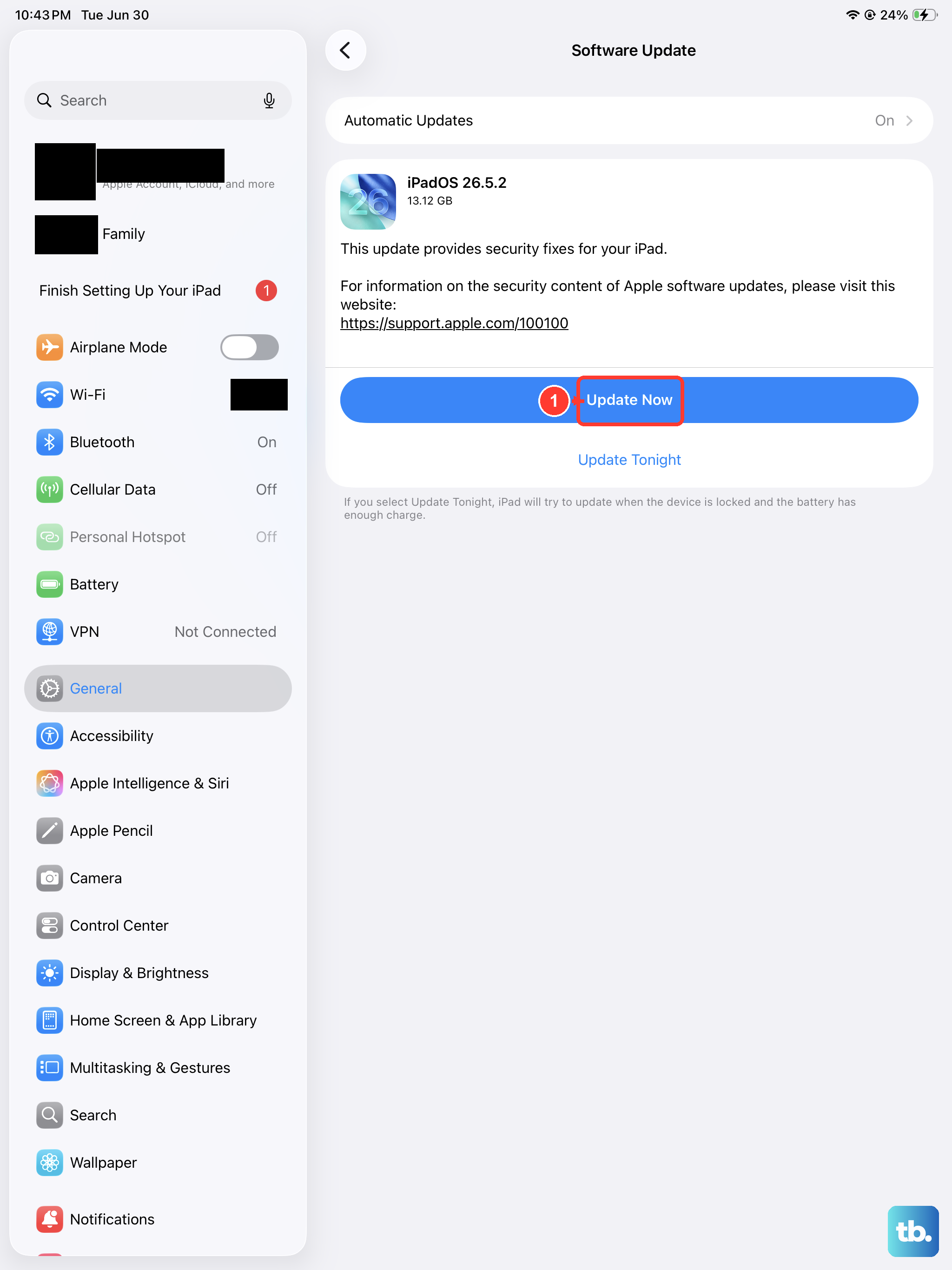
Apple frequently releases software updates that include performance improvements and bug fixes. An outdated version of iPadOS could be the reason your tablet is struggling.
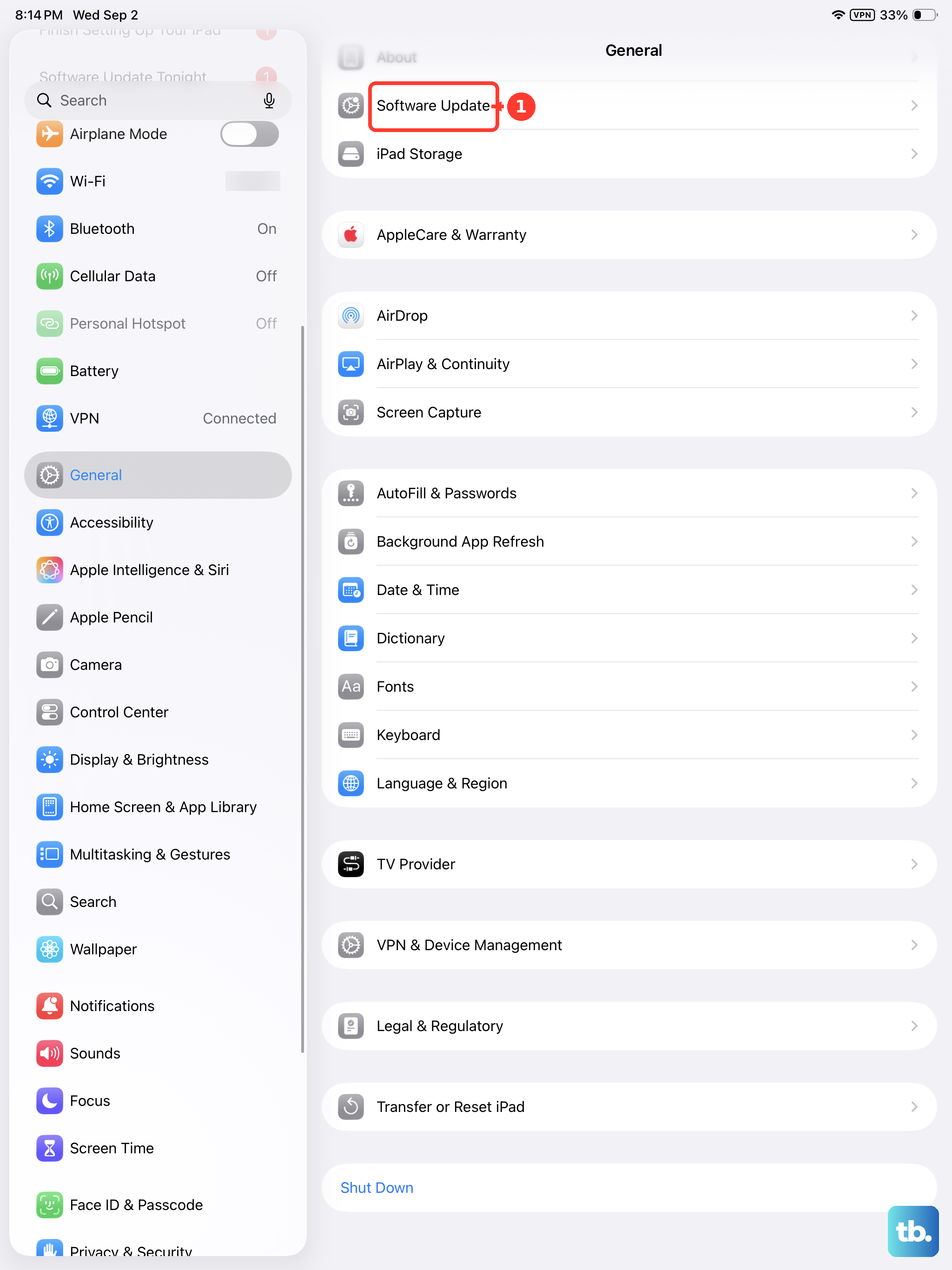
Go to Settings > General > Software Update. If an update is available, I'd recommend installing it, especially if it's a major point release. It's a good habit to keep your iPadOS updated for both performance and security.
Manage Background App Refresh
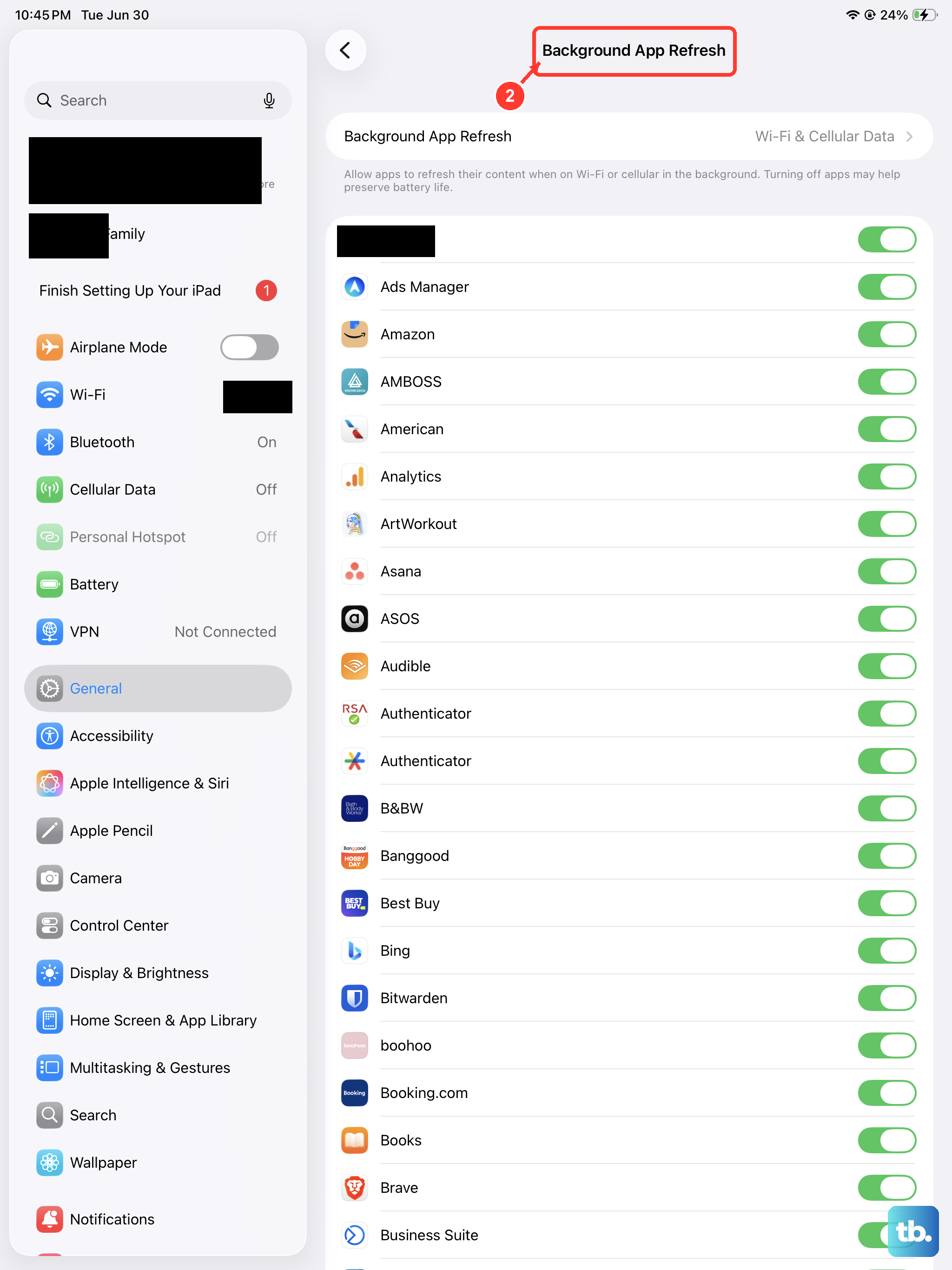
Apps updating in the background can drain resources even when you're not using them. You can control this to give your iPad a break.
Navigate to Settings > General > Background App Refresh. You can turn it off entirely or just for specific apps that don't need to be constantly updated. Social media and news apps are typical culprits you might consider limiting.
Close Unused Apps from the App Switcher
While iPadOS is generally good at managing memory, having dozens of apps suspended can sometimes impact responsiveness. It's easy to close them.
Swipe up from the bottom of the screen and pause in the middle to bring up the App Switcher. Swipe left or right to find the apps you want to close, then swipe up on each app's preview to remove it from memory. You don't need to do this constantly, but it helps if things feel particularly bogged down.
Review Your Battery Health
Although less common on a newer model like the 11th generation, a degraded battery can cause the system to throttle performance to prevent unexpected shutdowns. You can check its status.
Open Settings > Battery > Battery Health. Look at the Maximum Capacity percentage. If it's significantly below 100%, it indicates wear, but performance management typically only engages if the battery can no longer support peak power demands.
Clear Safari's Website Data
Over time, Safari caches a lot of data from websites to load them faster. This cache can become bloated and slow things down instead. Clearing it out is straightforward.
Go to Settings > Apps > Safari. Scroll down and tap Clear History and Website Data. Confirm your choice. This will log you out of websites and clear cookies, but it often gives browsing a fresh, faster start.
Disable or Reduce Motion Effects
The parallax and zoom animations on the Home Screen and within apps are nice, but they use processing power. Turning them off can free up resources for other tasks.
You can find this option in Settings > Accessibility > Motion. Toggle on Reduce Motion. This replaces some animations with simpler crossfades, which can make the interface feel snappier.
Reset All Settings
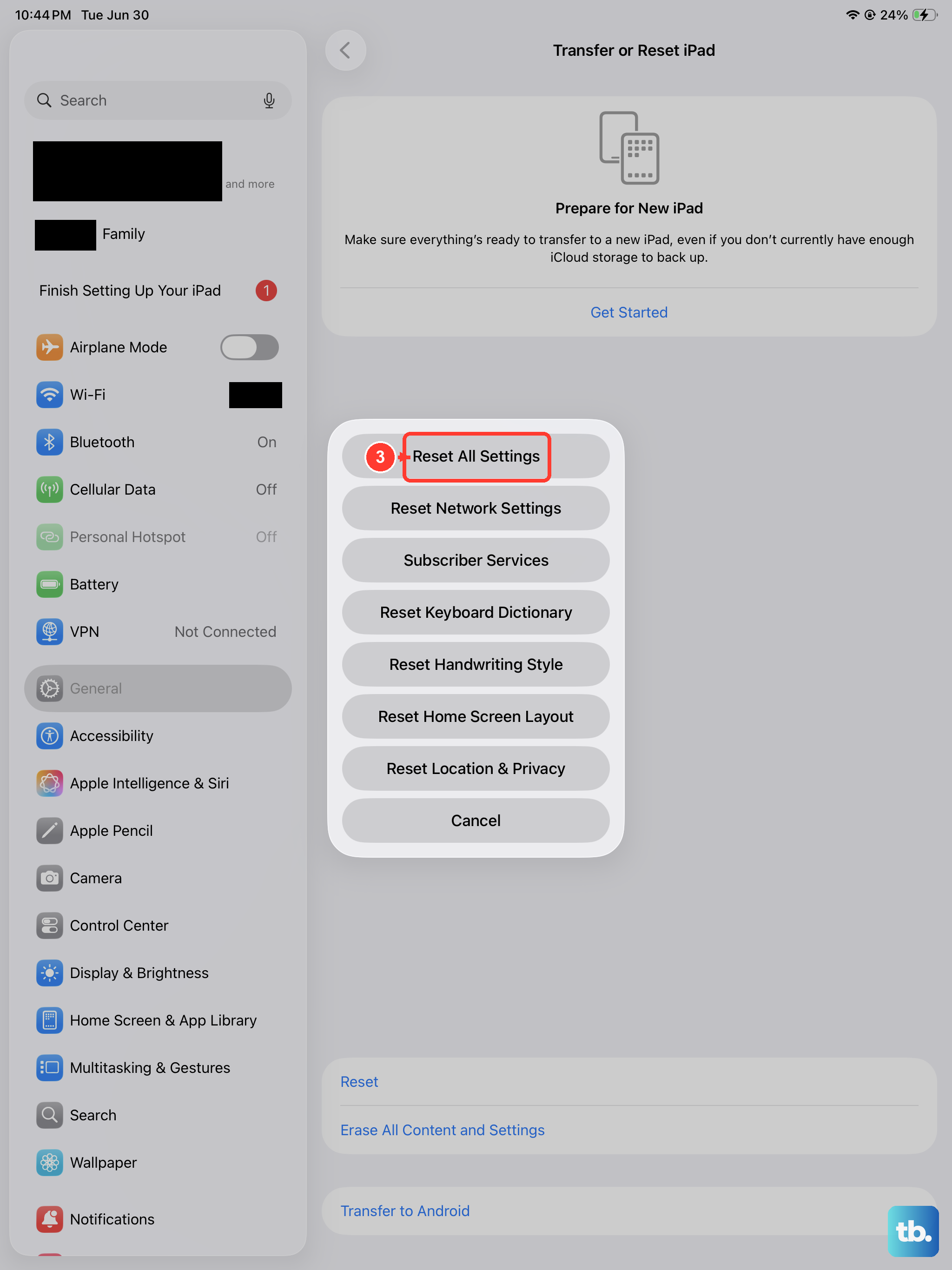
If you've tried everything else and the lag persists, this is a more comprehensive step. Resetting all settings will revert your network, privacy, and display preferences back to factory defaults without deleting your personal data or apps.
Go to Settings > General > Transfer or Reset iPad. Tap Reset and then choose Reset All Settings. You'll need to enter your passcode. Afterward, you'll have to reconnect to Wi-Fi and reconfigure some preferences, but it can resolve conflicting settings causing issues.
For the best ongoing performance, try to keep your iPadOS updated and maintain a healthy amount of free storage. Using Apple's official 20W USB-C power adapter will also ensure your battery charges efficiently, which helps maintain its long-term health.