
When the keyboard on your iPad (11th generation) doesn't pop up, it can really stop you in your tracks. This is usually a software hiccup in iPadOS, and there are a few straightforward ways to get it working again.
Restart Your iPad
A simple restart is often the quickest fix. It clears out temporary glitches in iPadOS that might be preventing the keyboard from appearing. Just press and hold the top button and either volume button until the power off slider appears.
Slide to power off, wait about 30 seconds, then press the top button again to turn it back on. Try opening an app like Notes or Messages to see if the keyboard shows up now.
Force Restart Your iPad
If a normal restart doesn't work, a force restart is the next step. This is a bit more thorough and can clear deeper software issues. The process for the 11th generation iPad is specific.
Quickly press and release the Volume Up button. Then quickly press and release the Volume Down button. Finally, press and hold the Top button. Keep holding it until you see the Apple logo appear, then you can let go.
This doesn't erase any of your data. Once it boots back up, check if the keyboard is responsive.
Check for a Software Update
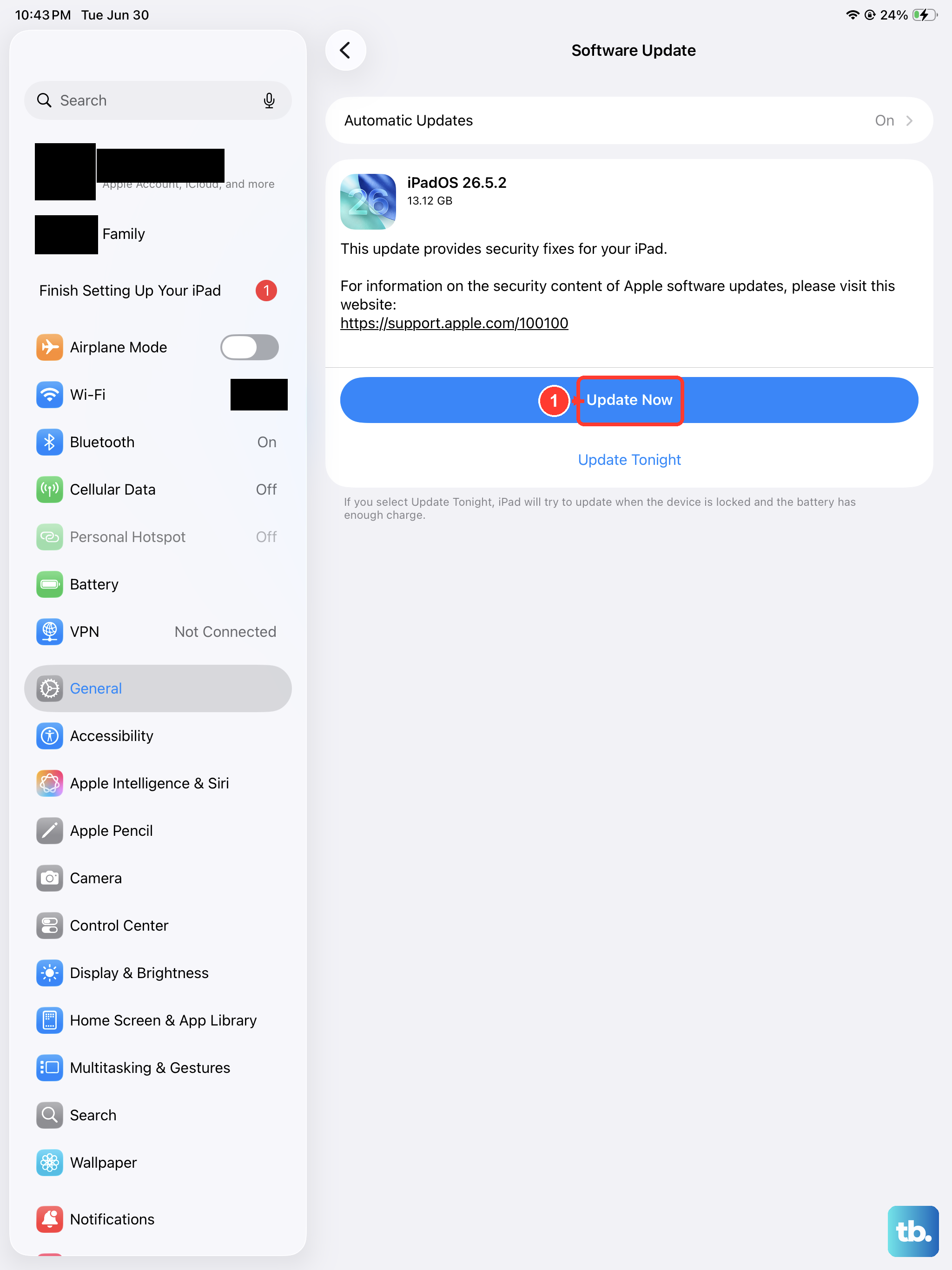
An outdated version of iPadOS can sometimes cause keyboard problems. Apple regularly releases updates that include bug fixes for issues just like this.
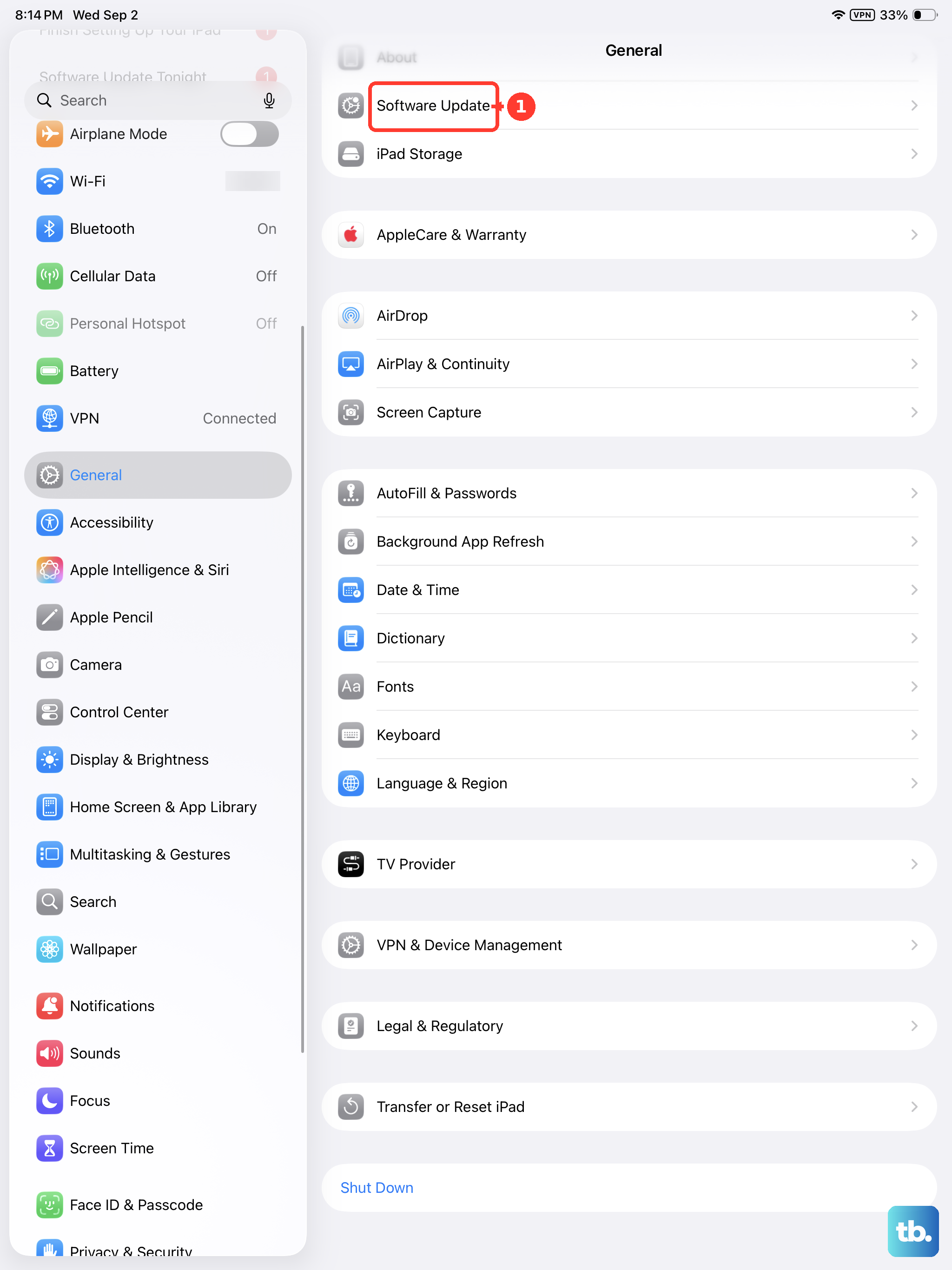
Open the Settings app and go to General > Software Update. Your iPad will check for any available updates. If one is there, tap "Download and Install." I'd recommend doing this while your iPad is connected to power and Wi-Fi.
Close and Reopen the App
The issue might be isolated to a single app. If the keyboard won't show in Safari but works in Mail, the app itself might be frozen.
To close it, swipe up from the bottom of the screen and pause in the middle to enter the App Switcher. Find the app's window and swipe it up and off the top of the screen to close it completely. Then, tap the app icon on your Home Screen to reopen it fresh.
Check Your Keyboard Settings
It's possible a setting was accidentally changed. Go to Settings > General > Keyboard. Here, you can see all your installed keyboards.
Make sure the keyboard you want to use, like the English keyboard, is listed under "Keyboards." You can tap "Edit" in the top corner to rearrange or remove keyboards. Sometimes just toggling a setting off and on, like "Predictive" text, can jog things loose.
Disconnect and Reconnect External Keyboards
If you use a Magic Keyboard or Smart Keyboard Folio, the iPad might be trying to use that instead of showing the on-screen one. Try physically disconnecting the keyboard case.
You can also go to Settings > Bluetooth, find the keyboard in the list, tap the info icon (i) next to it, and select "Forget This Device." Then, try reconnecting it. This resets the connection and often resolves communication errors.
Reset All Settings
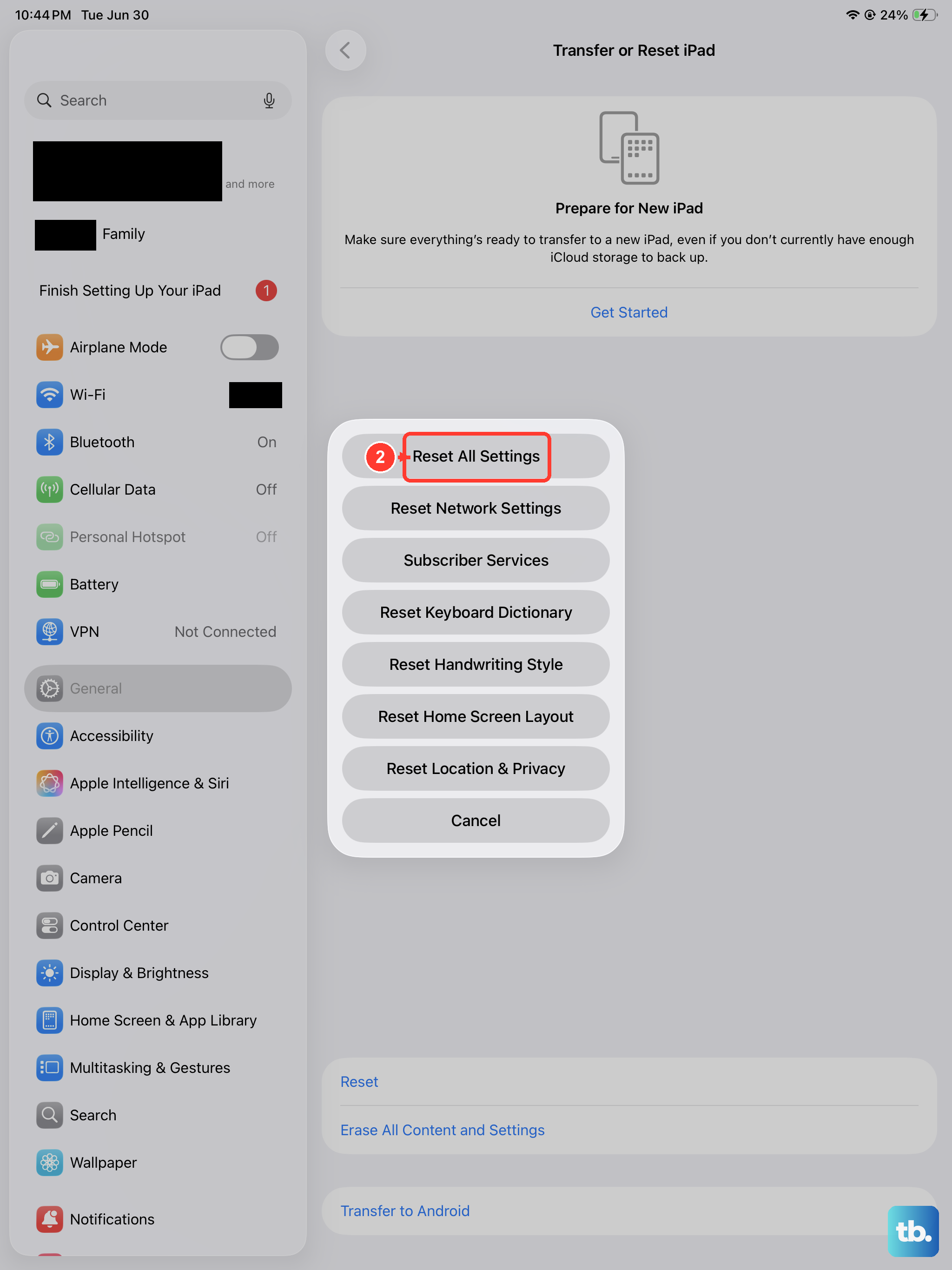
This is a more significant step, but it won't delete your personal data like photos or apps. It will reset all your system settings, Wi-Fi passwords, wallpaper, privacy permissions, back to their defaults, which can fix configuration conflicts.
Go to Settings > General > Transfer or Reset iPad > Reset. Then, choose "Reset All Settings." You'll need to enter your passcode. After the iPad restarts, you'll have to set up things like Wi-Fi and Face ID again, but your keyboard should be back to normal.
Check for App-Specific Issues
If the keyboard is missing from just one app, like a specific game or productivity tool, the app might need an update. Open the App Store, tap your profile icon in the top right, and see if there are any pending updates for that app.
You can also try deleting and reinstalling the problematic app. Just make sure any important data within it is backed up or synced to the cloud first, as deleting the app will remove its local data.