You unlock your iPad (10th generation) expecting a stack of message, email, and app alerts, and instead find nothing waiting. Maybe an important text never made a sound, a reminder stayed silent, or notifications stopped showing up on the Lock Screen entirely. The reassuring part is that this tablet runs the full iPadOS notification system, so missing alerts almost always trace back to a single setting, an active Focus, or a temporary software hiccup you can clear yourself.
Work through the fixes below in order. They start with the quickest, safest checks in the Settings app and save the resets and the support call for the very end, so you only escalate as far as you actually need to.
1. Clear Do Not Disturb and any other Focus
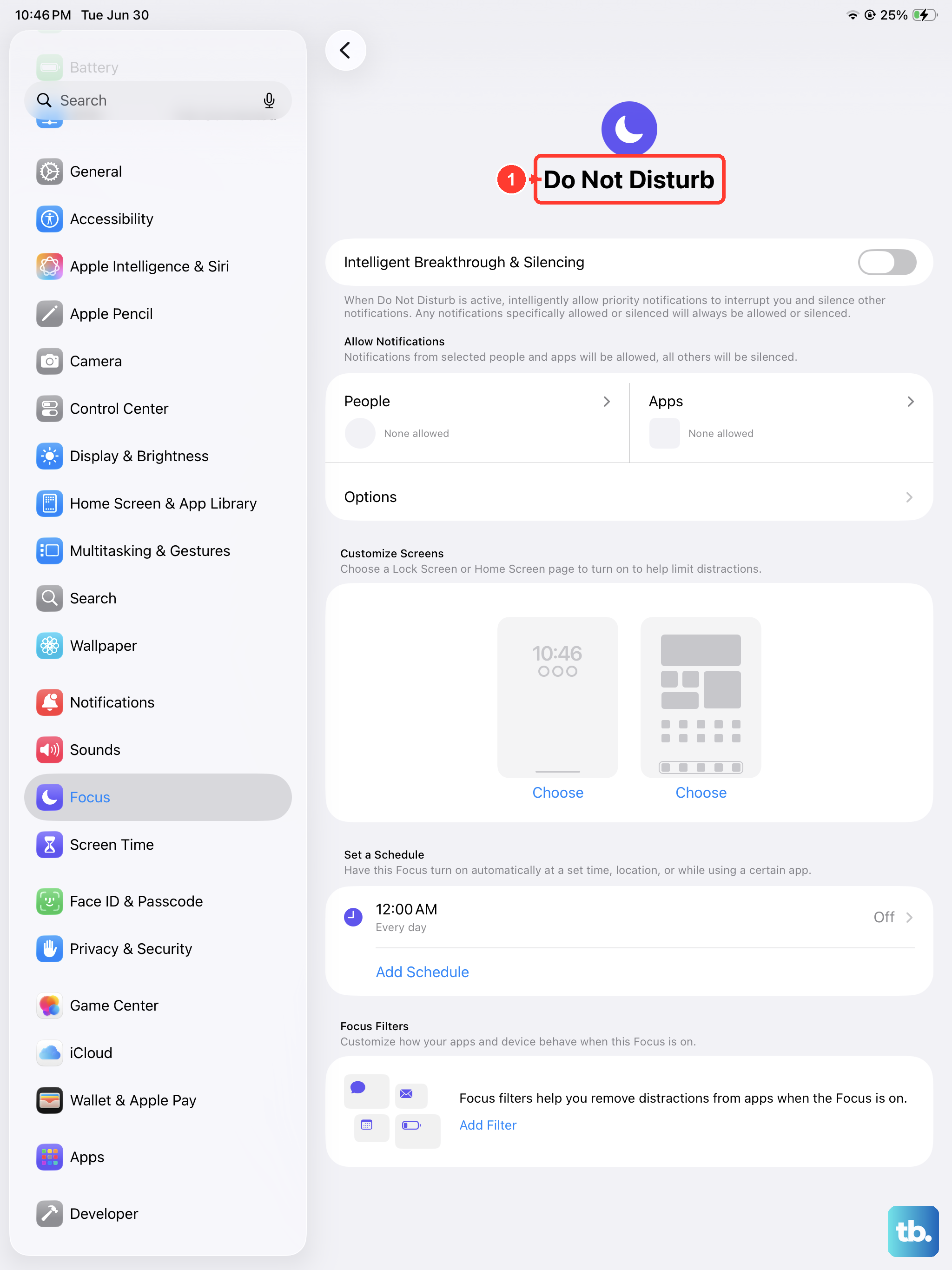
A Focus, and Do Not Disturb in particular, silences or delays notifications, which is the most common reason alerts appear to be broken. When a Focus is on, its icon (such as the Do Not Disturb crescent moon) shows in the status bar, so that is the first thing to glance at.
Open Control Center, tap Focus, then tap the Focus that is on (for example Do Not Disturb) to turn it off.
You can also go to Settings > Focus, tap the Focus, and turn it off there.
A Focus can also be configured to allow only certain apps or people while silencing everything else, which means an alert can stay hidden even when the Focus looks harmless. Go to Settings > Focus, tap the Focus (Do Not Disturb, Personal, Sleep, or Work), then review the Allowed and Silenced People and Apps so the contact or app you care about is not being held back.
2. Make sure the app is allowed to notify you
If a single app has gone quiet, its notifications may simply be switched off. When Allow Notifications is off for an app, it sends no alerts at all, no matter what else is configured.
Go to Settings > Notifications.
Select the app below Notification Style.
Turn on Allow Notifications.
Repeat this for every app that is not notifying you, since the setting is controlled per app rather than system wide.
3. Decide where each app's alerts should appear
Even with notifications allowed, they can be hidden if no display style is selected. This is easy to overlook because the app technically has permission; it just has nowhere to show the alert.
In Settings > Notifications, tap the app, then under Alerts make sure Lock Screen, Notification Center, and/or Banners are selected. If previews are not showing on the Lock Screen, tap Show Previews and choose an option that suits you.
4. Check the alert sound and confirm the iPad isn't muted
Sometimes notifications are arriving correctly but doing so silently, so it feels like nothing is coming through. The fix is to give the app a sound and confirm the tablet's volume is actually up.
Go to Settings > Notifications and tap the app.
Turn on Allow Notifications, tap Sounds, and select a sound.
The iPad (10th generation) has no physical silent switch, so muting is handled by the volume buttons and Control Center instead of a hardware toggle. Press the volume up button and open Control Center to confirm the device is not muted and the volume is turned up.
5. Switch off Scheduled Summary
Scheduled Summary holds non-urgent notifications and delivers them together in a batch at set times, which can easily look like missing or delayed alerts. If your notifications keep arriving in clumps rather than as they happen, this is usually why.
Go to Settings > Notifications > Scheduled Summary and turn Scheduled Summary off to restore immediate delivery. If you would rather keep the summary, review which apps are included so the important ones are left out of the batch.
6. Confirm the iPad is online and signed in
Push notifications rely on a persistent connection to Apple's servers, so a dropped connection quietly stops alerts. Make sure the iPad is connected to Wi-Fi (or cellular on Wi-Fi + Cellular models) and signed in to your Apple Account.
Without a working connection, apps that rely on Apple Push Notification service will not deliver alerts, even if every other setting is correct. A quick check of your network and account status often explains an otherwise baffling silence.
7. Restart the iPad to clear temporary glitches
A simple restart clears temporary software faults that can block notifications. Because the iPad (10th generation) has Touch ID in the top button and no Home button, use the no Home button sequence below.
Press and hold either volume button and the top button until the power off slider appears.
Drag the slider, then wait 30 seconds for your device to turn off.
To turn your device back on, press and hold the top button until you see the Apple logo.
If you prefer, you can also power down from Settings > General > Shut Down and drag the slider, then press and hold the top button to start it again.
8. Update iPadOS to the current release
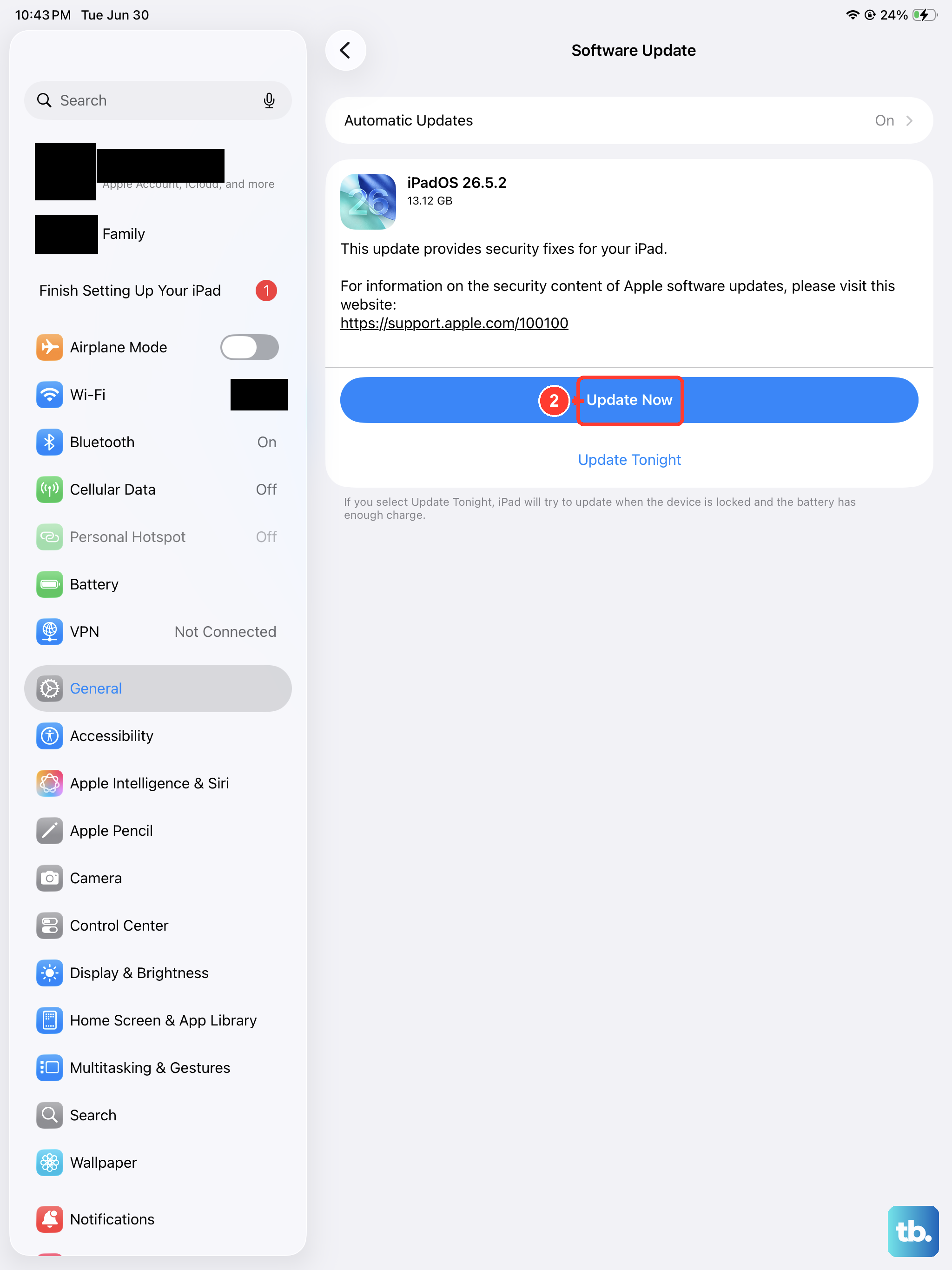
Software bugs that affect notifications are frequently corrected in updates, so running the latest version is worth doing before any reset. The iPad (10th generation) is compatible with iPadOS 26.
Go to Settings > General > Software Update. If an update is available, tap Download and Install and follow the onscreen instructions.
9. Force restart if alerts are still frozen
If the iPad feels frozen or unresponsive and notifications remain stuck, a force restart can shake it loose. This uses the no Home button sequence, and the order of presses matters, so follow it exactly.
- 1.Press and quickly release the volume button nearest to the top button.
- 2.Press and quickly release the volume button farthest from the top button.
- 3.Press and hold the top button, and when the Apple logo appears, release the top button.
10. Reset all settings without losing your data
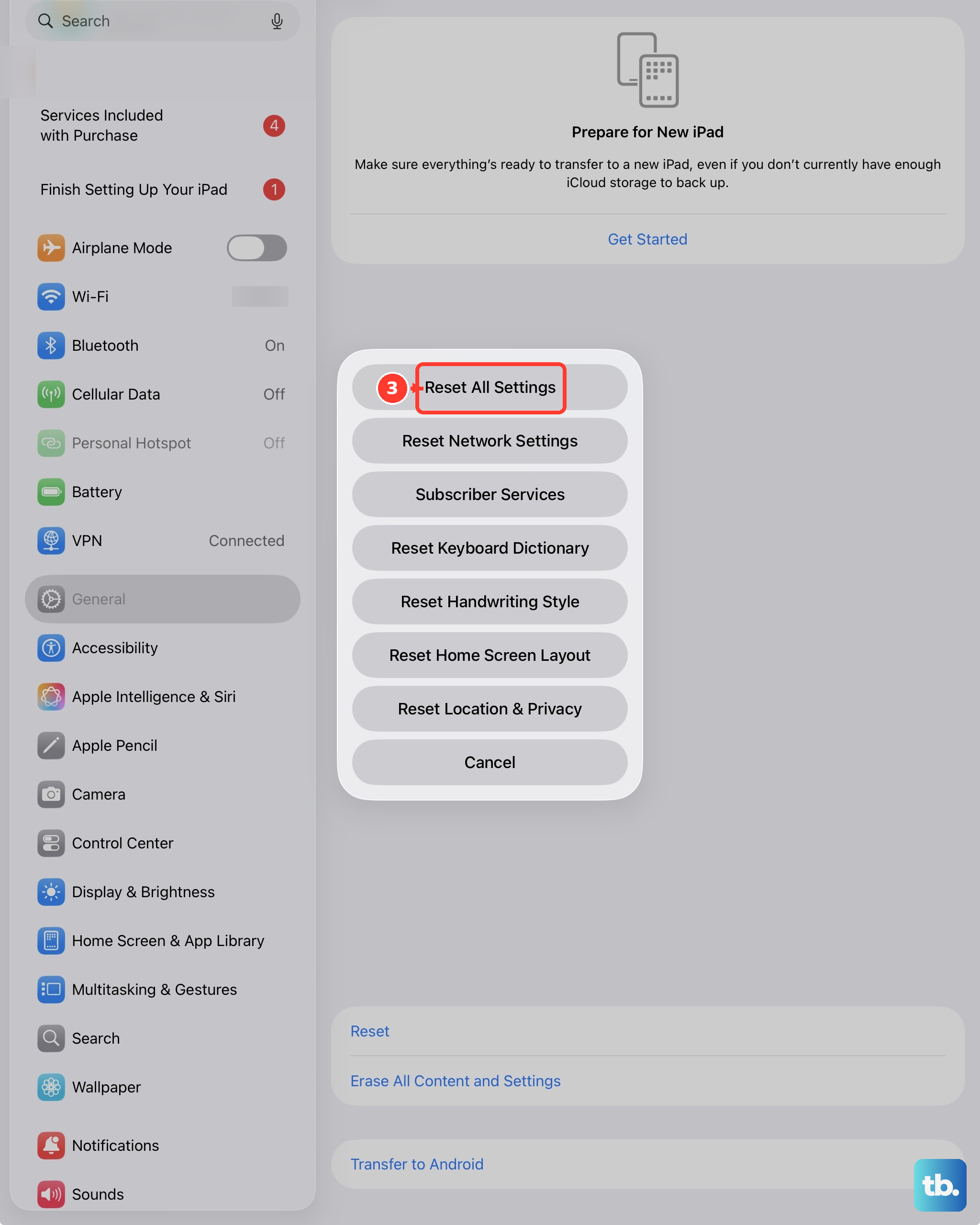
If a setting somewhere has been misconfigured and you cannot pin it down, you can return your settings to their defaults without erasing anything. This is a safe step because it leaves your apps, photos, and media untouched.
Go to Settings > General > Transfer or Reset iPad > Reset. This returns network, keyboard dictionary, location, privacy, and other settings to defaults, but it does not delete your data or media.
11. Erase and set up again, or reach Apple Support
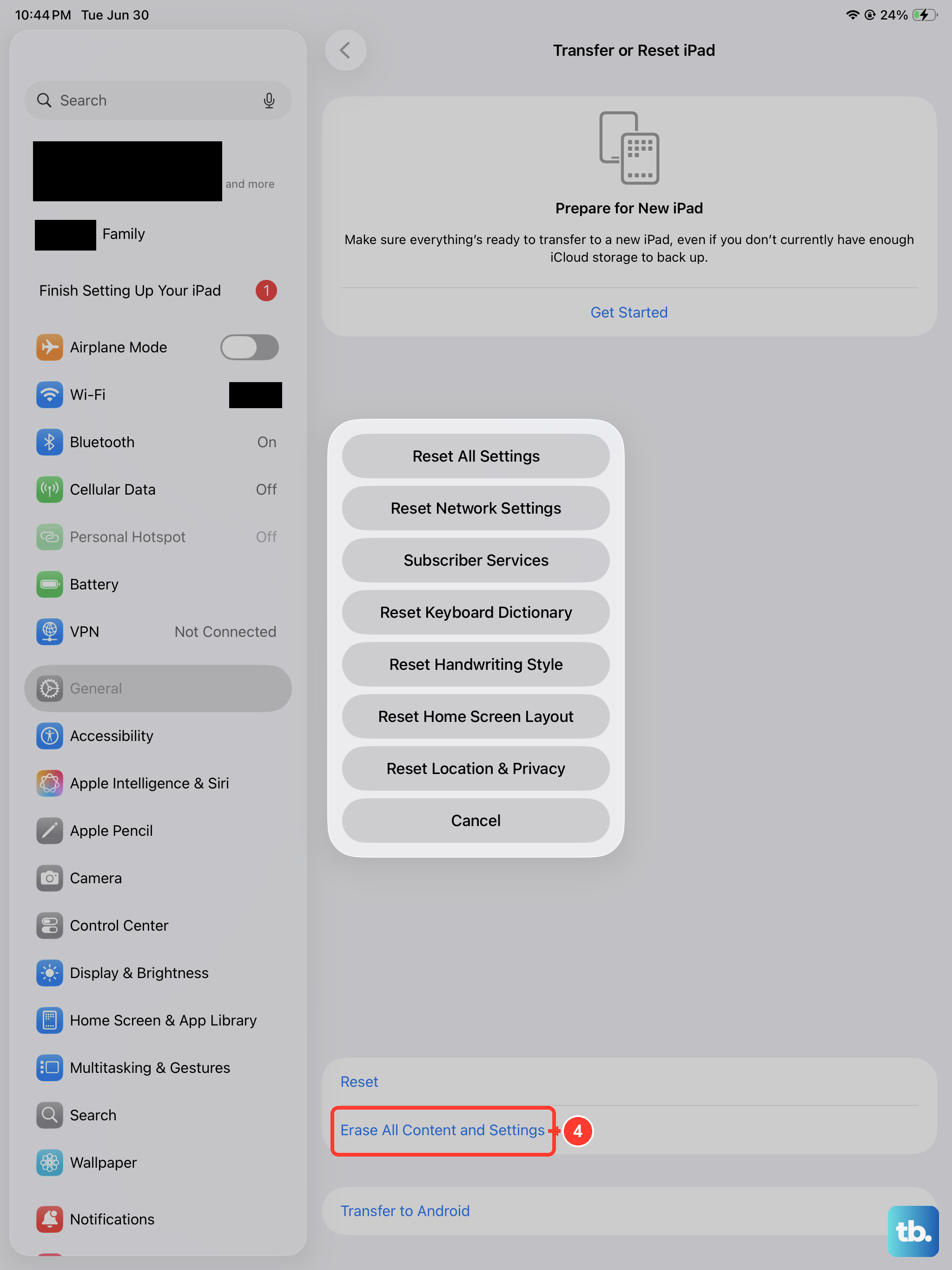
As a last resort, you can factory erase the iPad and set it up fresh, which clears any deep configuration problem. Because this restores the iPad to factory settings and erases all of your data, back up first so you can restore your apps, photos, and media afterward.
Back up your iPad.
Go to Settings > General > Transfer or Reset iPad > Erase All Content and Settings.
Enter your passcode and Apple Account password, then tap Continue.
If notifications still fail after erasing and setting up again, contact Apple Support so they can check for an account or hardware issue that the on-device steps cannot reach.
Frequently Asked Questions
Why do my iPad notifications arrive silently?
The app may have no alert sound assigned, or the device volume may be down. Go to Settings > Notifications, tap the app, turn on Allow Notifications, tap Sounds, and choose a sound, then press volume up and check Control Center to confirm the iPad is not muted.
Does the iPad (10th generation) have a silent switch?
No. This model has no physical ring or silent switch, so sound and muting are handled with the volume buttons and Control Center rather than a hardware toggle.
Will resetting all settings delete my photos and apps?
No. Settings > General > Transfer or Reset iPad > Reset returns network, keyboard, location, privacy, and other settings to their defaults but does not delete your apps, photos, or media. Only Erase All Content and Settings removes your data, which is why you should back up before using it.
Why do my notifications all show up later in one batch?
That is the behavior of Scheduled Summary, which collects non-urgent notifications and delivers them together at set times. Turn it off under Settings > Notifications > Scheduled Summary to get alerts as they happen.
How can I tell if a Focus is blocking my alerts?
When a Focus is on, its icon appears in the status bar, such as the crescent moon for Do Not Disturb. Open Control Center, tap Focus, and tap the active Focus to turn it off, or go to Settings > Focus to switch it off and review its Allowed and Silenced lists.