
When your iPad 10th Generation doesn't appear on your PC, it can stop you from transferring photos, backing up files, or managing your device. This is a common hiccup with a few straightforward fixes. I'd start with the cable and port, as that's the usual suspect.
Most of the time, the issue is with the physical connection, an outdated driver on your Windows PC, or a simple setting on the iPad itself. Since this model uses a standard USB-C port, compatibility is generally good, but it still needs the right setup to communicate with a computer.
Check Your USB-C Cable and Port
Begin with the cable. The iPad 10 uses a USB-C port, but not all USB-C cables support data transfer. Some are for charging only. Try a different, high-quality USB-C cable that you know works for data. Make sure both ends are plugged in firmly.
While you're at it, inspect the USB-C port on your iPad for any lint or debris. Shine a light in and gently clean it out with a dry, soft-bristled brush or a can of compressed air. A blocked port can prevent a proper connection.
Restart Your iPad and Computer
A quick restart can clear out temporary software glitches on both devices. First, restart your Windows PC. Then, restart your iPad. For the iPad 10th Gen, you can do this by going to Settings > General > Shut Down.
If the iPad is unresponsive, perform a force restart. Press and quickly release the Volume Up button, press and quickly release the Volume Down button, then press and hold the Top button until you see the Apple logo. This doesn't erase any data.
Trust the Computer on Your iPad
When you connect your iPad to a computer for the first time, you must explicitly trust that computer. Unlock your iPad with your passcode. A prompt should appear on the iPad's screen asking if you want to "Trust This Computer." Tap Trust.
If you accidentally tapped "Don't Trust," you'll need to disconnect the cable and reconnect it to get the prompt again. This is a security feature, so don't skip this step.
Try a Different USB Port on Your PC
Not all USB ports on a computer are created equal. Some older USB-A ports might not provide enough power or stable data transfer. If you're using a USB-C to USB-A adapter or cable, try plugging into a different USB port on your PC, preferably one directly on the motherboard (like on the back of a desktop).
For the best results, use a USB-C port on your computer if it has one. A direct USB-C to USB-C connection often provides the most reliable link between your iPad and a modern PC.
Update or Reinstall Apple Mobile Device Driver (Windows)
Windows PCs need a specific driver to talk to iPads and iPhones. If this driver is missing or corrupted, your iPad won't show up. Open the Device Manager on your Windows PC (search for it in the Start menu).
Look under "Portable Devices" or "Universal Serial Bus controllers" for an entry related to Apple, like "Apple Mobile Device USB Driver." If you see a yellow exclamation mark, right-click it and select "Update driver." Choose "Search automatically for updated driver software."
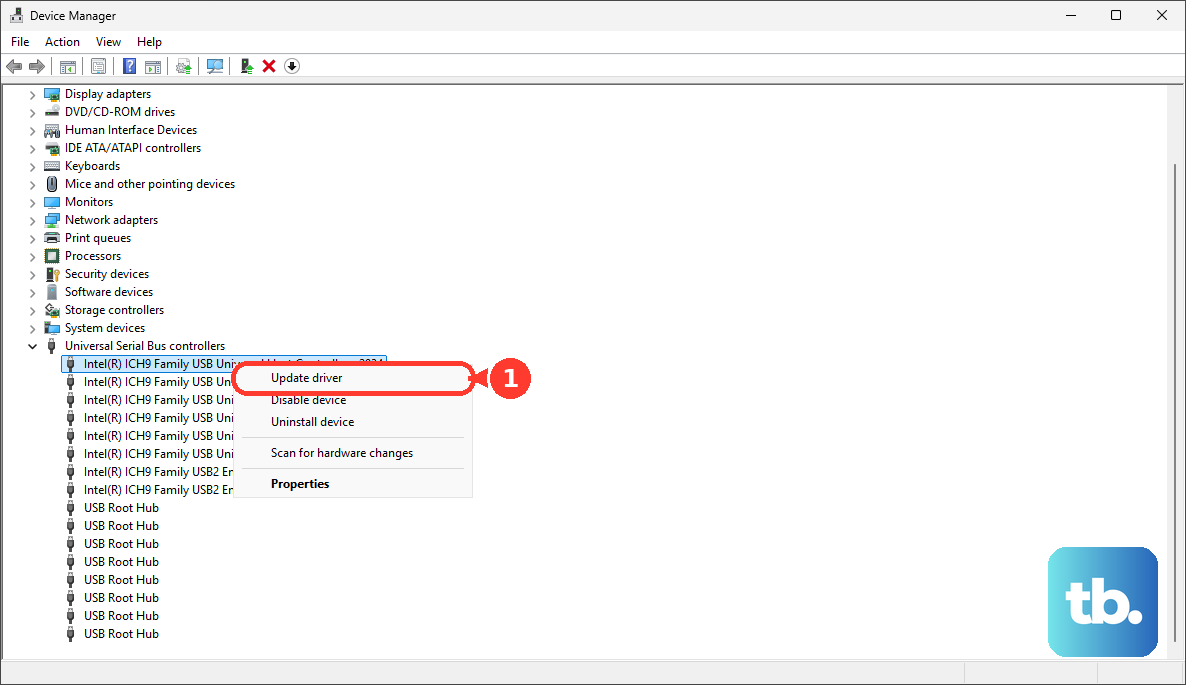
If that doesn't work, right-click the device, select "Uninstall device," check the box to delete the driver software if prompted, then disconnect and reconnect your iPad. Windows should attempt to reinstall the driver automatically.
Check for iPadOS and PC Software Updates
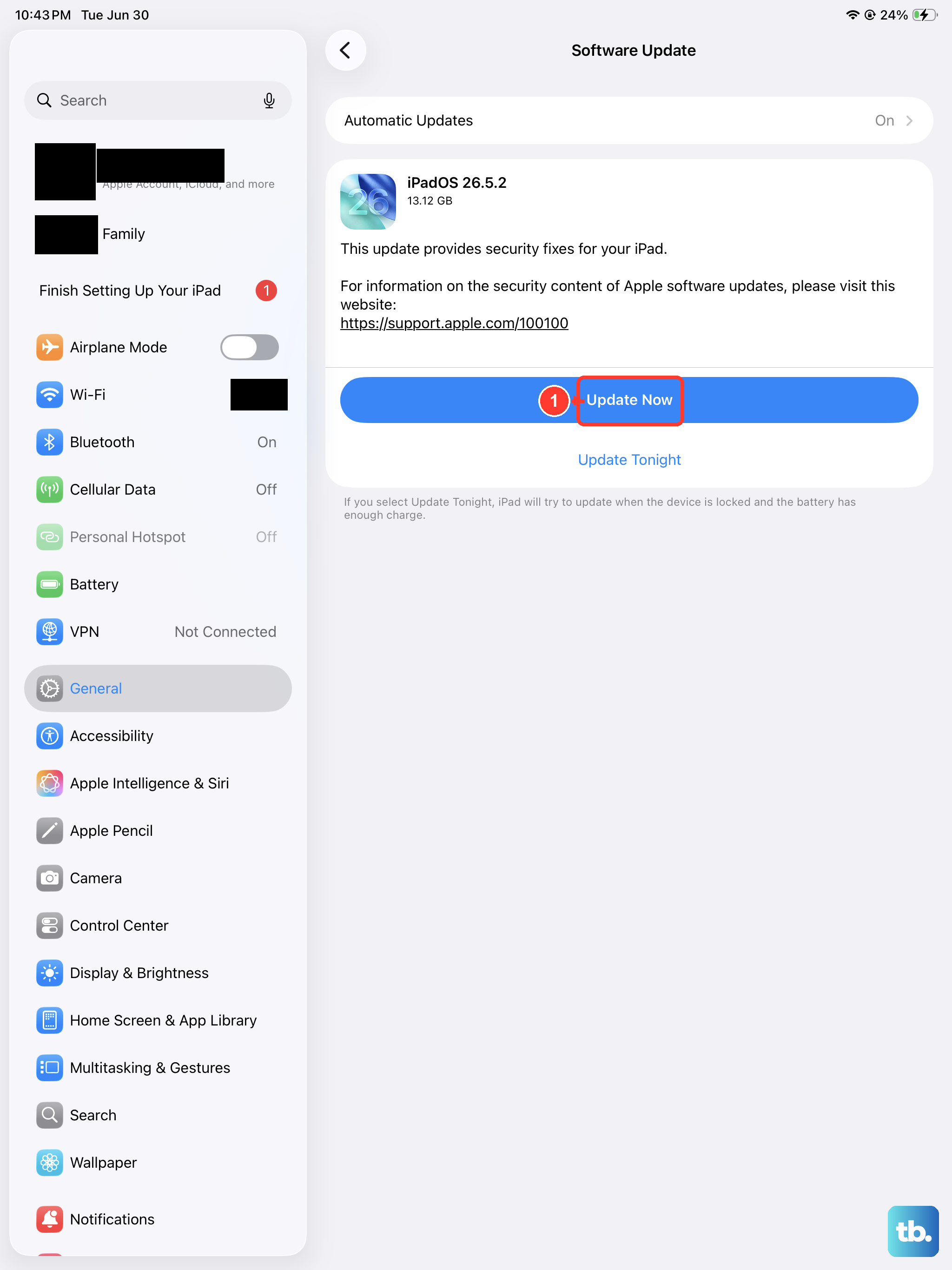
An outdated version of iPadOS can sometimes cause connection issues. On your iPad, go to Settings > General > Software Update to install any available updates. Make sure your Windows PC is also fully updated through Windows Update.
If you have iTunes installed from the Microsoft Store, ensure it's updated as well. While iTunes isn't strictly necessary for basic file transfer in newer Windows versions, having it updated can ensure all supporting components are current.
Reset Location & Privacy on Your iPad
This resets the "Trust This Computer" setting for all PCs you've previously connected to. On your iPad, go to Settings > General > Transfer or Reset iPad > Reset. Then tap Reset Location & Privacy.
You'll need to enter your passcode. After the reset, reconnect your iPad to your computer. You should see the "Trust This Computer" alert again. Tap Trust to re-establish the connection. This won't delete your personal data.
Use a Different Computer or Apple Device
To rule out a problem with your iPad, try connecting it to a different Windows PC or a Mac. If it appears on another computer without issue, the problem is likely with your original PC's settings, drivers, or USB ports.
If you have access to a Mac, you can also see if it appears in the Finder (for macOS Catalina and later). This quick test helps narrow down where the fault lies.
Check Security Software on Your PC
Sometimes, overzealous antivirus or firewall software on your Windows PC can block the connection. Try temporarily disabling your antivirus real-time protection (check its system tray icon for an option).
Just remember to turn it back on after testing the connection. If your iPad appears after disabling the security software, you may need to add an exception for the Apple Mobile Device Service within your antivirus settings.
Consider the Charger and Power
While the iPad 10th Gen supports up to 20W charging, a weak or faulty power source from your PC's USB port can sometimes hinder the data connection. If you're using a USB hub, try connecting the cable directly to your computer instead.
For the most reliable connection, ensure your iPad has a decent charge, above 20% if possible. A very low battery can sometimes cause the device to prioritize power intake over data communication.