You plug your USB-C earbuds into your iPad (10th generation), or tap connect on your Bluetooth headphones, and the sound keeps pouring out of the built-in speakers, arrives far too quiet, or simply never shows up at all. It is a frustrating spot, especially when a video is already playing and everyone nearby can hear it. The reassuring part is that on this iPad the problem almost always traces back to one of three connection types, and most of them clear up in a couple of minutes.
Start with a free headphone test that checks left and right channels, stereo order, bass, and treble. Two minutes there tells you whether the hardware needs attention at all.
Because the iPad (10th generation) has no 3.5 mm headphone jack, every pair of headphones reaches it one of three ways: wired headphones with a USB-C connector plugged into the single USB-C port, ordinary 3.5 mm headphones routed through the Apple USB-C to 3.5 mm Headphone Jack Adapter (sold separately), or Bluetooth headphones paired wirelessly over Bluetooth 5.2. Knowing which one you are using tells you which fixes below to try first. Work through them in order, since the earliest steps are the quickest and safest.
Start with volume, mute, and where the sound is going
Before assuming anything is broken, rule out the simple stuff. Press the volume up button or open Control Center to raise the level, and confirm the media volume is up rather than just the system level. Also check that the volume slider inside the app you are using (a video or music app, for example) is turned up, since an app can be muted on its own while the rest of the iPad sounds fine.
Next, make sure the audio is actually being sent to your headphones and not to another device. Your iPad can route sound to AirPlay or Bluetooth outputs, so open Control Center by swiping down from the upper-right corner, tap AirPlay, then tap your headphones (or iPad) to send the audio to the right place. With Bluetooth, remember that if the headphones move too far from the iPad the connection can drop, which can make it seem like they suddenly stopped working.
Match the right plug to the USB-C port
The iPad (10th generation) has a single USB-C port and no 3.5 mm jack, so the plug has to match. For wired listening, use headphones that have a USB-C connector plugged straight into that port, or connect a standard pair of 3.5 mm headphones through the Apple USB-C to 3.5 mm Headphone Jack Adapter, which is sold separately.
A bare 3.5 mm plug will not fit the iPad directly, so if you have been trying to push one into the port, that mismatch is the problem and not the headphones. Confirm you are holding either a true USB-C connector or the official adapter before troubleshooting any further.
Reseat the plug and clear out the USB-C port
For wired or adapter headphones, unplug the connector and look closely at both ends. Lint and pocket debris collect in the charging port on the bottom of the device and quietly block a solid connection. Remove any debris from that port, then clean the connector itself with a soft, dry, lint-free cloth.
Apple is specific about how to do this safely: do not use liquids or cleaning products, and never force a connector into the port. A forced or angled plug can damage the contacts, so once the port is clear, slide the connector in gently and make sure it seats fully.
Switch off the Reduce Loud Audio limiter
If the headphones do play but everything sounds unusually quiet, a built-in volume safety limit may be holding the level down. Go to Settings > Sounds & Haptics > Headphone Safety > Reduce Loud Audio, then turn off the Reduce Loud Sounds toggle and drag its slider to lift the cap.
After adjusting it, raise the media volume again with the volume up button or Control Center and play something through the headphones. If they were only quiet rather than silent, clearing this limit is often all it takes to bring the level back to normal.
Wake up and recheck your Bluetooth headphones
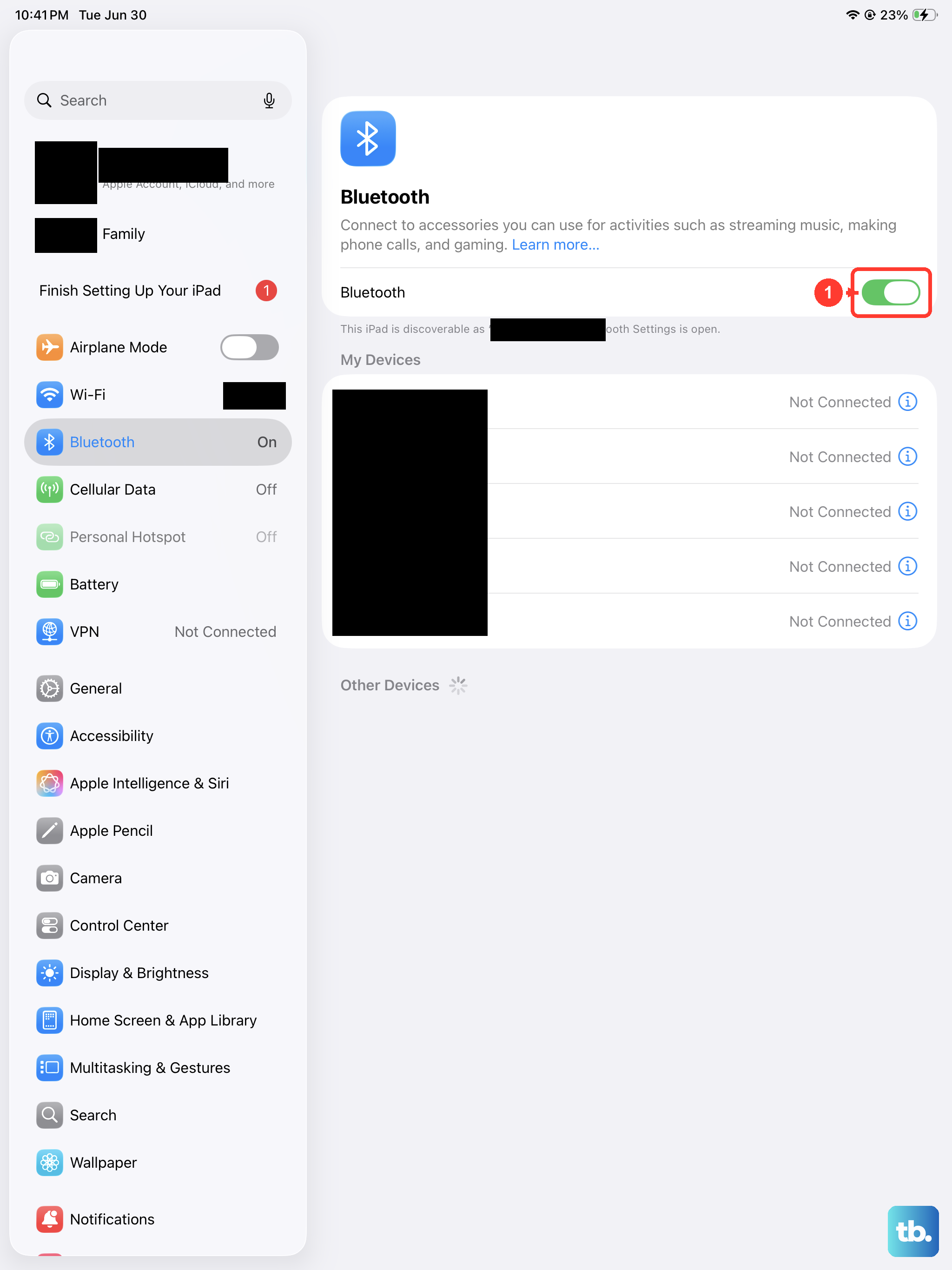
For wireless pairs, start with the headphones themselves. Make sure they are powered on, fully charged or plugged in, and sitting close to the iPad. Turn the Bluetooth accessory off and back on to force a fresh handshake.
Then open Settings > Privacy & Security > Bluetooth and confirm Bluetooth is turned on for any app you use with the headphones, because a denied permission there can silence audio in that one app while the rest of the system seems fine. If the pair connected before, keeping the two devices near each other usually restores the link on its own.
Forget the Bluetooth pair and set it up again
When a Bluetooth pair connects but stays silent or keeps cutting out, removing and re-adding it often clears the fault. Go to Settings > Bluetooth, tap the info (i) button next to your headphones, tap Forget This Device, then tap Forget Device to confirm. You will need to pair the headphones again afterward, so have them handy.
To pair them again:
- 1.Open Settings > Bluetooth, turn Bluetooth on, and stay on this screen.
- 2.Put the headphones into discovery mode (check the accessory's own instructions for the right button).
- 3.Tap the accessory name when it appears in the list to reconnect.
Restart the iPad
A simple restart clears temporary glitches that can block audio output. Simultaneously press and hold the top button and either volume button until the Power Off slider appears. Drag the slider to turn off the iPad, wait 30 seconds, then press and hold the top button until you see the Apple logo. Reconnect your headphones once it finishes starting up.
Force restart when the audio freezes
If sound is frozen, an app is stuck, or the iPad has stopped responding entirely, a force restart is the next move. Because this model has Touch ID in the top button and no Home button, the sequence is specific, so follow it in order:
- 1.Press and quickly release the volume button closest to the top button.
- 2.Press and quickly release the volume button farthest from the top button.
- 3.Press and hold the top button.
- 4.When the Apple logo appears, release the top button.
A force restart does not erase any of your content; it only forces the iPad to reboot, which often restores audio after a stuck session.
Update iPadOS to the latest version
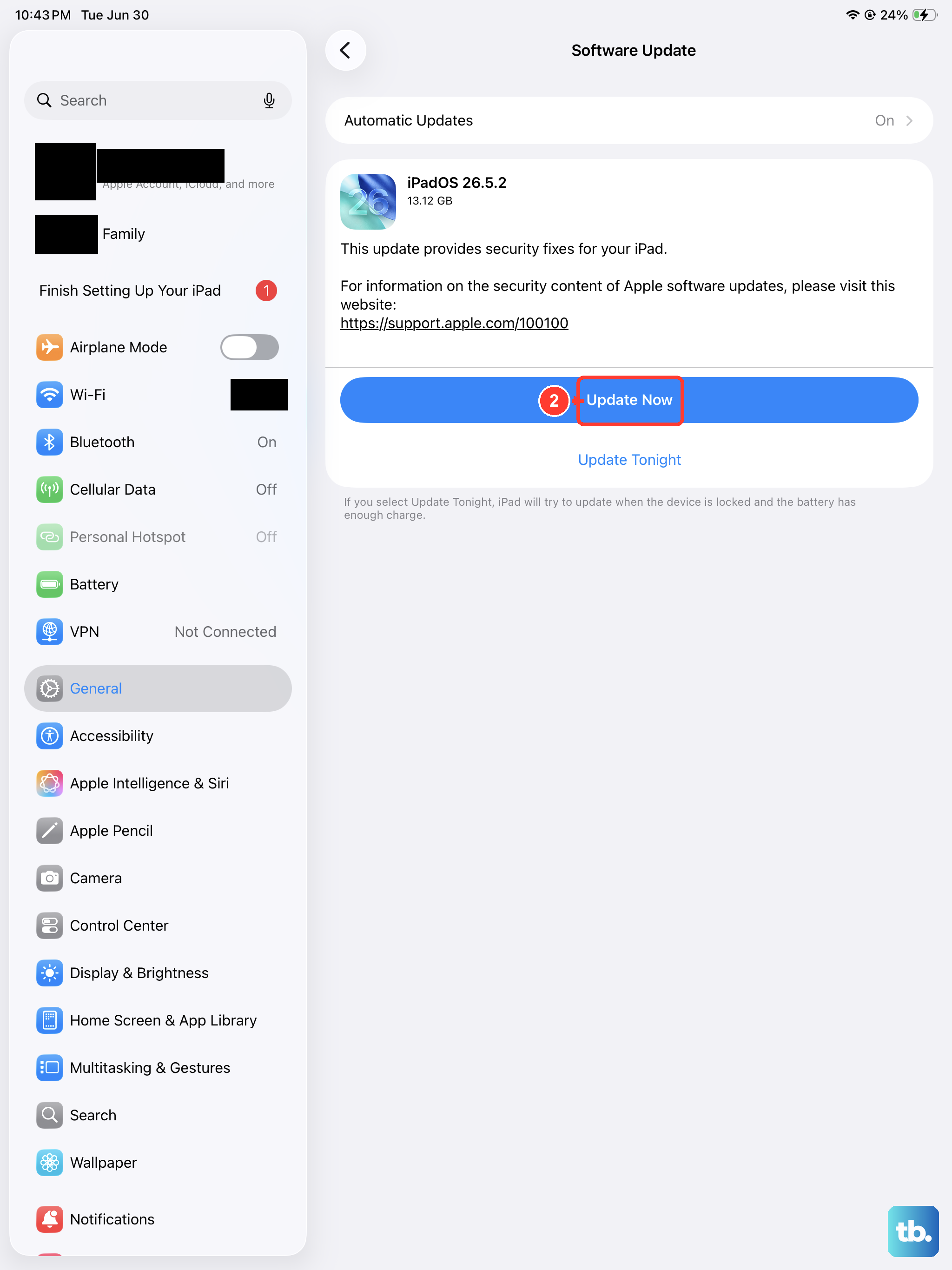
Audio bugs are sometimes fixed in a software update, so it is worth installing the latest iPadOS. Go to Settings > General > Software Update and tap Download and Install, keeping the iPad connected to Wi-Fi and to power throughout the process.
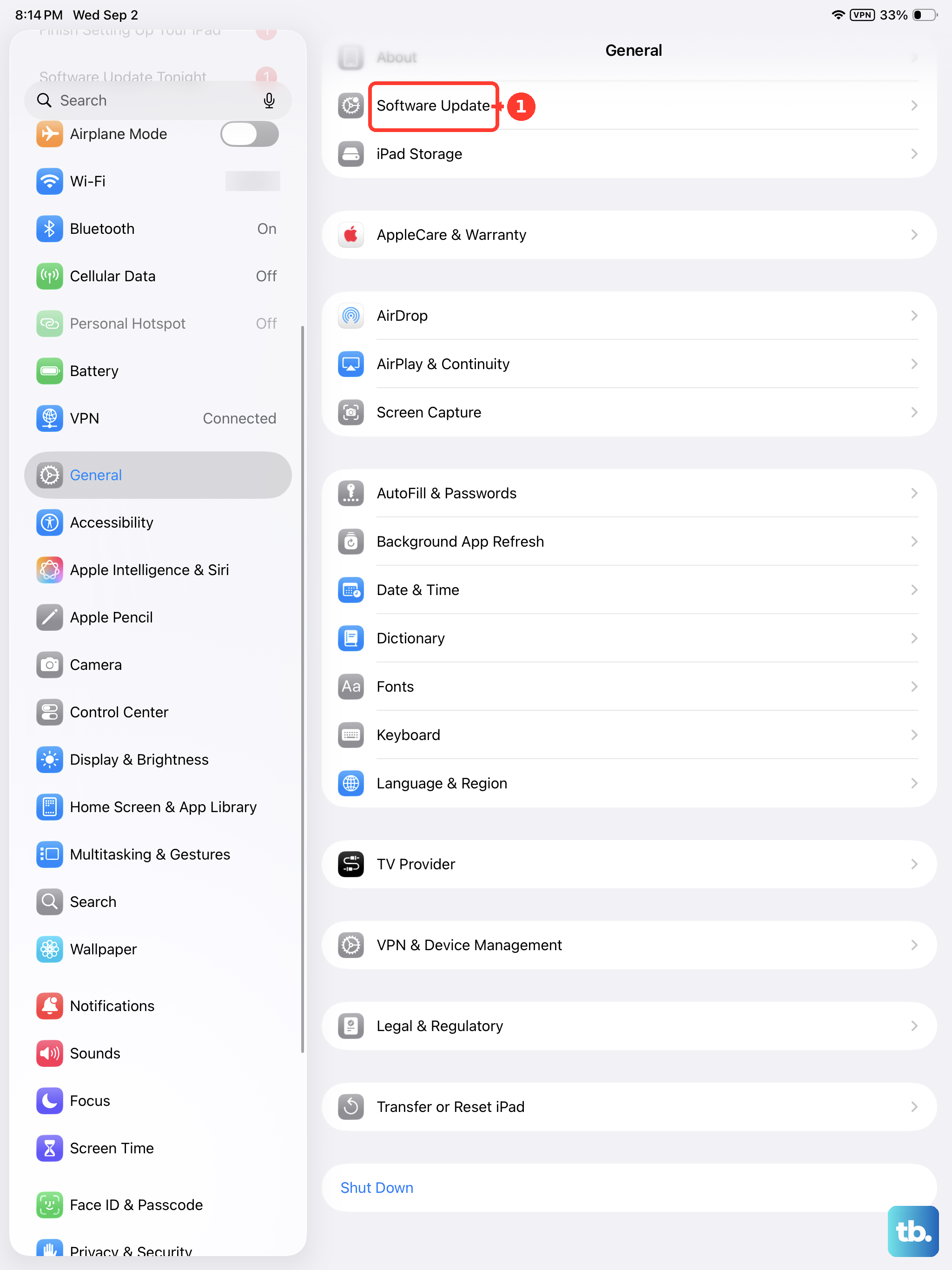
If it will not update wirelessly, you can also update the iPad by connecting it to a computer, then try your headphones again once the install completes.
Erase everything as a last resort, then reach Apple Support
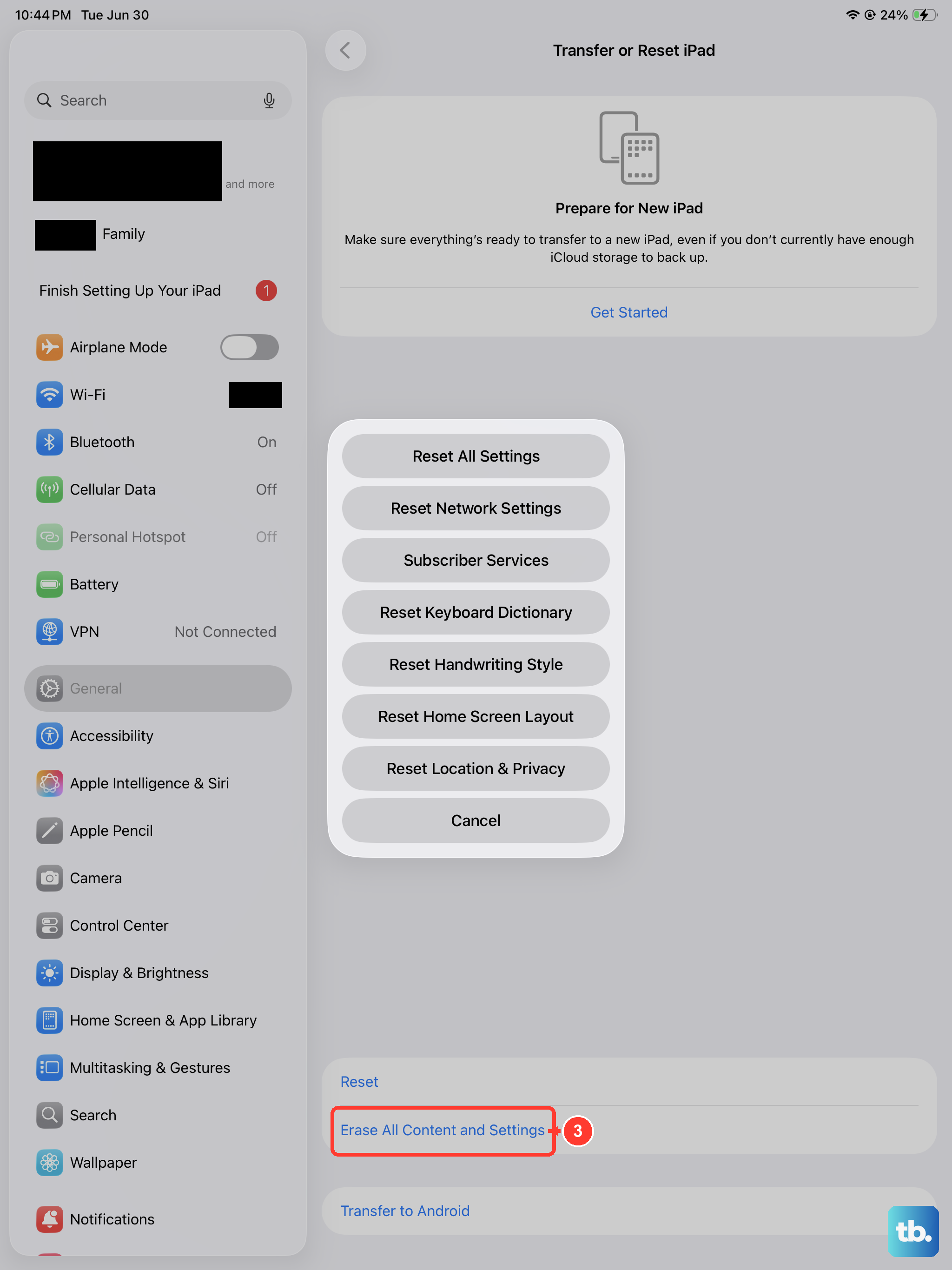
If none of the steps above brings your headphones back, a full erase is the final software measure. Back up first, because this completely wipes the device, including your photos, contacts, music, apps, and Apple Pay cards. Then go to Settings > General > Transfer or Reset iPad > Erase All Content and Settings, enter your passcode and Apple Account password when prompted, and tap Continue to confirm.
Set the iPad up again and test a pair of headphones before restoring everything, which tells you whether the trouble was software. If headphones still fail after a clean erase, the cause is likely hardware, and the right move is to contact Apple Support for service.
Frequently Asked Questions
Does the iPad (10th generation) have a headphone jack?
No. This model has a single USB-C port and Bluetooth 5.2, with no 3.5 mm headphone jack. You connect wired headphones that have a USB-C connector, use the Apple USB-C to 3.5 mm Headphone Jack Adapter (sold separately) for 3.5 mm headphones, or pair a Bluetooth set wirelessly.
Why is my headphone volume so low on this iPad?
A loudness safety limit may be active. Check Settings > Sounds & Haptics > Headphone Safety > Reduce Loud Audio and turn off the Reduce Loud Sounds toggle, adjust its slider, then raise the media volume with the volume up button or Control Center.
Why does sound keep coming from the iPad speakers instead of my Bluetooth headphones?
Your iPad is routing audio to the wrong output, or the headphones dropped the connection. Open Control Center by swiping down from the upper-right corner, tap AirPlay, then tap your headphones. If they had moved too far away, the link can drop, so bring them close and reconnect.
Will a force restart or an erase delete my data?
A force restart does not erase anything; it only reboots a frozen iPad using the volume-and-top-button sequence. Erase All Content and Settings, by contrast, completely wipes the device, including photos, contacts, apps, and Apple Pay cards, so always back up before using it.
My wired USB-C headphones still do not work after I cleaned the port. What now?
Confirm the plug is a true USB-C connector, or a 3.5 mm pair on the official adapter, since a bare 3.5 mm plug will not fit. If a known-good pair still fails after a restart and an iPadOS update, contact Apple Support, as it may be a hardware fault.