You tap the screen on your iPad (10th generation) and nothing happens. The display might be stuck on one app, frozen mid-scroll, locked on the Apple logo, or simply black and ignoring every touch. A frozen iPad is almost always a software hiccup rather than a broken device, and on this model it is very fixable. The fixes below run from the gentlest, safest option to the official reset and service paths, so start at the top and stop the moment your iPad responds again.
One detail matters before you begin. The iPad (10th generation) has no Home button; Touch ID is built into the top button. That changes the force-restart sequence, so be sure to use the steps written for an iPad without a Home button rather than any older Home-button method.
Start with the one app that locked up
If only a single app is unresponsive while the rest of the iPad still reacts, you may not need to restart the whole device. According to the official support guidance, if an app is not responding you can quit it and reopen it to try to resolve the issue.
Open Expose by swiping up from the bottom edge of the screen and pausing.
Swipe up on the frozen app's preview to quit it.
Then reopen the app by tapping it on the Home Screen, in the App Library, or in the Dock.
If quitting and reopening the app does not solve the problem, the manufacturer advises moving on to restarting the iPad, which the next steps cover.
Rule out a drained battery and a bad cable
A black, unresponsive screen is sometimes nothing more than a dead battery. Connect your iPad with its USB-C cable to the included 20W USB-C Power Adapter (or another working power source) and leave it to charge. The official guidance notes you might need to charge for up to an hour before the iPad responds, so give it time before assuming the worst.
While it charges, check the basics. Use a known-good cable and adapter, ideally the ones that came with your iPad, plugged into a working outlet. Also make sure the iPad is not too hot or too cold, since being outside its acceptable operating temperatures can affect how it behaves.
Turn the iPad off and back on the normal way
If the screen still responds at all, a standard restart clears many temporary glitches without touching your data.
Press and hold either volume button and the top button until the power off slider appears.
Drag the slider, then wait 30 seconds for your device to turn off.
After that, to turn your device back on, press and hold the top button until you see the Apple logo.
You can also power down from Control Center. Swipe down from the top-right corner of your screen to open Control Center, press and hold the Power button in the top-right corner of your screen, then let go, drag the slider, and wait 30 seconds for the device to turn off.
The force restart for an iPad with no Home button
When the screen is fully frozen or black and the power off slider will not appear, a force restart is the tool for the job. Because the iPad (10th generation) has no Home button, use this exact sequence.
Press and quickly release the volume button closest to the top button.
Next, press and quickly release the volume button farthest from the top button.
Then press and hold the top button until you see the Apple logo.
This forces the iPad to reboot and does not erase any of your data. The button presses need to be quick and in order, so if nothing happens the first time, run through all three steps again.
Install the latest iPadOS to clear out software bugs
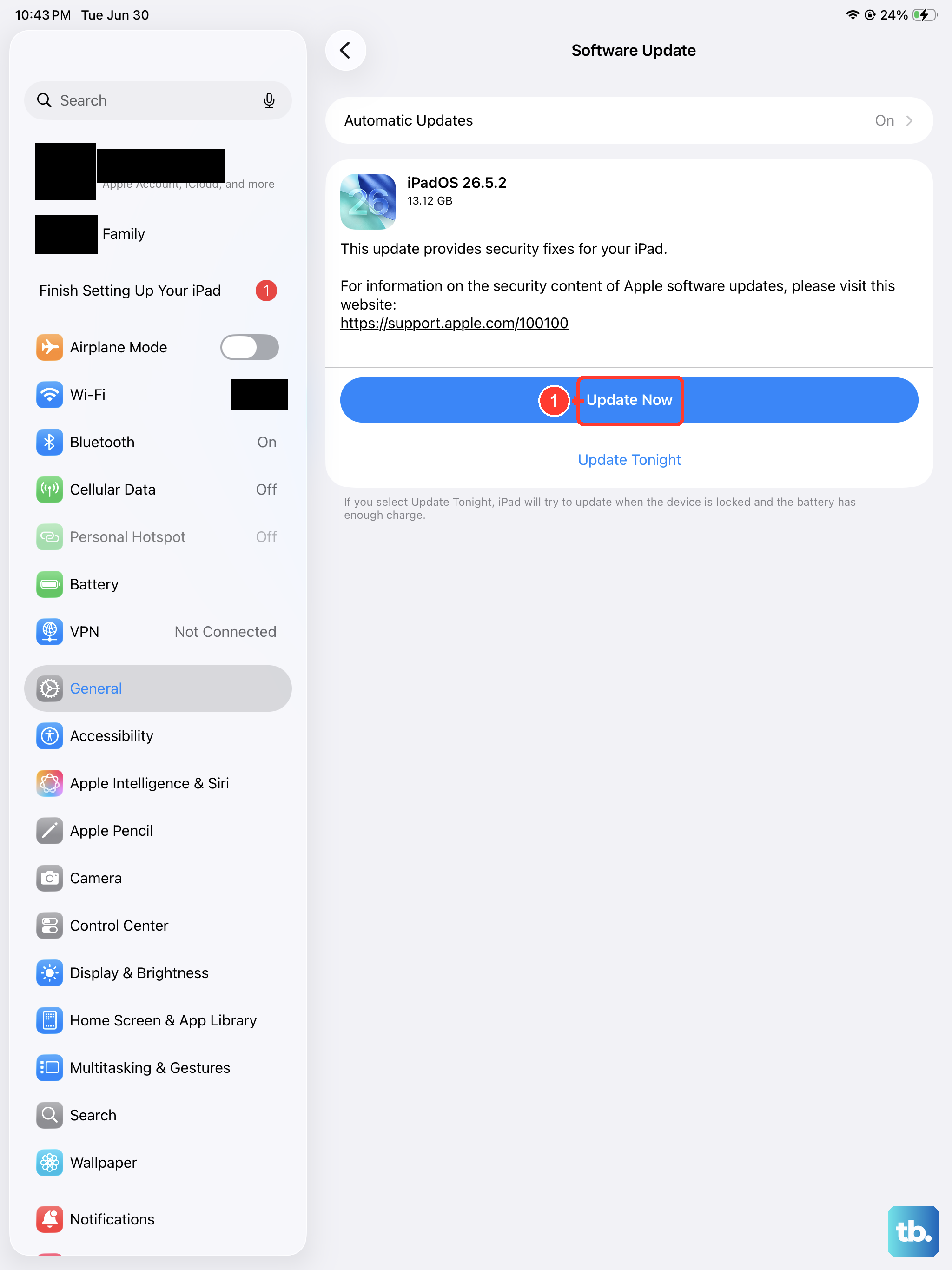
If the freezes keep coming back once the iPad is responsive, an outdated system version is a common culprit. The iPad (10th generation) supports iPadOS 26, and keeping it current often resolves stability problems.
Go to the Settings app on your iPad.
Tap General, then tap Software Update.
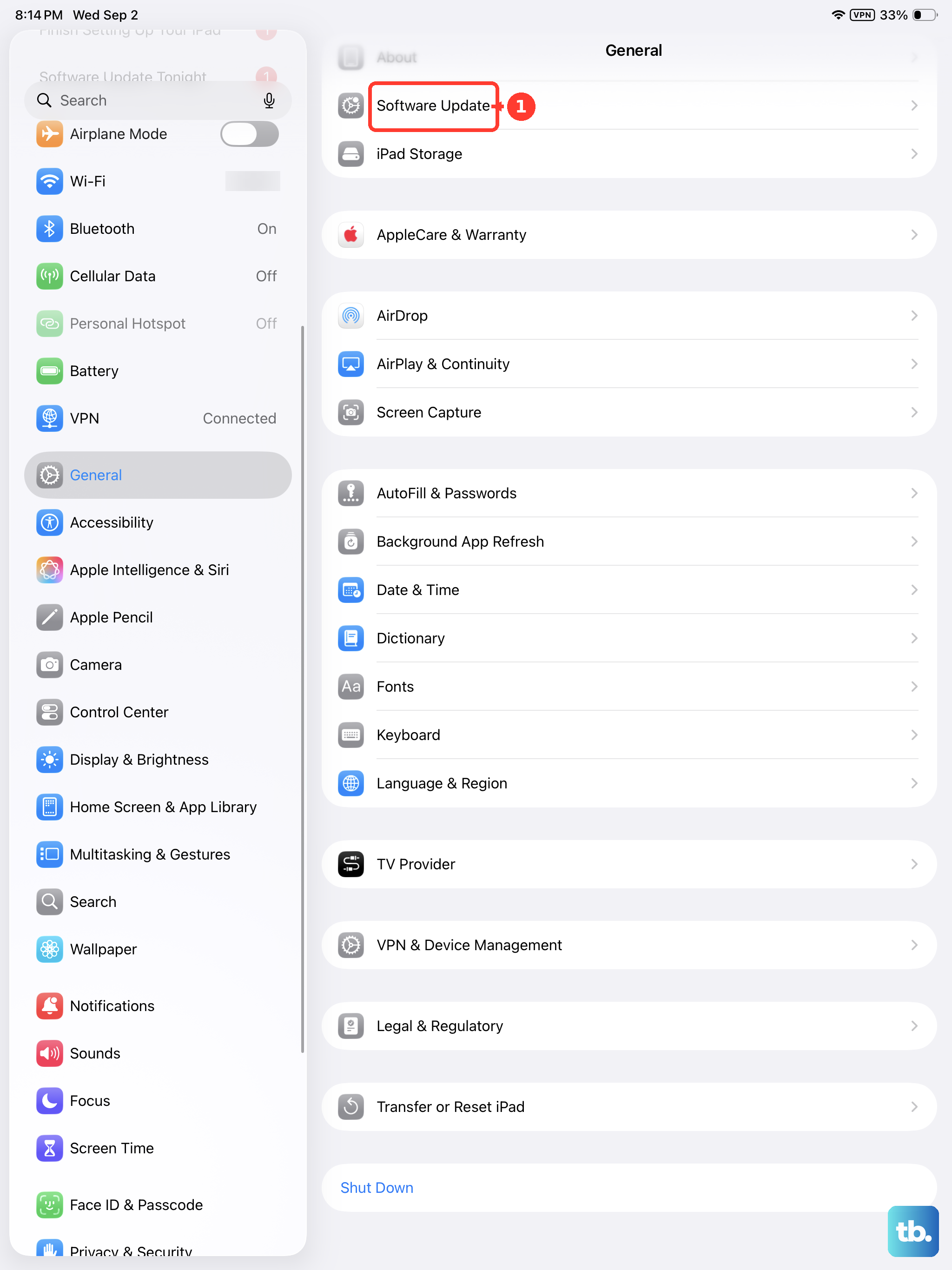
If an update is available, tap Download and Install, then follow the onscreen instructions.
Updating is safe for your content. According to the official guidance, when you update to the latest version of iPadOS your data and settings remain unchanged.
Reset all settings without deleting your files
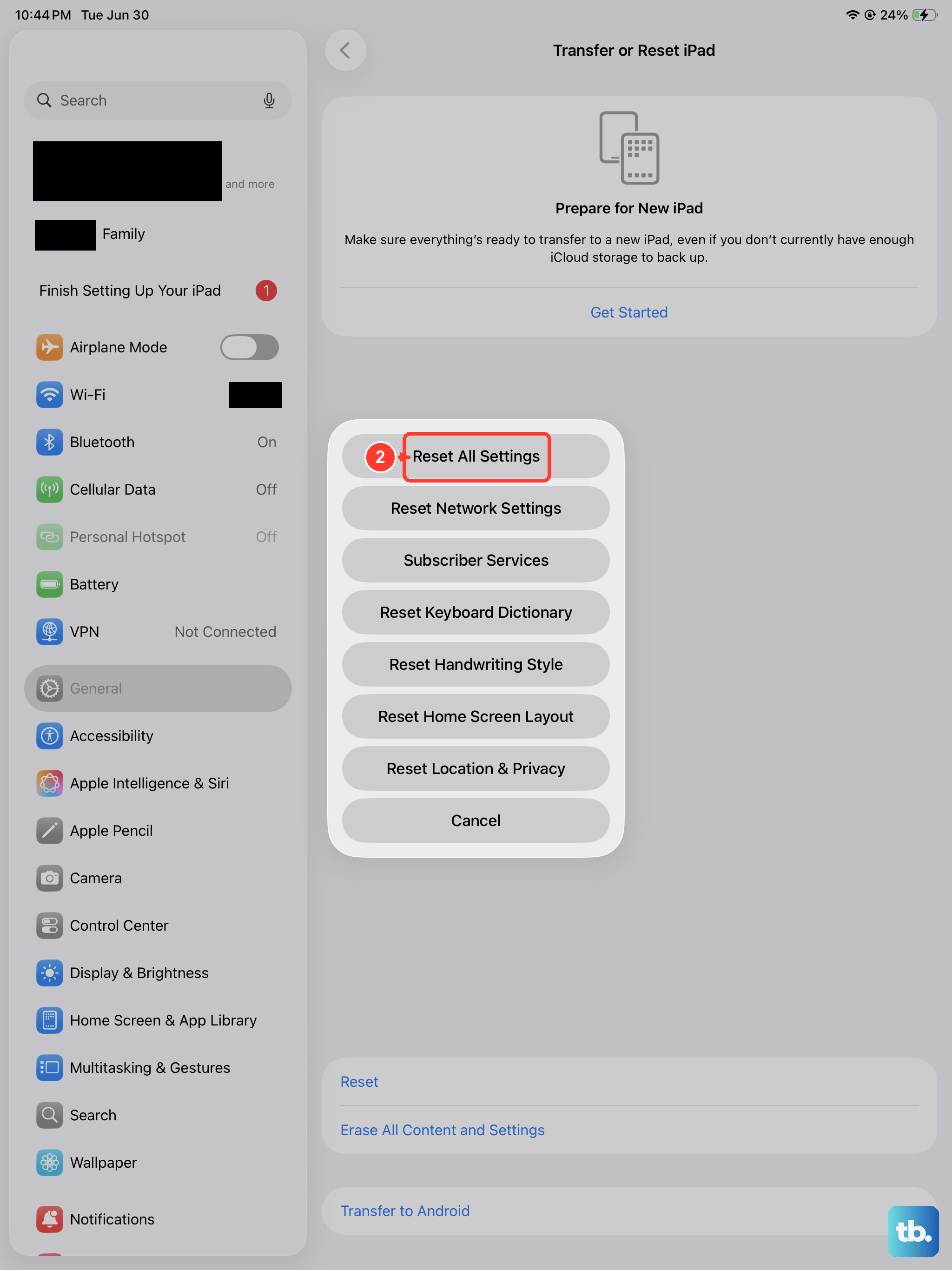
If the iPad still misbehaves after updating, you can reset its settings before considering a full erase. This is a middle-ground fix that clears misconfigured options while leaving your photos, apps, and files in place.
Go to the Settings app on your iPad.
Tap General, tap Transfer or Reset iPad, then tap Reset.
Choose Reset All Settings.
This returns items such as network settings, the keyboard dictionary, location, privacy, and Apple Pay cards to their defaults. The official guidance is clear that no data or media are deleted by this option.
Bring in a computer and use recovery mode
If your iPad is stuck on the Apple logo or showing a red or blue screen and will not boot, recovery mode lets a computer repair the software. On a Mac running macOS Catalina 10.15 or later, use Finder; on a Windows PC or an older Mac, use the Apple Devices app or iTunes.
- 1.Connect the iPad to the computer.
- 2.Press and quickly release the volume button closest to the top button.
- 3.Press and quickly release the volume button farthest from the top button.
- 4.Press and hold the top button, and keep holding past the Apple logo until you see the recovery-mode screen.
- 5.When you get the option to restore or update, choose Update.
Choosing Update reinstalls the system while keeping your data. If the process takes more than 15 minutes, the iPad exits recovery mode and you simply repeat the steps.
Erase everything as a last self-service step
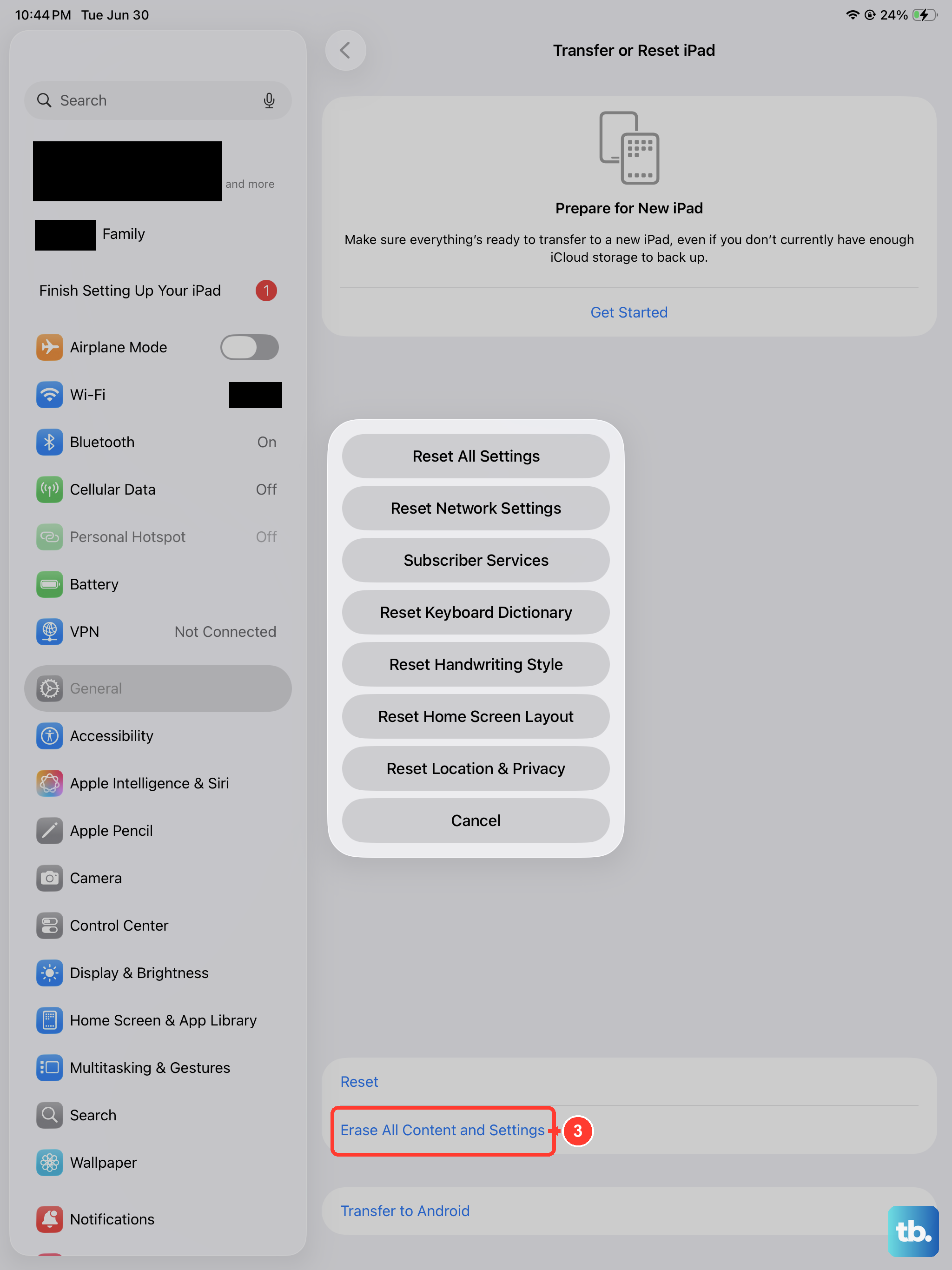
If nothing above works, erasing the iPad gives you a clean start. This is destructive, so treat it as a last resort and protect your data first. The official guidance warns that when you erase your iPad, it is restored to factory settings, and advises that before you begin you should back up your iPad so you can restore your data later on a different device.
Go to the Settings app on your iPad.
Tap General, then tap Transfer or Reset iPad.
Tap Erase All Content and Settings.
If asked, enter your iPad passcode or Apple Account password.
Tap Continue to confirm.
If you cannot reach Settings, you can also erase the iPad from a computer using the Restore iPad option in Finder or the Apple Devices app.
When it is time to get service
If your iPad still will not respond, turn on, or stay unfrozen after every step above, the problem may be beyond a software fix. The official guidance is that if your iPad still is not working, you might need service. Use the Get service or Get support option on the official troubleshooting page to arrange a repair or further help, and have your backup ready in case the device needs to be replaced or reset during the process.
Frequently Asked Questions
Will a force restart delete my photos or apps?
No. The force restart sequence (volume button closest to the top, volume button farthest from the top, then hold the top button) simply reboots the iPad and does not erase any data. Only the Erase All Content and Settings step, or a Restore from a computer, wipes your content.
My iPad screen is completely black. Is it broken?
Not necessarily. A black screen is often just a drained battery, so connect it to the included 20W USB-C Power Adapter and a known-good cable and wait; you might need to charge for up to an hour before it responds. If it still shows nothing after charging, try the force restart.
How do I know which volume button is closest to the top button?
Hold the iPad so the top button (the one with Touch ID) is at the top edge. The volume button nearer that edge is the one you press and release first, then the one farther from it, then you press and hold the top button until the Apple logo appears.
Should I choose Update or Restore in recovery mode?
Choose Update first. Update reinstalls iPadOS while keeping your data, whereas Restore erases the device. If Update does not fix the problem, restoring is the next option, ideally after you have a backup.
Does keeping iPadOS up to date actually stop freezing?
It can help. Many freezes trace back to software bugs that later updates address, and the iPad (10th generation) supports iPadOS 26. Updating through Settings, General, then Software Update leaves your data and settings unchanged while applying the latest fixes.











