Your iPad (10th generation) used to reach a usable charge in a reasonable stretch, and now it crawls along, stalls partway, or barely moves after an hour plugged in. Before you assume the battery is dying, it helps to know what this model can and cannot do. The 10.9-inch base iPad charges over USB-C with the 20W USB-C Power Adapter in the box, and it does not have Apple's dedicated fast-charge feature, so "fast charging not working" here is really about getting normal, full-speed charging back rather than switching on a special mode.
Work through the steps below in order. They start with the quickest, safest checks (cable, outlet, temperature) and end with the deeper software resets and a service visit, so most people fix the problem long before the last step.
Set realistic expectations for the base iPad's charging
There is no Pro-style fast-charge mode to enable on this model. Apple's current fast-charge guidance lists fast charging only for an iPad Pro (M5) paired with a USB-C cable and a USB-C-compliant 60W or higher power adapter, and the 10th-generation iPad is not on that list. Your iPad ships with a 20W USB-C Power Adapter and a 28.6 watt-hour battery, and Apple notes that a higher-wattage USB-C adapter (such as the one that came with a Mac laptop) charges it faster than a small adapter, but that is still ordinary charging, not a separate feature.
So the goal is simply to restore steady, normal-speed charging. Start by charging with the included 20W USB-C Power Adapter and USB-C cable, plugged firmly into a working wall outlet, since the in-box adapter is the safest baseline. Make sure the cable, adapter, and outlet all have firm connections, and try a different outlet if nothing happens at all.
Skip weak power sources like computer ports and hubs
Charging from a computer's USB port, a USB hub, or an accessory is slower than a wall adapter, and a low-power source may charge very slowly or not charge at all. If the iPad is sitting in a hub or plugged into a laptop and progress is painfully slow, that is often the whole problem.
Move the iPad to a proper wall adapter instead. Because Apple says a higher-wattage USB-C power adapter charges it faster than a small one, using a real wall adapter rather than a computer port is the simplest way to rule out a feeble source.
Rule out heat and cold causing a charging pause
Temperature protections can quietly slow or stop charging, and they are automatic, so you cannot turn them off. Charge the iPad in an environment between 32° and 95° F (0° and 35° C); if it gets too warm, charging may slow or stop until it cools, and in cold conditions charging can be slower or paused until it warms up.
Watch the Lock Screen for a "Charging On Hold" message, which signals this protection is active. Move the iPad to a normal-temperature spot, and if it heats up while charging, remove the case so it can shed warmth. Once it returns to a safe temperature, charging should pick back up on its own.
Clean the USB-C port and inspect your accessories
A charging port packed with lint or dust can stop a cable from seating properly, which looks exactly like a charging failure. Remove any debris from the USB-C charging port on the bottom of the iPad, then firmly plug the cable back in.
While you are at it, look closely at the charging cable and the USB power adapter for signs of damage such as breakage or bent prongs. Do not use damaged accessories, since a frayed cable or a bent adapter can charge erratically or not at all.
Swap in a different cable and adapter to isolate the fault
A bad cable or adapter is one of the most common causes of slow or failed charging, and the only reliable way to catch it is to substitute known-good parts. Try a different USB-C charging cable and a different USB power adapter to see whether charging returns to normal.
Apple recommends using the USB power adapter and cable that came with your iPad, or another compatible Apple-certified set. If a different cable or adapter suddenly charges the iPad properly, you have found the culprit and can retire the faulty accessory.
Force restart an iPad that is frozen on the charger
If the iPad still will not charge or appears frozen and unresponsive, a force restart often clears the hang. This iPad has no Home button, so the sequence uses the volume and top buttons.
- 1.Press and quickly release the volume button closest to the top button.
- 2.Press and quickly release the volume button farthest from the top button.
- 3.Press and hold the top button until your iPad restarts and the Apple logo appears.
A force restart does not erase your content; it simply reboots the device. Once it is back up, plug it in again and check whether charging has resumed.
Recognize when slow charging is actually normal
Sometimes nothing is broken at all. Apple says the iPad charges quickly until roughly 80%, then deliberately slows to reduce heat and protect long-term battery life, so a slowdown in the last stretch is expected behavior rather than a fault.
On supported models, an optional "80% Limit" in Settings > Battery > Battery Health caps charging near 80%, which can look like charging has simply stopped. If that setting is available on your iPad, check it before assuming a hardware problem, because the iPad may be doing exactly what you told it to.
Update iPadOS to clear software charging bugs
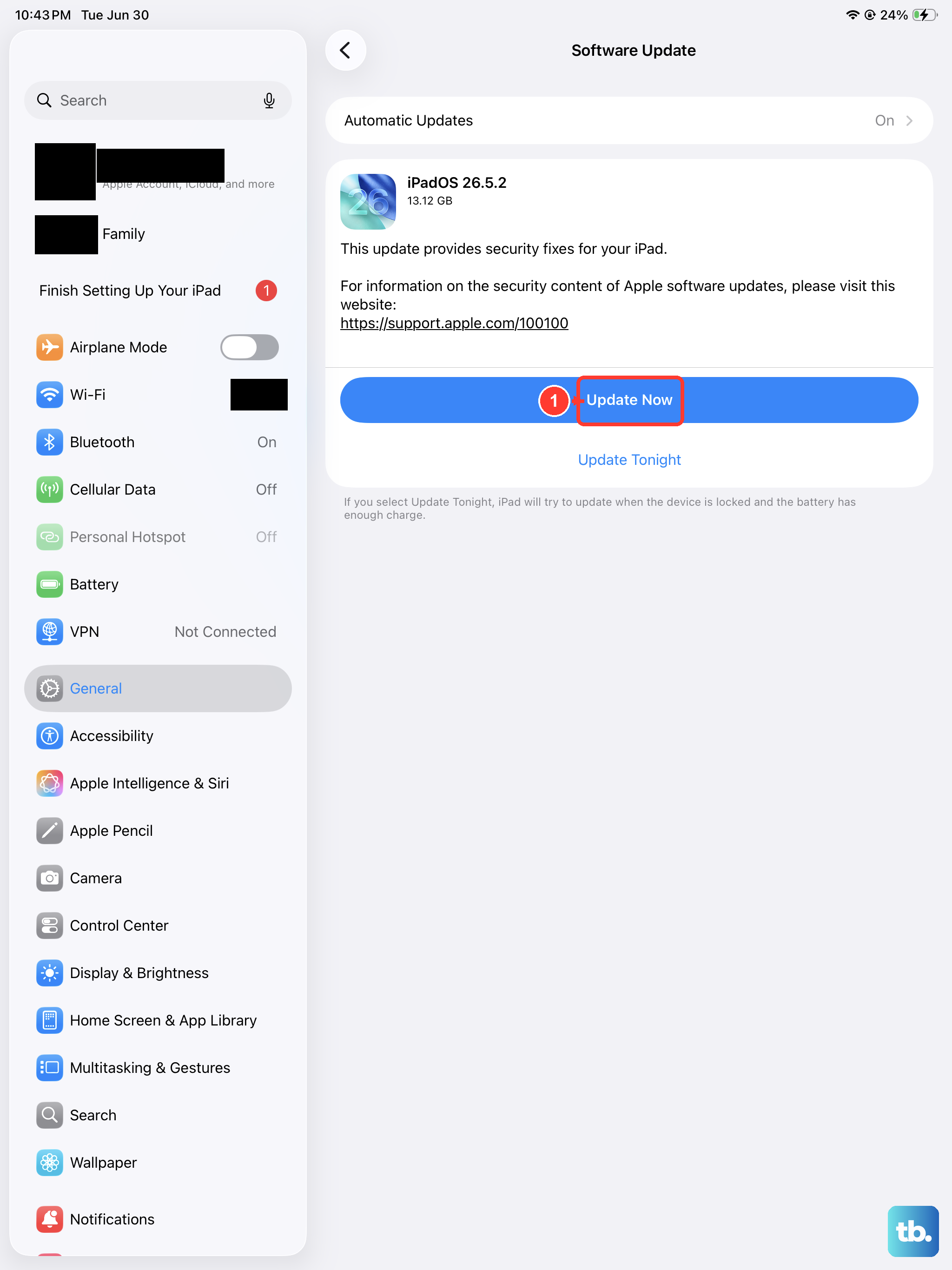
Power and charging glitches are sometimes software, and a current iPadOS release can resolve them. The iPad (10th generation) is on Apple's compatibility list for the current iPadOS 26, so it can run the latest version.
- 1.Open Settings > General > Software Update.
- 2.Tap Download and Install.
- 3.Keep the iPad plugged in and connected to Wi-Fi until the update finishes.
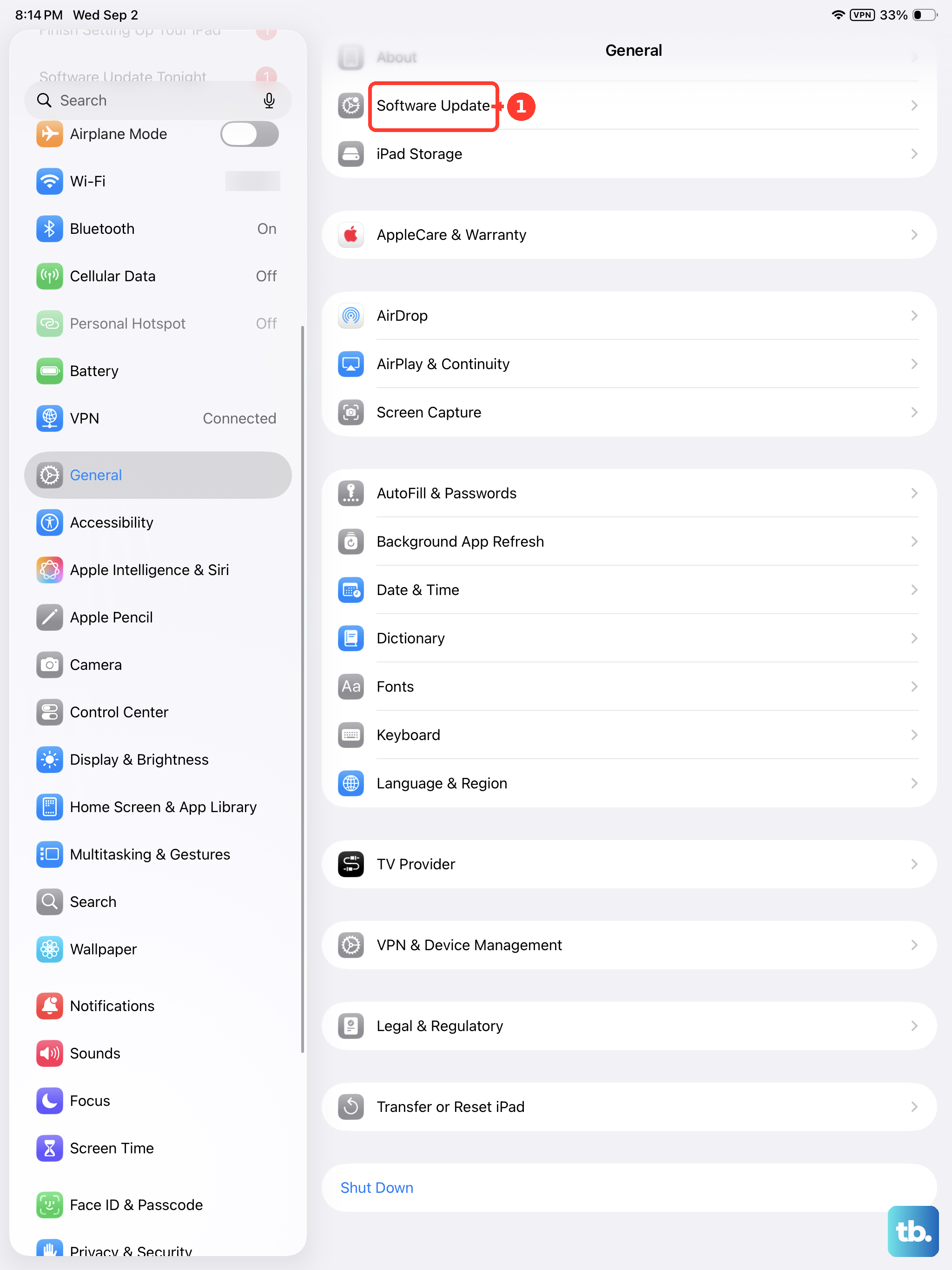
This process leaves your data and settings unchanged. Once the update completes, reconnect the charger and confirm whether charging behaves normally.
Erase all content and settings as a last software step
If charging still misbehaves after updating, a clean factory reset is the final software option before service. This is destructive, so a current backup is essential first. Erasing the iPad removes all of your content, settings, and personal information, so back it up to iCloud or a computer before you proceed.
- 1.Back up the iPad.
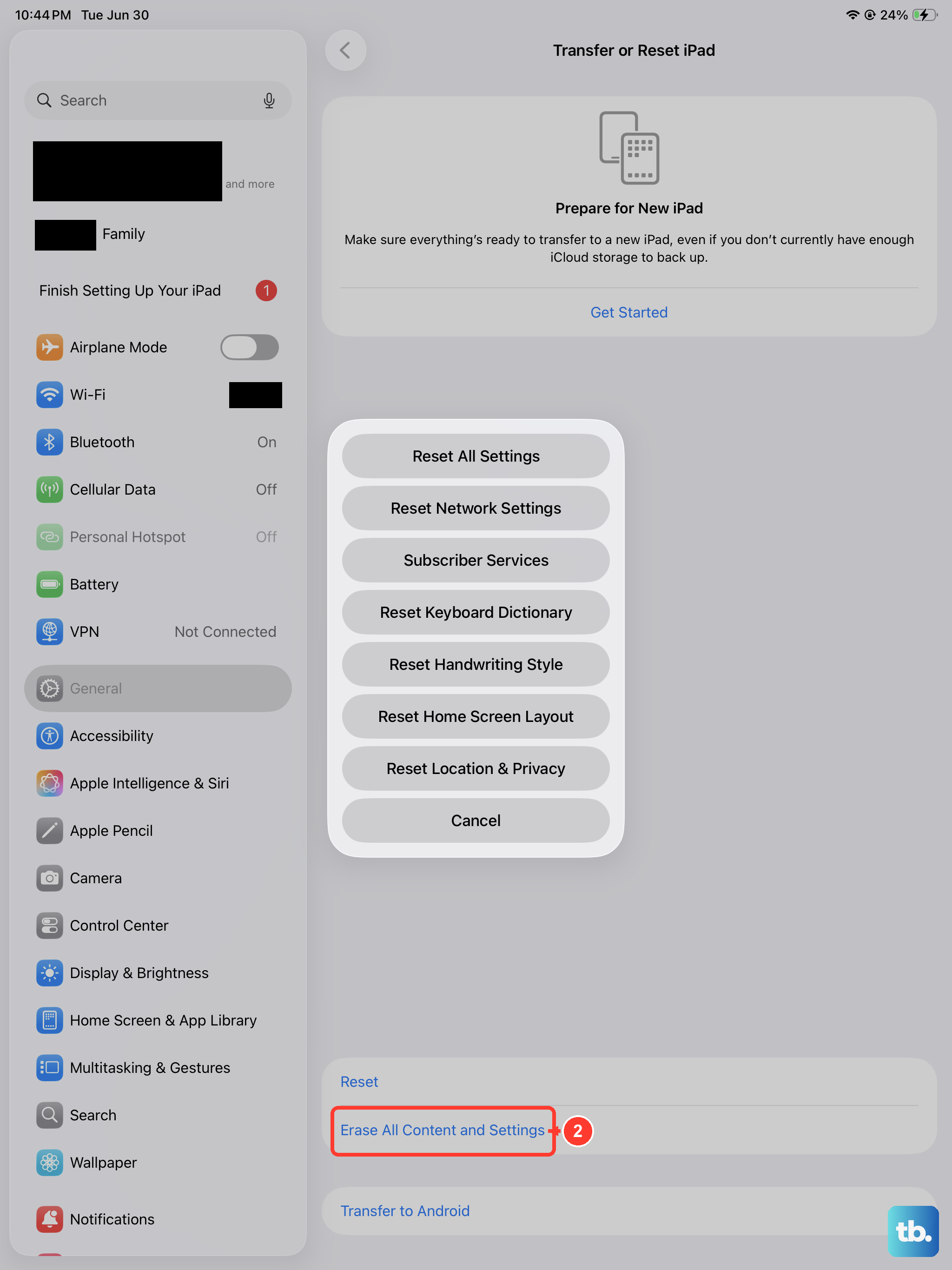
- 2.Open Settings > General > Transfer or Reset iPad.
- 3.Tap Erase All Content and Settings and confirm.
This restores the iPad to factory settings, which clears any deep software issue affecting charging. If charging is correct on a freshly erased device, the cause was software; if not, the problem is almost certainly hardware.
When to let Apple check the battery or port
If the iPad still will not charge after the steps above, the issue may be the battery, the USB-C port, or other charging hardware. At that point, on-device fixes have run out, and the device needs hands-on attention.
Contact Apple Support to check your warranty or AppleCare coverage and arrange service or repair. You can also connect the iPad to a computer and update or restore it with Finder on a Mac, or with the Apple Devices app or iTunes on Windows, if you want one more software attempt before booking a repair.
Frequently Asked Questions
Does the iPad 10th generation support fast charging?
No. Apple's fast-charge guidance lists fast charging only for an iPad Pro (M5) with a USB-C cable and a USB-C-compliant 60W or higher power adapter, and the 10th-generation iPad is not on that list. It charges over USB-C with its 20W adapter, but there is no Pro-level fast-charge mode to turn on.
Why does my iPad charge quickly and then slow down near the top?
That is normal. Apple says the iPad charges quickly until about 80%, then slows to reduce heat and protect battery life. If an optional "80% Limit" is enabled in Settings > Battery > Battery Health on a supported iPad, charging can also hold near 80%.
What does "Charging On Hold" on the Lock Screen mean?
It means temperature protection has paused charging. Charge the iPad between 32° and 95° F (0° and 35° C); if it is too hot or too cold, charging slows or stops until it returns to a safe temperature. Move it to a normal-temperature spot and remove the case if it is warm, and charging resumes automatically.
Will a higher-wattage adapter charge my iPad faster?
It can. Apple notes that a higher-wattage USB-C power adapter, such as the one that came with a Mac laptop, charges the iPad faster than a small adapter. This is still ordinary charging, not the dedicated fast-charge feature reserved for the iPad Pro (M5).
Does erasing my iPad delete my data?
Yes. Choosing Settings > General > Transfer or Reset iPad > Erase All Content and Settings removes all of your content, settings, and personal information and restores factory settings. Back up the iPad to iCloud or a computer before you do this so you can restore your data afterward.











