You finish a call on your Infinix Note 40 Pro and the person on the other end says they could not hear a single word, or you play back a clip in a voice recorder app and get nothing but silence. A dead or muffled microphone on this handset is annoying, but it is rarely a sign that the phone is done for. Most cases trace back to a temporary software glitch, a blocked mic hole, a stuck audio route, or a permission that quietly switched itself off, and each of those is something you can sort out yourself in a few minutes.
Before changing any settings, it helps to know whether the microphone registers anything at all. Run a quick microphone test in your browser, speak normally, and watch the level meter. If it moves, the hardware works and the fixes below will take care of the rest.
Work through the fixes below in order, from the quickest and safest down to the last-resort reset, and test the mic after each step before moving on. Try a quick voice memo in a voice recorder app and a short test call so you can tell whether the problem is fixed across the whole phone or only inside one app.
Reboot the phone before you change anything
According to Infinix's official after-sales service (Carlcare), the very first thing to try with a microphone fault is a simple restart, because a minor software hiccup is the most common and easiest cause to clear. As the guidance puts it, "The first thing you should do is to reboot your device. It could be a minor issue."
Power the phone fully off, wait a few seconds, then turn it back on. Once it is up, make a quick test recording or a short call to see if your voice comes through. If it does, you are done; if not, move on to the physical checks.
Clear the microphone openings of dust and debris
The mic openings on the Note 40 Pro are tiny, so lint, pocket dust, a phone case, or even a stray finger can muffle or block them completely. The official support guidance suggests shining a flashlight into the mic holes to look for trapped debris.
If you spot anything, carefully use a soft tool such as the tip of your SIM-ejector pin to lift it out, or gently blow air into the holes to clear them. Do not jam metal objects deep into the opening. Also slip off any case or cover and make sure nothing is resting over the microphone while you test.
Cancel a stuck headphone or earphone mode
Sometimes the phone keeps thinking earphones are still plugged in, which routes both audio and the microphone to a headset that is not actually there. If a headphone symbol stays on screen after you have removed the earphones, the official fix is to plug the headphone back into the jack and then pull it out again to clear the lingering symbol.
If you pair wireless earbuds or a headset over Bluetooth, disconnect them too, so the phone falls back to its own built-in microphone for calls and recordings.
Rule out a muted or very low call volume
A microphone that seems broken is sometimes just a volume problem on the other end. Carlcare notes that if your call volume or media volume is very low or muted, the person you are speaking to may struggle to hear you at all.
Open your sound settings, raise the call volume and the media volume, and then place another test call. It is a small thing to check, but it rules out an easy fix before you start digging into permissions.
Switch on system microphone access
Modern Android builds include a master microphone switch that can cut off the mic for every app at once. To check it, swipe down twice from the top of the screen to open the full Quick Settings panel, then tap the microphone tile so that access is turned on.
When an app is actively using the mic, a green indicator appears at the top-right corner of the screen, which is a handy way to confirm the mic is live. If you do not see a microphone tile in Quick Settings, tap Edit or Add to place it in the panel first.
Grant the troubled app microphone permission
If the mic fails in only one app, such as a messaging app, voice typing, or a recorder, the likely cause is a missing per-app permission rather than a hardware fault. You can adjust this from the app's own permission screen.
- 1.Open the Settings app and tap Apps.
- 2.Tap the app you are troubleshooting (tap See all apps first if it is not listed).
- 3.Tap Permissions, then tap Microphone.
- 4.Choose Allow, or Allow only while using the app.
You can also review every app's microphone access in one place. Go to Settings > Security & Privacy > Privacy > Permission manager > Microphone, then pick an app and adjust its setting from there.
Boot into Safe Mode to expose a misbehaving app
Safe Mode starts the phone with only its built-in software loaded, so if the microphone works there, a downloaded app is interfering with it. The official steps to enter Safe Mode on an Infinix device are precise, so follow them carefully.
- 1.Power the phone off.
- 2.Tap and hold the Power button until the screen logo appears, then release it.
- 3.Quickly press the Volume Down key and hold it for a few seconds until you reach Safe Mode.
Once you are in Safe Mode, test the mic in a call or recording. If it works, a third-party app is the culprit, so uninstall recently added apps one by one back in normal mode. To exit Safe Mode, hold the Power button and choose Restart or Reboot.
Install the latest XOS software update
A firmware bug can break audio handling, and Infinix pushes fixes through system updates, so it is worth making sure the phone is current. Updating does not erase your data, but keep a stable internet connection and enough battery before you start.
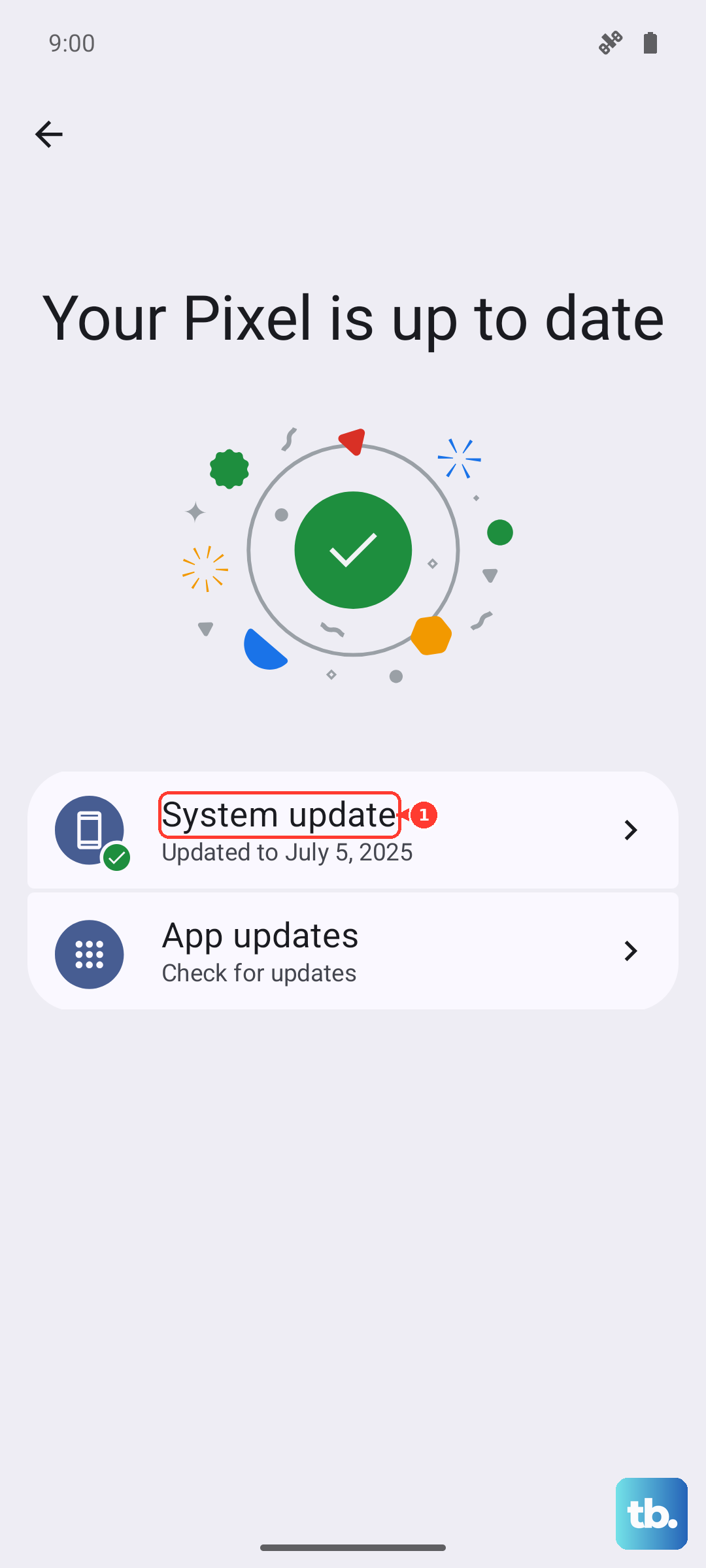
- 1.Open Settings on your Infinix device.
- 2.Find Software Update (use the search box at the top if you cannot see it).
- 3.Tap to download the update.
- 4.Tap Verify and Install, then confirm the restart prompt.
After the phone reboots, run another mic test to confirm whether the update resolved the issue.
Force a restart if the screen is frozen
If the handset is unresponsive and the mic will not react along with everything else, a forced restart can shake it loose. The official frozen-phone guidance states that you can force restart most Android phones by holding the Power button for about 10 to 15 seconds until the device reboots.
Be aware that there is no single, definitively documented button combination published for the Note 40 Pro specifically, so confirm the exact sequence for your unit before you rely on it. Start with the Power-button hold described above and watch for the phone to power-cycle on its own.
Back up and factory reset as the last self-service step
When a software-caused microphone failure survives every step above, a factory reset is the final thing to try before involving a technician. The path on your device is Settings > System > Reset options > Erase all data (factory reset).
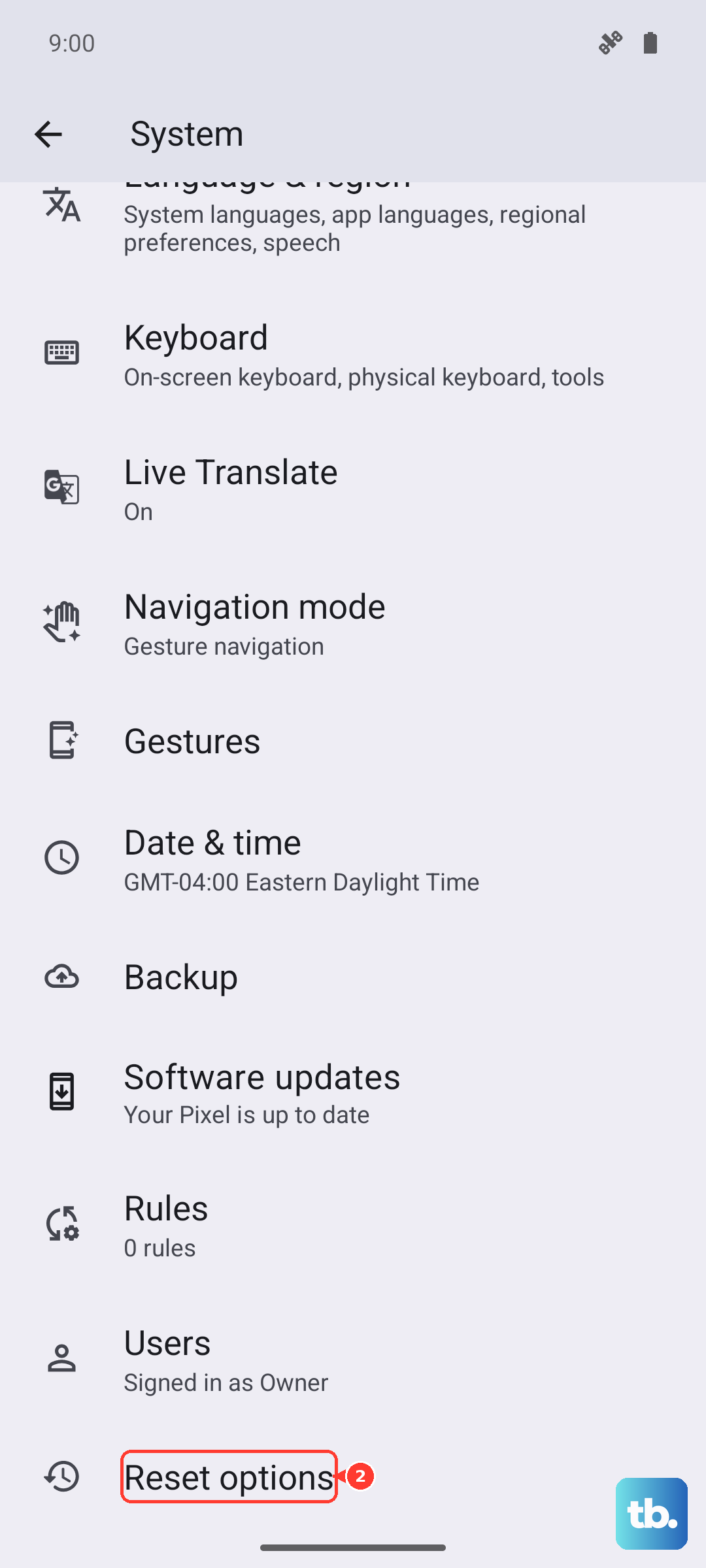
Back up first, because a factory reset wipes everything stored on the phone, including your photos, messages, and accounts. After the reset, test the microphone right away, before you reinstall any apps, so you can tell whether the problem was caused by software or by hardware.
When to let Carlcare take a look
If the microphone stays completely silent across every app even after a reset, the trouble is usually hardware, such as a damaged microphone or a faulty flex cable, and that needs a proper diagnosis. Carlcare is Infinix's official after-sales service.
You can request help through the official Carlcare app, where you can book a repair, check your warranty, and track a repair status, or take the phone to an authorized Carlcare service center so a technician can open it up and inspect the mic hardware directly.
Frequently Asked Questions
Why can callers not hear me even though my speaker works fine?
The speaker and the microphone are separate parts, so one can fail while the other works perfectly. A blocked mic hole, a stuck headphone or earphone mode, a muted call volume, or a microphone permission that is switched off are the usual reasons your voice does not get through, and all four are covered in the fixes above.
Does a factory reset actually fix a microphone problem?
It can, but only when the cause is software. A factory reset clears every setting and app that might be interfering, yet it erases all of your data in the process, so back up first. If the mic is still dead after a reset, the fault is almost certainly hardware and needs Carlcare.
How can I tell whether my Note 40 Pro microphone is a hardware fault?
If the microphone fails in every app, stays silent in Safe Mode, and still does not work after a factory reset, hardware is the likely cause. The official guidance points to a damaged microphone or flex cable in those cases, and only a technician can confirm and repair that.
Will installing an XOS update delete my photos and apps?
No. A software update through Settings > Software Update does not erase your data; it only refreshes the system software. A factory reset is the only step here that wipes the phone, which is why it comes last and why you should always back up before running it.