
When your Infinix Note 40 Pro's fingerprint sensor stops responding, it locks you out of your phone and your apps. The good news is this is usually a quick software or settings glitch you can fix yourself. I'd start with the simplest solution first.
Restart Your Phone
Give your Note 40 Pro a fresh start. Press and hold the Power button and the Volume Down button together for about ten seconds. Keep holding until you see the Infinix logo appear, then let go.
This force restart clears out any temporary software bugs that might be confusing the fingerprint sensor. Once the phone boots back up, try unlocking it with your finger again.
Clean the Sensor and Your Finger
The optical fingerprint scanner under your screen needs a clear view. Gently wipe the lower part of your display with a soft, dry microfiber cloth. Make sure there's no smudge, dust, or moisture blocking it.
Check your own finger, too. Dirt, lotion, sweat, or even a small cut can prevent the sensor from reading your print accurately. Wash and thoroughly dry your hands before trying again.
Check Your Screen Protector
A thick or poorly applied screen protector is a common culprit. Some tempered glass protectors aren't designed to work with in-display fingerprint sensors and create a gap that messes with the scan.
Try removing the protector temporarily to see if the fingerprint reader starts working. If it does, you'll need to look for a protector marketed specifically for use with fingerprint sensors, often called a "full adhesive" type.
Re-register Your Fingerprint
Sometimes the stored fingerprint data gets corrupted. Deleting and re-adding your print often solves the problem. Head to Settings > Security & privacy > Fingerprint.
You'll need to enter your PIN, password, or pattern. Tap on the fingerprint you're having trouble with and select Delete. Then, tap Add fingerprint and follow the prompts carefully.
When registering, press your finger flat against the screen and slightly adjust its position with each prompt. This helps the sensor capture the edges of your print for a more complete profile.
Update Your Software
Outdated software can have bugs that affect hardware like the fingerprint sensor. Infinix releases updates to fix these kinds of issues. Open Settings and go to System > System updates.
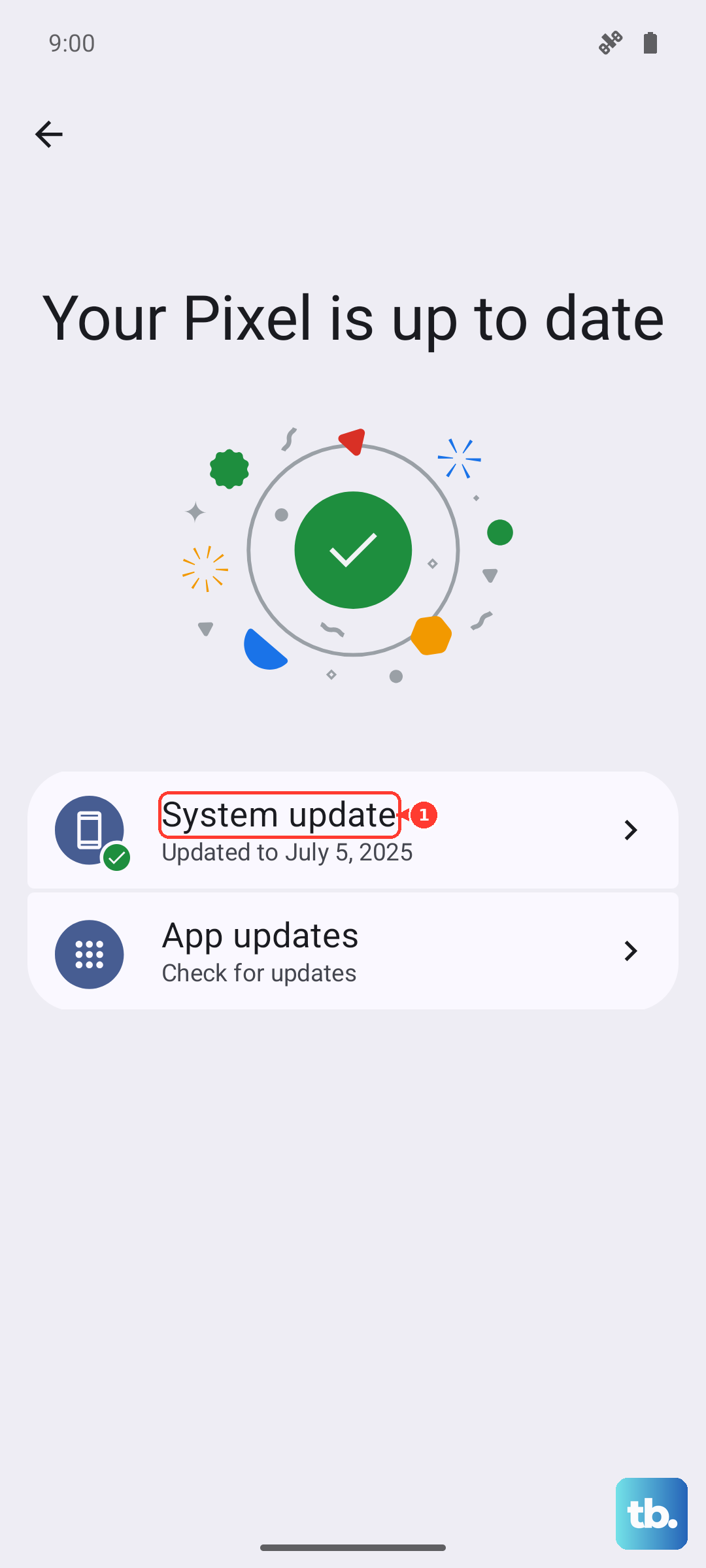
Tap Check for updates. If an update is available, download and install it. It's a good idea to connect to Wi-Fi and plug in your 70W charger first, as the process can use a lot of power and data.
Boot Into Safe Mode
A third-party app you installed could be causing a conflict. Booting into Safe Mode temporarily disables all downloaded apps. Press and hold the Power button until the power menu appears.
Then, tap and hold the Power off option on your screen. A prompt to reboot to Safe Mode will pop up, tap OK. If the fingerprint sensor works perfectly in Safe Mode, you know a recently installed app is the problem.
You'll need to restart your phone normally to exit Safe Mode, then start uninstalling apps one by one, testing the sensor after each, to find the culprit.
Clear the System Cache
Corrupted system cache files can interfere with all sorts of functions. Clearing them is safe and won't delete your personal data. First, power your phone off completely.
Now, press and hold the Power button and the Volume Up button together. Release them when you see the Infinix or Android recovery menu. Use the volume buttons to navigate to Wipe cache partition and press the power button to select it.
Confirm the action, then select Reboot system now. This process can take a minute or two. Once your phone restarts, test the fingerprint reader.
Check for Charging Interference
This is a less common one, but electrical interference can sometimes happen. If you're using the 20W wireless charging feature or even the fast 70W wired charger, try taking the phone off the charger.
Wait a moment and then try the fingerprint sensor again. If it works off the charger but not on it, you might have a faulty charger or cable creating electrical noise. Try using a different, slower charger to see if the problem goes away.
Review Your Security Settings
Go back into your fingerprint settings and make sure everything is configured correctly. In Settings > Security & privacy > Fingerprint, ensure Unlock phone is toggled on.
Also, check if any battery-saving or "Smart Service" features in XOS are interfering. Some aggressive power management settings can disable biometric sensors when the screen is off. You can try temporarily disabling battery optimization for system apps.
As a final step, if you've recently changed your lock screen security method (PIN, pattern, or password), you need to re-register your fingerprints. The system links them to your current primary security method.