
When your Huawei Pura 70 Pro isn't recognized by your PC, it stops you from transferring photos, managing files, or even just charging efficiently. This is a common hiccup with Android phones, especially on newer models like the Pura 70 Pro running EMUI 14.2.
The issue usually comes down to a simple setting, a worn-out cable, or a driver conflict on your computer. I'd start with the cable and port, as that's the fix for most people.
Check Your USB Cable and Port
Grab the 100W SuperCharge cable that came with your phone. Non-Huawei cables, especially cheap ones, might only handle power and not data transfer. Try plugging it into a different USB-C port on your computer, preferably one directly on the motherboard instead of a hub.
While you're at it, shine a light into your phone's USB-C port. Lint and pocket debris can get packed in there, blocking the connection. Use a dry toothpick or a plastic dental pick to gently scrape out any gunk you see.
Restart Your Phone and Computer
A quick reboot can clear out temporary software glitches on both devices. For your Huawei Pura 70 Pro, press and hold the power button for about 10 seconds until you see the Huawei logo reappear.
Go ahead and restart your Windows PC or Mac as well. Once both devices are back up, try connecting the USB cable again. This simple step resolves more connection issues than you might think.
Select the Correct USB Connection Mode
This is the most common fix for Huawei phones. When you connect the cable, a notification should pop up on your phone's screen asking how you want to use the USB connection. If you don't see it, pull down the notification shade.
Tap the notification and make sure you select "Transfer files" or "File transfer." If it's set to "Charging only," your computer won't see the device. On some EMUI versions, you might need to go to Settings > More connections > USB to change this preference.
Install the Correct Huawei USB Driver
Windows often needs a specific driver to talk to your phone. The generic one it installs automatically might not work. You'll need to download the Huawei HiSuite software, which bundles the correct drivers.
Head to the official Huawei HiSuite website on your PC and download the latest version. Install it, then connect your phone. HiSuite should recognize your device and ensure the proper drivers are installed, which then allows Windows File Explorer to see it too.
Update Your Phone's Software
Sometimes, a bug in EMUI can interfere with USB functionality. Huawei releases updates to fix these kinds of issues. Open Settings on your Pura 70 Pro, then go to System & updates > Software update.
Tap "Check for updates" and install any available firmware. After the update completes, your phone will restart. It's a good idea to check for updates on your Windows PC via Settings > Windows Update as well.
Enable Developer Options and USB Debugging
This gives your computer a more direct line of communication with your phone. First, you need to unlock Developer Options. Go to Settings > About phone and tap on "Build number" seven times quickly.
You'll see a message saying you're now a developer. Go back to the main Settings menu, find and enter "Developer options," and toggle on "USB debugging." Try connecting your phone again. Remember, you can turn this off later if you want.
Check Your Computer's Device Manager
On your Windows PC, press the Windows key + X and select "Device Manager." Look for your phone. It might be under "Portable Devices" or show up with a yellow exclamation mark.
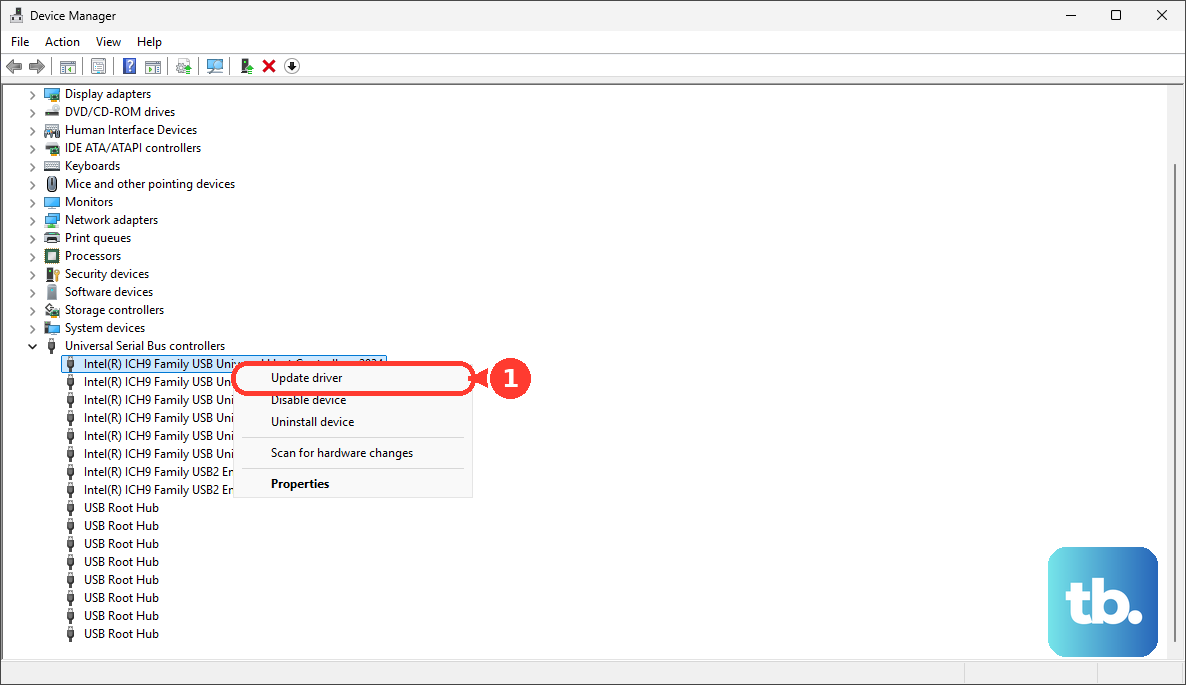
Right-click on the Huawei device entry and choose "Update driver." Select "Browse my computer for drivers" and then "Let me pick from a list of available drivers." Try selecting "MTP USB Device" or "Composite USB Device" from the list. If the phone is listed under "Universal Serial Bus controllers" with an error, right-click and select "Uninstall device," then unplug and replug your phone to let Windows reinstall it.
Try a Different Computer or OS
To rule out a problem with your specific PC, try connecting your Huawei Pura 70 Pro to another computer. If it works on a different machine, the issue is isolated to your main computer's software or USB ports.
You can also try booting your computer from a live Linux USB drive. If your phone is recognized there, it strongly points to a Windows driver or configuration problem on your original system.
Reset Network Settings on Your Phone
This can clear out corrupted connectivity profiles. On your Pura 70 Pro, navigate to Settings > System & updates > Reset. Then, tap "Reset network settings."
You'll need to enter your lock screen password. This will reset your Wi-Fi, Bluetooth, and mobile data settings, but it won't touch your personal files or apps. After the reset, reconnect to your Wi-Fi and try the USB connection again.
Consider a Factory Reset
If all else fails, a software conflict might be the root cause. Before you do this, ensure you have a complete backup of your important data, as this will erase everything on your phone.
You can back up using Huawei's built-in backup tool or HiSuite on your PC. To reset, go to Settings > System & updates > Reset > Factory data reset. After the phone restores itself, set it up as new and test the USB connection before restoring your backup, to see if the issue is resolved.