You plug your HUAWEI Pura 70 Pro into its charger expecting the SuperCharge speeds it is rated for, yet the battery crawls upward, the fast-charge indicator never appears, or the phone stops drawing power altogether. The good news is that this model genuinely supports fast charging, so the behavior almost always points to a fixable cause rather than a missing feature.
The Pura 70 Pro is rated for wired HUAWEI SuperCharge up to 100 W (20V/5A, with 9V/2A fast charging also supported) over its USB Type-C port, plus wireless HUAWEI SuperCharge up to 80 W using separately sold HUAWEI accessories and a dedicated HUAWEI 100 W power adapter. To reach those speeds you need a genuine HUAWEI SuperCharge cable and charger, which is exactly where most charging problems begin. Work through the fixes below in order, starting with the quickest and safest, and save the reset and service options for last.
1. Swap in a genuine HUAWEI SuperCharge charger and a 5A cable
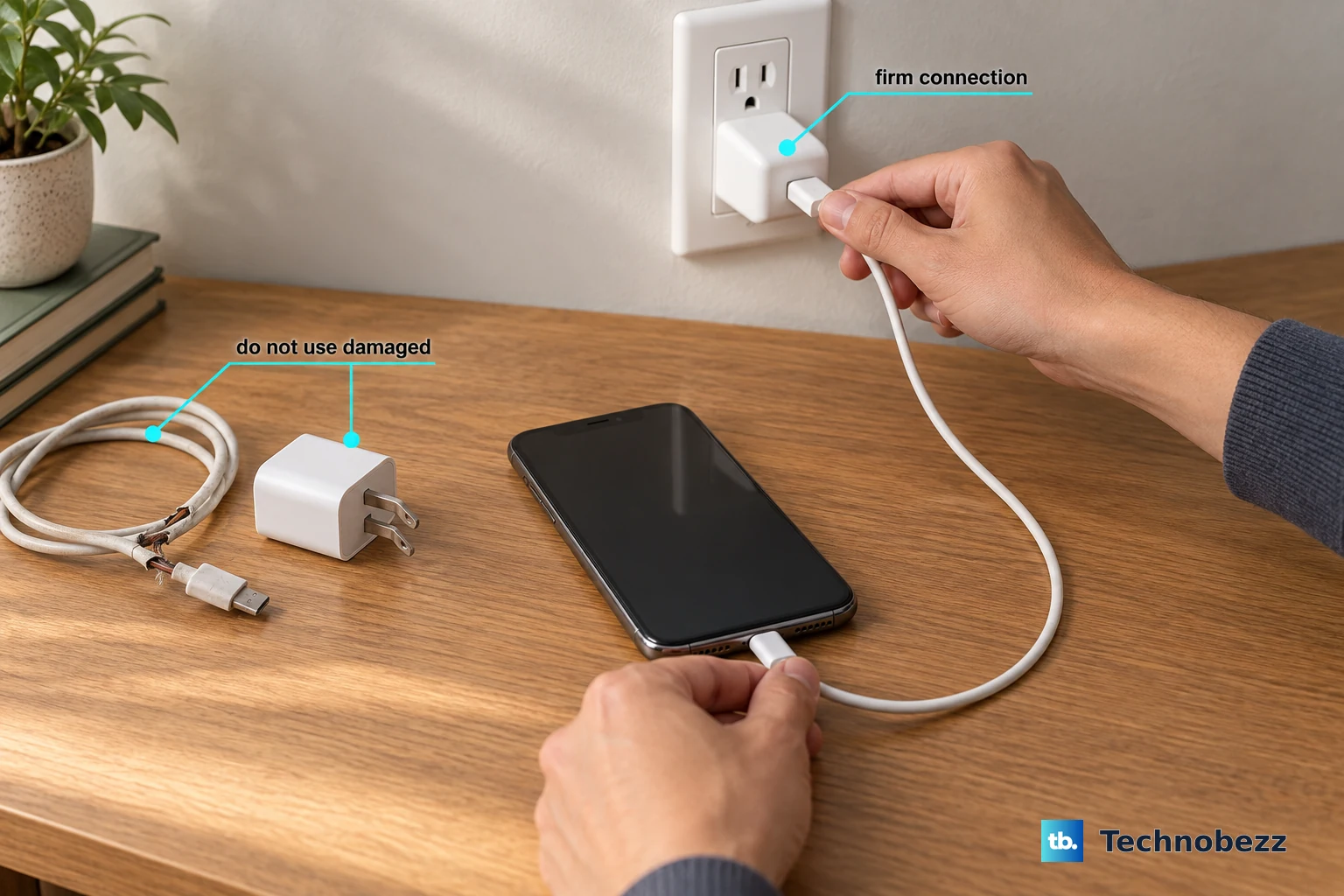
SuperCharge and fast charging have specific link requirements: the charging cable must be a 5 A cable, and an aged or worn cable cannot meet them. A non-standard charger used over the long term can damage the charging link, so a standard HUAWEI charger is the safest choice.
Inspect the charger and data cable for any obvious damage, then isolate the faulty part by replacing items one at a time.
- 1.Replace the data cable first with a 5A HUAWEI SuperCharge cable, then test charging again.
- 2.If the speed is still slow, swap in a standard HUAWEI SuperCharge charger.
- 3.If neither change helps, the phone itself is the remaining suspect.
If the cable previously delivered SuperCharge speeds but no longer does, it may simply be severely aged, in which case a fresh 5A HUAWEI SuperCharge cable is the fix.
2. Clean the USB Type-C port and reseat the connection
Lint, dust, or a smudge inside the USB Type-C port can stop the cable from seating fully, which interrupts the fast-charge handshake. Gently clear any foreign objects and make sure the port is dry before charging, so you do not risk a short circuit.
After cleaning, unplug and firmly reconnect the cable, and confirm the charger is fully inserted into both the phone's USB port and the wall adapter.
3. Try a different wall socket
Before you blame the phone or the cable, rule out the outlet. Plug the charger into another wall socket and see whether charging behaves normally, since a faulty socket can easily mimic a phone or cable fault.
4. Charge with the screen off and close demanding background apps
When heavy apps such as games or video apps are running in the background, SuperCharge or fast charging may not engage. Clearing those apps frees the phone to negotiate the faster charging mode.
Close the running apps, lock the phone so the screen is off, and then check whether the fast-charge indicator appears.
5. Let the phone cool down before charging
HUAWEI applies temperature control during charging for safety, and if the phone gets too hot the charging speed is deliberately reduced. A warm phone, a sunny windowsill, or a thick case can all push it past that threshold.
Charge the device with the screen off and keep it somewhere well ventilated so it does not overheat, then check whether full speed returns.
6. Rule out Smart Charge pausing near 80%
Smart Charge is a battery-protection feature that can pause charging once the battery reaches around 80% to reduce battery wear. When it triggers, the charging icon disappears and a pop-up appears, which can look like a fault even though it is normal behavior.
To top up immediately, tap RESUME CHARGING in the pop-up. To stop the phone from pausing at all, go to Settings > Battery > More battery settings > Smart Charge and turn the feature off.
7. Give it time after a deep drain or a recent update
If the phone has not been used for a long time, or was left uncharged after powering off at a very low battery, it can take a while to wake up. Leave it connected to the charger for a while, then check again to confirm it is charging.
After a system update, some apps may run in the background to optimize the device, which can affect power behavior for a short while until everything settles. Give the phone that settling-in window before assuming something is wrong.
8. Update the software and restart the phone
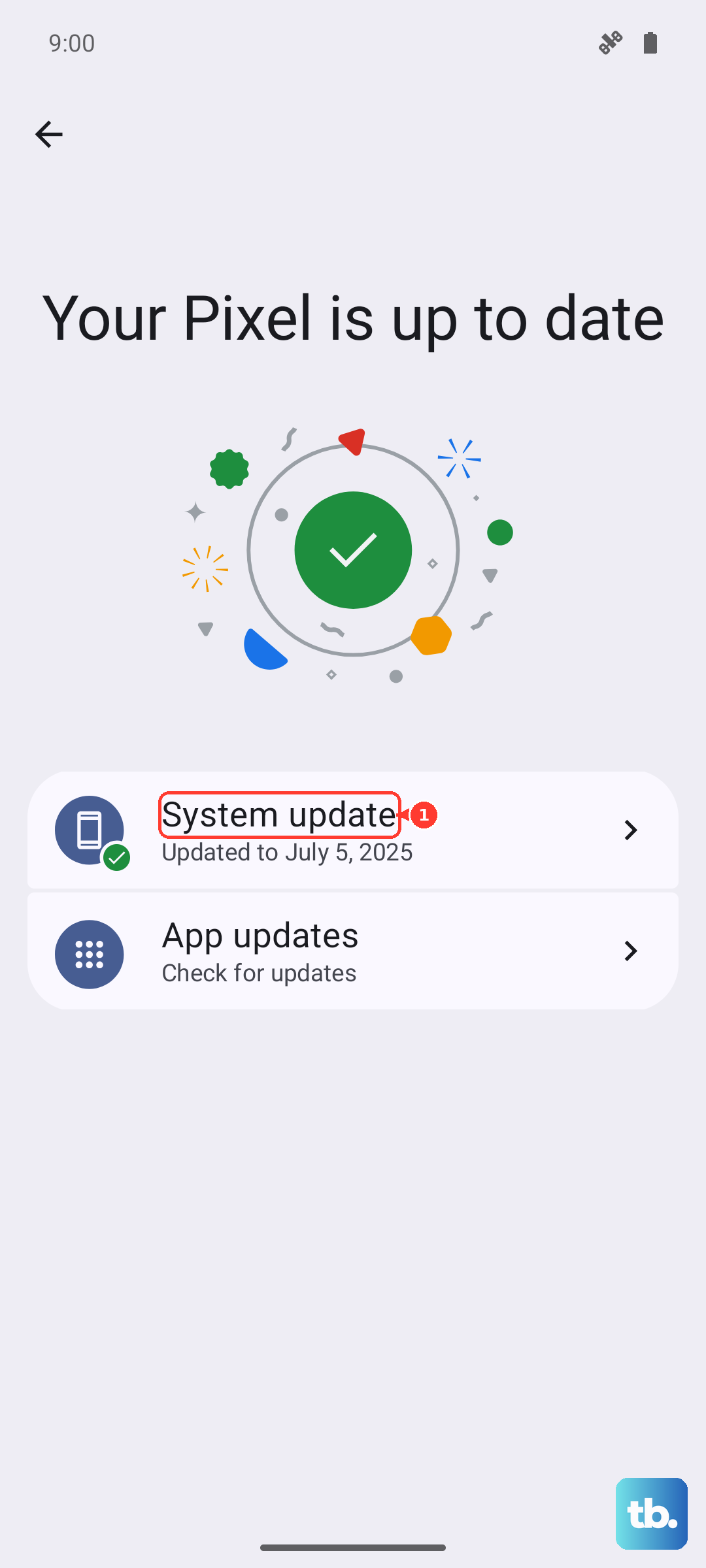
Keeping the system current resolves many temporary glitches that can interfere with charging. Connect to Wi-Fi to avoid data charges, then go to Settings > System & updates > Software update and choose New version > Download & install. Do not power off or restart the phone during the update; it restarts automatically when finished.
A restart on its own also clears the cache and can resolve temporary issues. Press and hold the Power button for a few seconds, then touch Restart. If the phone is frozen or will not turn off normally, force restart it by pressing and holding the Power button for 10 seconds or longer.
9. Check the Charging temperature limit developer option
Some EMUI builds include a Charging temperature limit toggle under Developer options that, if it was switched on, can hold your charging speed back. To check it, first enable Developer options by going to Settings > About phone and tapping the version number seven times.
- 1.Open Settings > System & updates > Developer options > Charging temperature limit, if this option appears.
- 2.If the setting is enabled, turn it off.
- 3.Turn Developer options off again afterward.
10. Back up your data and factory reset the phone
If charging is still wrong after every step above, a factory reset clears out any deeper software problem. This step erases data including your accounts, app data and system settings, installed apps, music, images, all files in internal storage, and HUAWEI ID-related data, so back up everything first.
Once your backup is complete, go to Settings > System & updates > Reset > Reset phone, touch Reset phone, and follow the onscreen instructions.
When to let HUAWEI inspect the hardware
Batteries age, and an older battery charges more slowly or may stop charging early. If your Pura 70 Pro stops charging before it should, HUAWEI advises having a battery test done at an authorized HUAWEI Customer Service Center.
If the problem is still unsolved after the software steps, contact HUAWEI customer service, or back up your data and take the device along with the charger, data cable, and proof of purchase to an authorized HUAWEI Customer Service Center for a hardware inspection.
Frequently Asked Questions
Does the HUAWEI Pura 70 Pro really support fast charging?
Yes. HUAWEI lists wired HUAWEI SuperCharge up to 100 W (20V/5A, with 9V/2A fast charging also supported) over USB Type-C, and wireless HUAWEI SuperCharge up to 80 W using separately sold HUAWEI accessories with a dedicated HUAWEI 100 W power adapter. You need a genuine HUAWEI SuperCharge cable and charger to reach SuperCharge speeds.
Why does my Pura 70 Pro stop charging at 80%?
That is usually Smart Charge, a battery-protection feature that pauses charging at around 80% to reduce wear. Tap RESUME CHARGING in the pop-up to fill up now, or turn it off in Settings > Battery > More battery settings > Smart Charge.
Do I need a special cable for SuperCharge?
Yes. Fast charging has specific link requirements, and the cable must be a 5A HUAWEI SuperCharge cable. A worn or non-standard cable cannot meet them and can even damage the charging link over time.
Why is my phone charging slowly even with the right charger?
Heat is a common cause, because HUAWEI reduces charging speed when the phone is too hot. Background apps can also block fast charging, and an aging battery charges more slowly, which a battery test at a HUAWEI Customer Service Center can confirm.
What should I bring to a HUAWEI Customer Service Center?
Back up your data first, then bring the device, the charger, the data cable, and your proof of purchase so the technician can inspect the full charging setup.