
When you plug your HP Pavilion 15 into an external monitor and get nothing but a blank screen, it's a frustrating roadblock. The problem usually comes down to a simple setting, a driver hiccup, or a hardware connection that needs a second look.
It is worth viewing a few test patterns from a screen test before changing hardware. Faults that persist across every pattern point firmly at the display itself.
Press Windows + P First
This is the quickest thing to try. Press the Windows + P keys together. A small menu will pop up on the right side of your screen. Select Duplicate or Extend. If it's set to "PC screen only," your laptop is intentionally not sending any signal to the external monitor. Cycling through these options often wakes the connection right up.
Check the HDMI Cable and Port
Unplug the HDMI cable from both your laptop and the monitor, then firmly reconnect it. I've seen cables that look fine but have a bent pin or internal break. If you have a spare HDMI cable, try it. Also, double-check that your monitor is set to the correct input source, like HDMI 1 or HDMI 2, using the buttons on the monitor itself.
Restart Your Pavilion 15 with the Monitor Connected
Sometimes the graphics driver needs a fresh start to recognize a new display. Shut down your laptop completely, ensure the HDMI cable is plugged in, and then power it back on. The external monitor should be detected during the boot process. This simple step resolves a lot of temporary glitches.
Update Your Display Drivers
Outdated or corrupted graphics drivers are a common culprit for HDMI issues. The easiest way to handle this on an HP is to open the HP Support Assistant app. It can check for and install the latest drivers for your specific model with one click. For a more direct approach, you can visit the AMD, Intel, or NVIDIA website (depending on your Pavilion's graphics) to download the driver manually.
Run the Display Detection in Settings
Go to Settings > System > Display. On this page, click the Detect button. Windows will actively search for connected displays. If it finds your monitor, you can then arrange it and set the appropriate resolution. Try a standard resolution like 1920x1080 if the display is detected but shows no picture.
Disable and Re-enable the Graphics Driver
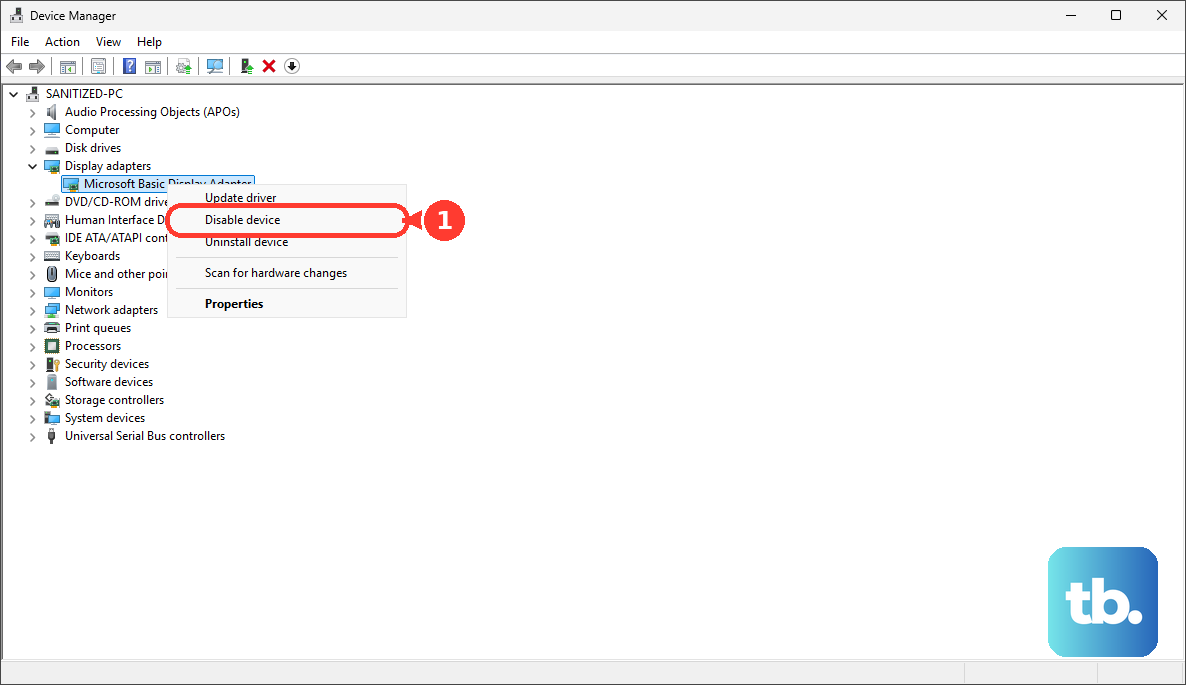
This forces the graphics hardware to reset. Press Windows + X and select Device Manager. Expand the "Display adapters" section, right-click on your graphics card, and choose Disable device. Wait about ten seconds, then right-click it again and select Enable device. Your screen will flicker as it reloads the driver.
Try a Different Video Port or Adapter
Many HP Pavilion 15 models have additional video outputs like USB-C or a VGA port. If yours does, try connecting your monitor using that port with the correct cable or adapter. If the display works through USB-C but not the native HDMI port, it points to a potential issue with the HDMI port itself.
Test with Another Monitor or TV
To rule out a problem with your primary monitor, connect your laptop to a different TV or display. If it works on the second screen, you know the issue lies with the first monitor's settings or its HDMI input port. This quick test saves a lot of time troubleshooting the laptop unnecessarily.
Check for BIOS or Hardware Issues
It's rare, but a BIOS setting can affect video output. You can restart your Pavilion 15 and immediately press the F2 key repeatedly to enter the BIOS setup. Look for any display or video-related settings to ensure they are enabled. While you're at it, the F2 menu also lets you run HP's built-in hardware diagnostics, which can check the integrity of your HDMI port and other components.