
You hit print, the job shows up in the queue, but the HP OfficeJet Pro 9120e sits there doing nothing. Or it pulls paper, makes noise, and spits out a blank page. This 2023 all-in-one runs on HP 936 or 936e cartridges, connects over Wi‑Fi 5 dual-band, and has a habit of getting stuck when the queue has a bad job or a cartridge reads empty.
The fastest fix is to clear the print queue and power‑cycle the printer. On Windows, open Settings > Bluetooth and devices > Printers and scanners, click the OfficeJet Pro 9120e, and choose Open print queue. Cancel everything. Then unplug the printer for 30 seconds, plug it back in, and send a new job. Nine times out of ten that clears the stuck job.
If it doesn't, here's what else to check.
Clear the Queue and Power‑Cycle Thoroughly
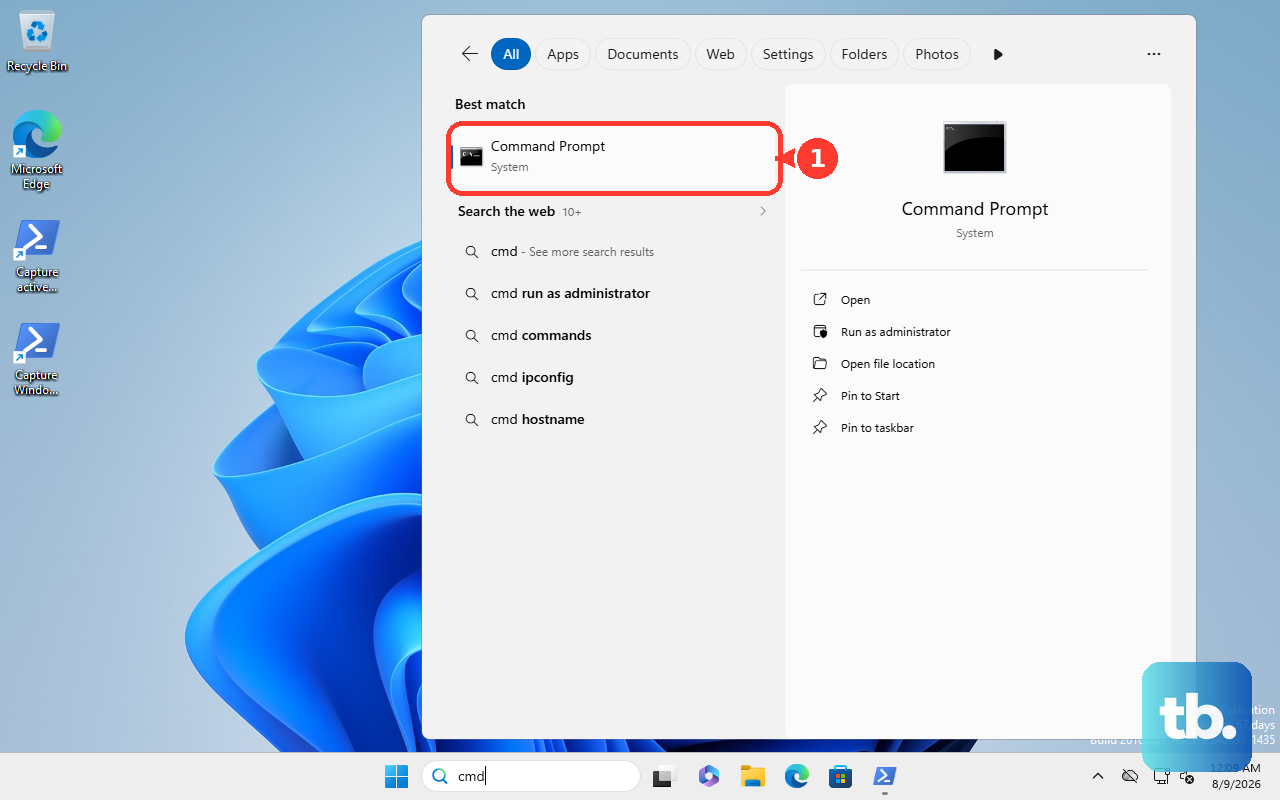
The quick power‑cycle above works for most cases. If the queue won't clear, restart the print spooler on Windows. Open Command Prompt as Administrator. Run net stop spooler then net start spooler. The spooler resets, and the stuck job should vanish.
If the spooler refuses to start, stop it again, navigate to %windir%\System32\spool\PRINTERS in File Explorer, delete everything inside that folder, then start the spooler. Reboot the printer too by holding the Power button for about 10 seconds until it shuts off, then turn it back on.
Check Your Ink Cartridges
The OfficeJet Pro 9120e stops all printing if any single cartridge reads empty. This applies even if you're only printing in black. The printer needs all installed cartridges to have usable ink levels. Open the HP Smart app or the printer's touchscreen dashboard and go to Ink Levels. If you see a low or empty warning for any HP 936 or 936e cartridge, replace it before the printer will accept new jobs.
If you're on Instant Ink, note that the subscription temporarily disables third‑party cartridges while active. And if you enrolled in HP+, the printer is locked to original HP cartridges for life. That can cause unexpected queue freezes if the wrong cartridges are detected.
Reset the Print System on macOS
On a Mac, go to System Settings > Printers and Scanners. Right‑click (or Control‑click) anywhere in the printer list and select Reset printing system. This removes every configured printer. Confirm the action, then add the OfficeJet Pro 9120e again using the + button. A fresh add usually clears stuck‑job issues caused by a corrupted spool file on macOS.
Run the Built‑in Print Head Cleaning
If the printer moves paper but prints blank or streaky pages, the print head may be partially clogged. On the touchscreen, swipe down from the top to open the dashboard. Tap Setup (the gear icon) > Tools > Printer Maintenance > Clean Printheads. Run the standard cleaning cycle; it takes about 90 seconds.
If the test page still looks bad, run a deeper cleaning. The printer will prompt you if it recommends one. Don't run more than two deep cleanings in a row, as it uses a noticeable amount of ink.
Switch to WPA2 During Wi‑Fi Setup
The OfficeJet Pro 9120e can have trouble pairing with mesh networks that force WPA3 or Protected Management Frames (PMF). If the printer shows as offline or jobs get stuck in the queue, this is very often the cause. Temporarily set your router's security to WPA2 or mixed WPA2/WPA3 mode, then try printing.
You can also use the HP Smart app on iOS or Android to run the guided Wi‑Fi setup. The app detects network types and can suggest the right band (2.4 GHz or 5 GHz). Once the printer is connected, you can switch the router back to WPA3 if needed, but the printer will stay connected.
Set the OfficeJet Pro 9120e as Your Default Printer
Windows 11 sometimes auto‑switches your default printer to Microsoft Print to PDF or another virtual printer. This can cause real print jobs to land in a queue for the wrong device. Open Settings > Bluetooth and devices > Printers and scanners. Toggle off Let Windows manage my default printer. Click your OfficeJet Pro 9120e and choose Set as default.
Update the Printer Driver and Firmware
An outdated driver can cause silent spooler mismatches. The easiest way to update is through the HP Smart app on your computer or phone. Look for a firmware update option in the app. Alternatively, visit HP's official support site, search for "OfficeJet Pro 9120e driver," and download the latest package for your OS. Uninstall the old driver first, then install the new one and re‑add the printer.
Firmware updates also fix bugs like AirPrint disappearing after an update, which is a known issue on the 9120e. Keeping both driver and firmware current prevents queue problems before they start.
Inspect the Paper Path for Hidden Jams
Even a tiny scrap of paper can trigger a phantom jam that halts all printing. Open the rear access door and the front cartridge access panel. Use a flashlight to look along the paper path. Remove any torn pieces or wrinkled sheets. Also check the automatic document feeder (ADF) by lifting the cover and inspecting the rollers.
Close everything securely and try printing again. The printer will clear the phantom error once the path is clean.
Check for Instant Ink or HP+ Restrictions
If you've recently signed up for Instant Ink, the printer may pause all jobs until it verifies the subscription. Open the HP Smart app and check your account status. If the subscription is active but the queue is stuck, force‑close the app, restart the printer, and relaunch HP Smart.
For HP+ enrolled printers, using a non‑HP cartridge (even a compatible one) can cause the printer to freeze the queue. The only fix is to install an original HP 936 or 936e cartridge. The printer will then accept new jobs normally.
If none of these steps work, a factory reset is your last resort. On the touchscreen, swipe down to open the dashboard. Tap Setup (gear) > Tools > Restore > Restore Factory Defaults. This wipes all network settings and returns the printer to out‑of‑box state. Re‑run the HP Smart setup from scratch, and the printer should start taking jobs again.











