When your HP Envy x360 15 won't connect to WiFi, it can feel like you're carrying around a very expensive paperweight. The issue might show up as no networks appearing, a connection that drops constantly, or being stuck with a "No Internet" message. The good news is that most of these problems have straightforward software fixes you can do yourself.
Run the Windows Network Troubleshooter
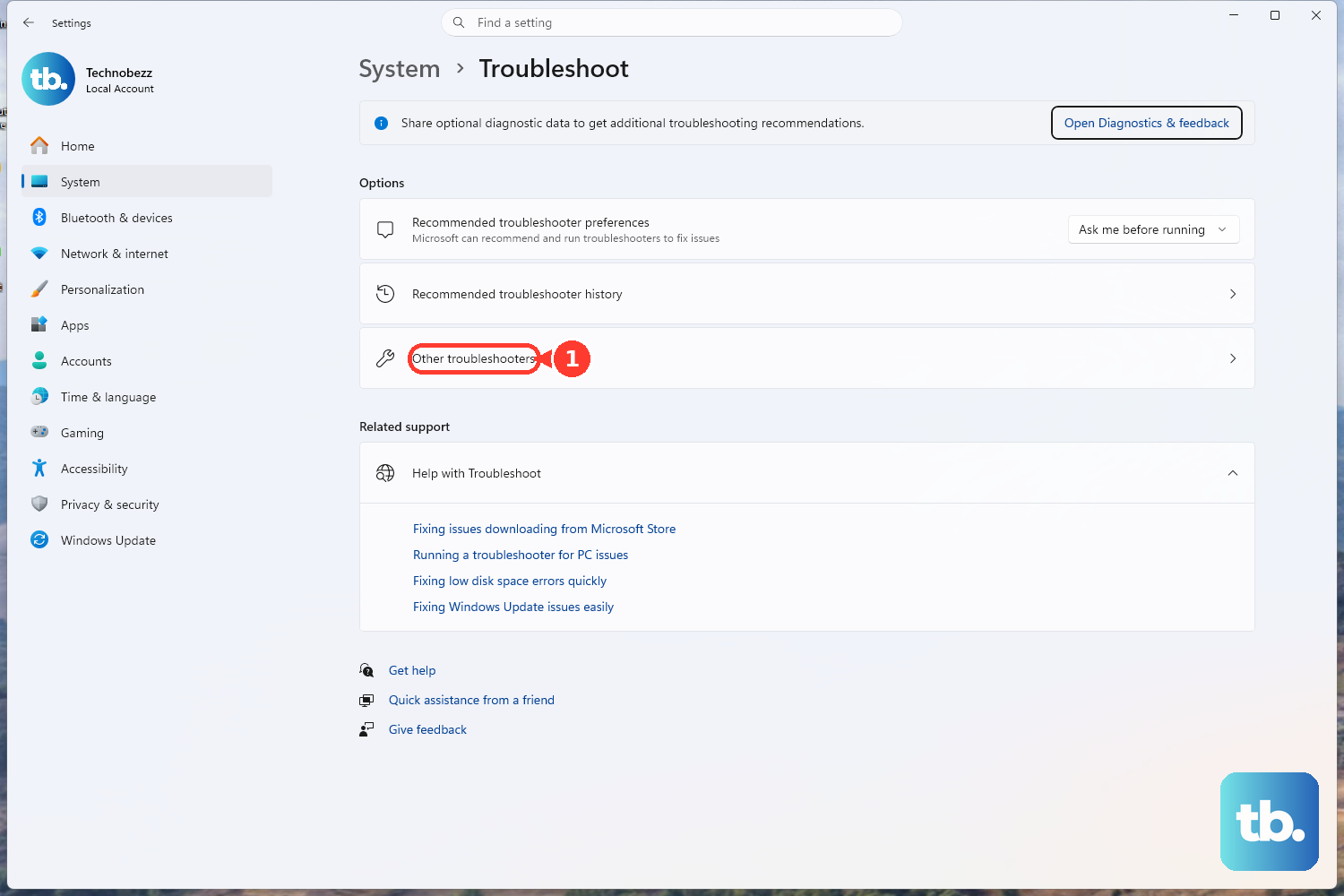
This is the quickest place to start. Right-click the WiFi icon in your taskbar and select Troubleshoot network problems. Windows will automatically scan for common glitches and try to fix them. If that doesn't work, you can also launch it from Settings > System > Troubleshoot > Other troubleshooters and run the Network and Internet troubleshooter from there.
Toggle WiFi and Airplane Mode
Click the network icon in the system tray and turn WiFi off. Wait about ten seconds, then turn it back on. This simple action refreshes your wireless adapter. For a more thorough refresh, toggle Airplane mode on, wait a moment, and then turn it off again. This resets all wireless radios at once.
Forget and Re-add Your Network
Sometimes the saved profile for your WiFi network gets corrupted. Go to Settings > Network & Internet > WiFi > Manage known networks. Click on your home network and select Forget. Then, scan for networks again, select yours, and re-enter the password. This often clears up persistent connection errors.
Restart Your Laptop
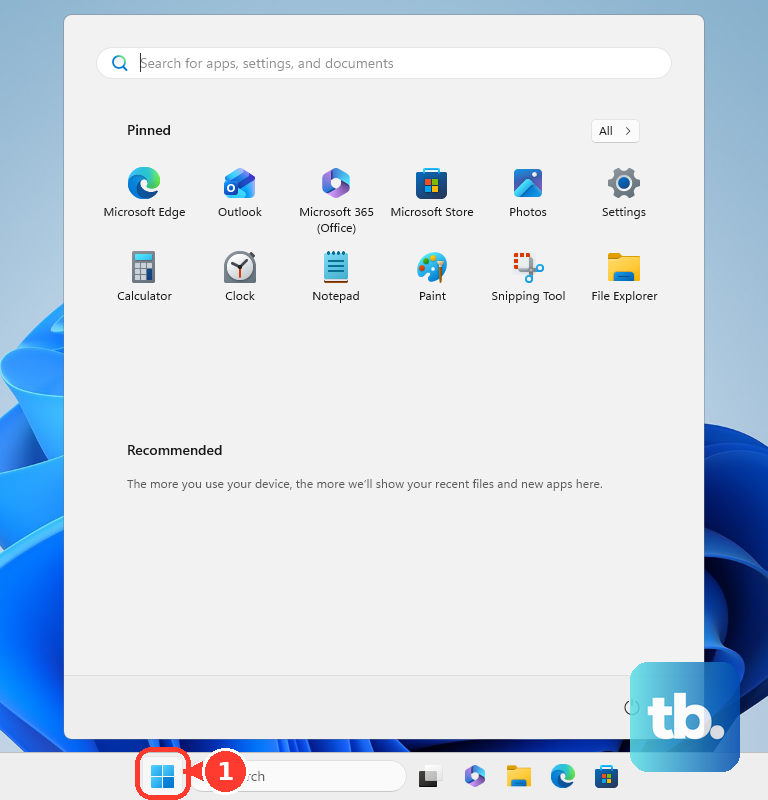
It sounds basic, but a full restart (not just putting it to sleep) is incredibly effective. Click Start > Power > Restart. This clears out the network stack in memory and reloads all your drivers from scratch. I'd do this before moving on to more technical steps, as it resolves a lot of temporary software hiccups.
Update Your WiFi Driver
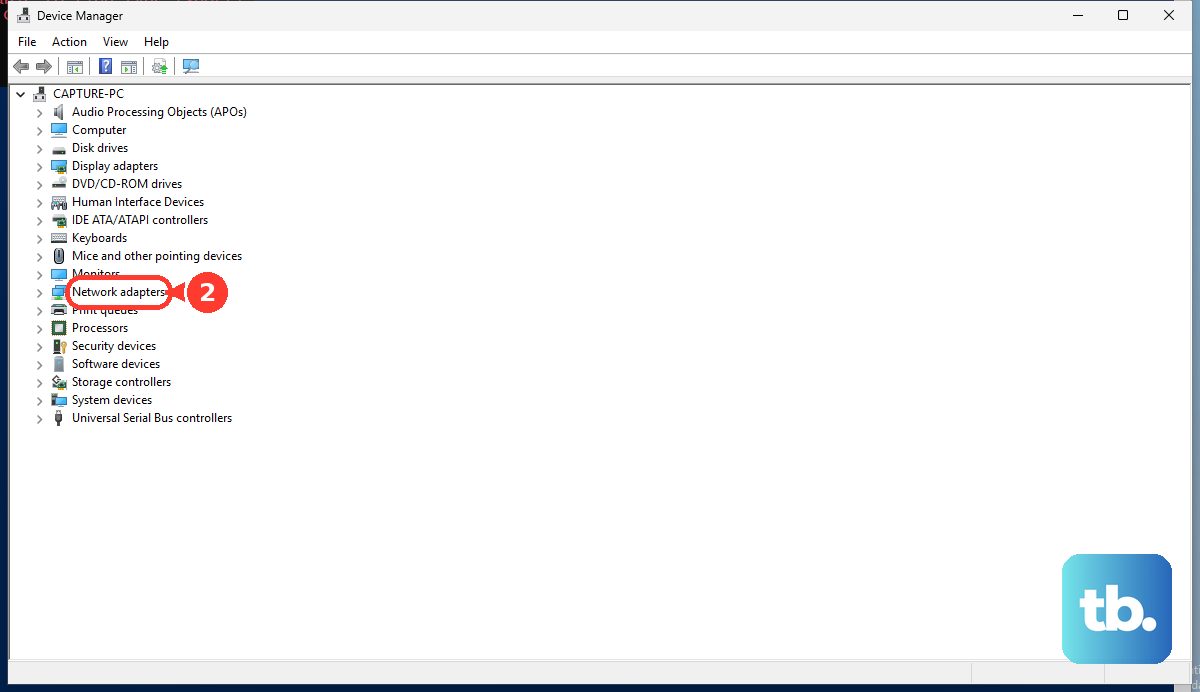
Outdated or buggy drivers are a prime suspect. Press Windows + X and choose Device Manager. Expand the Network adapters section, right-click your wireless adapter (it might be from Intel or Realtek), and select Update driver > Search automatically for drivers. If Windows says you have the best one, visit the official HP support site, enter your Envy x360 15 model number, and download the latest network driver directly from there.
Use HP Support Assistant
Your Envy x360 comes with a handy tool for this. Open the HP Support Assistant app. It can automatically check for driver updates, including critical network and BIOS updates that might be affecting your WiFi stability. Running its diagnostics and recommended fixes is a great way to handle updates you might miss manually.
Disable and Re-enable the Network Adapter
This is like a targeted restart for just your WiFi hardware. Go back into Device Manager under Network adapters. Right-click your wireless adapter and choose Disable device. Wait a few seconds, then right-click it again and select Enable device. This forces the adapter to reinitialize without needing a full system reboot.
Reset Your Network Stack
If you're still having trouble, a network reset can wipe the slate clean. Navigate to Settings > Network & Internet > Advanced network settings > Network reset. Click Reset now. Be aware this will remove all WiFi networks, VPNs, and Ethernet settings, so you'll need to reconnect to everything from scratch afterward.
Flush DNS and Reset TCP/IP via Command Prompt
For issues where you're connected but have no internet, this command-line fix can help. Search for "Command Prompt," right-click it, and select Run as administrator.
Type the following commands one at a time, pressing Enter after each. Start with netsh winsock reset, then run netsh int ip reset and ipconfig /flushdns. Next, enter ipconfig /release followed by ipconfig /renew. After running them all, restart your laptop for the changes to take full effect.
Check for Windows and Driver Conflicts
Head to Settings > Windows Update and install any pending updates. Microsoft frequently patches network-related bugs. Also, if you've recently updated an audio driver, especially for Realtek hardware, it can sometimes conflict with WiFi. In Device Manager, check for any devices with a yellow exclamation mark and try rolling back or updating those drivers.
Test with a Different Network
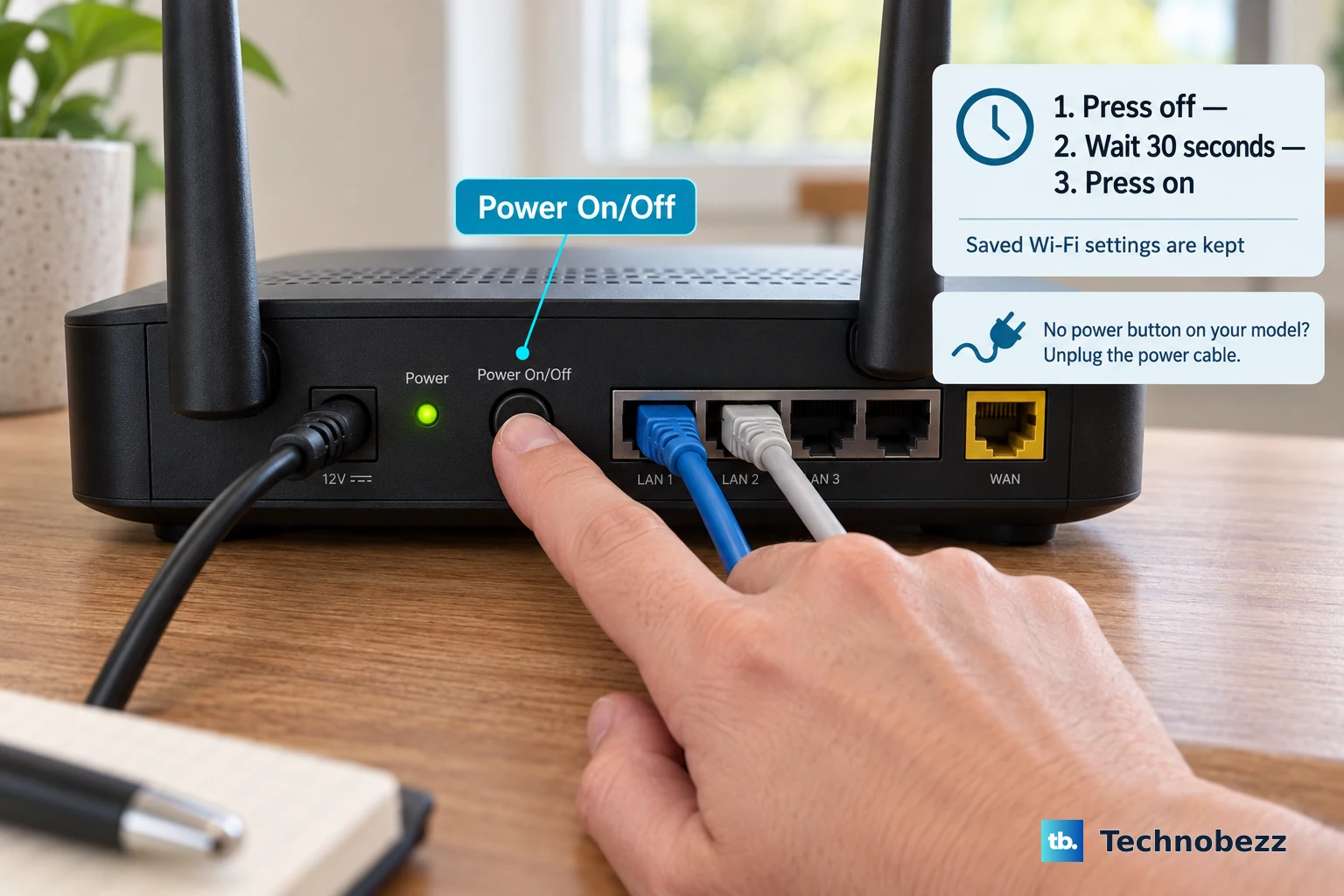
To rule out a problem with your laptop's hardware, try connecting to a different WiFi source. Use your phone's mobile hotspot. If your Envy x360 connects to the hotspot without issue, the problem is likely with your home router or internet service. In that case, restart your router by unplugging it for 30 seconds.