Split screen keeps two windows visible when switching back and forth slows you down. The right control depends on whether you are splitting your whole laptop screen, two browser tabs, or two Office files.
Start with the built-in window tools on your laptop, then use the browser or Office controls when the task is limited to web pages, documents, or spreadsheets.
Snap windows on Windows with your mouse
Use this on a Windows 11 laptop when you want two apps side by side or a larger layout with more than two windows. Windows 10 still has Snap, but Microsoft ended Windows 10 support on October 14, 2025, so current setup advice belongs on Windows 11.
Select the window you want to place.
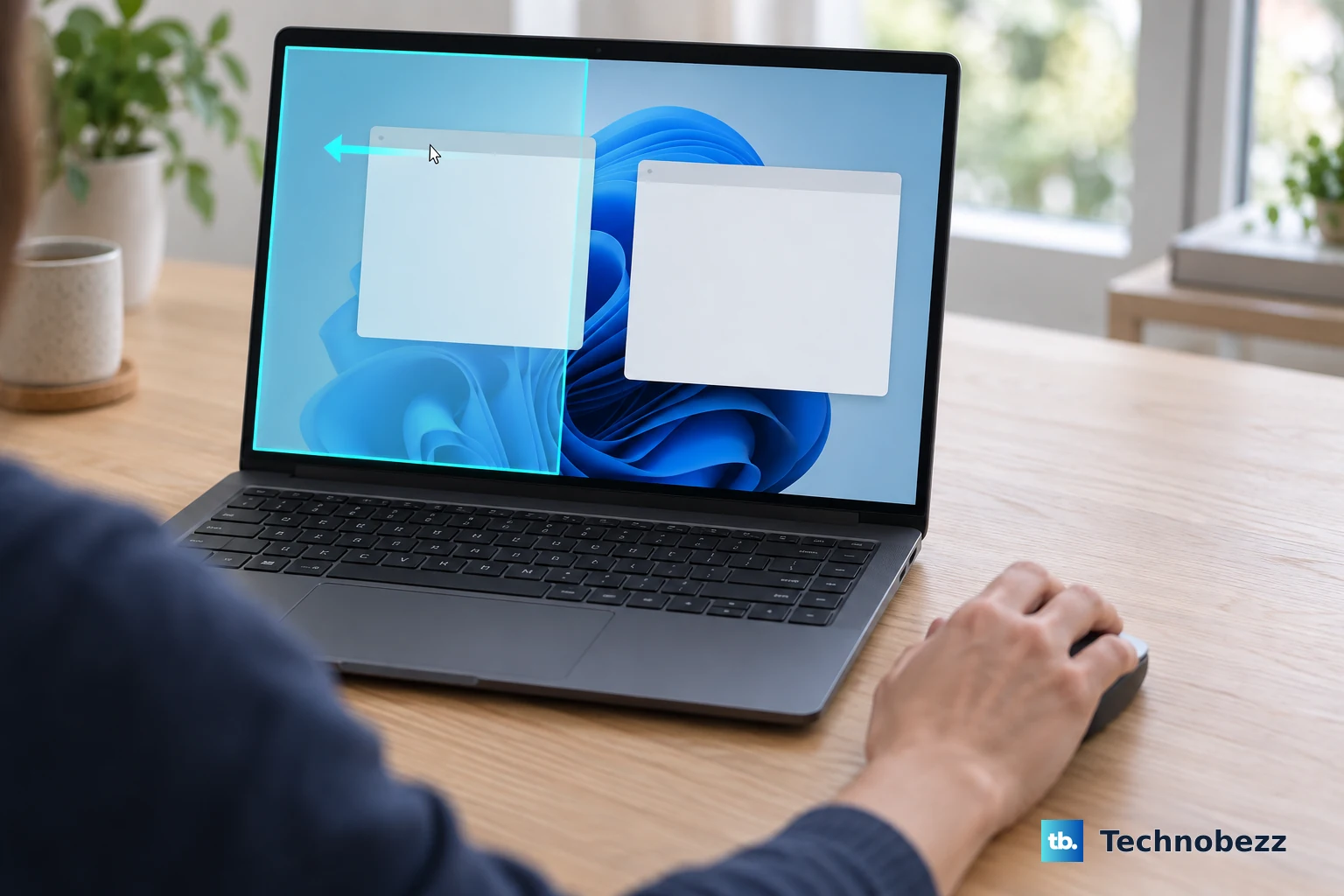
Drag it toward the side or edge of the screen.
Drop it into the layout that appears.
Choose the second window from Snap Assist, and Windows fills the remaining space.
For more layout choices, hover over the window's restore or maximize button, or press Windows key + Z. Pick the layout, then use Snap Assist to fill the open spaces.
Drag a window toward the top of the screen to open the Snap bar. Choose a layout, then fill the rest of it with Snap Assist.
Use Windows keyboard shortcuts for split screen
Keyboard shortcuts are quickest when the window you want is already active. Press and hold the Windows logo key, then press Left Arrow or Right Arrow to snap that window to the left or right half of the screen.
Keep holding the Windows logo key and press Up Arrow or Down Arrow for top or bottom positioning. Release the Windows logo key, then choose another window from Snap Assist to complete the layout.
If keyboard snapping fails, open Settings > System > Multitasking > Snap windows and turn Snap windows on.
Change Windows Snap settings
Use these controls when Windows stops showing Snap Assist or the layout flyouts.
- 1.Open Settings > System > Multitasking > Snap windows.
- 2.Turn Snap windows on or off.
- 3.Expand Snap windows to show the available checkboxes.
- 4.Turn on When I snap a window, show what I can snap next to it if Snap Assist is missing.
- 5.Turn on Show snap layouts when I hover over a window's maximize button or Show snap layouts when I drag a window to the top of my screen if those layout menus are missing.
Tile windows on a Mac
Use this on current macOS versions when you want a regular desktop layout instead of a full-screen Split View space. Apple window tiling works with windows that support tiling.
Drag a window to the edge of the screen.
Release it when the highlighted area appears.
For faster targeting, press and hold Option while dragging the window toward the area you want.
Hold the pointer over the green button in the upper-left corner of the active window. Choose a layout under Move & Resize, Fill & Arrange, or Full Screen; press Option to show additional layouts.
Make the window active and choose Window > Move & Resize, then choose a layout under Halves or Quarters. For multiple windows, use Window > Move & Resize > Arrange.
For keyboard tiling, use Fn-Control-Left Arrow for left, Fn-Control-Right Arrow for right, Fn-Control-Up Arrow for top, and Fn-Control-Down Arrow for bottom.
Put two Mac apps in Split View
Split View puts two supported Mac apps together in a full-screen space. Hold the pointer over the green button in the top-left corner of a window, choose Full Screen > Left of Screen or Right of Screen, then click the second app on the other side.
When one app is already full screen, press Control-Up Arrow or swipe up with three or four fingers to open Mission Control. Drag another window onto the full-screen app thumbnail in the Spaces bar, then click the Split View thumbnail.
If Split View rejects an app, use regular macOS window tiling instead, because Split View works only with Mac apps that support it.
Split the screen on a Chromebook
Use this on a Chromebook when you want two windows on the same desk and display. ChromeOS splits the screen by drag, by window menu, or by keyboard shortcut.
Select and hold the title bar of the window you want to snap.
Drag it to one side of the screen until that side is highlighted.
Release it, then select another window for the other side. You can also select a blank area, choose Skip, or press Esc.
Hover over the Maximize or Restore icon and choose Split for an even split or Partial for one large and one small window. Then select a suggested window for the other side.
Select and hold the Maximize icon, drag to the left arrow or right arrow, and choose a suggested window. For shortcuts, click the window first, then use Alt + [ to snap left or top and Alt + ] to snap right or bottom.
On ChromeOS M128 or later, Snap Groups reopen paired split-screen windows from Show windows, a three-finger swipe up, or Alt + Tab.
Split browser tabs in Chrome or Edge
Use the browser split tool when you want two web pages side by side inside one browser window.
- 1.In Chrome, right-click an inactive tab and choose New split view with current tab, or right-click the active tab and choose Add tab to new split view.
- 2.Drag a tab to the edge of the target Chrome window until Create split view appears, then release it.
- 3.Right-click a Chrome link and choose Open link in split view.
- 4.Use Shift + Alt + N on Windows or Linux, Cmd + Option + N on Mac, or Ctrl + Alt + N on Chromebook.
- 5.In Edge, select Settings and more or press Alt + F, then choose Split screen.
Use Office split views for documents and spreadsheets
In Word, open both files, then use View > Window > View Side by Side. To scroll both documents together, use View > Window > Synchronous Scrolling.
To split one Word document window, press Ctrl + Alt + S. To remove the split, press Alt + Shift + C or Ctrl + Alt + S.
In Excel, select below the row where you want the split, or select the column to the right of where you want it. Use View > Window > Split, then choose Split again to remove it.
For worksheets in the same Excel workbook, use View > Window > New Window, then View > Window > View Side by Side. For multiple workbook windows, use View > Window > Arrange All and choose the arrangement you want.
Tile windows on Ubuntu
Use this on an Ubuntu laptop when you want two apps side by side on the standard desktop. Ubuntu tiles a window to half the screen by drag or by keyboard shortcut.
Grab the window's title bar and drag it to the left or right side of the screen until half of the screen is highlighted, then release it.
Repeat with the second window on the opposite side to finish the split.
For the keyboard, make the window active, then hold down Super and press the Left or Right key to tile it to that half.
To undo a tile, drag the window away from the edge of the screen, or press the same shortcut again to return the window to its original size.
Fix split screen when it is blocked or limited
Split-screen controls are limited by the app, the display, or a managed work device. On Windows 11 version 22H2 and later, voice access snaps a focused window with commands like "Snap window to left," "Snap window to right," "Snap window to top-left," and "Snap window to bottom-right."
PowerToys FancyZones is the Windows tool for custom layouts beyond built-in Snap. In PowerToys Settings, enable FancyZones, configure a layout with Open layout editor or Windows logo key + Shift + `, then drag a window while holding Shift and release it over a highlighted zone.
Work laptops have browser features controlled by administrators. Microsoft Edge supports a SplitScreenEnabled policy on Windows and macOS desktop versions 117 and later, so ask your organization's IT team if Split screen is missing in Edge.
Older Excel guides mention dragging Split box controls, but Microsoft removed those controls in Excel 2013. Use View > Window > Split instead.
If those fixes do not give you the layout you need, use PowerToys FancyZones on Windows, regular window tiling on Mac, or the browser's built-in split view when the task only involves web pages.
Frequently Asked Questions
What is the easiest way to use split screen on a Windows laptop?
Drag a window to the left or right edge of the screen, drop it when the layout appears, then choose another window from Snap Assist.
Can I split the screen on a Mac without going full screen?
Yes. Drag a window to an edge until the highlighted area appears, or use the green button menu and choose a layout under Move & Resize or Fill & Arrange.
Why do I not see every Windows Snap layout?
Windows 11 layout choices depend on display size. If layouts are missing entirely, check Settings > System > Multitasking > Snap windows.
Can Chrome or Edge split two tabs inside the same browser window?
Yes. Chrome has Split view for tabs and links, while Edge has Split screen from Settings and more or Alt + F.











