
Keeping your OPPO Find X8 Pro updated is the best way to ensure it runs smoothly, gets the latest security protections, and unlocks new camera features for that impressive dual periscope zoom system. The process is straightforward through ColorOS 15.
Check for Updates Over Wi-Fi
Open your Settings app and scroll down to About device. Tap on it, and you'll see the Software update option right at the top. Tap it, and your phone will connect to OPPO's servers to check for any available updates.
If an update is found, you'll see a prompt to download it. I'd recommend being on a stable Wi-Fi network and having your phone plugged into the included 80W SUPERVOOC charger, or at least above 50% battery, before you start. Major Android version updates can be quite large.
Install the Update
Once the download is complete, tap Install now. Your phone will reboot into the update process. Don't touch any buttons during this time. The screen will show a progress bar, and the whole installation usually takes about 10-15 minutes.
Your phone will restart once or twice. Just let it do its thing. When it's done, you'll boot back into your home screen, now running the latest software. You might see a notification welcoming you to the new version or listing the key changes.
Enable Automatic Updates
To make sure you never miss a critical security patch, you can turn on automatic downloads. Go back to Settings > About device > Software update. Tap the three-dot menu in the top right corner and select Settings.
Here, you can toggle on Auto download over Wi-Fi. With this on, your Find X8 Pro will automatically download new updates when connected to Wi-Fi. You'll still get a notification to approve the installation, so you're always in control of when it happens.
If an Update Gets Stuck or Fails
Sometimes a download can fail, or the installation seems to hang. The first thing to try is a force restart. Press and hold the Power button for about 10 seconds until you feel a vibration and see the OPPO logo. This reboots the system and can clear a temporary glitch.
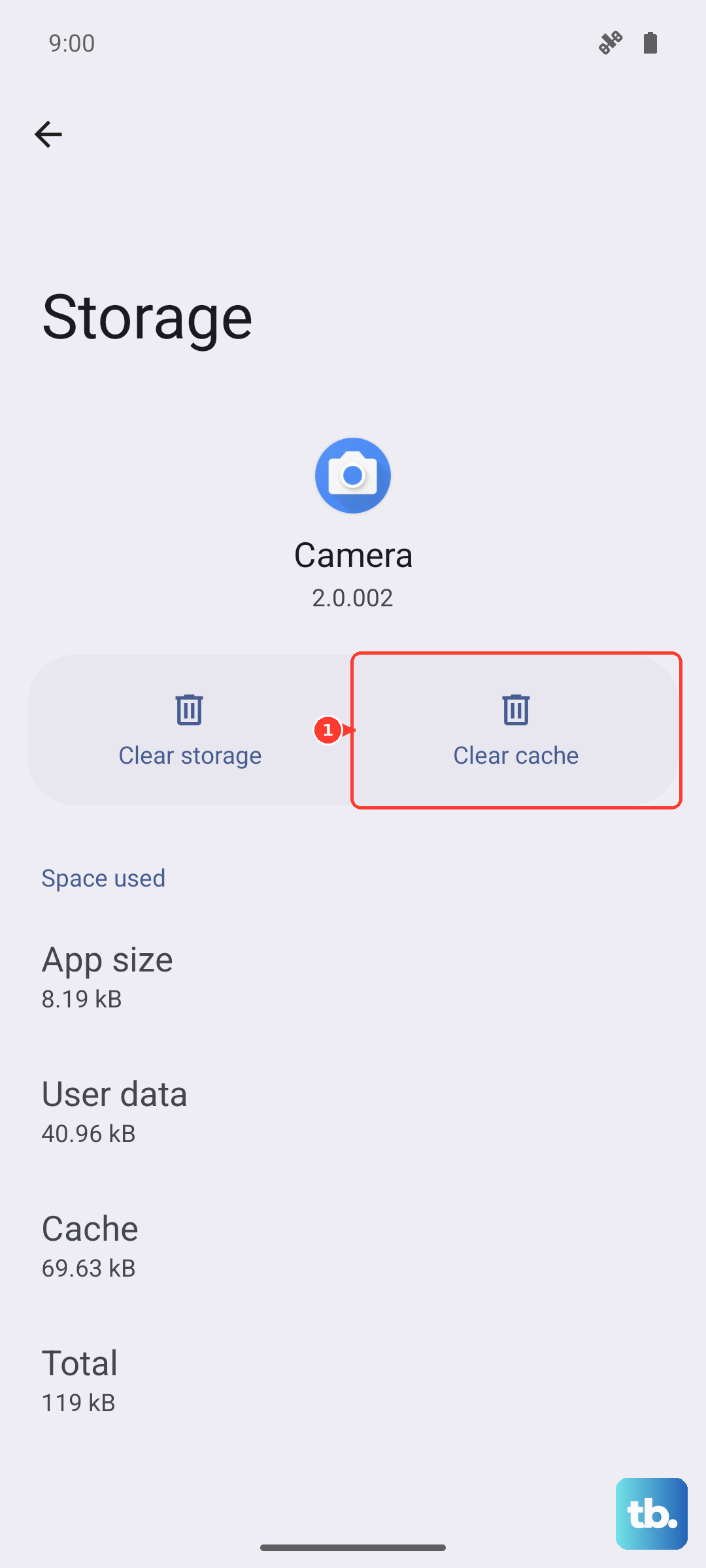
If the update won't download, try switching to a different Wi-Fi network. You can also clear the cache for the update service. Go to Settings > Apps > Manage apps, tap the three-dot menu and select Show system. Find and tap Software Update, then go to Storage usage > Clear cache.
Update Your Apps via Google Play
System updates are crucial, but your apps need love too. Open the Google Play Store and tap your profile icon in the top right. Select Manage apps & device, then under the "Updates available" section, tap Update all.
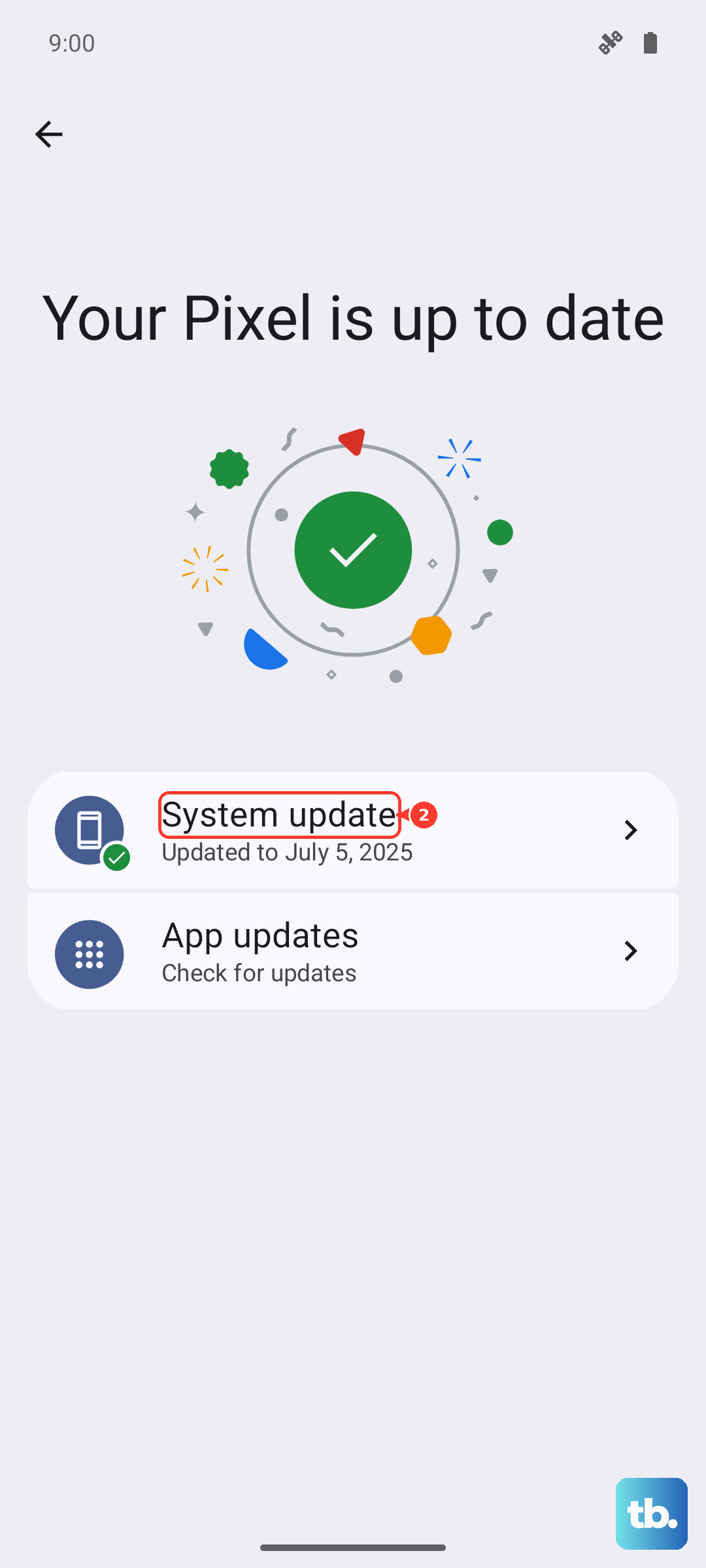
Keeping apps updated fixes bugs, improves compatibility with new system software like Android 15, and patches security holes. I make a habit of checking this every week or so, especially after a major OS update on my phone.
Check for Google Play System Updates
This is an important layer of security that's separate from OPPO's updates. Google can update core Android components directly. Go to Settings > Security & privacy > More security settings.
Scroll down and tap Google Play system update. Your phone will check for updates. If one is available, install it. These updates often address critical security vulnerabilities faster than waiting for a full ColorOS update.
Verify Your Current Software Version
It's good to know exactly what you're running. Head to Settings > About device. Here you can see your Android version, the ColorOS version, and the Android security patch level.
This information is useful if you're troubleshooting an issue or checking if a specific feature you read about should already be on your device. OPPO typically provides regular security patches for the Find X8 Pro.