Missing calls on your OPPO Find X8 Pro can be incredibly annoying, especially when you're expecting something important. You might see the missed call notification pop up later, even though you never heard a sound. The good news is this is almost always a simple setting that got changed by accident.
I'd start by checking the physical alert slider and your volume levels, as those are the most common culprits. Let's walk through the fixes, starting with the quick ones.
Check the Alert Slider and Volume
On the left side of your Find X8 Pro, you'll find a physical alert slider. Slide it down towards the back of the phone. You should see a small orange indicator appear, which means it's in Silent mode. Slide it up towards the screen to enable Ring mode, and the orange mark will disappear.
Next, unlock your phone and press the volume up button on the right side a few times. Make sure you're adjusting the ringtone volume and not the media volume. A volume bar will appear on screen, and you should see an icon of a bell with a slash through it turn into a regular bell.
You can also set the volume precisely by going into Settings > Sound & vibration. Drag the slider for "Ringtone & notification volume" all the way to the right. While you're there, tap on "Ringtone" to make sure a valid tone is selected and play it to test the speaker.
Review Focus and Do Not Disturb Modes
ColorOS has several modes that can silence calls. The main one to check is Do Not Disturb. Swipe down from the top of your screen to open the Quick Settings panel and look for the Do Not Disturb icon (a circle with a line through it). If it's highlighted, tap it to turn it off.
For a more thorough check, go to Settings > Sound & vibration > Do Not Disturb. Here, make sure the main toggle at the top is off. Also, look at any schedules or automatic rules you might have set up that could be activating it without you realizing.
ColorOS also has various "Focus" modes for work, sleep, or personal time. These can sometimes inherit settings from Do Not Disturb. It's worth scrolling through the Do Not Disturb settings menu to see if any are active and turning them off temporarily to test.
Disconnect Bluetooth and Check Call Settings
If your phone is connected to a Bluetooth device like wireless earbuds, a speaker, or your car, incoming call audio will often route there instead of the phone's speaker. To rule this out, swipe down your Quick Settings panel and tap the Bluetooth icon to turn it off, or go to Settings > Bluetooth and toggle it off.
There are also a few call management features that could be intercepting rings. Go to your Phone app, tap the three-dot menu in the top right, and select Settings. Look for options like "Blocked numbers" to ensure a contact isn't accidentally blocked, and "Call forwarding" to make sure calls aren't being sent to another number.
Another useful setting is "Harassment call and SMS block," which can silence unknown numbers. If you're missing calls from people not in your contacts, you might want to temporarily disable this feature from within the Phone app settings to see if it helps.
Manage App Notifications and Permissions
Sometimes the issue isn't with the system, but with the Phone app itself. Go to Settings > Apps > App management. Find and tap on "Phone" in the list.
First, tap on Notifications. Make sure "Allow notifications" is enabled. Then, specifically check the category for "Incoming calls" and ensure it's set to make a sound and pop up on the screen. Some battery optimization settings can also delay or silence notifications.
While still in the Phone app's App Management page, tap on Permissions. Verify that the Phone app has all necessary permissions granted, especially if you're using a third-party dialer app from the Play Store.
Restart and Update Your Phone
A simple restart can clear out temporary software glitches that might be affecting the ringer. Just press and hold the power button, then tap "Restart" on the screen. If the phone is unresponsive, you can force a restart by pressing and holding the power button for about 10 seconds until you feel it vibrate and reboot.
Software bugs are often fixed in updates. Connect to Wi-Fi and go to Settings > About device > Software update. Tap "Check for updates" and install any available version. The Dimensity 9400 chipset is powerful, but early software can have quirks that updates resolve.
Reset Relevant Settings
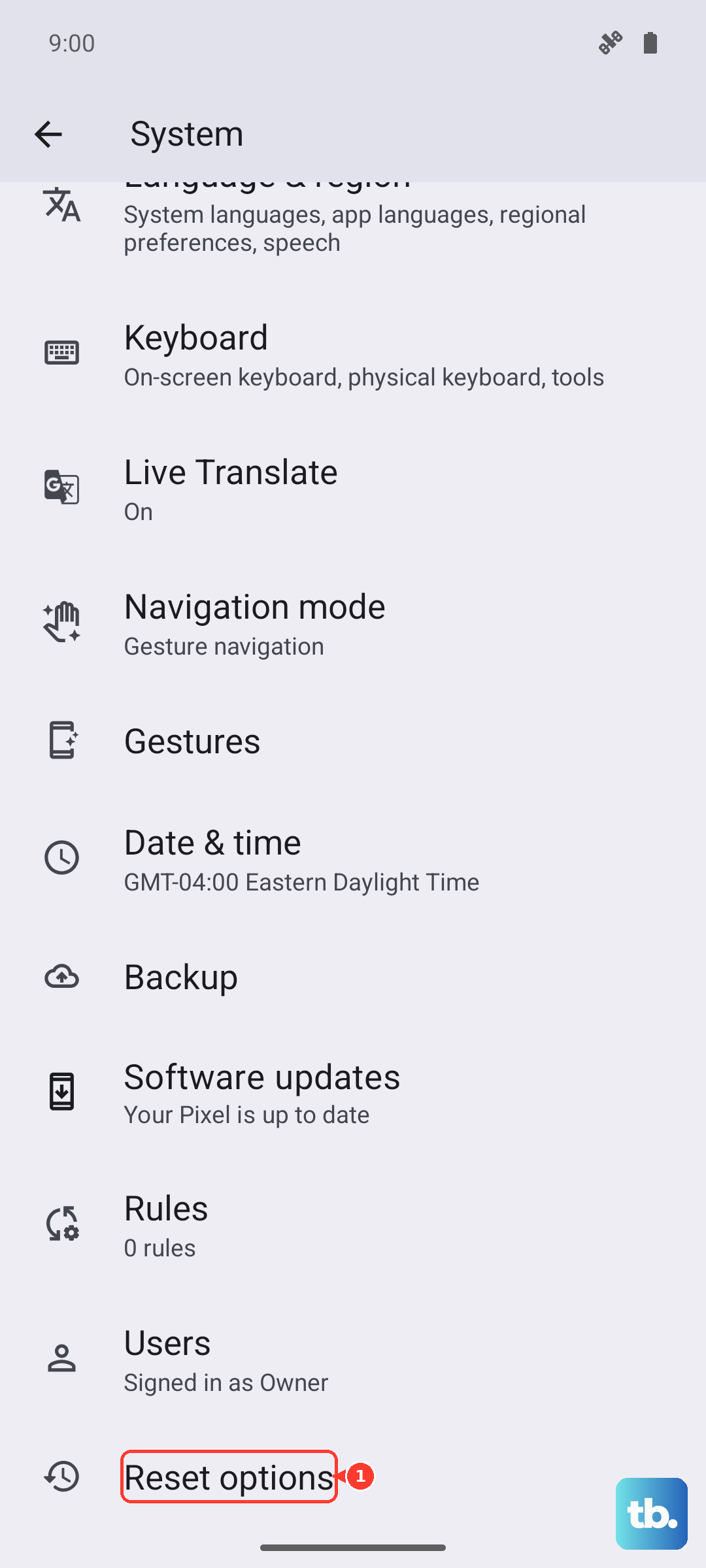
If you're still having trouble, you can reset specific settings without losing your personal data. Go to Settings > Additional settings > Back up and reset > Reset phone.
Here, you have a few options. Reset all settings will revert your Wi-Fi, Bluetooth, and sound settings back to default, which often solves persistent ringer issues. Reset network settings is a good step if you're having problems with carrier calls specifically, as it resets your mobile data and Wi-Fi configurations.
Remember, these reset options won't delete your photos, apps, or messages. They only change the system settings back to how they were when you first took the phone out of the box.