
When your OPPO Find X8 Pro won't send photos, it's usually a quick network or app setting that needs adjusting. The high-resolution images from its dual periscope cameras can sometimes be large files that get stuck. Let's get them moving again.
Check Your Mobile Data and Network
First, make sure your phone can actually connect to the internet. Open your browser and try loading a webpage. If it doesn't load, your connection is the issue.
For mobile data, swipe down from the top of the screen to open the Quick Settings panel. Tap the mobile data icon to make sure it's turned on. You can also go to Settings > Mobile network to verify it's enabled for your SIM card.
If you're on Wi-Fi but it's slow, try switching to mobile data temporarily. The 80W SUPERVOOC charger in the box is great for power, but it won't help a weak Wi-Fi signal send your pictures any faster.
Toggle Airplane Mode
This is a quick reset for all your phone's radios. Swipe down from the top to open Quick Settings and tap the Airplane Mode icon. Wait about 10 seconds, then tap it again to turn it off.
Your phone will reconnect to your mobile network and Wi-Fi. This often clears up temporary glitches that can block MMS or data services from working properly.
Verify MMS and APN Settings
MMS (Multimedia Messaging Service) is required for sending pictures over text. Open your messaging app, tap the three-dot menu, and go to Settings or Advanced settings.
Look for an option labeled "MMS" or "Multimedia messages" and ensure it's turned on. If you can't find it there, you may need to check your Access Point Name (APN) settings.
Go to Settings > Mobile network > Access Point Names. Your carrier's APN should be selected. If you're unsure of the correct settings, a quick web search for "[Your Carrier] APN settings" will provide the details you need to enter.
Force Stop and Clear Your Messaging App's Cache
Go to Settings > Apps > Manage apps. Find your default messaging app (like Google Messages or the OPPO Messages app) and tap on it.
Tap Force stop, then tap Storage usage. Here, tap Clear cache. This removes temporary files that might be causing the app to malfunction without deleting your actual messages.
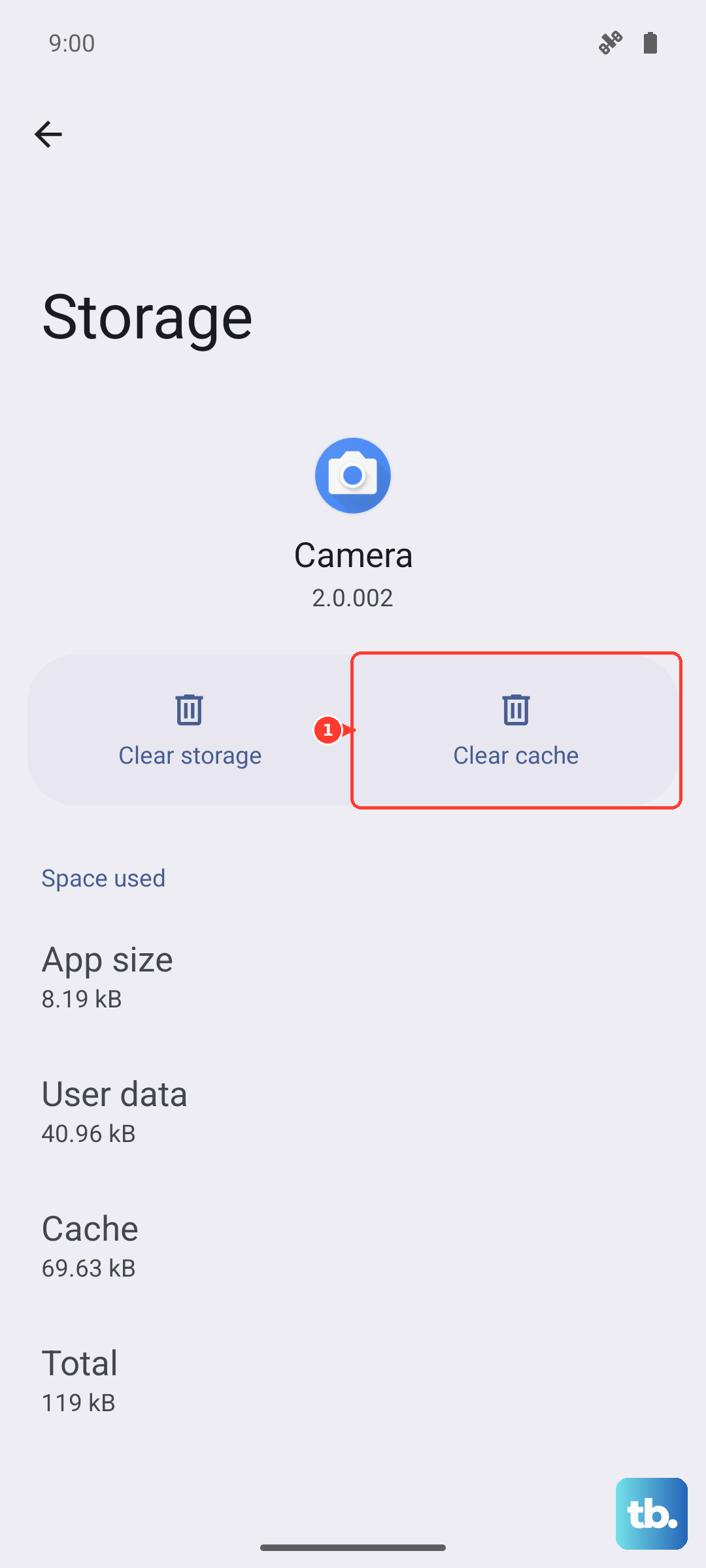
After clearing the cache, open your messaging app again and try sending the photo. I've found this resolves the issue more often than not.
Check for a Software Update
ColorOS updates frequently include bug fixes for connectivity and messaging. Connect to Wi-Fi and plug in your phone, as the Dimensity 9400 can run warm during updates.
Go to Settings > About device > ColorOS version. Tap on the version information, then tap the three-dot menu in the top right and select Check for updates. If an update is available, install it and see if that fixes the photo sending problem.
Try a Different Messaging App
Sometimes the issue is with the specific app you're using. If you're using the pre-installed OPPO Messages app, try downloading Google Messages from the Play Store.
Set it as your default app when prompted. This can bypass any quirks in the stock app, especially since ColorOS can have more pre-installed software that occasionally conflicts.
Reduce the Photo File Size
The Find X8 Pro takes stunning, high-megapixel photos. These large files can exceed the size limit for MMS, which is often around 1MB depending on your carrier.
Before sending, try editing the photo. In your gallery, tap edit and look for a resize or quality option. Alternatively, when sharing, some apps like WhatsApp or email will ask if you want to reduce the file size. Choosing "Standard quality" instead of "Original quality" usually works.
Restart Your Phone
A simple restart clears the phone's memory and stops any background processes that might be interfering. Press and hold the Power button for about 10 seconds until you feel a vibration and see the OPPO logo as the phone restarts.
This is different from just turning the screen off and on. It gives the system a fresh start, which is a reliable first step for many glitches.
Reset Your Network Settings
This will reset all Wi-Fi, mobile data, and Bluetooth connections to their default state. Go to Settings > Additional settings > Backup and reset.
Tap Reset phone, then select Reset network settings. You'll need to enter your lock screen password to confirm. Remember, this will erase all saved Wi-Fi passwords and paired Bluetooth devices, so you'll have to reconnect to them afterward.
Check Your Mobile Data Limit
Some plans or phone settings can cut off data once a limit is reached, which would stop MMS. Go to Settings > Mobile network > Data usage.
Look at the cycle dates and the total data used. If you have a data limit set, ensure you haven't exceeded it. You can also disable any "Data saver" mode here, as it can sometimes restrict background data needed for sending messages.