
If your OPPO Find X8 Pro is running out of juice way too quickly, it can feel like you're constantly tethered to the 80W SUPERVOOC charger that came in the box. The good news is, a few quick checks in ColorOS 15 can usually pinpoint the drain and get you back to the impressive battery life this phone is capable of.
I'd start by heading straight to the battery usage stats. This is your single best tool for figuring out if it's a rogue app or just general system drain. Open Settings and tap on Battery. Here, you'll see a breakdown of which apps have been using power over the last 24 hours or the past week.
Pay close attention to any app showing a high percentage, especially if it's something running in the background like a social media app, a VPN, or a fitness tracker. If you see an app you don't recognize or one that seems excessively high, that's your prime suspect.
Check for System Updates and App Updates
Outdated software is a common culprit for battery drain. OPPO frequently releases updates that include optimizations and bug fixes for power management. Go to Settings > About phone > Software update to check for the latest ColorOS version.
While you're at it, open the Google Play Store and check for app updates. Developers often release patches that fix bugs causing background battery consumption. An update is a simple fix that can make a big difference.
Manage Background Activity and Location
Many apps love to run in the background, refreshing content and checking your location constantly. ColorOS gives you good control over this. For location, go to Settings > Privacy > Location. Review the list and set apps to "Allow only while in use" instead of "Allow all the time" where it makes sense.
To tackle general background refresh, go to Settings > Battery > More settings (or App battery management). Look for options like "Background power management" or "Auto-launch" and restrict apps you don't need running constantly.
Adjust Your Display Settings
The stunning 6.8-inch display on the Find X8 Pro is a battery hog if left unchecked. A simple brightness adjustment can help a lot. Pull down the quick settings panel and lower the brightness slider, or disable auto-brightness in Settings > Display & brightness to manage it manually.
Also in the display settings, reduce the screen timeout. Setting Screen timeout to 30 seconds or 1 minute ensures the display turns off quickly when you're not using it. If your phone has an LTPO OLED panel, using a dark wallpaper and enabling Dark Mode can also provide some battery savings.
Review and Remove Unnecessary Apps
The Find X8 Pro can come with some pre-installed apps and services you might not use. These can sometimes run processes in the background. Take a few minutes to scroll through your app drawer and uninstall any apps you genuinely don't need.
Be cautious with widgets, especially live ones that update frequently like weather or news. Each widget on your home screen requires the system to wake up and fetch data, which adds up. Remove any widgets you can live without by long-pressing them and tapping remove.
Optimize Connectivity Features
When you're not using them, turn off Wi-Fi, Bluetooth, and Mobile Data from the quick settings panel. Having them constantly searching for networks or devices uses extra power. This is especially true if you're in an area with a weak cellular signal, as your phone will boost its antenna power to try and maintain a connection.
For your mobile data settings, consider disabling 5G if you're not actively needing its speed and are in an area with spotty coverage. You can find this under Settings > Mobile network. Switching to 4G/LTE can be more power-efficient in many situations.
Enable Power Saving Modes
Don't overlook the built-in power saving tools. You can enable Power Saving Mode from the quick settings panel or in Settings > Battery. This mode limits background activity, reduces performance slightly, and can extend your battery significantly when you're running low.
For even more control, look for an Ultra Power Saving Mode in the same battery menu. This strips the interface down to just essential apps and functions, which is perfect for squeezing out every last percent when you're far from a charger.
Check for a Warm Phone and Rogue Processes
The Dimensity 9400 chip is powerful, but it can run warm during sustained gaming or video recording. If your phone feels unusually warm during normal use, it's a sign something is working the processor hard and killing the battery. Close all your apps and see if it cools down.
If the phone stays warm or the drain persists after trying other fixes, a force restart can clear out any stuck processes. Just press and hold the Power button for about 10 seconds until the OPPO logo appears and the phone restarts. This doesn't delete any data.
Reset App Preferences or Network Settings
If a specific app seems to be the problem even after updates, you can reset its permissions. Go to Settings > Apps > App management, select the app, and tap on Permissions. You can revoke permissions like location or background activity here to see if it helps.
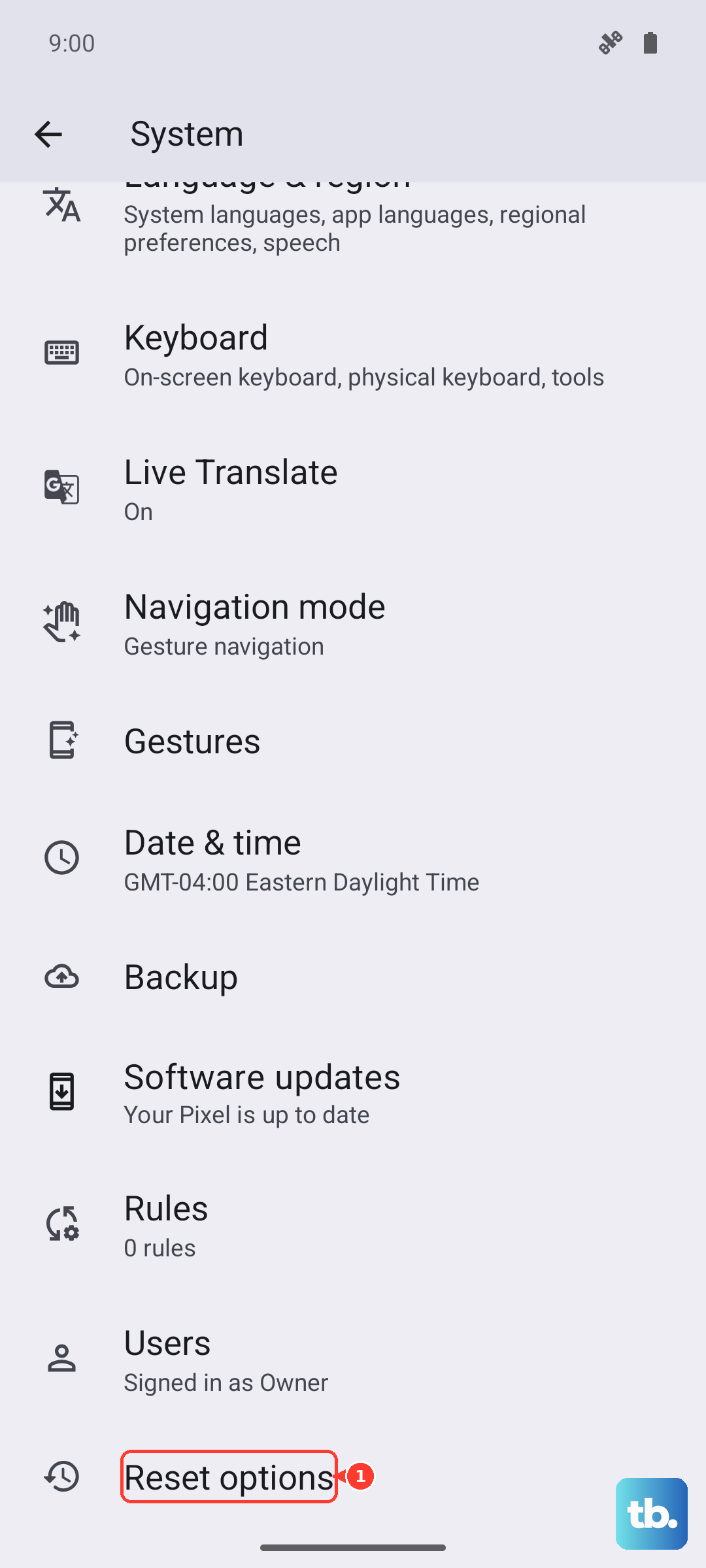
As a broader step, resetting your network settings can sometimes fix drain caused by connectivity bugs. Go to Settings > System settings > Reset options > Reset Wi-Fi, mobile & Bluetooth. Remember, this will erase all saved networks and Bluetooth pairings, so you'll have to reconnect to everything.
Consider Your Charging Habits
While fast charging is convenient, frequent top-ups from very low levels can stress the battery over a very long period. If possible, try to keep your phone between 20% and 80% charge. The included 80W charger is incredibly fast, so a quick 10-minute plug-in can often give you enough juice without needing a full charge cycle.
If you're using wireless charging, note that you'll only get the full 50W speed with an official OPPO AIRVOOC charger. Using a standard Qi charger will max out at around 15W, which is slower but still convenient for overnight charging.