
Getting your data onto a new iPad Pro M5 is the first big step. iPadOS 18 gives you several ways to move your files, apps, and settings over. Here's how to handle the transfer without the headache.
Use Quick Start (Best for Two iPads)
Turn on your new iPad Pro M5 and place it next to your old iPad. A Quick Start prompt pops up on your old device. Tap Continue and scan the animation with your new iPad to pair them.
Keep both tablets plugged into power during this process. The M5 supports fast charging over USB-C, so using a 60W adapter helps prevent battery drain while the transfer runs. The whole thing works over a local connection and moves over your apps, messages, and settings automatically.
Restore from an iCloud Backup
If you already set up your new iPad or packed up the old one, iCloud is your next best option. On your old iPad, open Settings > [Your Name] > iCloud > iCloud Backup and tap Back Up Now. Just make sure you're connected to Wi-Fi.
On the new iPad Pro M5, go through the initial setup until you reach the Apps & Data screen. Select Restore from iCloud Backup, sign in with your Apple ID, and pick the most recent backup. It downloads over Wi-Fi, so leave it plugged in overnight if you have a lot of data.
Transfer Using a USB-C Cable (Fastest Method)
This is the speed demon approach, perfect for the M5's Thunderbolt / USB 4 port. Connect your old iPad to a Mac or PC using a USB-C cable. Open Finder on a Mac or iTunes on Windows, select your device, and click Back Up Now. Tick the Encrypt local backup box so your passwords and health data are saved.
Once the backup finishes, disconnect the old iPad and connect your new iPad Pro M5. Select Restore Backup and choose the backup you just made. A wired transfer over USB-C is significantly faster than waiting on Wi-Fi, especially for large photo libraries.
Move Data from Android or Windows
Apple offers a free app called Move to iOS on the Google Play Store. Download it on your Android device. On your new iPad Pro M5, during the initial setup, select Move Data from Android on the Apps & Data screen. A ten-digit code appears on your iPad. Enter it on the Android device and pick what you want to transfer.
For Windows users, you can also use the Apple Devices app or iTunes to manually drag and drop files, photos, and music onto your new iPad. The M5 shows up as a standard drive in Finder once you trust the computer.
If the Transfer Freezes (Force Restart)
Transfers usually go smoothly, but things can get stuck occasionally. If your iPad Pro M5 becomes unresponsive during the data move, try a force restart. Press and quickly release the Volume Up button, then press and quickly release the Volume Down button, then press and hold the Top button until the Apple logo appears.
This doesn't erase any of your data. It forces the hardware to reboot. After it powers back on, you can resume the setup from where you left off or start the transfer again.
Move Specific Data Manually
Maybe you only want to bring over certain things. For photos, turn on iCloud Photos on your old device and your new iPad Pro M5. For contacts, make sure they sync to iCloud or your Google account. WhatsApp has a built-in chat transfer tool in its settings if you need to move conversations.
What to Expect After the Move
Once the transfer finishes, give the new iPad a few minutes to index and download all your app content. Apps that are no longer available in the App Store won't restore. Downloaded music from Spotify or Apple Music needs a fresh download, though your playlists and library sync through your account.
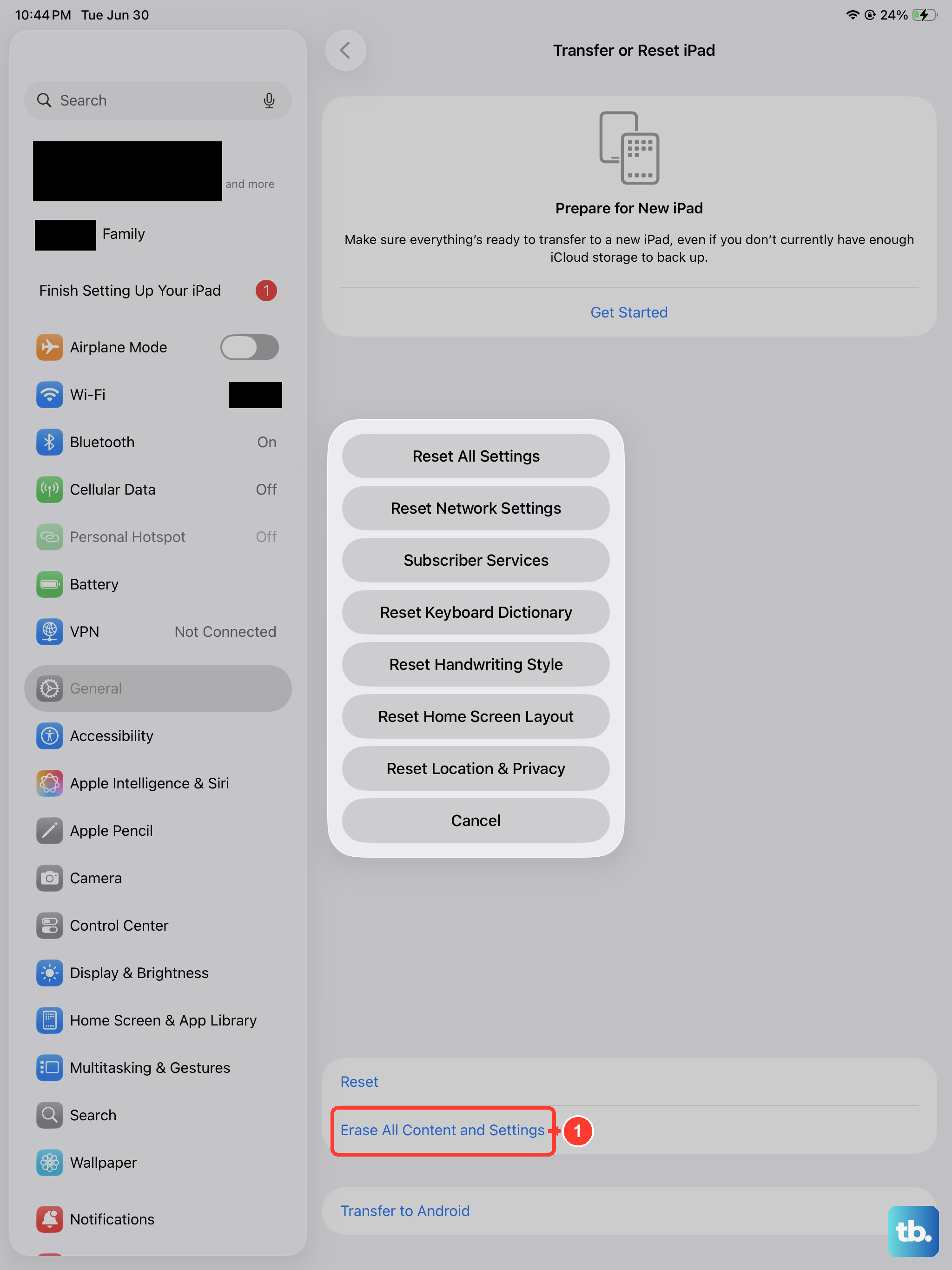
Make sure all your banking apps and authenticators are working on the new device before you wipe the old one. When everything looks good, erase your old iPad by going to Settings > General > Transfer or Reset iPad > Erase All Content and Settings.