Your internet feels slower than it should, or you just want to know exactly what is sitting on your home network. Maybe you spotted a device you do not recognize, or a guest who left months ago still has the password. Either way, the goal is simple: see every device connected to your Wi-Fi, figure out which ones are yours, and remove the ones that are not.
You can do all of this yourself in a few minutes. The exact steps depend on what kind of router or mesh system you have, so this guide covers the universal method first, then the app-based steps for Google Nest/Wifi, eero, TP-Link, NETGEAR, ASUS, and Xfinity.
One thing to know before you start: every method requires administrative access to your network. That means either your router's admin login (usually printed on a label on the router) or the mobile app paired to your router or mesh system. Have that ready.
Understand Your Three Options for Kicking a Device Off
There are three real ways to remove a device, and knowing the difference saves you frustration:
- Temporary pause (parental-control style): cuts a device's internet access but is fully reversible. The device often still appears connected.
- MAC-based access control / block list: a router-level block that bars a device by its MAC address, which is harder for it to get around.
- Change the Wi-Fi password (the nuclear option): disconnects everyone instantly, so you must reconnect each trusted device afterward.
If you have an intruder and want them gone now, the password change is the most reliable. If you just want to throttle a kid's tablet at bedtime, a pause is enough.
See Connected Devices via the Router Admin Page (Any Brand)
This is the universal method that works on almost any router from a desktop or laptop browser.
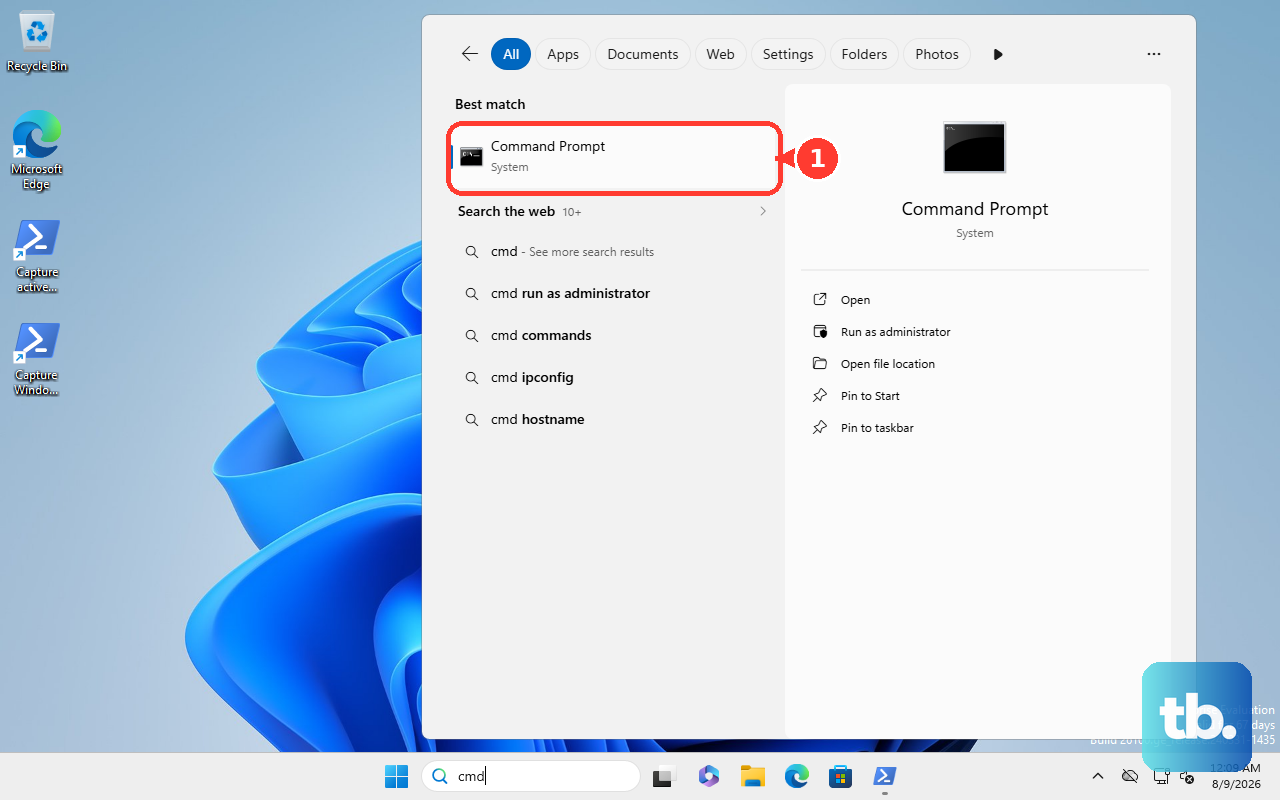
- 1.On Windows, open Command Prompt and run ipconfig /all. Find the Default Gateway line; that is your router's IP. Common addresses are 192.168.1.1 or 192.168.0.1.
- 2.Type that IP into your browser's address bar and press Enter.
- 3.Log in with your router's admin username and password (check the router label or its documentation; if unknown, search your router model number plus "web interface" for the defaults).
- 4.Open the connected-devices list. The exact location varies by brand, so look on the Wi-Fi configuration page or a status page for a list labeled something like "connected devices," "attached devices," or "DHCP clients."
The list shows each device's hostname, IP address, and MAC address. Compare those against your known equipment to spot intruders. Many "unknown" entries are simply your own smart TVs, printers, speakers, or other IoT gadgets. Note that devices set with a static IP may not appear in DHCP-based lists.
Google Nest or Google Wifi: View and Pause Devices
Google's mesh systems are managed in the app, not a web page. To see your devices in the Google Home app, tap Home, then Wifi, then Devices, and tap any device for details. The list includes everything connected over Wi-Fi or wired by Ethernet to your Wifi point.
On the legacy Google Wifi app, tap Network, then Devices, then a device; the Details tab shows connection status, IP address, and MAC address.
Google does not offer a permanent block. The strongest control is pausing internet access through Family Wi-Fi, which requires creating a Family Wi-Fi group first. To pause a single device, open Google Home, go to Home > Wi-Fi > Devices, select the device, tap Pause device, choose a duration, and tap Save. To pause a whole group, go to Home > Wi-Fi > Family Wi-Fi and tap Pause under the group name. You can also say "Hey Google, pause Wi-Fi for [group name]." If pausing fails, the device may be using a Private Address or randomized MAC; disable that setting on the device.
eero: Block a Device or Pause It
Open the eero app and go to the Devices tab to see what is connected. To remove an intruder, select the device and choose the block option; blocking disconnects the device and bars it from rejoining the network. Blocked devices are listed separately so you can unblock them later.
To temporarily cut a device instead, tap it and choose Pause. A paused device can still connect and may continue to show as online, so use block (not pause) when you want a full disconnect. Note that device blocking is not available when your eero network is in bridge mode.
TP-Link: Block via Access Control or the Tether App
On the web interface, go to tplinkwifi.net, log in, and open Advanced > Security > Access Control. Toggle Access Control on, click Change Mode, and choose Deny List to block specific devices (or Allow List to permit only chosen ones). Click Add, pick a device under "Select from Online Devices" or enter the Device Name and MAC manually, then click OK. This applies to both wired and wireless connections.
In the Tether app, newer Wi-Fi 6/6E/7 models use a Block List: tap Local Device, then More > Block List, tap the + icon, and choose Select Clients or Add by MAC Address. On older models (Wi-Fi 5 and earlier), tap the Clients tab and swipe left on a device to block it. On some older models a blocked device can still join Wi-Fi but cannot reach the internet.
NETGEAR Nighthawk or Orbi: Block via Access Control
To view devices in the genie app, connect to the router's Wi-Fi, launch the app, log in, and swipe up on the network information panel. Be aware the genie app no longer receives feature updates, and supported routers are prompted to use the Nighthawk or Orbi app instead.
To block a device, open a browser and go to routerlogin.net (Orbi: orbilogin.com). Log in with the default username admin and password password (credentials are case-sensitive). Go to ADVANCED > Security > Access Control, check Turn on Access Control, select the checkbox next to the device, click Block, and click Apply. Devices are identified by MAC address. Important: the block list only works while Access Control is turned on; disabling it lets all devices reconnect.
ASUS: View Clients and Block Internet Access
On the web GUI, go to asusrouter.com (or the router LAN IP) and log in. Open Network Map and click the Clients icon in the middle; use the Online, Wired, and Wireless tabs to filter. Click a MAC address for details like signal strength and traffic. To block, click the device icon, enable Block Internet Access, and click Apply.
In the ASUS Router app, log in, view the list of connected and offline devices, tap a device for its details, and tap the block icon to stop its internet access.
Xfinity: Pause a Device from the App
Open the Xfinity app and go to the connection view that lists every device on your home network and which are paused. Select a device and choose Pause Device, then choose a pause duration or pause indefinitely until you unpause.
Keep the limits in mind: pausing only affects your home Wi-Fi. It will not block a device using cellular data, a public Xfinity hotspot, or another Wi-Fi network, and it will not block local devices like printers. In-progress activity may not stop immediately.
The Nuclear Option: Change Your Wi-Fi Password
If you suspect an intruder and want certainty, change the Wi-Fi password. After you set a strong new password and save, all devices are disconnected immediately, and you must reconnect each trusted device with the new credentials. This is the most reliable way to kick out someone you do not recognize, because it does not depend on identifying or blocking individual MAC addresses.
Frequently Asked Questions
Why do I see devices I do not recognize? Many unfamiliar entries are your own smart TVs, printers, speakers, or other IoT gadgets that report cryptic hostnames. Match the MAC addresses against your known equipment before assuming a device is an intruder.
What is the difference between pausing and blocking a device? Pausing cuts internet access but is reversible, and on some systems the device still shows as connected. Blocking (or an access-control deny list) disconnects the device and bars it from rejoining. Use blocking or a password change to truly remove someone.
Can a determined intruder get around a MAC block? Possibly. Routers typically block duplicate MAC addresses, but someone using a static IP and a spoofed MAC could evade detection. For that reason, changing the Wi-Fi password is the more dependable removal method.
Why does a device keep reconnecting even after I pause it? The device may be using a Private Address or randomized MAC. Google states Family Wi-Fi pausing does not work with such devices, so disable that setting on the device itself.
Why can I not block devices on my eero? Device blocking is disabled when your eero network is in bridge mode. In bridge mode you also lose profiles, historical usage data, and other advanced features.
A device is not in my router's list. Where is it? Devices configured with a static IP may not appear in DHCP client lists, creating blind spots. Check your mesh or router app's full device view, which may catch what the DHCP-based web page misses.











