

To restart an iPad without a Home button, press and hold the top button and either volume button until the power off slider appears, drag the slider, wait for the iPad to turn off, then press and hold the top button until you see the Apple logo. On an iPad with a Home button, hold the top button on its own to bring up the slider.
Holding the top button alone on an iPad without a Home button activates Siri instead, and a quick press of the two buttons takes a screenshot, so keep holding both until the slider shows. With no working buttons, AssistiveTouch can restart the iPad, while Settings and Control Center only turn it off. A frozen iPad needs a force restart, which some people call a hard reset or hard reboot.
The short version
- No Home button: hold Top button + Volume button, then drag the slider.
- Home button: hold Top button on its own, then drag the slider.
- Turn it back on: hold Top button until the Apple logo appears, then enter your passcode if you use one.
- Frozen: with no Home button, quickly press and release the volume button nearest the top button, then the farthest, then hold Top button until the Apple logo. With a Home button, hold Top button + Home together until the Apple logo.
- No buttons: use the Restart action in AssistiveTouch. Settings > General > Shut Down only turns the iPad off, and Apple's way back on is the top button.
Ways to restart an iPad at a glance
| What to press or tap | When to use it | What happens |
|---|---|---|
| Hold Top button + Volume button | An iPad without a Home button | The power off slider appears. Drag it, then hold the top button until the Apple logo |
| Hold Top button | An iPad with a Home button | The same slider, and the same top button to turn it back on |
| Settings > General > Shut Down | Any model, Apple says, as long as the screen responds | The slider appears. The top button turns the iPad back on |
| Control Center power icon, touch and hold, then let go | iPadOS 18 or later | The slider appears |
| AssistiveTouch menu, then Restart | Buttons that do not work | The iPad restarts with no button press |
| Quick press Volume nearest, quick press Volume farthest, then hold Top button | A frozen iPad without a Home button | Let go when the Apple logo appears |
| Hold Top button + Home | A frozen iPad with a Home button | Let go of both when the Apple logo appears |
The button, Settings and AssistiveTouch rows follow Apple's iPad User Guide and support articles, and the guide gives the same button steps for iPadOS 26 and iPadOS 27. The Control Center steps are what we saw on an iPad Pro 11-inch with iPadOS 26.5, and Apple dates the control to iPadOS 18.
Check which buttons your iPad has
Apple splits every restart step by one question: does your iPad have a Home button? Look below the screen. A round button there is the Home button, and an iPad whose front is all screen, with a flat button on the top edge, has none.
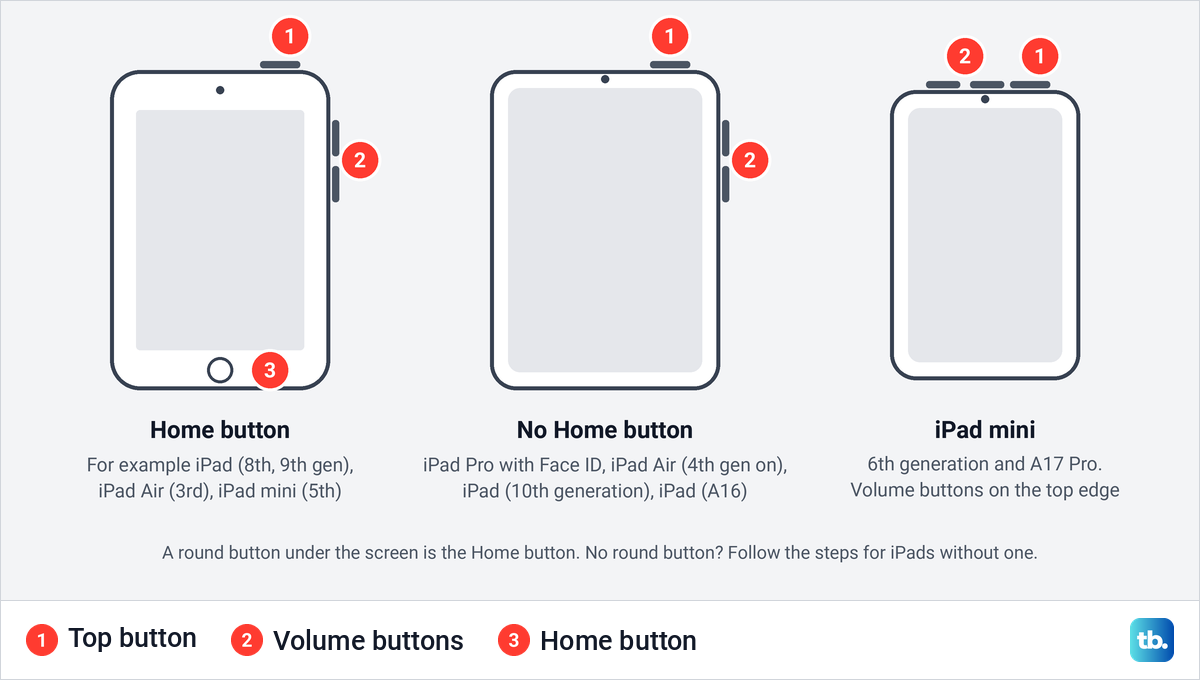
On iPadOS 27, the only supported iPad with a Home button is the iPad (9th generation). iPadOS 26 also runs on the iPad (8th generation), iPad Air (3rd generation) and iPad mini (5th generation), which have one too. Every other current model has no Home button.
No Home button does not mean Face ID. Only iPad Pro models use Face ID, while the iPad Air (4th generation and later), iPad (10th generation), iPad (A16) and the iPad mini (6th generation and A17 Pro) put Touch ID in the top button. They all restart the same way.
The volume buttons sit on the right edge near the top on most models. On an iPad mini (6th generation) or iPad mini (A17 Pro) they are on the top edge, to the left of the camera, which matters for the force restart below.
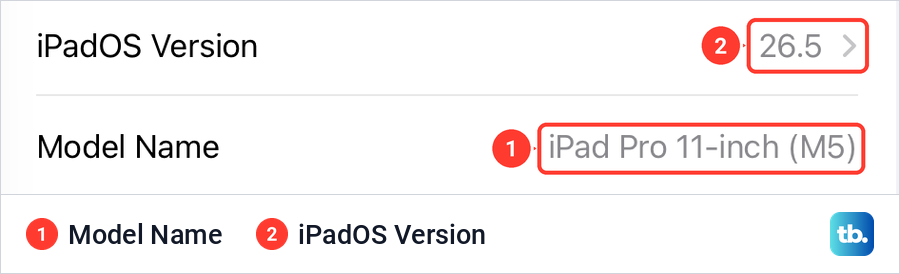
Still unsure? Open Settings > General > About and read the Model Name row. On our iPad Pro 11-inch the iPadOS Version row sat just above it, reading 26.5. You can also check which iPad you have from its serial number.
Restart an iPad without a Home button
These steps are for every iPad Pro with Face ID and every iPad with Touch ID in the top button. Press and hold the top button and either volume button at the same time, and keep holding until the power off slider appears. Then drag the slider to the right.
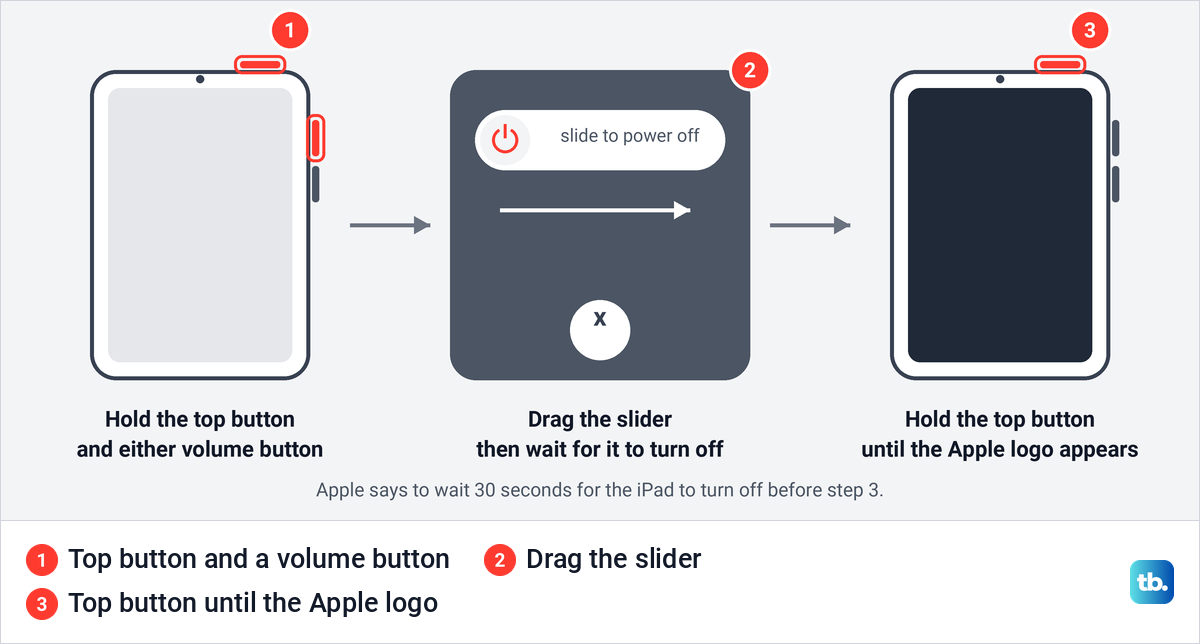
Apple says to wait 30 seconds for the iPad to turn off. That pause is the shutdown itself, and the iPad will not come back on by itself afterwards. Press and hold the top button until you see the Apple logo, then enter your passcode when the Lock Screen asks for it.
If the slider never appears however long you hold, the buttons may be the problem rather than the iPad. Try the Settings route further down, then work through our fixes for an iPad that will not turn off.
Restart an iPad with a Home button
On an iPad with a Home button, the top button does the job alone. Press and hold it until the power off slider appears, drag the slider, and wait for the iPad to turn off. Then press and hold the top button again until the Apple logo appears.
Do not hold the Home button for this. On these models, holding the Home button activates Siri, while holding the top button is what turns the iPad off or on.
Hold the buttons, do not tap them
On an iPad without a Home button, the top button does three different things depending on how you press it and what you press with it. A quick press and release of the top button and a volume button at the same time takes a screenshot instead of a restart, while on a Home button iPad the screenshot press is the Home button and the top button. Hold the top and volume buttons and keep holding, and the slider appears.
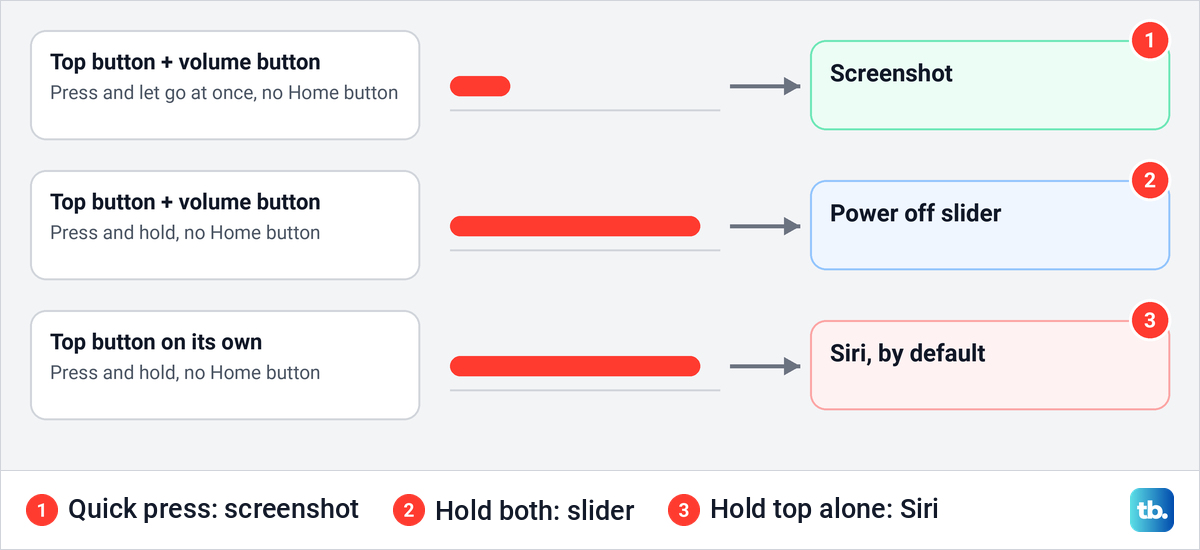
The third result catches people who learned on an older iPad. On an iPad without a Home button, holding the top button on its own activates Siri by default, so the slider never comes. Add a volume button to the hold and it works.
The Siri hold is a setting. Apple puts it under Settings > Accessibility > Top Button, where Press and Hold to Speak decides whether Siri answers when you hold the button. Apple's restart steps for these models still use the top button and a volume button together.
Turn off your iPad from Control Center
iPadOS 18 added a power control to Control Center, so you can turn an iPad off without pressing a button. Swipe down from the top-right corner of the screen to open Control Center. The power icon sits at the top right of the panel.
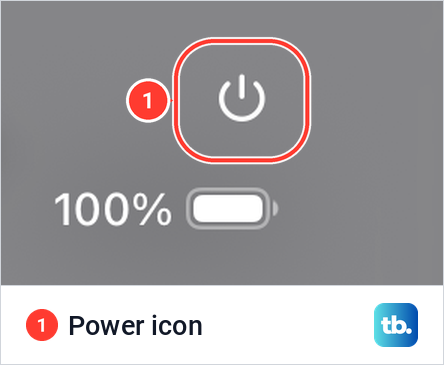
Apple's own pages describe the press two ways, one saying touch and hold, the other press and hold, then let go. On our iPad Pro 11-inch with iPadOS 26.5, a quick tap on the icon did nothing. When we touched and held it, then let go, the slider was on the screen.
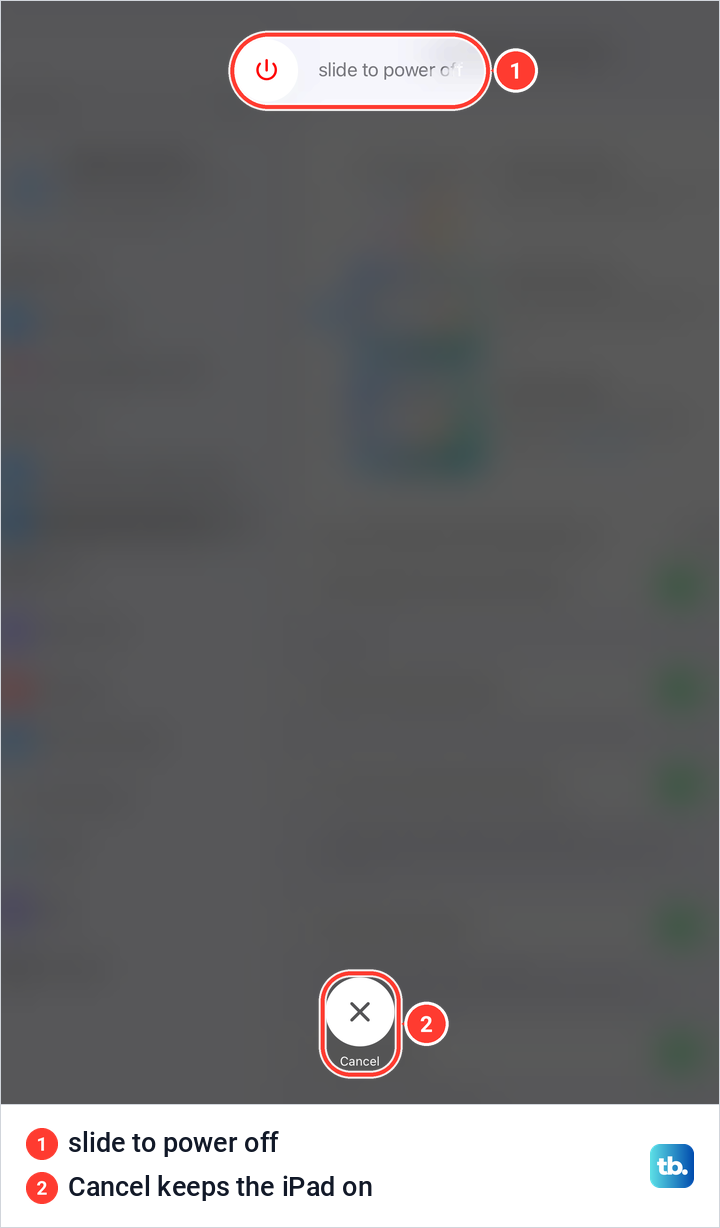
The slider screen had only two controls: slide to power off at the top and a round Cancel button at the bottom. We tapped Cancel and were straight back on the screen we had left, with the iPad still on. Drag the slider instead to turn the iPad off.
Control Center only turns the iPad off. To turn it back on, Apple's step is to press and hold the top button until you see the Apple logo, so if that button is broken, use AssistiveTouch's Restart instead of shutting down.
Turn off your iPad in Settings
Apple says the Shut Down button in Settings works on any model. Open Settings, tap General, scroll to the bottom and tap Shut Down, then drag the slider.
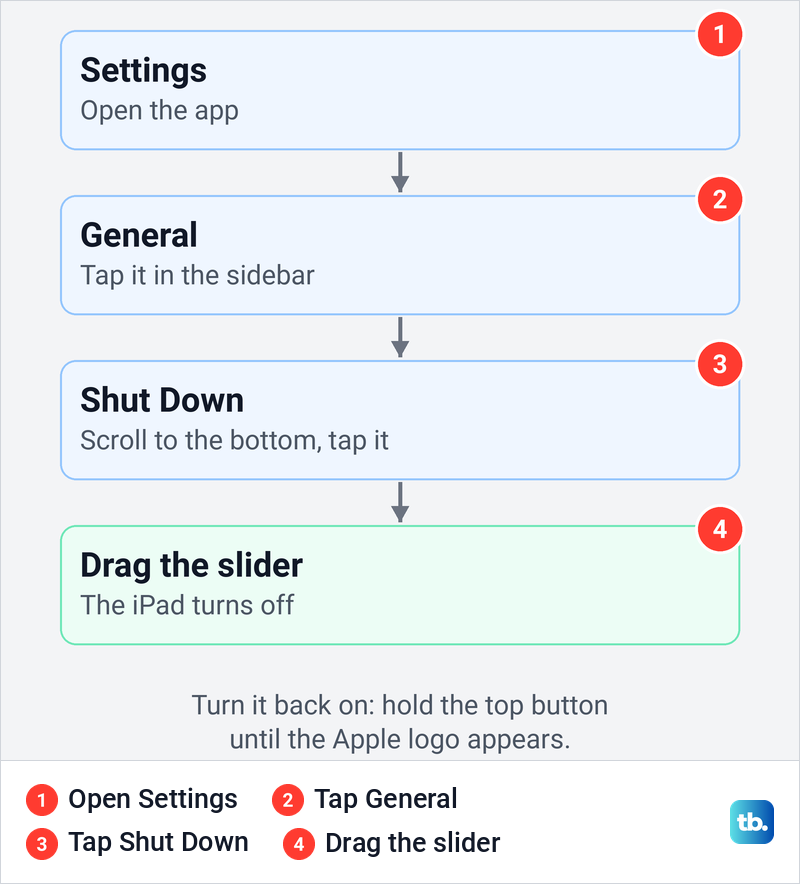
Like Control Center, Settings only turns the iPad off. To turn it back on, Apple's step is to press and hold the top button until the Apple logo appears. If that button does not work either, AssistiveTouch can restart the iPad with no buttons at all.
Restart your iPad with AssistiveTouch
AssistiveTouch puts a menu button on the screen for things you would otherwise do with the physical buttons, and Apple lists restarting the device among them. Of all the routes here, it is the only one that restarts the iPad without any button. That makes it the answer when the top button or the volume buttons stop working.
Go to Settings > Accessibility > Touch > AssistiveTouch and turn on AssistiveTouch. A menu button appears on the screen, and you can drag it to any edge, where it stays. Tap it once to open the menu.
Apple's picture of the menu shows six items: Notification Center, Device, Control Center, Home, Siri and Custom. Restart is not one of them, so look inside the submenus, where Apple's own steps for another button-free action, Gestures, go through Device > More. Tap Restart when you find it, and enter your passcode if you use one once the iPad starts again. AssistiveTouch works through the screen, so it helps when the buttons fail but not when the screen is frozen.
If you do not want the floating button afterwards, turn AssistiveTouch off again in the same place. Once you set up the Accessibility Shortcut, a triple-click of the top or Home button turns AssistiveTouch on or off, Apple says.
Force restart a frozen iPad
A force restart is for an iPad that does not respond and cannot be turned off the normal way. Despite the hard reset nickname, it only restarts the iPad, because erasing is a separate step in Settings or recovery mode. If one app is stuck rather than the whole iPad, close that app first.
On an iPad without a Home button, Apple's force restart is three presses in order. Do them one after another.
- 1.Press and quickly release the volume button nearest the top button.
- 2.Press and quickly release the volume button farthest from the top button.
- 3.Press and hold the top button, and let go when the Apple logo appears.
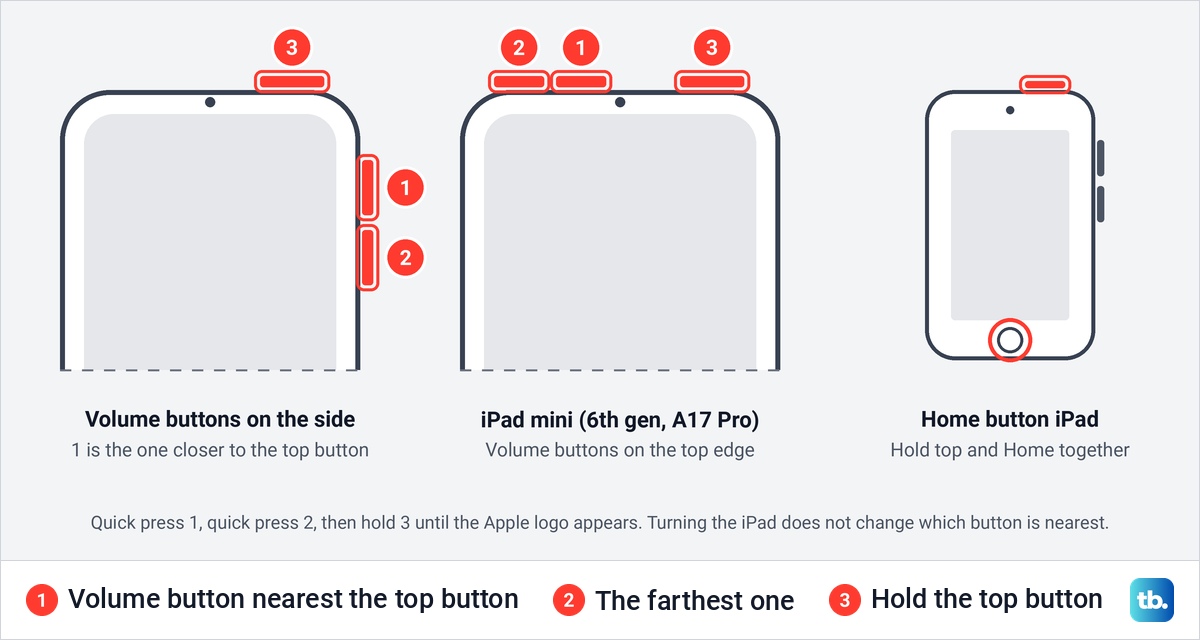
Keep holding the top button through the third step, even if the screen goes dark. An answer in Apple's community forum describes the screen going completely black before the logo shows. Apple gives no time for the hold, only until you see the Apple logo.
On an iPad with a Home button, press and hold the top button and the Home button at the same time. Let go of both when the Apple logo appears. If the force restart works but the iPad soon locks up again, our guide has more fixes for a frozen iPad.
Why Apple says nearest and farthest
Plenty of advice tells you to press volume up and then volume down. Apple does not, and on most current iPads that wording can send you to the wrong button. Apple says many iPads have dynamic volume buttons that adjust as you rotate the iPad, so which button raises the volume depends on how you hold it.
The button nearest the top button never changes, however you hold the iPad. Count from the top button and the order is always the same. On an iPad mini (6th generation) or iPad mini (A17 Pro) both volume buttons sit on the top edge, so the nearest one is the one closer to the top button.
Some older models let you choose. Apple says that on iPads without always-dynamic buttons, iPadOS 15.4 and later offers Fixed Position Volume Controls in Settings > Sounds, so the buttons always behave the same way. The force restart order is the same either way.
If your iPad will not turn back on
Start with the charger. Apple says an iPad that is very low may show a nearly empty battery and need up to 10 minutes of charging before you can use it. If it was extremely low, the screen can stay blank for up to 2 minutes after you plug it in.
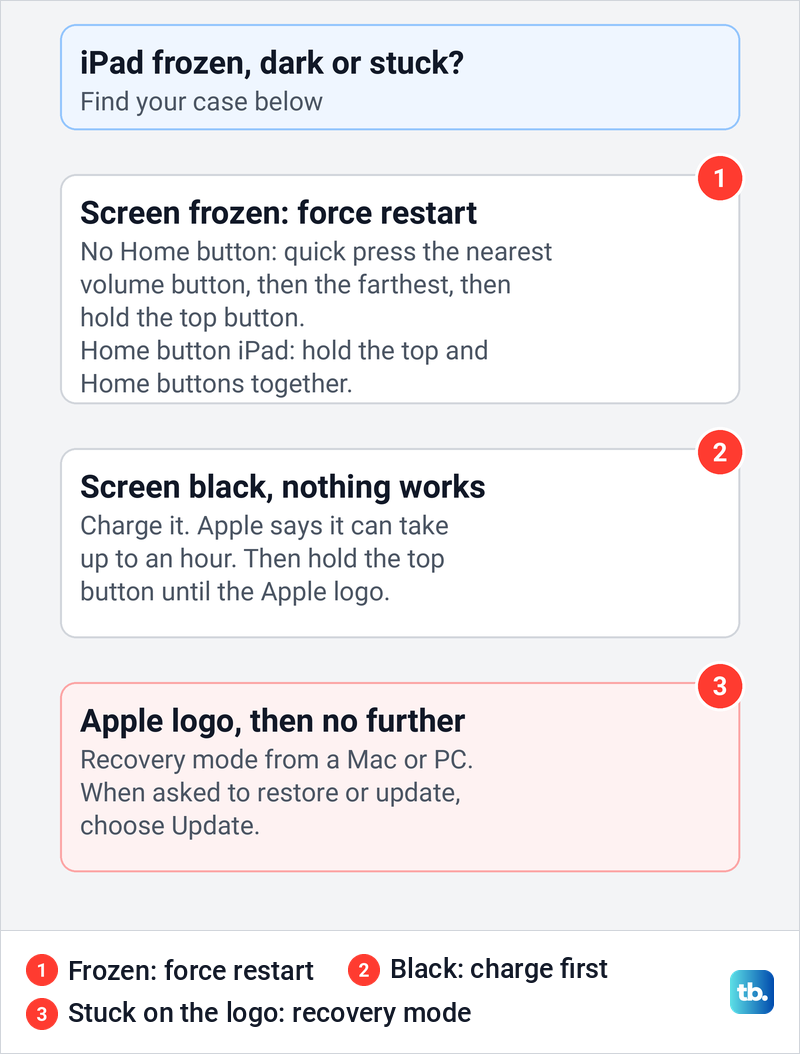
Apple's frozen-screen steps say you might need to charge for up to an hour. After that, press and hold the top button until the Apple logo appears, and try the force restart if it does not. If the screen stays black after an hour on the charger, follow our steps for an iPad that will not turn on.
No battery picture after a few minutes can mean the iPad is not charging at all, which has its own fixes. Apple's own charging steps include a force restart, so try the button sequence while it is plugged in.
If your iPad gets stuck on the Apple logo
An iPad that comes back but stays stuck on the Apple logo, or shows a red or blue screen during startup, needs more than a restart. Apple's next step is to connect it to a Mac or PC, put your iPad in recovery mode and choose Update when asked to restore or update. Apple adds that if this takes more than 15 minutes, the iPad leaves recovery mode and you need to repeat the steps.
When restarting your iPad helps
Apple's general advice is simple: if your iPad is not working as expected, turn it off and back on. It also names a restart as a fix for specific problems. For an app that stops responding, close the app first and restart only if that does not help, and see our fixes for apps that keep crashing if it keeps happening.
Wi-Fi is the other common case. Apple says to restart when the Wi-Fi setting is dimmed, and again after you remove VPN or security software. If your iPad still will not connect to Wi-Fi after that, there are more fixes to try.
What happens after a restart
If you have set a passcode, your iPad asks for it after it is turned on or restarted, even if you normally use Face ID or Touch ID. Apple also asks for it when the iPad has not been unlocked for more than 48 hours. If the passcode is not working, stop guessing, because Apple says four wrong entries in a row lock you out.
Since iPadOS 18.1, an iPad can also restart by itself. Apple calls it Automatic Restart: if the iPad remains locked for a prolonged period, it restarts as a security measure. Either way, an iPad with a passcode asks for it when it starts again. An iPad that keeps restarting on its own while you use it is a different problem.
A restart does not erase your apps, photos or settings. Resetting is a different job, so if you need to reset your iPad without losing data, start there instead.
How we tested this guide
We used an iPad Pro 11-inch with iPadOS 26.5. On it we opened Control Center, used its power icon to bring up the power off slider and closed it with Cancel, and read the model and version in Settings > General > About.
The button presses, the force restart, Settings > General > Shut Down, AssistiveTouch, recovery mode and the Home button models follow Apple's instructions in its iPad User Guide and support articles. Apple's iPadOS 27 guide gives the same restart and force restart steps as its iPadOS 26 guide.
Frequently Asked Questions
Does restarting an iPad delete anything?
No. A restart turns the iPad off and back on, and your apps, photos and settings stay as they were. Erasing is a separate step in Settings or recovery mode.
Why does my iPad ask for the passcode after a restart?
If you have set a passcode, Apple requires it after you turn on or restart an iPad. Face ID or Touch ID works again once you have entered it.
How do I restart my iPad if the buttons do not work?
Turn on AssistiveTouch in Settings > Accessibility > Touch > AssistiveTouch, then tap its menu button and look for Restart inside the submenus, because Apple's picture of the first menu screen does not show it. Settings > General > Shut Down and Control Center can turn the iPad off, but Apple's way to turn it on again is the top button.
Why is my force restart not working?
On an iPad without a Home button, quickly press and release the volume button nearest the top button, then the farthest one, then hold the top button until the Apple logo. On an iPad with a Home button, hold the Home and top buttons together until the logo. An answer in Apple's community forum describes the screen going black before the logo appears, so do not let go early. If nothing happens, charge the iPad for up to an hour and try again.
Why did my iPad restart by itself?
On iPadOS 18.1 and later, an iPad that stays locked for a long time can restart itself as a security measure, which Apple calls Automatic Restart. If it restarts while you are using it, that is a different problem with its own fixes.
Why does holding the power button open Siri?
On an iPad without a Home button, holding the top button alone activates Siri by default. Hold a volume button with it to get the power off slider. If you never want Siri on that hold, switch off Press and Hold to Speak in Settings > Accessibility > Top Button.
Is restarting the same as resetting?
No. A restart turns the iPad off and on and does not erase your saved apps, photos or settings, while a reset changes settings or erases the iPad.