To reset an HP desktop running Windows 11, open Settings > System > Recovery, select Reset PC, choose what to keep, and follow the reset prompts. Choose Keep my files to preserve personal files or Remove everything to erase files, apps, and settings. A Windows reset reinstalls Windows, but it does not necessarily restore the original HP factory image.
The short version
- Start in Settings: Select Reset PC under Settings > System > Recovery.
- Choose what stays: Keep my files preserves personal files but removes installed apps.
- Without signing in: Hold Shift while selecting Power > Restart, then choose Troubleshoot > Reset this PC.
- For an HP factory image: Use HP Cloud Recovery Tool only if your exact desktop is supported.
- Before confirming: Back up your files, obtain your BitLocker recovery key, and leave power connected.
| Route | When to use it | Main catch |
|---|---|---|
| Windows Settings | Windows starts normally | Keeping files still removes installed apps |
| Windows Search | You want to find reset settings directly | Opens the same Windows reset tool |
| Shift with Restart | You can reach the sign-in screen or Start | Requires a working recovery environment |
| Advanced startup | You can open Windows Settings | Restarts into the recovery environment |
| HP startup recovery with F11 | Windows will not open | The recovery destination varies by model |
| Automatic Repair | Other recovery entry points fail | Never interrupt an ongoing reset or restore |
| HP Cloud Recovery Tool | You need a supported HP factory image | Requires an eligible model and a blank USB of at least 64 GB |
| HP supplied recovery media | You cannot create recovery media | Availability depends on the model and region |
| Windows installation USB | Reset and HP recovery are unavailable or fail | A clean installation removes the selected disk's existing installation |
| Electrical hard reset | You need temporary startup troubleshooting | Does not erase files or reinstall Windows |
Back up your files and get your recovery key
Save a backup of any files you need before starting, even when you intend to choose Keep my files. That option removes installed apps, so expect to reinstall them afterward. Obtain your BitLocker recovery key before entering recovery so you have it ready if Windows requests it.
Decide whether you want to keep using the desktop or give it to someone else. For your own continued use, preserving personal files may be enough; for selling or giving away the PC, choose Remove everything and enable Clean data. Keep the power cord connected throughout the reset or recovery.
The Windows reset choices also apply to laptops running Windows 11. If you are preparing another computer at the same time, you can follow the steps to factory reset a laptop.
Reset your desktop from Windows Settings
Open Settings, select System, then choose Recovery. Under Reset this PC, select Reset PC to open the reset wizard. Choose Keep my files to preserve personal files or Remove everything to erase files, apps, and settings.
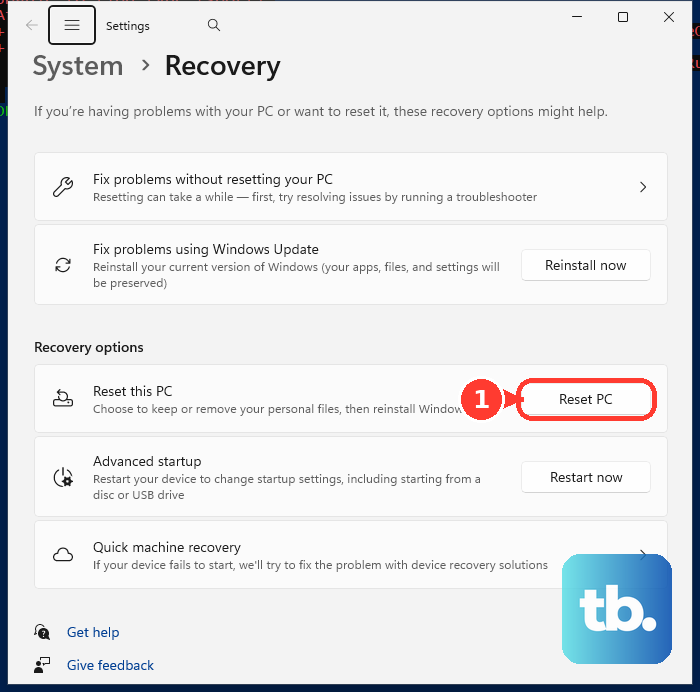
Next, select Cloud download or Local reinstall. With Keep my files, enable Restore preinstalled apps if you want manufacturer customizations restored and that option is offered. Review the remaining choices before confirming the reset.
For a desktop you are selling or giving away, enable Clean data when using Remove everything. Microsoft says this consumer cleaning option does not meet government or industry data-erasure standards. If you must meet those standards, do not treat this option as a certified erasure procedure.
On a PC with multiple user-accessible volumes, the reset can offer a choice between erasing only the Windows volume and erasing all user-accessible volumes. Read that choice carefully before confirming, because erasing the Windows volume does not necessarily erase your other volumes. Select the scope that matches what you intend to remove.
You can also search Windows for Recovery options, open the result, and select Reset PC. This opens the same reset settings without going through each Settings category. If the reset cannot complete, try a recovery entry point below or use recovery media.
Open recovery without signing in
At the Windows sign-in screen, hold Shift while selecting Power > Restart. After the desktop enters Windows Recovery Environment, select Troubleshoot > Reset this PC. Complete the reset wizard and enter your BitLocker recovery key if requested.
The same shortcut works through the Power menu in Start. Another route from Windows 11 is Settings > System > Recovery, then Restart now under Advanced startup. Once recovery opens, choose Troubleshoot > Reset this PC.
If the desktop is frozen, you may need to restart a computer that is unresponsive before you can reach these controls. Never force a restart during an ongoing reset or restore. If Windows still will not open, try HP startup recovery.
Fix access to recovery when Windows will not start
Restart the desktop and immediately press F11 repeatedly. At Choose an option, select Troubleshoot > Reset this PC. Follow the reset wizard, choosing whether to preserve personal files or remove everything.
The destination of F11 varies by HP model, and some business desktops open HP Sure Recover instead of Windows recovery. If enabled Sure Recover is changing the Windows reset behavior, press F10 repeatedly during startup to open HP Computer Setup. Select Advanced > Sure Recover, clear HP Sure Recover, then choose Main > Save Changes and Exit before retrying Windows reset.
If you still cannot reach recovery, Windows can open it automatically after repeated startup failures. To trigger Microsoft's manual procedure, start the PC and, at the HP or Windows logo, hold Power until it turns off; repeat that interruption once more. On the third startup, select Advanced options from Automatic Repair, then choose Troubleshoot > Reset this PC.
Use those startup interruptions only when the desktop cannot start normally, and never while a reset or restore is underway. These routes depend on a working recovery environment. If recovery will not load or the reset still fails, prepare recovery media on a working computer.
Restore a supported HP factory image
Use HP Cloud Recovery Tool if you want a factory image and your consumer desktop or all-in-one is supported. Eligibility depends on your exact product ID and available image, not simply a family name such as Pavilion or OMEN. You need a working 64-bit Windows PC, internet access, sufficient storage on that PC, and a blank USB drive of at least 64 GB.
Install HP Cloud Recovery Tool from the Microsoft Store. Search for Cloud Recovery, right-click HP Cloud Recovery Tool, and select Run as administrator. Select Yes, then Next to begin.
When creating media for another PC, select I need to enter Product ID for my HP system and enter the target desktop's product ID. Confirm that the tool supports that product, select your blank USB, then choose Next > OK. Finish creating the recovery media before moving it to the target desktop.
Insert the recovery USB into the HP desktop and power it on while pressing F9 repeatedly. Select the USB and follow the recovery wizard, keeping power connected throughout. If the exact product is unsupported or media creation cannot finish, use Windows installation media or contact HP Support about recovery media for your model and region.
If HP supplies matching recovery media, insert it and start the desktop. Press Esc to open the startup menu, then press F9, choose the recovery device, and follow its wizard. Availability depends on the exact model and your region.
Reinstall Windows when reset cannot finish
Use Windows installation media when the built-in reset and HP factory recovery cannot complete. On a working computer, open the official Windows 11 download page and select Download Now under Create Windows 11 Installation Media. The Media Creation Tool supports x64 desktops and requires a blank USB drive of at least 8 GB; it does not create ARM64 media.
Run the tool, accept the terms, and choose installation-media creation. Confirm the language and edition, select USB flash drive, and finish making the USB. Insert it into the HP desktop, start the PC, and press F9 repeatedly to select the USB from the boot menu.
To try recovery first, choose the language, select Next, then choose Repair my PC > Next. Use Reset this PC when the recovery environment includes it. If it is unavailable, use the installation media's reinstall workflow.
For a clean installation, select the language and Next, choose the keyboard and Next, then select Install Windows 11. Select I agree everything will be deleted including files, apps, and settings, choose your licensed Windows edition, and accept the terms. Identify the intended Windows disk before deleting its required partitions, select its unallocated space, then choose Next > Install.
A clean installation removes the selected disk's existing Windows installation, and HP factory apps and customizations are not necessarily restored. Choose supported HP factory recovery instead when you need that original image. Before deleting any partitions, make sure you have identified the disk you intend to erase.
Try a power reset for temporary startup problems
An HP desktop hard reset clears temporary electrical and memory state without erasing files or reinstalling Windows. Turn off the desktop, unplug its power cord, and disconnect nonessential peripherals. Hold Power for approximately 15 seconds, then reconnect power and start the PC.
Use this procedure for temporary startup troubleshooting. If you want to erase the desktop, reinstall Windows, or restore an HP factory image, use the Windows reset or recovery options above.
Frequently Asked Questions
Can I open HP desktop reset settings with a keyboard shortcut?
Press Windows + R, type ms-settings:recovery, and press Enter. In Windows 11, select Reset PC to begin the reset wizard.
Can I reinstall Windows without removing my installed apps?
You can preserve apps and personal files with a compatible repair reinstall using matching Windows installation media. Open the media in File Explorer, run setup.exe, and select Yes. Choose Change what to keep > Keep personal files and apps, then select Next > Install.
Can System Restore return my HP desktop to factory settings?
No, System Restore rolls back system changes using an existing usable restore point. Your personal files remain, and the result is not a factory reset.
Does resetting the BIOS erase Windows or my files?
No, restoring BIOS defaults resets firmware configuration without resetting Windows. Clearing CMOS also affects firmware or clock settings without erasing your personal files.
Can I reset an HP desktop directly from the BIOS?
You can use Connected System Recovery on selected HP consumer PCs to erase local data and recover the device from BIOS. Your PC must have its original motherboard and the recovery option available in BIOS, and the feature is unavailable in S mode. Models with a built-in RJ45 port require a wired network connection for this recovery.
How do I reset an HP Chromebox or Chromebase?
On a supported ChromeOS desktop, sign out and press Ctrl + Alt + Shift + R. Select Restart, then Powerwash > Continue, and complete setup with the intended Google Account. Powerwash erases local user data. If your device is managed by an organization, restrictions may require administrator assistance.