Can't open your Belkin router's settings? The login address and password depend on your model. For an RT1800 or RT3200 running Belkin firmware, start with the browser login below, then tackle address problems or a forgotten password.
Open your Belkin router’s login page
Connect your phone or computer to the router’s Wi-Fi.
For a wired connection instead, connect a computer to a numbered Ethernet port on the router.
Enter http://myrouter.local in your browser’s address bar.
Enter your router’s administrator password. If the default password on your RT1800 or RT3200 is unchanged, enter admin.
Click LOGIN.
Tip: use the administrator password you created during setup; your Wi-Fi password serves a different purpose.
Try the numeric address if the page won’t open
The numeric address gives you another way to reach the login page when myrouter.local won't open.
Enter 192.168.1.1 in your browser’s address bar while connected to your Belkin network.
For an RT3200 behind a modem-router that already uses 192.168.1.x, try 10.0.1.1.
For an RT1800 behind a modem-router, try 192.168.10.1.
Once the login page opens, enter your administrator password.
Click LOGIN.
Find a changed address in Windows
On Windows 11, check the gateway address when your Belkin's address has changed. This identifies the router handling your connection, which isn't necessarily the Belkin if it operates as an access point or EasyMesh child.
Connect your computer to the Belkin network.
Open Command Prompt.
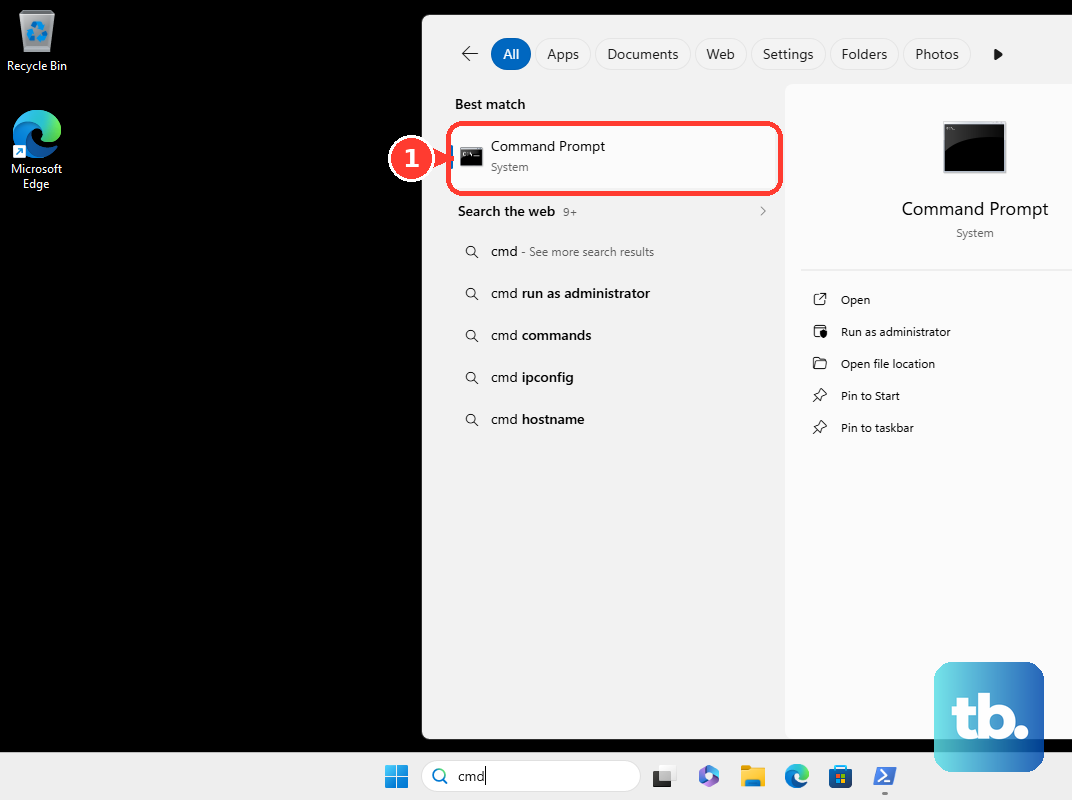
Run ipconfig.
Find Default Gateway under your active connection.
Enter that address in your browser’s address bar.
On the Belkin login page, enter your administrator password.
Click LOGIN.
Locate the router address on a Mac
Your Mac's network settings show the gateway address for its connected network.
Open Apple menu > System Settings > Network.
Select the connected network service.
Click Details.
Open TCP/IP.
Enter the displayed router address in your browser’s address bar.
On the Belkin login page, enter your administrator password.
Click LOGIN.
If the gateway address doesn't take you to your Belkin EasyMesh child, find its address on the parent router under Configuration > Wi-Fi > Basic Wireless Settings > EasyMesh information. The child login instructions below explain how to open it.
Use the right administrator password
Your Wi-Fi password connects a device to the network. Your router administrator password opens its settings. Website-account credentials serve a separate purpose.
For the RT1800 and RT3200, the factory administrator password is admin. It works only if that password hasn't changed. RT3200 first-time setup also lets you create an administrator password for later logins.
Forgot the administrator password you set? A factory reset restores access by erasing the router's configuration, including customized settings. It doesn't reveal the forgotten password.
Reset the router when you’ve forgotten the password
Use a factory reset to regain access to an RT1800 or RT3200 when you've forgotten its administrator password. You'll need to set up the router again afterward.
Leave the router powered on.
On an RT3200, hold the physical Reset button for approximately 10 seconds, until the power light starts flashing.
On an RT1800, use a paperclip or pin to hold Reset for approximately 10 seconds, until the power light turns off and begins blinking.
Allow the router to restart.
Reconnect using the factory network settings.
Open 192.168.1.1 in your browser to repeat setup.
Finish first-time setup on an RT3200
For an unconfigured or reset RT3200 with the EasyMesh setup interface, create your login credentials during setup.
- 1.Connect to the router’s default Wi-Fi using the information on its underside label.
- 2.Open https://myrouter.local or 192.168.1.1 in your browser.
- 3.Select the checkbox on Let’s get started, then click Next.
- 4.Set your Wi-Fi name and password, then click Next.
- 5.Create your administrator password and click Next.
- 6.Review the settings and continue, then reconnect to the renamed Wi-Fi and complete the remaining setup prompts.
Frequently Asked Questions
Why do older Belkin login instructions mention 192.168.2.1 and a blank password?
Those defaults belong to older Belkin interfaces, which also used the http://router shortcut. They aren't universal Belkin defaults and don't apply to the RT1800 or RT3200 login procedures above.
How do I access an EasyMesh child router?
For a compatible RT1800 or RT3200, log in to the parent router. Open Configuration > Wi-Fi > Basic Wireless Settings > EasyMesh information. Find the child’s IP Address. In another browser tab, open https://CHILD-IP/ca, replacing CHILD-IP with that address. Belkin’s English instructions give that secure address, while its French and German versions of the same article give http://CHILD-IP/ca, so try the plain address if the secure one won’t load. Enter the administrator password, which Belkin describes as similar to the parent’s. Child settings are limited, so make ordinary network changes on the parent.
Does pressing WPS log me in as an administrator?
No. WPS pairs network devices or EasyMesh nodes. It does not authenticate an administrator.
Do I need a firmware download before logging in?
No. Ordinary browser access does not require a firmware download. EasyMesh functionality depends on compatible firmware; the RT3200 downloads page lists hardware versions and firmware prerequisites.











