“This app can’t run on your PC” means Windows cannot launch that app version, installer, or package as it is. Start by getting a compatible copy, then check the Windows settings that block, repair, or restrict apps.
Get the Right App Version First
This fixes the most common mismatch: the app version does not match your Windows PC.
Open the app publisher’s official download or product page for the app you are trying to install.
Choose a Windows 11-compatible installer.
Select Start, then Settings, then System, then About.
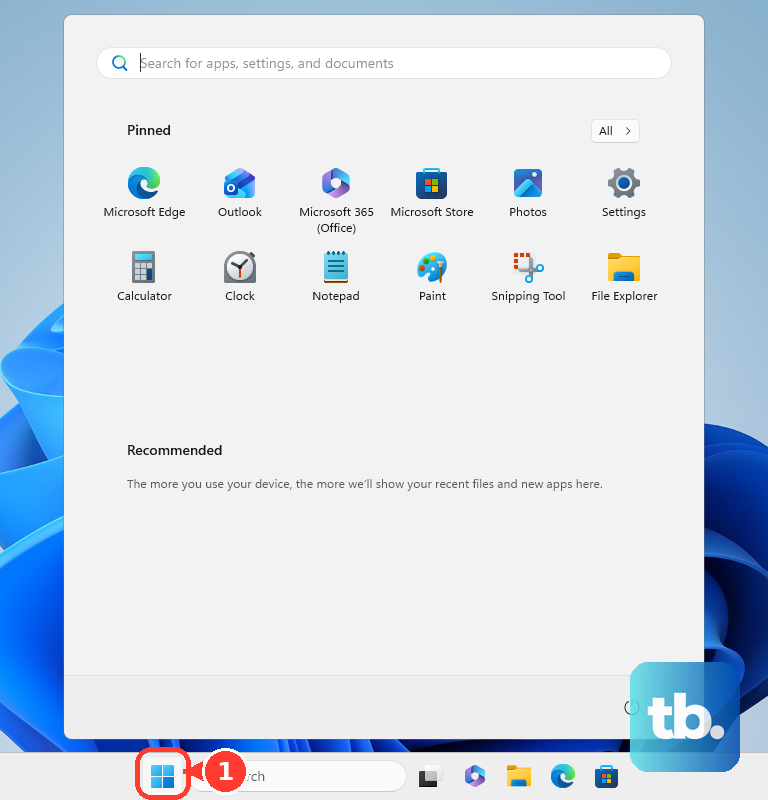
Under Device specifications, check System type.
Download the installer that matches your PC architecture.
If it is a Microsoft Store app, open Microsoft Store, select Library, then select Get updates.
Open the app’s Store page and install it only when Microsoft Store shows it as compatible with your device.
Update Windows and Microsoft Store
Use this when the app used to work, a Store app will not install, or the error appeared after a failed update. Updating Windows and Store apps clears many compatibility and app-package problems.
Select Start, open Settings, choose Windows Update, then select Check for updates.
If Windows finds an update, select Install now.
Open Microsoft Store from the app list.
Select Library, then choose Get updates.
Restart the PC from Start, then Power, then Restart.
Allow Installs From Outside Microsoft Store
Select Start, then Settings, then Apps, then Advanced app settings.
Next to Choose where to get apps, select Anywhere.
Run the installer again from the official publisher download.
If your PC is in S mode, open Microsoft Store to the Switch out of S mode page.
Select Get.
Switching out of S mode is one-way and cannot be undone.
This setting does not override S mode, Smart App Control, or app rules on a work or school-managed PC.
Repair Reset or Reinstall the App
When the app is already installed but will not open, repair it before replacing it.
- 1.Select Start, then Settings, then Apps, then Installed apps.
- 2.Select the More icon next to the app, then choose Advanced options.
- 3.Select Repair if that button is available.
- 4.If repair is not available or does not help, select Reset.
- 5.If the app still fails, return to Installed apps, select More, choose Uninstall, then install a fresh copy from Microsoft Store or the publisher.
Check Windows Security Blocks
The most common security-related cause is Windows blocking an unknown, unwanted, or downloaded app before it can run.
Open Windows Security, choose App & browser control, then open Smart App Control settings.
If Smart App Control is blocking a trusted installer, turn Smart App Control off; Microsoft does not provide a supported per-app bypass.
In Windows Security, go to App & browser control, then Reputation-based protection.
Adjust potentially unwanted app blocking only when you trust the app and understand the risk.
For a downloaded file, open File Explorer, locate the file, right-click it, and select Properties.
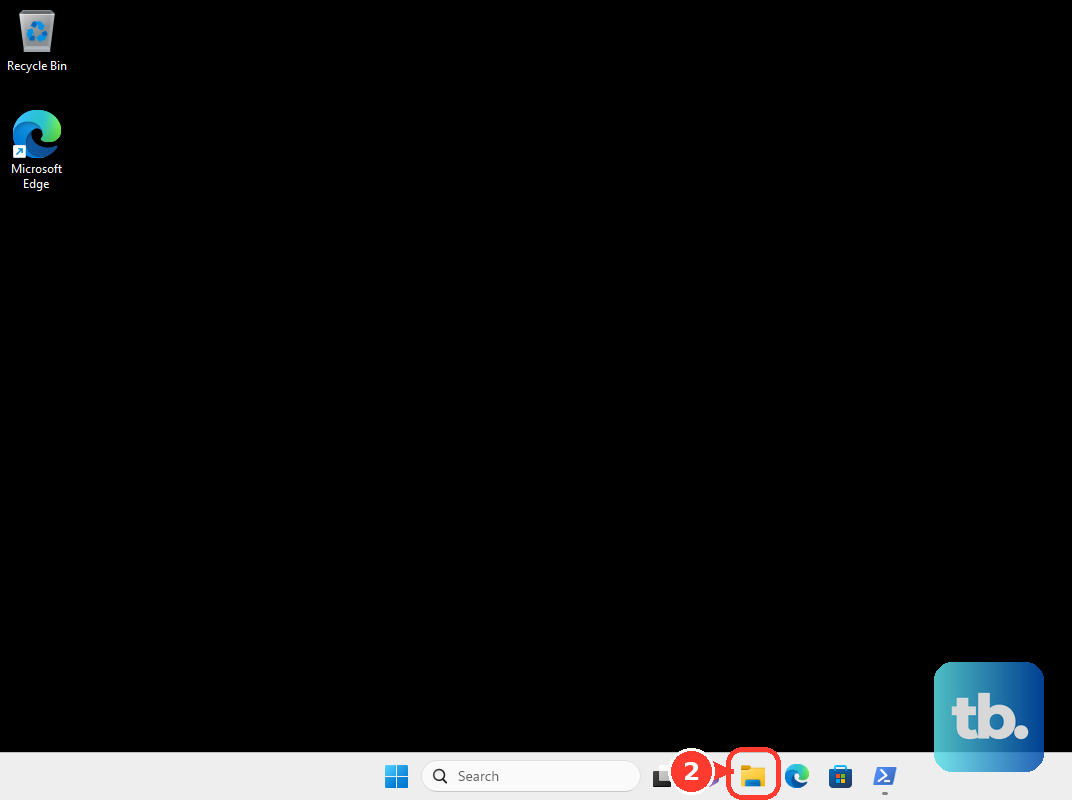
On the General tab, select Unblock, then Apply, then OK when that security option appears.
Run the Compatibility Troubleshooter
Older desktop apps can fail because they were built for another Windows version. Open Start, then Settings, then System, then Troubleshoot, then Other troubleshooters.
Find Program Compatibility Troubleshooter and select Run. Follow the on-screen instructions, then try opening the app again.
This troubleshooter is for regular desktop apps with compatibility problems. It will not make a 16-bit DOS or Windows app run on current Windows 11, and it will not fix an installer made for the wrong CPU type.
Stop a Startup Pop-Up and Scan the PC
Use this when the message appears after every sign-in, especially when you do not recognize the app name. A broken startup entry or unwanted software can trigger the pop-up repeatedly.
Select Start, then Settings, then Apps, then Startup.
Find the app in the list and set its toggle to Off.
Right-click Start, open Task Manager, select the Startup apps tab, choose the app, then select Disable.
Open Windows Security, select Virus & threat protection, and run a quick scan.
For a deeper check, open Scan options and choose Full scan or Microsoft Defender Antivirus (offline scan).
Use Admin Rights or Ask the Device Owner
Some installers need administrator permission before Windows can install or repair them.
- 1.Locate the downloaded .EXE installer in File Explorer.
- 2.Right-click the file and select Run as administrator.
- 3.When User Account Control asks, select Yes or enter administrator credentials.
- 4.To check your account type, search for Control Panel, open User Accounts, then select Change your account type.
- 5.If this is a work or school PC, ask the administrator for the supported app version through your organization’s software portal.
Try Last Resort Repair Options
If several unrelated apps will not install, uninstall, or run, use a clean boot to check whether a third-party service or startup item is interfering.
Sign in to the computer as an administrator before you start the clean boot.
Search for msconfig, open System Configuration, select the Services tab, choose Hide all Microsoft services, select Disable all, then select Apply.
Open the Startup tab, select Open Task Manager, disable enabled startup items, restart, and test the app.
After testing, restore normal startup in System Configuration and re-enable the startup items you need in Task Manager.
If this method fails, use Windows recovery and choose Reset this PC with the option to keep personal files when appropriate.
Frequently Asked Questions
Why does Windows say this app can’t run on your PC?
Windows may be blocking the app because the installer is incompatible, the Store package is not marked compatible with your device, S mode is restricting non-Store apps, Smart App Control is blocking it, or the PC is managed by a work or school policy.
Can I bypass Smart App Control for just one app?
No. Microsoft does not provide a supported per-app bypass for Smart App Control. Use a signed, reputable version from the developer or turn Smart App Control off.
Will running the installer as administrator fix the error?
It fixes the problem only when the installer needs local administrator rights. It will not override architecture problems, S mode, Smart App Control, or organization-managed app restrictions.
Can old 16-bit apps run on Windows 11?
No normal Windows 11 setting enables 16-bit x86 app support. Use a current supported version from the publisher or a supported virtualization or emulation setup outside normal Windows app launching.











