When your HP laptop Wi-Fi switch is not working, start with the control that turns wireless on and off. On current HP laptops, that is often a keyboard key with an airplane icon instead of a separate switch.
These fixes move from the fastest checks to the deeper Windows and HP tools. They apply to HP laptops running Windows 10 or Windows 11.
Try the HP wireless key first
Look for the wireless key or airplane-mode key on the keyboard. Press it once, wait 10 seconds, and watch the wireless light or the Windows Wi-Fi state.
If the key changes the Windows state, open the taskbar network panel and make sure Wi-Fi is on. Select your network and connect.
On older or business-class HP laptops with a physical wireless switch, check the side, front edge, or keyboard deck. Move the switch to On and use the indicator light to confirm wireless is enabled.
Turn off Airplane mode in Windows
The most common software cause is Airplane mode staying on after the HP wireless key is pressed.
Select the Network, Sound, or Battery icon on the right side of the taskbar. Select Airplane mode so it is off, then select Wi-Fi so it is on.
You can also open Settings > Network & Internet > Airplane mode and turn Airplane mode off there. After that, choose your Wi-Fi network and connect.
Switch Wi-Fi on from Settings
Use this when the keyboard switch does nothing but Windows still shows Wi-Fi controls. It also separates a failed keyboard shortcut from a disabled Windows Wi-Fi setting.
Open Start > Settings > Network & internet > Wi-Fi. Turn Wi-Fi on, then select the network you want to use.
From the taskbar, select the Network, Sound, or Battery icon and turn Wi-Fi on. Select a recognized network and connect.
Enable the Wi-Fi adapter
Windows shows no usable Wi-Fi switch when the wireless adapter is disabled. Open Device Manager and expand Network adapters.
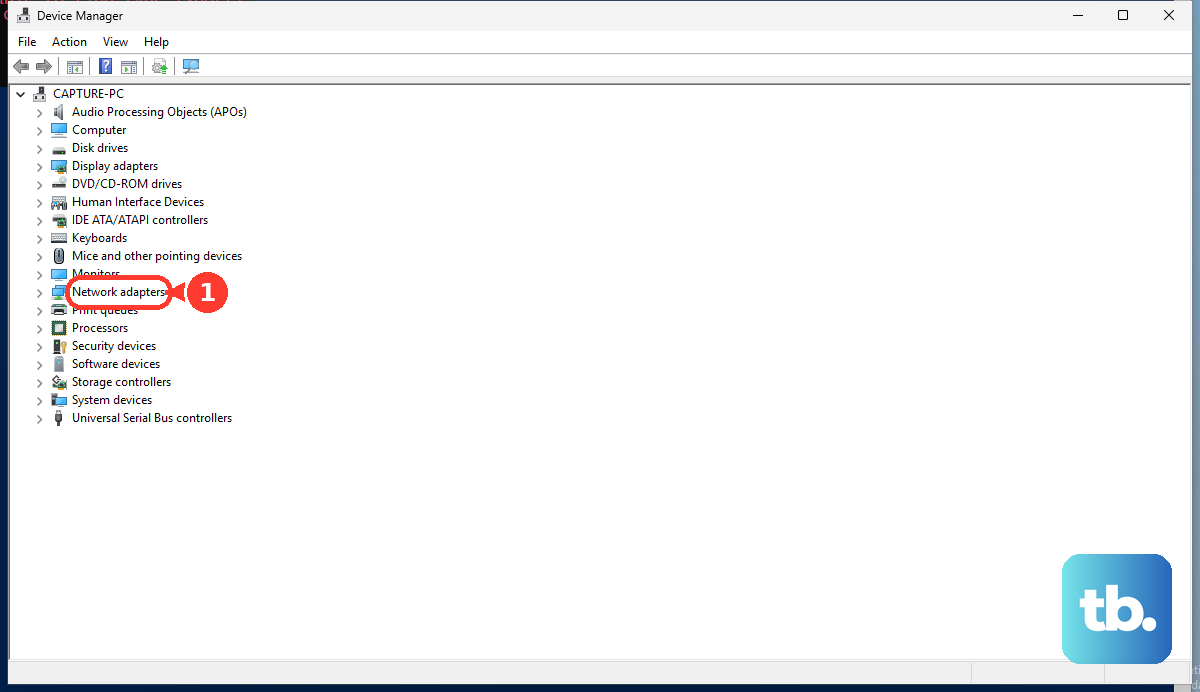
Right-click the Wi-Fi adapter and select Enable device. Give Windows a moment to refresh, then open the taskbar network menu again.
If this method fails, restart the Windows wireless service next, because the adapter can be enabled while the service that manages Wi-Fi is stuck.
Restart the wireless service
Restart WLAN AutoConfig when Wi-Fi options are missing or Windows seems stuck.
- 1.Press Win + R.
- 2.Type services.msc and press Enter.
- 3.Find WLAN AutoConfig.
- 4.Right-click WLAN AutoConfig and select Restart.
- 5.Open the network menu and try Wi-Fi again.
Run HP and Windows network diagnostics
HP provides automated network diagnostics for wired, wireless, and Bluetooth issues. Open HP's Fix HP Computer or Laptop Networking Problems page and run the recommended Network Check tool. Network Check requires HP Support Assistant version 8.5 or later, so install or update HP Support Assistant first if the tool does not start.
On Windows 11, open Settings > System > Troubleshoot > Other troubleshooters. Select Network and Internet, then select Run. Windows opens the Get Help app, so work through its Network and Internet checks there.
If this method fails, update the Wi-Fi driver next, because a damaged, missing, or wrong wireless driver can keep the switch from working while the hardware is present.
Update or reinstall the Wi-Fi driver
The most common driver problem is that Windows detects the adapter, but the installed Wi-Fi driver is outdated, damaged, or affected by a recent update.
Right-click Start, select Device Manager, expand Network adapters, right-click the Wi-Fi adapter, and select Update driver. Choose Search automatically for updated driver software, then select Search for updated drivers on Windows update when Windows offers it.
If Wi-Fi stopped after an update, open the adapter's Properties, select the Driver tab, and choose Roll Back Driver when the button is available. Choose a reason, select Yes, and restart if prompted.
To reinstall the driver, open Device Manager, expand Network adapters, right-click the Wi-Fi adapter, and select Uninstall device. Select Attempt to remove the driver for this device, select Uninstall, then restart from Start > Power > Restart. Download a backup HP driver first when the laptop has no other internet connection.
Install HP updates and test the wireless module
Use HP's own tools when Windows fixes do not bring the switch back.
- 1.Open HP Support Assistant, go to My Dashboard, choose your computer, and select Updates. HP Support Assistant does not run on HP PCs with ARM processors or on Windows in S mode. On Windows in S mode, use Windows Update for drivers, because HP does not distribute S mode drivers through hp.com. On an ARM device, use Windows Update or HP's Software and Drivers download page instead.
- 2.Install available wireless driver, chipset, firmware, or BIOS updates shown by HP Support Assistant.
- 3.Go to HP Customer Support Software and Driver Downloads, choose Laptop, enter or detect your HP model, select your Windows version, and download the correct wireless or WLAN driver.
- 4.To install extracted driver files, open Device Manager, select Update driver, then choose Browse my computer for drivers.
- 5.To test the hardware, turn off the laptop, turn it on, press Esc repeatedly until the Startup Menu appears, press F2, select Component Tests, and run the Wireless Module test.
Use reset options only after the basics
If Wi-Fi still does not appear, reset the HP BIOS setup defaults. Turn off the computer and wait five seconds, press the power button, press Esc repeatedly until the Startup Menu opens, then press F10 for BIOS Setup Utility.
On HP consumer notebooks, open the Exit tab, select Load Setup Defaults, then select Save Changes and Exit. Menu names vary by HP model, so use the matching defaults option and save the change.
Use Windows network reset as the last software step. Open Settings > Network & internet; on Windows 11 select Advanced network settings > Network reset, and on Windows 10 select Status > Network reset, then choose Reset now > Yes and wait for the PC to restart.
Do not use HP Wireless Assistant or HP Connection Manager as current Windows 10 or Windows 11 fixes. Use Windows Settings, HP Support Assistant, HP model drivers, and HP diagnostics; use those older utilities only when HP lists them for your exact older model and operating system.
For a work or school HP laptop, Wi-Fi can be restricted by device management. Contact the administrator when Wi-Fi is disabled by policy or the laptop only allows company-provided Wi-Fi profiles.
Frequently Asked Questions
Why does my HP Wi-Fi key show an airplane icon?
On current HP keyboards, the wireless key commonly uses an airplane icon because it toggles Airplane mode and wireless features.
What should I do if Wi-Fi is missing completely from Windows?
Enable the Wi-Fi adapter in Device Manager, restart WLAN AutoConfig, then update or reinstall the Wi-Fi driver. If Windows still does not detect Wi-Fi hardware, run HP's Wireless Module test.
Should I use HP Wireless Assistant to fix this?
No. For current Windows 10 and Windows 11 HP laptops, use Windows Settings, HP Support Assistant, HP model drivers, and HP diagnostics.
Will Windows network reset delete my Wi-Fi adapter?
Windows network reset removes and reinstalls network adapters and resets networking settings. Use it only after the simpler Wi-Fi, driver, and diagnostic fixes fail.











