Realtek HD Audio Manager is missing, and the old shortcut is nowhere in Start or Control Panel. On current Windows 11 PCs, the Realtek controls commonly come back through the OEM Realtek driver package and the Microsoft Store app called Realtek Audio Control. Start with the app, then fix the driver layer that makes it appear.
1. Open Realtek Audio Control first
Start here if you are looking for Realtek HD Audio Manager on Windows 11. Current OEM Realtek UAD and DCH driver packages use Realtek Audio Control instead of the older desktop manager when the PC maker exposes that app.
- 1.Open Microsoft Store.
- 2.Search for Realtek Audio Control.
- 3.Select Get or Install.
- 4.Open Start.
- 5.Select All apps.
- 6.Open Realtek Audio Control.
If the app is already installed but missing from Start, open Microsoft Store > Library > Realtek Audio Control, then choose Install or Open.
2. Update the audio driver through Windows Update
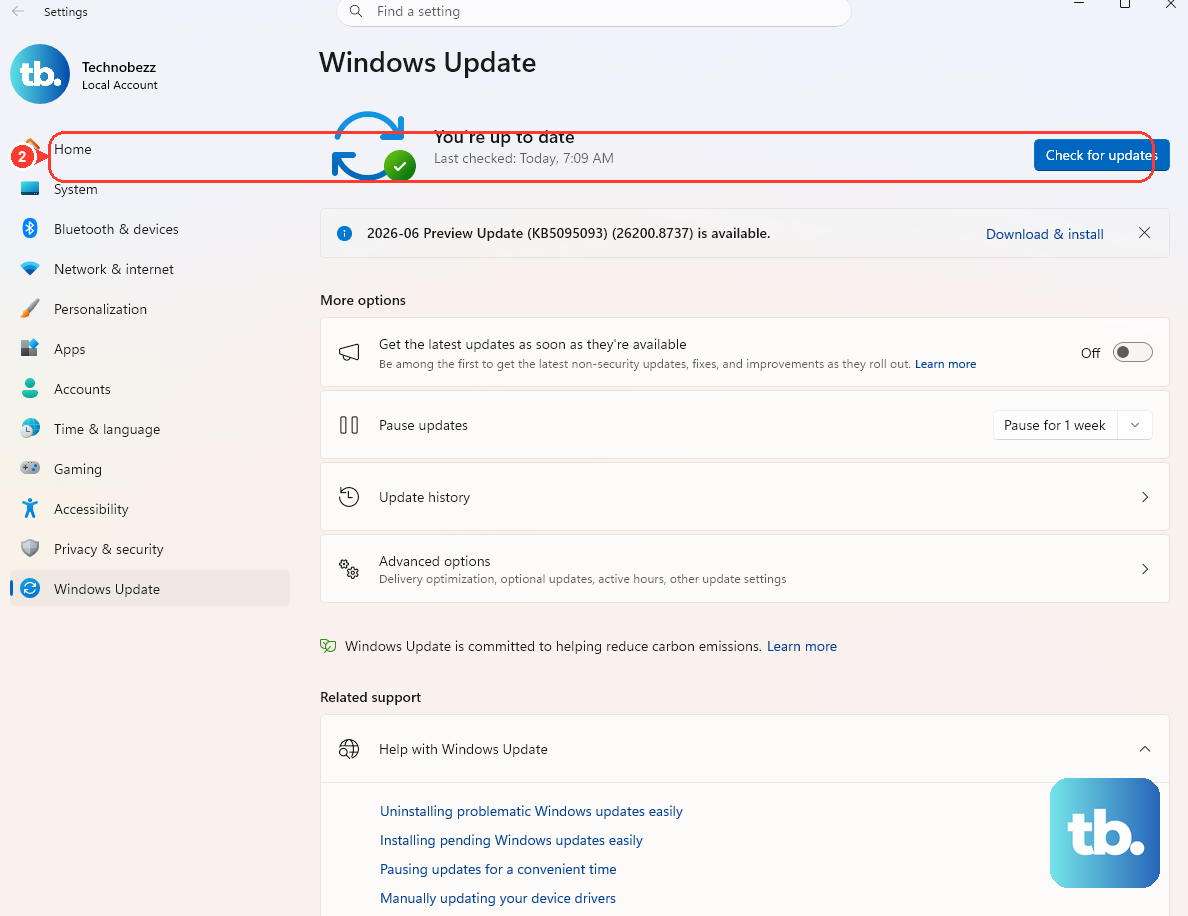
On Windows 11: open Start > Settings > Windows Update > Check for updates.
Install every available audio or Realtek driver update, then open Start > Power > Restart.
On Windows 10: open Start > Settings > Update & Security > Windows Update > Check for updates.
Install the listed updates, then restart. Microsoft ended Windows 10 support on October 14, 2025, but these menus still apply to Windows 10 PCs in use.
The Realtek app needs a matching audio driver, and Microsoft and PC makers deliver Realtek driver updates through Windows Update for supported devices.
3. Check optional driver updates
Optional Realtek drivers sit in a separate Windows Update area, so check it even after a normal update scan.
On Windows 11, open Start > Settings > Windows Update > Advanced options > Optional updates.
Open Driver updates.
Select the listed Realtek or Audio driver.
Choose Download and install.
Open Start > Power > Restart.
On Windows 10, open Start > Settings > Update & Security > Windows Update > Check for updates. If View optional updates appears, select it, open Driver updates, select the listed Realtek or audio driver, then choose Download and install.
4. Install the OEM Realtek audio package
Open the support site for your PC or motherboard maker.
Use the site's Support, Drivers, Downloads, or Driver & Tools area.
Search by the exact model, service tag, or serial number printed for your device.
Select Windows 11 or the supported Windows version for that model.
Open Audio.
Download the latest Realtek audio driver package.
Run the downloaded installer.
Follow the installer prompts, then select Restart when prompted.
Use the PC or motherboard maker's driver when the Store app does not restore the controls. OEM audio packages include the model-specific Realtek driver pieces and companion app support that generic packages do not provide.
Manufacturer apps can do the same job. On ASUS, open MyASUS > System Update, select the listed audio or Realtek driver, then choose Update Selected Items. On HP, open HP Support Assistant > My Dashboard > your computer > Updates, then install the audio update. On Dell or Lenovo, use the driver update area in SupportAssist or Lenovo Vantage.
5. Repair the Realtek Store app
If Realtek Audio Control is installed but will not open, update the Store app before touching the driver again: Microsoft Store > Library > Get updates.
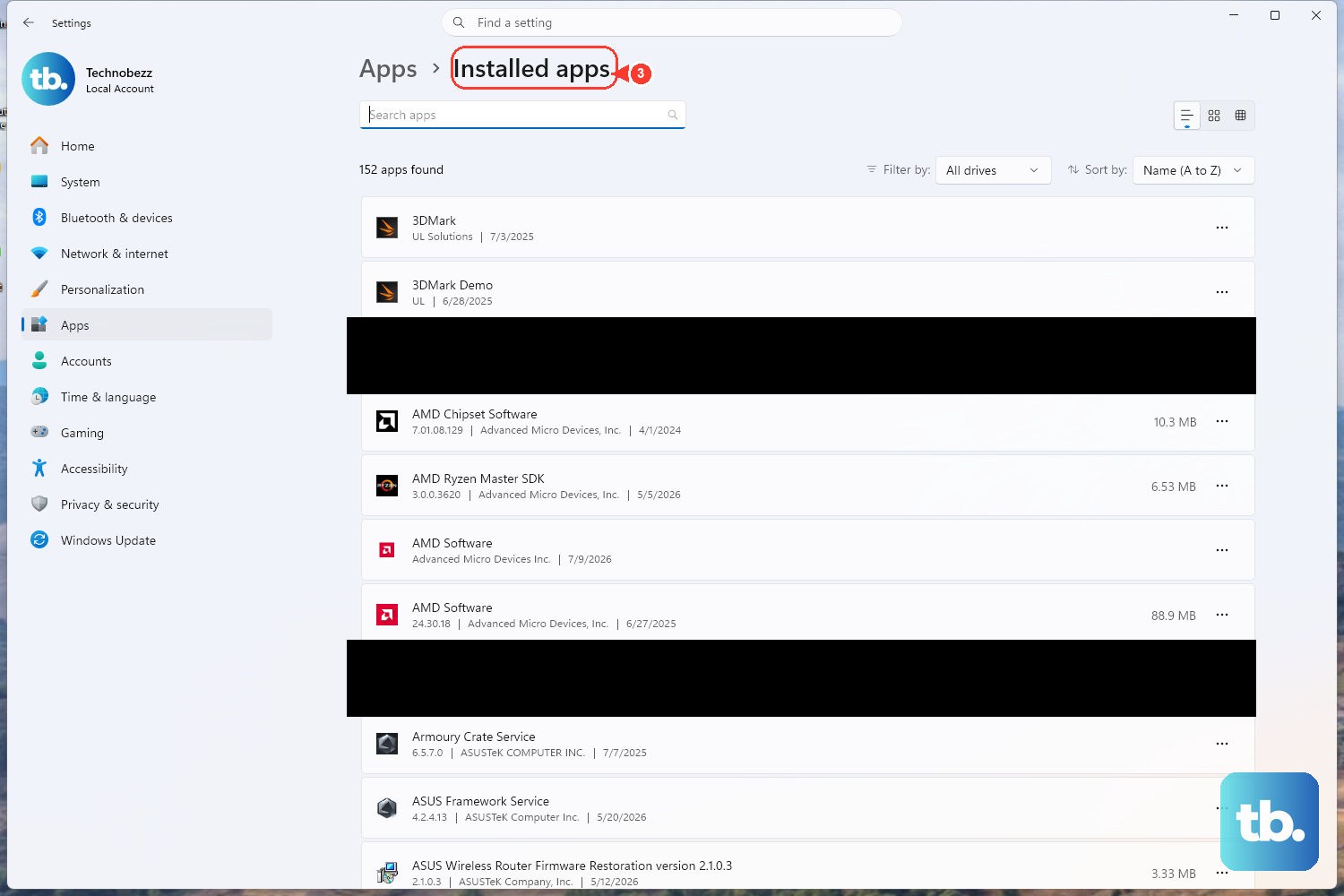
On Windows 11, open Start > Settings > Apps > Installed apps, select More next to Realtek Audio Control or Realtek Audio Console, then select Advanced options. On Windows 10, open Start > Settings > Apps > Apps & features, select the Realtek app, then select Advanced options. Select Repair. If the app still does not open, return to the same screen and select Reset.
For a full app reinstall, open Settings > Apps > Installed apps > Realtek Audio Control > More > Uninstall. Reinstall it from Microsoft Store > Library or from the Realtek Audio Control Store listing.
6. Reinstall the Realtek audio device
Type device manager in the taskbar search box.
Open Device Manager.
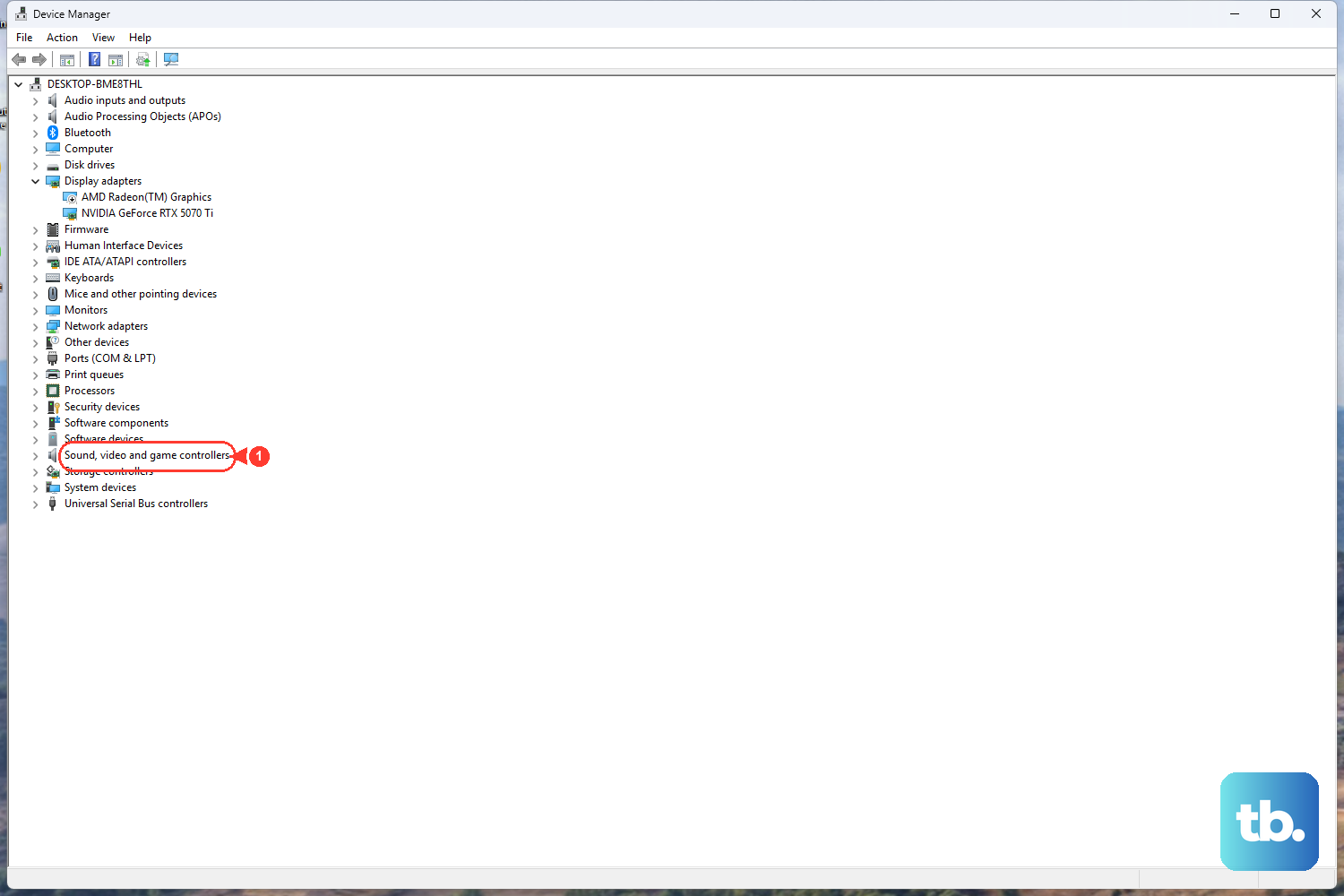
Expand Sound, video and game controllers.
Right-click the Realtek audio device or sound card listing.
Select Uninstall device.
Select Attempt to remove the driver for this device when that checkbox appears.
Choose Uninstall.
Open Start > Power > Restart.
A broken driver install can leave the Realtek app missing even when the audio device still appears in Windows. After the restart, Windows attempts to reinstall the audio driver. If Realtek Audio Control still does not appear, install the latest OEM audio package from your PC or motherboard maker.
7. Roll back the driver after a bad update
Use rollback only when the Realtek controls disappeared right after a Windows or driver update.
Search for device manager, open Device Manager, expand Sound, video and game controllers, right-click the Realtek audio device or sound card listing, then open Properties > Driver > Roll Back Driver.
Choose a reason, select Yes, and restart if Windows prompts you. Roll Back Driver appears only when Windows has a previous driver available, and the action requires administrator permission.
8. Use Windows sound settings for basic controls
Press Windows key + A, or select the network, volume, and battery area on the taskbar, then change the volume or output device.
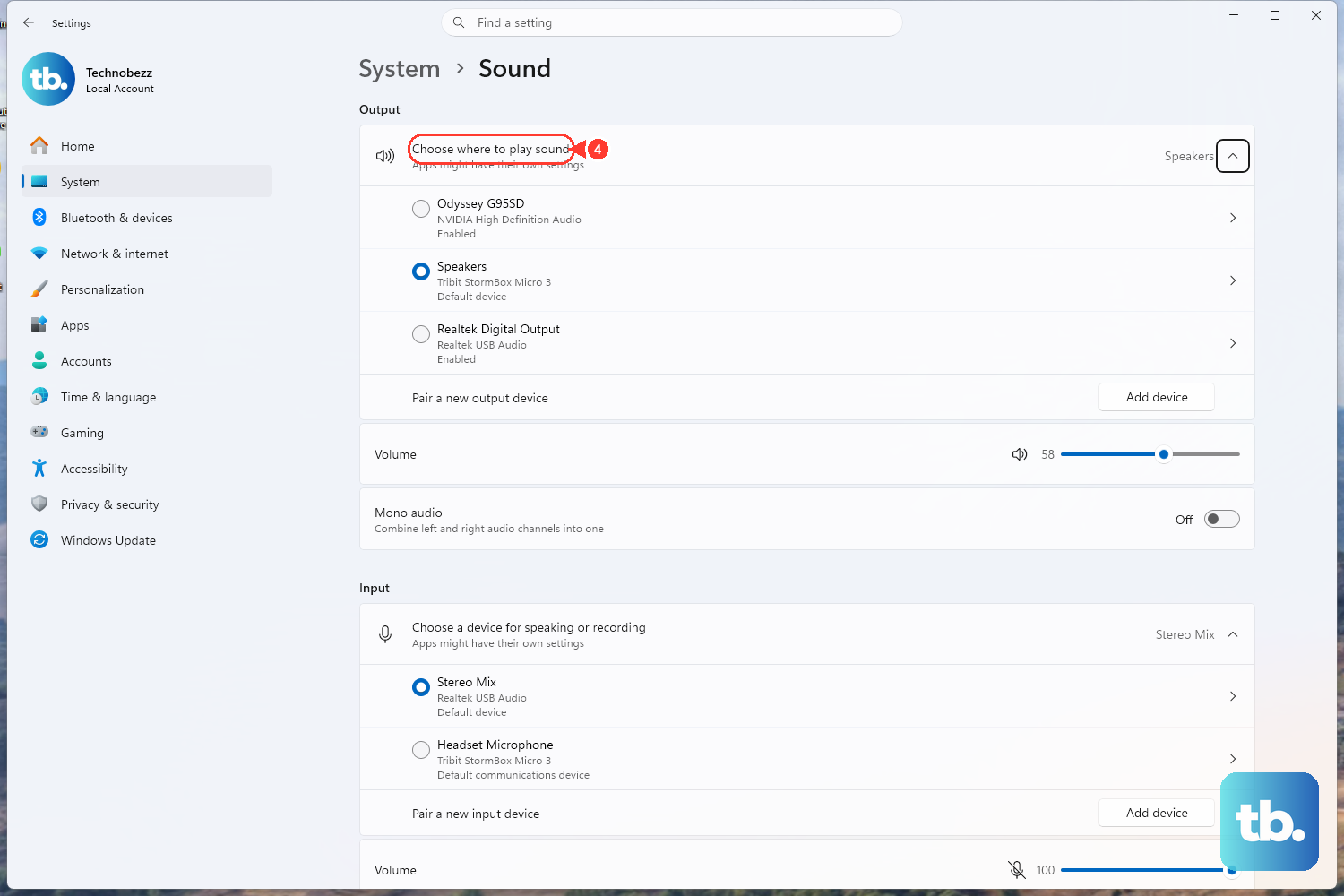
For full sound settings, open Start > Settings > System > Sound. Choose the output and input devices you want.
For the classic default playback device menu, open Control Panel > Hardware and Sound > Sound > Playback, right-click the device, choose Set as Default Device, then select OK.
You do not need Realtek Manager for everyday volume, output, input, or default-device changes. These Windows controls replace common Realtek tasks. Realtek-only features such as jack retasking and Realtek effects require the OEM Realtek driver package and companion app.
9. Skip old Realtek HD Audio Manager fixes
Do not treat the old Control Panel applet, RtkNGUI64.exe, RAVCpl64.exe, or Realtek's generic HD Audio Codec download as the current Windows 11 fix. Those belong to older Realtek HDA driver packages.
For modern OEM Windows installs, use the OEM Realtek driver package plus Realtek Audio Control from Microsoft Store.
If the PC says some settings are managed by your organization, driver delivery is controlled by work or school policy. Ask the administrator to approve the Realtek or audio driver update through the organization's Windows driver update process.
Frequently Asked Questions
Why did Realtek HD Audio Manager disappear from my PC?
The installed Realtek driver package changed, the driver install failed, or the system moved from the older HD Audio Manager app to the Microsoft Store Realtek Audio Control app.
Is Realtek Audio Control the replacement for Realtek HD Audio Manager?
On many current Windows 10 and Windows 11 PCs that use OEM Realtek UAD or DCH drivers, Realtek Audio Control is the companion app used for Realtek settings.
Can I get sound without Realtek HD Audio Manager?
Yes. Windows sound settings handle volume, output, input, and default playback device settings. Realtek-specific jack and effect controls require the OEM Realtek driver package and companion app.
Should I install the generic Realtek driver from Realtek.com?
Use the PC or motherboard maker's audio driver first. Realtek's generic downloads are general IC drivers for older Windows driver paths and do not include OEM customizations.