Your Microsoft pen has stopped writing, refuses to charge, or has lost its top-button shortcuts while the tip still works. Start with power and a quick writing test, then follow the fix for the symptom you see. These steps cover Surface Pen and Surface Slim Pen on Windows 11, with separate instructions where the hardware matters.
Check power and compatibility first
Open Surface and find your paired pen among the accessories at the bottom to check its battery level. Alternatively, press the top button on a Bluetooth-enabled Surface pen with an indicator: amber or red means low power. Classroom Pen models do not support this battery check.
For a no-clip Surface Pen, pull the top straight off and replace the AAAA battery with its positive end toward the tail. Align the flat surfaces and reconnect the halves. For Microsoft Business Pen or Classroom Pen 1 or 2, unscrew the halves, insert a fresh AAAA battery with its positive end toward the writing tip, and reassemble.
If the pen has never written on this device, check Microsoft's Surface Pen compatibility table first. Surface Laptop 8th Edition, Surface Laptop 13-inch, Surface Laptop 7th Edition, and every Surface Laptop Go edition do not support Surface Pen inking. A touchscreen, magnetic attachment, or successful Bluetooth pairing does not establish writing compatibility.
For another manufacturer's Windows PC, check its specifications for Microsoft Pen Protocol, or MPP, against Microsoft's pen protocol table. Microsoft says the MPP must match. Charging, tilt, Bluetooth, and tactile feedback have separate compatibility requirements.
If your Slim Pen will not charge
Place the pen with its button side facing outward in a compatible, powered charging location. Supported options include the Surface Pro 12-inch rear charging area, the built-in storage and charging area under the Surface Laptop Studio keyboard, and the tray of an attached Surface Pro Flex Keyboard, Surface Pro Keyboard with pen storage, or Surface Pro Signature Keyboard.
Watch for the charging light to illuminate. It turns off when charging finishes.
For the standalone Surface Slim Pen Charger, connect the cable's USB-C end to the base and its USB-A end to a power source.
Place a new pen in the base briefly, then remove it. This initial charge wakes it before first use.
Reconnect the standalone charger's cable connections if charging does not begin.
For a keyboard charging tray, plug in your Surface and turn it on.
If charging still fails, install the accessory updates below, especially if the light alternates amber and white, then try another compatible charger. If the pen charges there, request service for the original charging accessory. If it will not charge on either supported charger, request a pen replacement.
Restart Windows and test writing elsewhere
A restart addresses an inking failure; testing another app separates an app problem from a failure across Windows.
Select Start > Power > Restart.
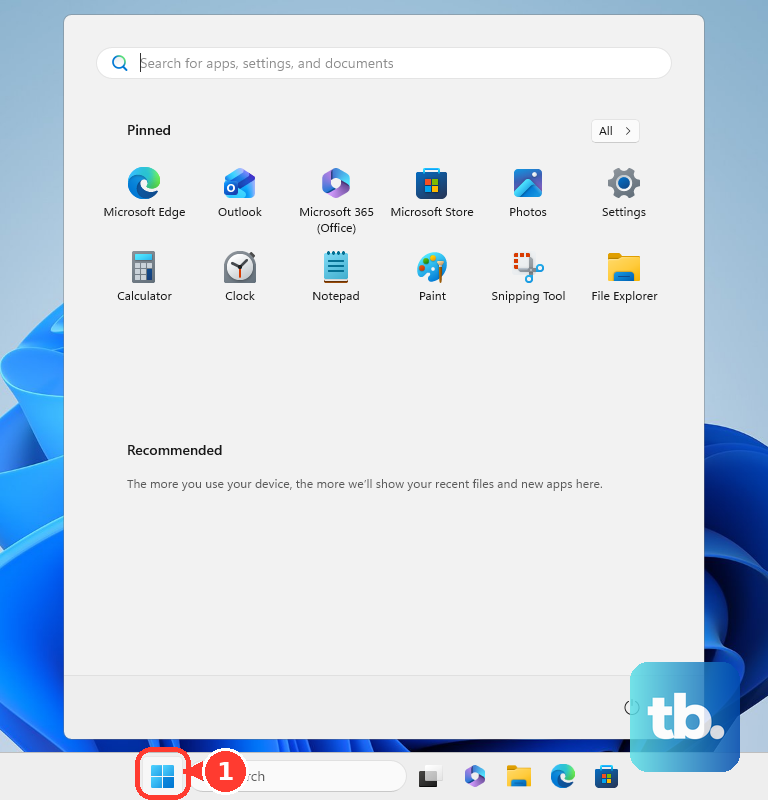
Test writing in OneNote, Sticky Notes, or Paint after Windows starts.
Try a second inking app if the first test fails.
Follow the app-specific fixes below if writing works elsewhere.
Continue with updates if the pen fails in every app.
Install Windows and Surface updates
Update your Surface and its pen accessories before moving to driver troubleshooting.
- 1.Connect the pen and charging accessories to your Surface, with the Slim Pen docked in its charger.
- 2.Plug in your Surface and charge it to at least 40%.
- 3.Open Surface > Help & support > Check for updates, or use Settings > Windows Update > Check for updates.
- 4.Install the offered updates.
- 5.Search Windows for View optional updates and install applicable Surface entries under Driver updates.
- 6.Restart when prompted, then test writing and charging again.
Reconnect Bluetooth when pairing or shortcuts fail
For a Bluetooth-enabled Surface pen, open Start > Settings > Bluetooth & devices. These steps address pairing and shortcut failures; successful pairing alone does not establish that inking works. Classroom Pen and Business Pen do not use this procedure.
Turn Bluetooth on.
Turn Airplane mode off through the taskbar's Network, Sound, or Battery area.
Remove an existing pen entry through its More options (…) menu > Remove device.
Select Add device > Bluetooth.
Hold the pen's top button for five to seven seconds until its light flashes.
Select Surface Slim Pen 2 or your pen's displayed name.
If the light flashes for only two to three seconds, remove the pen on its previously paired Surface through Start > Settings > Bluetooth & devices > the pen's More options (…) > Remove device.
Repeat the pairing procedure on the intended device.
If pairing still fails, turn Bluetooth off in Settings > Bluetooth & devices.
Wait 10 seconds.
Turn Bluetooth back on.
Try pairing again.
For a persistent connection problem, launch the troubleshooter through Settings > System > Troubleshoot > Other troubleshooters > Bluetooth > Run.
Follow the instructions in Get Help.
For a paired pen with nonworking shortcuts, open Settings > Bluetooth & devices > Pen & Windows Ink.
Under Choose what your shortcut button does, assign the supported Single-click, Double-click, or Press and hold actions.
Tip: Keep the pen close to the PC and away from unshielded USB devices connected to USB 3.0 ports while testing Bluetooth.
When the pen selects instead of drawing
Office's pen-as-selection setting makes a working pen select content instead of drawing.
Open Draw in the affected Office app.
Select a pen tool.
Check its Thickness and Color.
If Draw is missing, enable it through File > Options > Customize Ribbon.
In Word, select View > Print Layout if drawing is unavailable.
To restore automatic inking in Office apps that offer the setting, open File > Options > Advanced > Pen.
Clear Use pen to select and interact with content by default. This preference is set separately in each app.
In current OneNote for Windows, open File > Options > Advanced.
Enable Automatically switch between inking, selecting, typing, and panning.
If you still use OneNote for Windows 10, open the current OneNote app from Start or install it from Microsoft Store. Editing and syncing in OneNote for Windows 10 are no longer supported after October 14, 2025, including on Windows 11.
Sign in to current OneNote.
Check your notebooks, including unsynced content, before removing the old app.
Update a malfunctioning Store app through Microsoft Store > Check for Updates.
If the app still fails while others accept pen input, select Settings > Apps > Installed apps > the app's More menu > Advanced options > Repair.
Use the app's support options if it has no Repair control.
Preserve the app's data before using Reset if the repair fails.
Inspect the tip and touchscreen before seeking service
For jagged writing, reseat or replace the tip on a supported pen. Microsoft's replacement procedure covers the no-clip Surface Pen, single-flat-edge-button Surface Pen, and supported Slim Pen models.
Use tweezers to pull out the complete tip.
Insert the replacement's narrow end and push until seated. For reseating, reinsert the existing tip; avoid repeated unnecessary removal.
If finger touch has also stopped working, right-click Start and open Device Manager > Human Interface Devices. Disabling Surface touch also affects Surface Pen.
Right-click a disabled HID-compliant touch screen entry and select Enable device.
Repeat for additional disabled touchscreen entries.
If writing still fails, open Surface > Help & support > Get help.
Describe the problem.
Follow the guidance for detected issues.
Search Start for Surface Repair Tool and open it.
Follow its Touch, Driver Health, and Bluetooth checks.
If the tool reports that your Surface is unsupported, open Surface Diagnostic Toolkit from Start and follow its instructions.
If these checks fail, open Microsoft's pen troubleshooting page and follow Select device for service. Sign in, select your Surface or choose Register device, then select Accessory and the applicable pen issue. Also use this route if the pen shows no light after charging or replacing its battery; Microsoft's replacement offer depends on warranty, eligibility, country, and product availability.
Frequently Asked Questions
Why does my Surface Pen write but have no vibration?
Tactile feedback requires a supported Slim Pen, Surface, and Windows 11 app. Open Start > Settings > Bluetooth & devices > Pen & Windows Ink > Tactile signals. Turn it on and adjust the intensity. Surface Pro X does not support tactile signals.
How do I fix pen pressure that feels wrong?
Open Surface, select Pen, and adjust pressure sensitivity. In current OneNote, open File > Options > Advanced. Review Use pen pressure sensitivity and Smooth ink when drawing with a pen.
Should I uninstall touchscreen drivers to fix my pen?
Do not uninstall touchscreen drivers on Surface Pro X. Microsoft says restoring them requires a full system reset. Its touchscreen driver reinstallation procedure applies only to supported Surface models exposing the specified drivers, including Intel(R) Precise Touch Device and HID-compliant touch screen.
Should I reset my Surface if the pen still will not write?
Use a reset only after less disruptive inking fixes fail. Back up your data. Open Start > Settings > System > Recovery > Reset this PC > Reset PC. Select Keep my files, then choose Cloud download or Local reinstall. Personal files stay, but installed apps and changed settings are removed. Complete setup and retest the pen. Use service for a pen or charger that needs replacement.











