Your Litter-Robot won't connect to WiFi, or it's suddenly offline after working normally. Start with the quick app and network checks below, then follow the steps for your model. Pay attention to the model names: the WiFi bands, pairing lights, and reset buttons differ.
Start with the app and internet connection
Test internet access on another device connected to your home WiFi. Check your phone's internet connection too.
Search for Whisker in the App Store or Google Play Store. Tap Update if available; Open means your installed app is current. Litter-Robot 5, 5 Pro, and EVO require version 1.31.0 or newer.
If Whisker spins or times out, swipe it away completely. Reopen it and retry the connection.
If your Litter-Robot 4 is missing from the app, check that you're signed into the account that originally registered it. Let the initial synchronization finish before adding it again.
Match the WiFi band to your model
An unsupported WiFi band blocks setup before the robot can connect.
Connect your phone to a 2.4 GHz network before setting up Litter-Robot 4, standard Litter-Robot 5, or EVO. These models don't support a 5 GHz-only network.
For Litter-Robot 5 Pro, choose 5 GHz for better camera performance with a strong signal or 2.4 GHz for greater range. Both bands work, but Whisker's Android setup instructions specifically call for 2.4 GHz.
If Litter-Robot 4 won't connect through a combined-band or mesh router, temporarily disable 5 GHz in the router's app or administration interface. Router labels vary.
Alternatively, create a 2.4 GHz-only Guest Network in that interface.
Connect your phone to that network before retrying setup.
Retype the network name and password with the correct capitalization and no accidental spaces.
Use a private home network without a browser sign-in page.
Turn off your phone's VPN during setup.
Move the robot closer to the router to test signal strength.
If the home network isn't working, unplug the router for 30 seconds.
Reconnect the router's power.
Retry setup after internet access returns.
Help Whisker find and scan the robot
For Litter-Robot 4, standard 5, or EVO, enable your phone's Bluetooth.
Keep the phone within a few feet of the robot during pairing.
On a Pixel phone, open Settings > Apps > See all apps > Whisker > Permissions. Other Android phones use different labels.
Allow Nearby devices access when requested.
For requested location and camera access, choose Allow only while using the app for each permission.
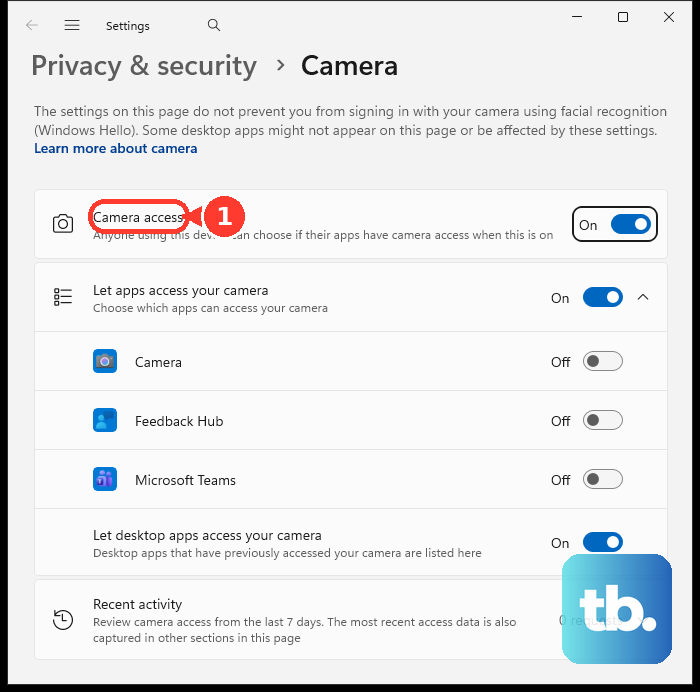
On iPhone, open Settings > Privacy & Security > Camera for scanning trouble, or Settings > Privacy & Security > Bluetooth for pairing trouble.
Enable Whisker if it appears in the corresponding list.
Retry the scanning or pairing step.
During 5 Pro setup, select While using the app when Whisker requests location access. If you previously denied it, enable location access for Whisker in your phone's settings.
Restart setup after restoring location access.
For a Litter-Robot 3 Connect or 4 QR code that won't scan, clean the phone's camera.
Improve the lighting around the code.
Try another QR code on the box or robot base.
If Bluetooth discovery still fails on a 4, standard 5, or EVO, switch Bluetooth off, then back on.
Reopen Whisker.
Restart the phone if discovery still fails.
For a persistent 3 Connect or 4 scanning failure, update the phone's operating system.
If the code still won't scan, complete setup on another compatible phone or tablet. Then sign into the same Whisker account on your original phone.
Repeat setup with the right pairing method
Follow the entry for your model: the 5 Pro reads a code from your phone, while the 4 uses your phone to scan the robot.
For Litter-Robot 4, enable phone Bluetooth.
Hold Connect for three seconds until its light flashes yellow.
In Whisker, tap Add Device.
Select Litter-Robot 4.
Tap Ready to Scan.
Scan the robot's QR code.
Name it.
Enter your home WiFi credentials.
For Litter-Robot 5, tap Add a Device in Whisker.
Hold Connect for three seconds until blue flashes.
Select your 2.4 GHz network.
Retype its password.
Keep Whisker open until setup finishes.
For Litter-Robot 5 Pro, open Add a Device > Litter-Robot 5 Pro.
Enter your network credentials.
Hold Connect for three to five seconds until blue flashes.
Set phone brightness to at least 40%.
Show the app's QR code to the robot's camera from about six inches away.
Keep Whisker open until both indicators turn white.
For Litter-Robot EVO, enable Bluetooth.
Connect your phone to 2.4 GHz WiFi.
Open Add a Device > Litter-Robot EVO.
Press Connect when prompted.
Enter the network credentials.
Keep Whisker open until the indicator turns white.
Update the connection after a router or password change
Your robot needs new credentials when your network name or password changes. Check the model carefully here: the standard 5 and 5 Pro use different procedures.
For Litter-Robot 4 or an existing 3 Connect, open Whisker and select your robot.
Open the Settings gear, then Update Network.
Complete the connection prompts.
For standard Litter-Robot 5 or EVO, select your robot in Whisker.
Open Device Settings > Update Network.
Select your 2.4 GHz network.
Manually enter its password.
If a standard 5 went offline during an outage and the credentials haven't changed, briefly press Connect to view its status.
Allow it to reconnect automatically to the saved network.
Once connected, test app communication through Controls > Cycle.
For 5 Pro after a network change, select your robot in Whisker.
Open Settings > Delete Robot > Yes.
Complete the 5 Pro factory reset below before repeating its camera-based setup.
Restore the robot's WiFi and restart it
This restores disabled WiFi on Litter-Robot 4 and restarts a stalled connection or 5 Pro QR scan.
On Litter-Robot 4, briefly press Connect if the light beside it is solid white. Blinking blue means connecting; solid blue means connected.
To restart WiFi on a previously connected Litter-Robot 4, press Connect for one second to turn WiFi off. Holding it until yellow flashes enters setup and forgets the saved network.
Wait 30 seconds.
Press Connect for one second again.
Wait for solid blue.
If the Litter-Robot 4 stays offline, close Whisker.
Disconnect the robot's power.
Disconnect its backup battery if one is installed.
Leave it without power for 15 seconds.
Restore power.
Let startup finish until the blue Ready indication appears.
Reopen Whisker to check the connection.
For a 5 Pro that cannot read the phone's setup QR code, turn the robot off.
Disconnect power at the base for 15 seconds.
Reconnect power.
Wait up to 60 seconds.
Retry scanning.
Use hardware resets after the connection checks
Follow your model's instructions, trying its hard reset before moving to a factory reset.
- 1.Unlock unresponsive controls: On Litter-Robot 4, long-press Cycle and Reset together to disable control-panel lockout. On 5, 5 Pro, or EVO, hold Power for three seconds with the robot powered on.
- 2.Hard-reset Litter-Robot 4: With power on, hold Reset and Connect together for three seconds. Release, allow about 15 seconds for reboot, and retry setup.
- 3.Hard-reset Litter-Robot 5, 5 Pro, or EVO: With power on, hold Power for six seconds. On standard 5, release and wait 90 seconds. On 5 Pro, Whisker documents two waits: 90 seconds when you are working through a WiFi credential or network error, and 60 seconds for an onboarding timeout, a unit that did not reboot, or a plain hard reset. On EVO, wait for reboot. Retry setup.
- 4.Factory-reset Litter-Robot 4: With power on, hold Reset and Empty together for three seconds. Let it reboot, then repeat setup.
- 5.Factory-reset Litter-Robot 5, 5 Pro, or EVO: With power on, hold Cycle and Cancel together for three seconds. Complete any LCD confirmation prompts. Wait for completion before setting it up again. For the 5 Pro network-change procedure, wait two to three minutes until its camera indicator flashes blue.
Tackle persistent errors and hardware faults
If Litter-Robot 4 keeps reconnecting, check your router's device-approval controls in its administration interface.
Authorize the robot to access the internet if approval is required.
For continued Litter-Robot 4 connection trouble, follow your router manufacturer's instructions to disable MiMo and/or QOS, as Whisker recommends.
Check that firewall rules permit the robot's HTTPS access through ports 443 and 8443. This is access to Whisker's cloud services; Whisker does not specify inbound port forwarding for this fix.
A Litter-Robot 4 blue light bar with a white-flashing WiFi indicator identifies a defective WiFi chip. Contact Whisker to arrange the prescribed base replacement.
For a 5 Pro displaying WiFi Chip Fault, disconnect power at the base without pressing Power.
Wait 15 seconds.
Reconnect power.
Wait 60 seconds.
Hold Cancel and Connect for three seconds to inspect the firmware.
If IoT firmware reads 0.0.0 or 0.0.0-0, repeat that power-disconnection procedure.
Once a valid firmware version appears, retry setup.
During this specific 5 Pro fault recovery, a solid-white camera indicator means setup succeeded even if Whisker reports an onboarding error. Restart Whisker.
Allow 15–30 minutes for the firmware update before interacting with the robot.
If the error instead says Serial Number Currently In Use, sign in with the email that originally registered the robot.
Check whether another household member registered it if that account doesn't resolve the conflict.
If these fixes fail, contact Whisker by phone or live chat. For a 5 or 5 Pro WiFi-chip fault, supply the base serial number and firmware displayed by holding Cancel and Connect for three seconds. For an unresolved registration conflict, submit a support request with a serial-number photo.
Frequently Asked Questions
Can I install a firmware update while my Litter-Robot is offline?
Litter-Robot 4 needs a working WiFi connection before you can update it. Once connected, select your robot in Whisker and open Settings > Firmware Information > Update. Allow up to 15 minutes. Connected 5, 5 Pro, and EVO models update automatically; leave them powered and idle while updating. A 5 Pro update can take 30 minutes and temporarily make the app unresponsive.
Do I need to disable IPv6 on my router?
Litter-Robot 4 and 5 Pro support both IPv4 and IPv6. You don't need to disable IPv6 to connect these models.
What does Whisker need to transfer a used robot to my account?
Submit a support request with a serial-number photo, a front photo of the robot, and purchase or gift confirmation so Whisker can resolve the ownership transfer.
How do I reinstall Whisker if my robot stays missing from the app?
Whisker support recommends reinstallation for missing robots and app malfunctions on existing Litter-Robot 3 Connect and 4 installations. On iPhone, touch and hold Whisker, then select Remove App > Delete App > Delete. On Android, open Google Play Store, tap your profile icon, and open Manage apps & devices > Manage. Select Whisker and tap Uninstall. Reinstall from the official store listing, then sign into the account that originally registered the robot.











